Best External Hard Drives for Backup and Archiving
Backing up your data to an external hard drive is still one of the smartest things you can do, even in 2026. Cloud storage has its place, but nothing beats the speed and simplicity of plugging in a desktop external HDD, running a backup, and knowing your files are right there on your desk. And when it comes to archiving large collections of photos, videos, or project files, the cost per terabyte on spinning drives is still unmatched.
I’ve tested and tracked reliability data on desktop external hard drives for years. This roundup covers the best options for backup and archiving, with a focus on what actually matters: long-term reliability, cost efficiency per terabyte, and build quality. If you’re weighing whether to go local or cloud, our cost comparison of cloud backup vs. local NAS breaks down the numbers in detail.
What to Look for in a Backup and Archiving Drive
Before we get into specific models, here are the factors that matter most when you’re buying a desktop external HDD for backup or archiving purposes.
Reliability above all. A backup drive that fails defeats the entire purpose. Look for drives with good track records from Backblaze reliability reports and user reviews over time. Avoid first-generation models or drives with known firmware issues.
Cost per terabyte. For backup and archiving, you want maximum storage for your dollar. Larger capacity drives (8TB, 12TB, 16TB, and beyond) typically offer the best value per terabyte. Always compare the per-TB cost rather than the sticker price.
USB interface. USB 3.0 (USB 3.2 Gen 1) is the standard for desktop externals, and it’s plenty fast for backup tasks. You’ll get sequential transfer speeds around 150 to 200 MB/s, which is essentially the ceiling for a spinning hard drive anyway. USB-C connections are increasingly common, but the speed difference for HDDs is negligible.
Included software. Some drives ship with backup software. WD includes Acronis True Image (WD Edition), and Seagate bundles its Toolkit software. These are nice extras, but honestly, Windows Backup, Time Machine on Mac, or free tools like Veeam Agent work just as well.
Best Desktop External Hard Drives for Backup
WD My Book (Up to 22TB)
The WD My Book has been a staple in the desktop external drive category for over a decade, and for good reason. Current models use WD’s own CMR (Conventional Magnetic Recording) drives in capacities up to 22TB, which is excellent news for archiving. CMR drives are generally more reliable for write-heavy workloads compared to SMR alternatives.
The My Book includes 256-bit AES hardware encryption with password protection, which is a genuine security feature and not just marketing fluff. The enclosure is understated, runs reasonably cool, and the drive inside is typically a WD Red or WD White label, both known for solid reliability. If you’re a Mac user, check out our guide to the best external hard drives for Mac for formatting and compatibility tips.

WD My Book 12TB Desktop External Hard Drive
The sweet spot for most users, offering excellent cost per TB with WD’s proven reliability and hardware encryption.
Seagate Expansion Desktop (Up to 24TB)
The Seagate Expansion Desktop is the no-frills workhorse of the external drive world. It skips the hardware encryption and fancy software, which keeps the price competitive. Inside, you’ll typically find a Seagate Barracuda or Exos-class drive depending on the capacity.
Seagate offers capacities up to 24TB in the Expansion line, making it one of the highest-capacity single-drive desktop externals you can buy. For pure archiving where you need maximum space, the larger Expansion models are hard to beat on a per-terabyte basis. The enclosure is simple black plastic with a single USB 3.0 Micro-B connector, and it gets the job done without any fuss.
One thing to watch: some lower-capacity Seagate Expansion models (particularly 4TB and under) may use SMR drives, which can slow down significantly during large sustained writes. For backup purposes this is usually fine, but for active use, you’ll notice the difference. If your drive ever acts up during transfers, we’ve got a troubleshooting guide for external drives that keep disconnecting.
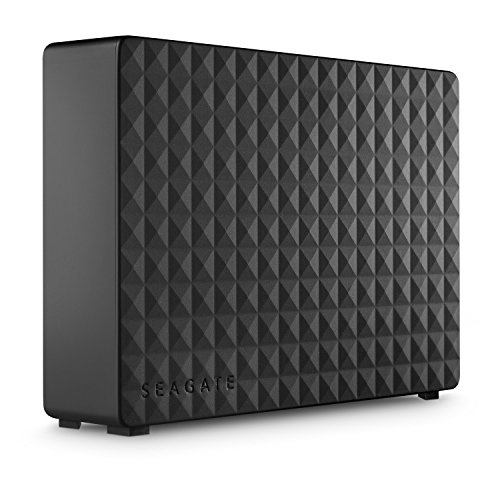
Seagate Expansion 16TB Desktop External Hard Drive
Best for high-capacity archiving on a budget, with capacities up to 24TB in a simple, reliable package.
WD Elements Desktop (Up to 22TB)
Think of the WD Elements Desktop as the My Book’s more affordable sibling. It drops the hardware encryption and the fancier enclosure design but uses essentially the same internal drives. For many buyers, this is the smarter pick since you’re paying less for the same core storage hardware.
The Elements Desktop comes pre-formatted for Windows (NTFS), but you can reformat it for Mac or Linux in minutes. If you’re already familiar with the best uses for WD Elements drives, you know these are versatile, dependable units that show up and do the job.
Toshiba Canvio Desktop (Up to 18TB)
Toshiba doesn’t get as much attention as WD and Seagate, but the Toshiba Canvio Desktop line deserves a spot in this roundup. Toshiba manufactures its own drives (the enterprise-grade MG series and consumer-grade N300 drives are well-regarded), and the Canvio Desktop enclosures are compact and quiet.
Capacities max out at 18TB currently, and availability can be spottier than WD or Seagate depending on your region. But if you find one at a competitive per-TB price, it’s a solid choice. Toshiba drives have historically performed well in third-party reliability testing.
How to Choose the Right Capacity
For most home users doing general backup of a single computer, 4TB to 8TB is more than enough. A good rule of thumb is to get a backup drive that’s at least twice the size of the data you’re protecting. This gives you room for versioning and growth.
For archiving large media libraries (raw photos, 4K video, music production projects), start at 12TB and go up from there. The per-terabyte cost drops significantly as you move into the 12TB to 18TB range, which is the current sweet spot for value.
If you’re considering upgrading to a multi-drive setup eventually, these desktop externals can also serve as an interim solution before building out a budget home NAS. Many people “shuck” the internal drives from WD and Seagate enclosures to use in NAS boxes, which is a popular and well-documented approach.

WD Elements Desktop 8TB External Hard Drive
The best value pick for most home users who need reliable backup without hardware encryption.
Tips for Maximizing Drive Longevity
External hard drives are mechanical devices, and how you treat them matters. Keep your backup drive on a stable surface away from the edge of your desk. Vibration and drops are the number one killers of spinning drives.
Always use the “Safely Remove Hardware” option before unplugging. Yanking the USB cable during a write operation can corrupt data or damage the file system. If you ever hear clicking sounds from your drive, stop using it immediately and refer to our guide on what hard drive clicking sounds mean.
Don’t leave your backup drive powered on 24/7 unless you’re using it for continuous backup. Desktop externals are designed to be powered on for use and powered off between sessions. Running them continuously without proper airflow can shorten their lifespan. For always-on storage, a NAS with drives rated for continuous operation is the better approach.
Finally, remember the 3-2-1 backup rule: three copies of your data, on two different types of media, with one stored off-site. An external desktop HDD covers one leg of that strategy beautifully.
Frequently Asked Questions
How long do external hard drives last for archiving?
Most quality desktop external hard drives will last 3 to 5 years with regular use, and often much longer if they’re only powered on occasionally for archiving. The drives inside WD My Book and Seagate Expansion units are rated for hundreds of thousands of load/unload cycles. For truly long-term archiving (10+ years), it’s wise to refresh your archive onto a new drive every 5 years or so, and always maintain at least two copies.
Should I use an SSD or HDD for backup?
For large-capacity backup and archiving, HDDs remain the better choice because of their dramatically lower cost per terabyte. SSDs excel at speed and portability, but when you need 8TB or more of backup storage, an external HDD will cost a fraction of what an equivalent SSD would. If you want a deeper comparison, our SSD vs. HDD guide covers the full tradeoffs. For travel and smaller-capacity needs, a portable SSD is the way to go.
Can I use a desktop external hard drive with both Mac and Windows?
Yes, but you’ll likely need to reformat it. Most desktop externals ship formatted as NTFS (Windows) or sometimes exFAT. For cross-platform use, format the drive as exFAT, which both macOS and Windows can read and write natively. If you only use Mac, formatting as APFS or HFS+ is the better option for Time Machine compatibility. Just be aware that reformatting erases all data on the drive, so do it before you start copying files over.
This article contains affiliate links. We may earn a small commission at no extra cost to you.

James Kennedy is a writer and product researcher at Drives Hero with a background in IT administration and consulting. He has hands-on experience with storage, networking, and system performance, and regularly improves and optimizes his home networking setup.