How Long Do Hard Drives Really Last? Failure Rates and Longevity Tips
Every hard drive will die. That’s not pessimism; it’s physics. Spinning platters, moving read/write heads, and tiny motors all have a finite lifespan. The real question isn’t if your hard drive will fail, but when, and whether you’ll see it coming in time to save your data.
I’ve spent years tracking reliability data, and the numbers tell a fascinating story. Some drives last a decade or more. Others barely survive their warranty period. Understanding failure rates, recognizing warning signs, and following a few smart habits can mean the difference between a minor inconvenience and a catastrophic data loss event.
What the Data Actually Says: Backblaze Failure Rates
Backblaze, the cloud storage company, operates over 250,000 hard drives in their data centers and publishes detailed failure statistics every quarter. Their data is the closest thing we have to a large-scale, real-world reliability study, and it’s incredibly useful for consumers trying to pick reliable drives.
According to their 2024 annual report, the overall annualized failure rate (AFR) across all drives was approximately 1.7%. That means roughly 1 to 2 out of every 100 drives failed in a given year. But averages hide a lot of variation. Some drive models posted AFRs below 0.5%, while others exceeded 4% or more.
A few key takeaways from years of Backblaze data:
- The “bathtub curve” is real. Drives fail most often in their first year (infant mortality) and after year five (wear-out). The middle years tend to be the most reliable.
- Brand matters less than model. Seagate, Western Digital, and Toshiba all have models that perform brilliantly and models that don’t. Picking a brand alone isn’t a strategy.
- Larger capacity drives aren’t inherently less reliable. Many high-capacity drives (12TB, 16TB, and up) have posted excellent failure rates in Backblaze’s fleet.
- Enterprise drives aren’t always worth the premium. Some consumer NAS drives, like the Seagate IronWolf and WD Red Plus, have shown reliability comparable to their enterprise counterparts in many use cases.
In general, you can expect a well-treated hard drive to last 3 to 5 years with high confidence. Many last much longer, but planning for replacement around the five-year mark is a smart policy. If you’re weighing whether to stick with spinning disks at all, our SSD vs HDD comparison breaks down when each type makes sense.

WD Red Plus 4TB NAS Hard Drive
Consistently low failure rates in Backblaze data, designed for always-on NAS environments
SMART Monitoring: Your Early Warning System
Every modern hard drive has a built-in health reporting system called SMART (Self-Monitoring, Analysis, and Reporting Technology). It tracks dozens of internal metrics, from temperature to read error rates to reallocated sectors. Learning to read SMART data is one of the most practical things you can do to protect your files.
You don’t need to be an engineer to check SMART status. Free tools like CrystalDiskInfo (Windows), Disk Utility (Mac), and smartmontools (Linux) will read and display your drive’s health in seconds. Most NAS devices, including Synology and QNAP units, also run periodic SMART checks automatically.
The SMART Attributes That Actually Matter
Not all SMART values are equally important. Backblaze’s own analysis found that five attributes are the strongest predictors of imminent failure:
- Reallocated Sector Count (ID 5): When the drive finds a bad sector, it swaps it with a spare. A rising count here means the platters are degrading.
- Current Pending Sector Count (ID 197): Sectors the drive suspects are bad but hasn’t confirmed yet. If this number climbs, trouble is brewing.
- Uncorrectable Sector Count (ID 198): Sectors that couldn’t be read or written successfully. Any non-zero value is a red flag.
- Reported Uncorrectable Errors (ID 187): Errors the drive couldn’t fix internally. A sudden spike here should trigger an immediate backup.
- Command Timeout (ID 188): Operations that took too long and timed out. Occasional timeouts happen, but frequent ones suggest mechanical trouble.
Set up a monthly reminder to check SMART data, or better yet, use software that monitors continuously and alerts you when values start trending badly. If you’re running a home NAS, our NAS setup guide for beginners walks through enabling these alerts during initial configuration.
Warning Signs Your Hard Drive Is About to Fail
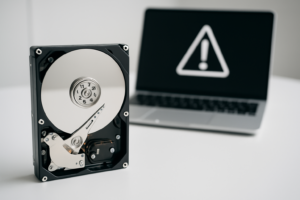
SMART data is great, but your own senses can catch problems too. Pay attention to these red flags:
- Unusual noises. Clicking, grinding, or repetitive ticking sounds almost always indicate a mechanical problem with the read/write heads or motor. If you’re hearing these, check out our detailed guide on what hard drive clicking sounds mean and what to do about them.
- Slowing performance. If file transfers or boot times suddenly get much worse, the drive may be struggling to read sectors and retrying repeatedly.
- Frequent file corruption. Documents that won’t open, photos that display with artifacts, or files that randomly disappear suggest the drive is losing data.
- Disappearing from your system. A drive that intermittently vanishes from File Explorer or Disk Utility is often on its last legs. Sometimes this is a cable or connection issue (and we cover those fixes in our external drive not showing up troubleshooting guide), but if the cable checks out fine, the drive itself is likely failing.
- BIOS or OS errors during boot. Messages like “No boot device found” or “SMART status bad” are about as direct a warning as you’ll ever get.
When you notice any of these symptoms, your first move should always be the same: back up everything immediately. Don’t run diagnostics, don’t defragment, don’t do anything that puts additional stress on the drive until your data is safe somewhere else.
7 Tips to Extend Your Hard Drive’s Lifespan
You can’t prevent failure entirely, but you can push it further into the future with smart habits.
1. Keep temperatures in check. Hard drives perform best between 25°C and 40°C (77°F to 104°F). Backblaze’s data consistently shows higher failure rates in drives running hot. Make sure your case has adequate airflow, and avoid stacking bare drives directly against each other.
2. Minimize vibration. Vibration is a silent killer for spinning drives. Use rubber mounting grommets in desktop builds, and don’t place external drives on surfaces that vibrate (like directly on top of a subwoofer). If you’re building a NAS with multiple drives, this matters even more, since one spinning drive’s vibration affects its neighbors. Our guide to building a budget home NAS covers proper drive mounting.
3. Use a UPS (uninterruptible power supply). Power surges and sudden shutdowns are brutal on hard drives. The read/write heads can crash into the platters during an unclean shutdown, causing physical damage. A basic UPS from APC or CyberPower protects against this and is one of the best investments you can make for any system with spinning storage.

APC Back-UPS 900VA Battery Backup
Essential protection against power surges and sudden shutdowns that can physically damage hard drives
4. Don’t move the drive while it’s running. This applies mainly to external drives. Bumping or tilting a spinning drive while it’s active can cause head crashes. Always safely eject and wait for the platters to spin down before moving it.
5. Avoid unnecessary power cycles. Constantly turning a drive on and off creates thermal stress and mechanical wear from spin-up. It’s generally better to let a NAS or desktop drive run continuously than to power cycle it multiple times a day. Sleep mode is a reasonable middle ground.
6. Keep firmware updated. Drive manufacturers occasionally release firmware updates that fix bugs affecting reliability. Check your manufacturer’s support page once or twice a year.
7. Follow the 3-2-1 backup rule. Three copies of your data, on two different media types, with one copy offsite. No amount of drive care replaces a solid backup strategy. If you’re deciding between cloud and local backup options, our cloud backup vs local NAS cost comparison can help you figure out the right balance.
When to Replace a Hard Drive (Before It’s Too Late)
Don’t wait for a complete failure. Proactive replacement saves you from the stress, cost, and potential data loss of an emergency recovery. Here’s a simple decision framework:
- Under 3 years old with clean SMART data: You’re in the sweet spot. Keep monitoring and backing up normally.
- 3 to 5 years old with clean SMART data: Still fine, but start planning a replacement. Budget for a new drive and make sure your backups are airtight.
- Over 5 years old: Replace it proactively, even if SMART looks fine. The failure probability climbs steeply from here. Clone the drive to its replacement using a tool like Macrium Reflect or Clonezilla before anything goes wrong.
- Any age with degrading SMART values: Replace immediately. Don’t gamble. Copy your data to a backup drive right now, then swap the failing drive out.

Seagate IronWolf 8TB NAS Hard Drive
Excellent long-term reliability in Backblaze’s data, with built-in vibration sensors for multi-drive setups
If you’re replacing an old drive and want to sell or recycle it, make sure to James Kennedy is a writer and product researcher at Drives Hero with a background in IT administration and consulting. He has hands-on experience with storage, networking, and system performance, and regularly improves and optimizes his home networking setup.