Synology vs QNAP: Which NAS Brand Is Better?
Choosing a NAS (Network Attached Storage) device usually comes down to two names: Synology and QNAP. They dominate the consumer and small business NAS market, and both make genuinely good products. But they’re not interchangeable. The software philosophies, hardware strategies, and target audiences differ more than most people realize before buying.
I’ve spent years working with both platforms, and I have opinions. This comparison breaks down what actually matters so you can pick the right brand for your specific needs, not just the one with better marketing.
Software Ecosystem: Where the Real Difference Lives
If you only compare one thing between these two brands, make it the software. The hardware inside NAS units from both companies often uses similar components. The software is where Synology and QNAP diverge sharply.
Synology DSM (DiskStation Manager)
Synology’s DSM operating system is the gold standard for NAS software, and I don’t say that lightly. The interface is clean, intuitive, and feels like using a desktop operating system right in your browser. Everything from setting up shared folders to configuring backups follows a logical flow that doesn’t require you to read documentation first.
DSM’s first-party apps are polished. Synology Drive (their cloud sync solution), Synology Photos, and Hyper Backup all work reliably out of the box. If you’ve been weighing cloud backup against local NAS storage, Synology makes the local option genuinely pleasant to manage. The Active Backup suite is a standout feature, offering free backup solutions for PCs, servers, and even Microsoft 365/Google Workspace accounts without additional licensing fees.
QNAP QTS
QNAP’s QTS operating system is capable and feature-rich, but it feels busier. The interface packs in more options, which power users appreciate but newcomers can find overwhelming. QNAP tends to expose more settings and toggles by default, giving you granular control at the cost of simplicity.
Where QTS shines is flexibility. QNAP offers more third-party app support, better Docker/container integration on a wider range of models, and more aggressive hardware options. Their app center includes tools like the QNAP HDMI output apps (for directly connecting a monitor), which Synology doesn’t support at all on most models.
Hardware and Value
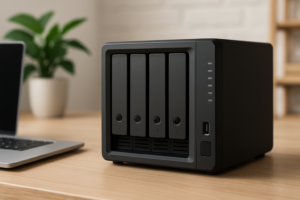
QNAP consistently offers more hardware for the money. At similar price points, you’ll often find QNAP units with faster processors, more RAM, additional NVMe slots, 2.5GbE networking, and HDMI output. The QNAP TS-464, for example, packs an Intel Celeron N5095, 8GB RAM (expandable), two M.2 NVMe slots, and dual 2.5GbE ports. It’s a lot of hardware in a 4-bay unit.

QNAP TS-464 4-Bay NAS
Excellent hardware value with Intel Celeron, dual 2.5GbE, and NVMe caching for power users
Synology takes a different approach. Their hardware specs tend to be more conservative at comparable price points. The Synology DS923+ is a fantastic 4-bay NAS, but it ships with an AMD Ryzen R1600 and 4GB RAM. You’ll notice QNAP gives you more raw specs per dollar in almost every product tier.
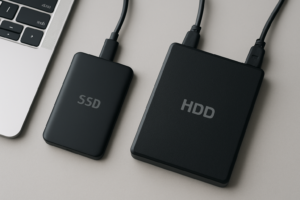
However, Synology’s argument is that their software optimization makes those specs go further. And honestly, there’s truth to that. DSM runs smoothly on modest hardware because Synology controls the entire stack. If you’re choosing drives for either platform, understanding the differences between SSDs and HDDs will help you configure the right storage setup.

Synology DS923+ 4-Bay NAS
Best-in-class software experience with reliable AMD Ryzen platform for home and small business users
Ease of Use and Setup
Synology wins this category convincingly. From unboxing to a fully functional NAS, Synology’s setup wizard guides you through everything: creating a storage pool, choosing your RAID configuration, setting up user accounts, and enabling remote access. A complete beginner can have a working NAS in under 30 minutes.
If you’re brand new to NAS devices, our NAS setup guide for beginners walks through the general process, but Synology’s built-in wizard honestly does most of the heavy lifting for you.
QNAP’s setup is also guided, but the sheer number of options presented during and after initial configuration can trip up first-timers. QNAP also has a history of more frequent security vulnerabilities (including some high-profile ransomware incidents targeting QTS), which means you need to be more proactive about updates, firewall rules, and disabling unnecessary services. Synology isn’t immune to security issues, but their track record has been notably cleaner.
App Support and Expandability
Both platforms offer extensive app ecosystems, but they cater to different priorities.
Synology excels at:
- First-party backup solutions (Active Backup for Business is genuinely enterprise-grade, included free)
- Surveillance Station (up to 2 free camera licenses, best-in-class NAS surveillance software)
- Synology Photos (a very capable Google Photos replacement)
- Synology Drive (Dropbox-like sync and sharing)
QNAP excels at:
- Virtualization (full VM support via Virtualization Station on more models)
- Docker/container support across a broader hardware range
- HDMI output and direct media playback
- Hardware expandability (PCIe slots, USB ports, and expansion units)
- QuMagie (AI-powered photo management, similar to Synology Photos)
For running containers and self-hosted applications, QNAP’s hardware advantage matters. More RAM and faster processors mean you can run Plex, Home Assistant, Pi-hole, and other services simultaneously without hitting resource limits as quickly. Once your NAS is configured, setting up automated backups should be your first priority on either platform.
Which Brand Should You Choose?
After years of using both, here’s my honest breakdown by user type:
Choose Synology if you:
- Want the smoothest, most polished user experience
- Prioritize backup and file syncing features
- Are new to NAS devices and want minimal friction
- Need strong security out of the box
- Run a small business and want enterprise backup features without extra licensing
Choose QNAP if you:
- Want the best hardware specs for your budget
- Plan to run VMs, Docker containers, or Plex transcoding
- Need HDMI output for direct media playback
- Are comfortable with a steeper learning curve
- Want PCIe expandability (10GbE cards, additional NVMe storage)
For most home users and small businesses, I recommend Synology. The software experience is simply better for the majority of common NAS use cases: file storage, photo backup, PC/Mac backups, and remote access. You’re paying a slight premium on hardware specs, but you’re getting software that just works and a more secure platform.
For tinkerers, home lab enthusiasts, and anyone who plans to push their NAS beyond basic storage, QNAP offers better value. The extra hardware headroom and expandability options give you room to grow into more advanced projects.
For a first NAS on a tight budget, the Synology DS224+ is a 2-bay unit that handles most home needs beautifully. If you’re looking at something more ambitious, check out our guide to building a budget home NAS for a DIY alternative to both brands.

Synology DS224+ 2-Bay NAS
The best entry-level NAS for most home users who want reliability and simplicity
Frequently Asked Questions
Can I switch from QNAP to Synology (or vice versa) without losing data?
You can’t simply move drives from one brand to the other and keep your RAID array intact. Both use different file system configurations. You’ll need to back up your data to an external drive or another location, set up the new NAS from scratch, then transfer everything over. Make sure you securely wipe your old drives if you plan to sell or repurpose the previous unit.
Is QNAP really less secure than Synology?
QNAP has faced more publicized security incidents, including the Deadbolt and QLocker ransomware attacks that specifically targeted QTS vulnerabilities. Synology hasn’t been immune to threats, but their response times and overall security posture have been stronger. On either platform, you should disable default admin accounts, enable two-factor authentication, and avoid exposing your NAS directly to the internet without a VPN.
Do I need to buy specific hard drives for Synology or QNAP NAS units?
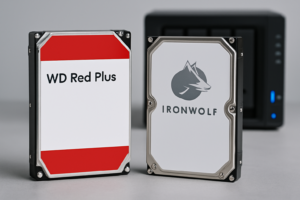
Both brands publish compatibility lists, but in practice, most standard NAS drives work fine in either. WD Red Plus, Seagate IronWolf, and Toshiba N300 are all popular and reliable choices. Synology has started pushing their own branded HAT5300 drives, but they aren’t required. Check each manufacturer’s compatibility page before buying, especially for NVMe cache drives.
This article contains affiliate links. We may earn a small commission at no extra cost to you.

James Kennedy is a writer and product researcher at Drives Hero with a background in IT administration and consulting. He has hands-on experience with storage, networking, and system performance, and regularly improves and optimizes his home networking setup.