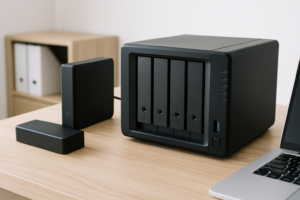
NAS vs External Hard Drive: Which Is Better for Backup?
You’ve got files you can’t afford to lose, and you know you need a backup. But when you’re deciding between a NAS (Network Attached Storage) and a simple external hard drive, the choice isn’t always obvious. Both protect your data, but they do it in very different ways, for very different types of users.
I’ll break down the four factors that actually matter: cost, accessibility, redundancy, and ease of use. Then I’ll tell you which one I’d pick based on your situation.
Cost: External Drives Win on Upfront Price
A basic external hard drive like the WD Elements 4TB or a Seagate Portable 2TB is one of the most affordable ways to back up your computer. You plug it in, copy your files, and you’re done.
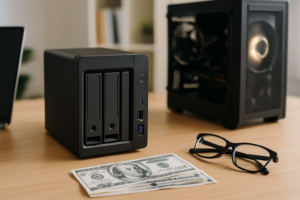
A NAS, on the other hand, requires buying the enclosure and the drives separately. A two-bay unit like the Synology DS224+ plus two NAS-rated hard drives adds up quickly. If you’re curious how NAS costs stack up against cloud subscriptions over time, our cloud backup vs. local NAS cost comparison digs into the long-term math.
For a single person backing up one computer, the external drive is the budget-friendly pick. But if you have three, four, or five devices in your household, that per-device cost of a NAS starts looking a lot more reasonable.

Synology DS224+ NAS Enclosure
Best two-bay NAS for home users who want reliable multi-device backup with an intuitive interface
Accessibility: NAS Gives You Network-Wide (and Remote) Access
An external drive only works when it’s physically connected to your computer. That’s fine if you always back up at the same desk. But if you have a laptop, a desktop, a tablet, and a phone, you can see how plugging in a USB drive to each one becomes tedious.
A NAS sits on your home network and is accessible from every device in your house simultaneously. Most modern NAS units also let you access files remotely over the internet, which means you can pull up a document from your office or share vacation photos without emailing massive files. If you’re new to the concept, our NAS setup guide for beginners walks you through everything from unboxing to your first backup.
Once you set up automated backups to your NAS, every device in your household stays protected without anyone having to remember to plug anything in.
Redundancy: This Is Where NAS Pulls Ahead
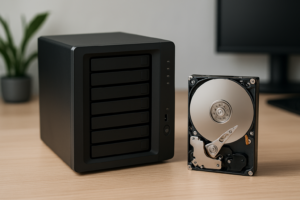
An external hard drive is a single point of failure. If that drive dies, your backup is gone. And drives do die. If you’ve ever heard clicking sounds coming from a hard drive, you know how quickly things can go wrong.
A two-bay NAS running RAID 1 keeps an identical copy of your data on two separate drives. If one drive fails, you swap it out and rebuild the array without losing a single file. If you’re unfamiliar with the differences between RAID configurations, our RAID 0 vs RAID 1 guide explains which setup makes sense for backup purposes (spoiler: RAID 1 is what you want).
This built-in redundancy is probably the single biggest advantage a NAS has over an external drive. For irreplaceable data like family photos, financial records, and creative projects, that extra layer of protection is significant.

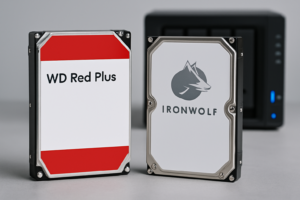
WD Red Plus 4TB NAS Hard Drive
Purpose-built NAS drive with vibration resistance and 24/7 reliability for always-on backup storage
Ease of Use: External Drives Are Simpler, Period
Plug in, drag files, done. An external drive requires zero networking knowledge. Both macOS (Time Machine) and Windows (File History) have built-in tools that automate backups to an external drive with minimal setup.
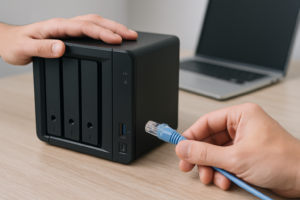
A NAS involves connecting to your router, configuring the device through a web interface, setting up user accounts, and choosing a RAID type. It’s not wildly complicated with modern software from Synology or QNAP, but it’s definitely more involved than plugging in a USB cable. For someone who just wants to back up a single Mac, grabbing one of the best external hard drives for Mac will get the job done faster.
My Recommendation
Single user, one computer: Get an external hard drive. A Seagate Backup Plus 4TB or similar portable drive will handle your backups without any fuss. Consider buying two and rotating them if you want extra safety.
Multi-device household or small home office: Get a NAS. The upfront cost is higher, but you get network-wide automated backups, drive redundancy, and remote access. A two-bay Synology with a pair of WD Red Plus drives is the setup I recommend most often. If you’re working on a tight budget, our guide to building a budget home NAS can help you get started without overspending.
Frequently Asked Questions
Can I use an external hard drive with a NAS?
Yes. Most NAS units have USB ports that accept external drives. This is actually a great way to create an additional backup of your NAS data, giving you a second copy stored off the network. It’s a simple and effective strategy for layered data protection.
How long do NAS drives last compared to external hard drives?
NAS-rated drives like the WD Red Plus or Seagate IronWolf are designed for 24/7 operation and typically carry higher workload ratings than standard external drives. Most NAS drives are rated for 3 to 5 years of continuous use, though many last well beyond that. Standard external drives have similar lifespans on paper but aren’t built for the always-on environment a NAS demands.
This article contains affiliate links. We may earn a small commission at no extra cost to you.

James Kennedy is a writer and product researcher at Drives Hero with a background in IT administration and consulting. He has hands-on experience with storage, networking, and system performance, and regularly improves and optimizes his home networking setup.