USB 2.0 vs USB 3.0 vs USB 3.2 Flash Drives: Speed Differences Explained
You grab a flash drive, start copying a 10 GB video file, and watch the progress bar crawl along at a painful 20 MB/s. Twenty minutes later, you’re still waiting. Swap that drive for a USB 3.2 model, and the same transfer finishes in under a minute. The USB generation printed on your flash drive’s packaging matters far more than most people realize.
This guide breaks down the actual speed differences between USB 2.0, USB 3.0, and USB 3.2 flash drives, with real-world benchmarks so you can pick the right one for your needs.
USB Generations Explained (Without the Jargon)
The USB Implementers Forum has made naming incredibly confusing over the years, so let’s cut through it. Here’s what you actually need to know:
- USB 2.0 (Hi-Speed): Released in 2000. Theoretical max of 480 Mbps (60 MB/s). Real-world speeds typically land between 15 and 35 MB/s on flash drives.
- USB 3.0 / USB 3.1 Gen 1 / USB 3.2 Gen 1: All the same thing, just renamed twice. Theoretical max of 5 Gbps (625 MB/s). Real-world flash drive speeds range from 100 to 400 MB/s depending on the drive’s internal NAND quality.
- USB 3.2 Gen 2: Theoretical max of 10 Gbps (1,250 MB/s). Flash drives using this spec can push 400 to 900+ MB/s in practice, though most top out around 600 MB/s.
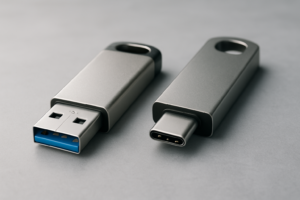
The connector color often gives it away: USB 2.0 ports are usually black, while USB 3.0 and above are blue. But don’t rely on color alone. Check your device’s specs to confirm what generation your ports actually support.
Real-World Speed Benchmarks
Theoretical speeds are marketing numbers. Here’s what you’ll actually see when transferring a large file (sequential read/write) on popular flash drives in each generation:
- USB 2.0 (e.g., generic 32GB drives): ~25 MB/s read, ~10 MB/s write. A 10 GB file takes roughly 7 to 17 minutes.
- USB 3.0 (e.g., Samsung BAR Plus): ~300 MB/s read, ~50 MB/s write. That same 10 GB file takes about 30 seconds to read, 3 minutes to write.
- USB 3.2 Gen 2 (e.g., Kingston DataTraveler Max): ~900 MB/s read, ~800 MB/s write. The 10 GB file moves in roughly 12 seconds.
Notice the write speeds. That’s where USB 2.0 flash drives really suffer. Even USB 3.0 drives can have slow write performance if they use cheap TLC or QLC NAND. If sustained write speed matters to you (transferring large video projects, for example), pay attention to write specs, not just read numbers. For moving truly massive files regularly, you might also want to consider portable SSDs, which often deliver even more consistent speeds than flash drives.

Kingston DataTraveler Max 256GB USB 3.2 Gen 2
One of the fastest USB flash drives available, with sequential reads up to 1,000 MB/s
Which USB Generation Should You Buy?
Skip USB 2.0 entirely. There’s no good reason to buy a USB 2.0 flash drive in 2026 unless you’re stocking up on disposable giveaway drives. The price gap between USB 2.0 and USB 3.0 drives has shrunk to almost nothing.
USB 3.0 (3.2 Gen 1) is the sweet spot for most people. If you’re transferring documents, photos, or the occasional video file, a good USB 3.0 drive handles all of it comfortably. The Samsung BAR Plus and SanDisk Ultra Flair are both reliable picks with solid read speeds.

Samsung BAR Plus 128GB USB 3.1 Flash Drive
Durable metal body with read speeds up to 400 MB/s, great all-around USB 3.0 pick
USB 3.2 Gen 2 is worth it for power users. Video editors, photographers shooting in RAW, and anyone regularly moving tens of gigabytes will feel the difference immediately. Just make sure your computer’s port supports USB 3.2 Gen 2, or you won’t get the full speed benefit. If you’re unsure about your setup, our SSD vs HDD comparison guide covers the broader storage performance picture.
One more tip: if you’re planning to sell or give away an old flash drive, take a few minutes to securely wipe it first. A quick format doesn’t actually remove your data.
Frequently Asked Questions
Will a USB 3.2 flash drive work in a USB 2.0 port?
Yes, all USB generations are backward compatible. A USB 3.2 drive will work fine in a USB 2.0 port, but it’ll run at USB 2.0 speeds (around 25 MB/s read). You need a USB 3.0 or newer port to take advantage of the faster speeds. If your flash drive isn’t showing up at all, that’s a different issue worth troubleshooting.
How can I tell which USB version my flash drive supports?
Check the product packaging or manufacturer’s website for the USB specification. On the drive itself, a blue connector insert usually indicates USB 3.0 or above. You can also run a free tool like CrystalDiskMark on Windows or Blackmagic Disk Speed Test on Mac to benchmark your drive’s actual transfer speeds and compare them against the numbers listed above.
This article contains affiliate links. We may earn a small commission at no extra cost to you.

James Kennedy is a writer and product researcher at Drives Hero with a background in IT administration and consulting. He has hands-on experience with storage, networking, and system performance, and regularly improves and optimizes his home networking setup.