Are USB 3.0 Flash Drives Fast Enough in 2026?
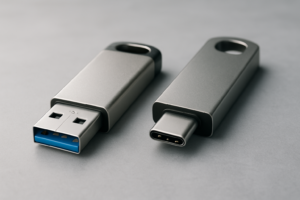
USB 3.0 flash drives have been the go-to for quick file transfers since 2008. That’s nearly two decades of dominance, and if you dig through any desk drawer right now, you’ll probably find at least one or two rattling around. But with USB 3.2 Gen 2 and USB4 drives flooding the market, it’s fair to wonder whether your trusty USB 3.0 stick is holding you back or still doing its job just fine.
The answer depends entirely on what you’re using it for. Let’s break down where USB 3.0 still makes sense, where it starts to struggle, and when it’s time to upgrade to something faster.
USB 3.0 Speeds: What You’re Actually Getting
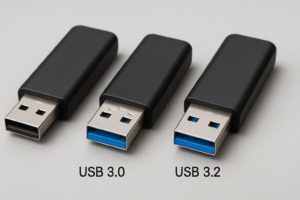
USB 3.0 (also called USB 3.2 Gen 1 under the newer naming conventions) has a theoretical maximum bandwidth of 5 Gbps. On paper, that translates to roughly 625 MB/s. In practice, you’ll never see that number on a flash drive.
Most USB 3.0 flash drives use NAND flash memory with controllers that top out at 100-150 MB/s for sequential reads and 20-60 MB/s for sequential writes. Cheaper models can dip as low as 30 MB/s on writes. These are real-world numbers, and they haven’t changed much in years because the bottleneck isn’t the USB 3.0 interface itself. It’s the flash memory and controller inside the drive.
This is an important distinction. Upgrading to a USB 3.2 Gen 2 flash drive won’t help if the drive still uses the same budget NAND. The interface speed only matters when the internal components can actually keep up.
Where USB 3.0 Flash Drives Still Work Fine
For many everyday tasks, USB 3.0 is more than adequate. If you’re transferring documents, presentations, spreadsheets, or even a few hundred photos, a decent USB 3.0 drive handles those without any noticeable wait. A 1 GB folder of documents copies in under 10 seconds on most USB 3.0 drives.
Here are the use cases where USB 3.0 remains perfectly serviceable:
- Office files and documents: Even slow drives handle small files quickly enough.
- Bootable OS installers: Creating a Windows or Linux installation drive works fine on USB 3.0. The installation process itself is rarely bottlenecked by the drive’s read speed.
- Sharing files under 10 GB: Music libraries, photo albums, and software installers transfer in reasonable time.
- Basic backups of critical files: If you’re backing up a few gigabytes of important documents, USB 3.0 does the job. For larger backup strategies, you might want to explore how cloud backup compares to local NAS storage for a more automated approach.
The Samsung BAR Plus is a great example of what a well-made USB 3.1 Gen 1 (USB 3.0) drive can do. It delivers around 300 MB/s reads in its newer revisions, which is actually faster than many budget USB 3.2 drives. Build quality matters more than spec sheet numbers.
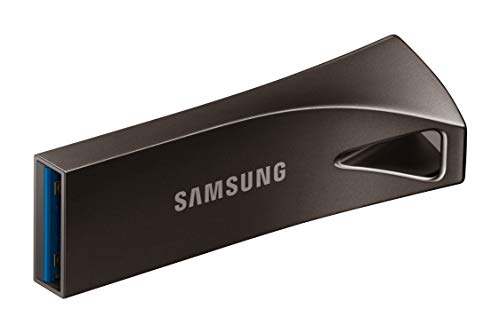
Samsung BAR Plus 256GB USB 3.1 Flash Drive
Metal body, water-resistant, and consistently one of the fastest USB-A flash drives you can buy
Where USB 3.0 Starts to Fall Behind
The cracks in USB 3.0’s performance show up once you start working with larger files regularly. Transferring a 50 GB video project at 40 MB/s write speed takes over 20 minutes. That same transfer on a USB 3.2 Gen 2 solid-state flash drive running at 800+ MB/s finishes in about a minute.
These are the situations where you’ll genuinely feel the difference:
- Video files and editing projects: 4K and 8K footage creates massive files. Waiting 30+ minutes to move a project between machines gets old fast. If video editing is part of your workflow, check out our roundup of the best 4TB external drives for video editing for options with real speed test data.
- Large game libraries: Moving 100+ GB games between drives or machines highlights USB 3.0’s write speed limitations immediately.
- Running portable apps or operating systems from the drive: Random read/write performance on USB 3.0 flash drives is often terrible (under 5 MB/s for random 4K operations), making the experience sluggish.
- Full system backups: Backing up 500 GB or more to a flash drive on USB 3.0 could take hours.
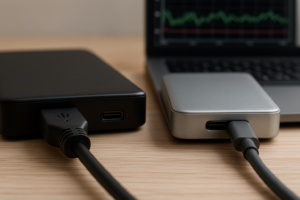
If you find yourself in these scenarios often, a portable SSD will dramatically outperform any flash drive. The Samsung T7 Shield or SanDisk Extreme Pro Portable SSD both use USB 3.2 Gen 2 and deliver consistent 1,000 MB/s+ transfers. We’ve tested several of these in our guide to the best portable SSDs for travel in 2026.

Samsung T7 Shield 1TB Portable SSD
Rugged, IP65-rated portable SSD with USB 3.2 Gen 2 speeds up to 1,050 MB/s
USB 3.2 and USB-C Flash Drives: Are They Worth the Upgrade?
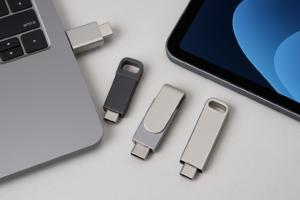
A new category of USB-C flash drives has emerged that use NVMe-based internal storage instead of traditional NAND with a basic controller. These drives, like the Kingston DataTraveler Max and the SanDisk Extreme Pro USB-C, can hit 900-1,000 MB/s reads in a thumb drive form factor.
That’s a genuine leap over USB 3.0 flash drives, and it’s not just about the interface. These drives pair a faster USB connection with faster internal storage, which is why the speed increase is so dramatic.

Kingston DataTraveler Max 256GB USB-C
One of the fastest USB-C flash drives available, with read speeds up to 1,000 MB/s in a compact form factor
One thing to keep in mind: these faster flash drives run warmer than USB 3.0 models and can throttle during sustained writes. They also require a USB-C port to hit their maximum speeds. Plugging them into a USB-A port with an adapter drops you right back to USB 3.0 performance levels.
Before you sell or give away your old USB 3.0 drives, make sure to securely wipe them first. A simple format doesn’t actually erase your data.
My Recommendation: Match the Drive to the Task
Don’t throw out your USB 3.0 flash drives. They still earn their keep for everyday file sharing, bootable installers, and keeping a backup of essential documents in your bag. For these tasks, spending more on a USB 3.2 Gen 2 drive is unnecessary.
But if you’re regularly moving files over 10 GB, working with video, or want a portable drive that can actually keep up with an external SSD, it’s time to move on. A USB-C flash drive with NVMe storage or a compact portable SSD will save you real time every single day.
Here’s a quick decision guide:
- Stick with USB 3.0 if you mostly transfer documents, photos, and small file collections under 10 GB.
- Upgrade to USB 3.2 Gen 2 flash drives if you want a thumb drive form factor but need 5-10x faster speeds for medium workloads.
- Go with a portable SSD if you handle video editing, large backups, or any workflow where consistent high-speed transfers matter. You can read more about how traditional drives compare to SSDs in our SSD vs HDD comparison.
Frequently Asked Questions
Will a USB 3.0 flash drive work in a USB-C port?
Not directly. USB 3.0 drives use the USB-A connector, so you’ll need a USB-A to USB-C adapter or a USB-C hub. The drive will work fine through an adapter, but you won’t get any speed improvement. It will still run at USB 3.0 speeds because the bottleneck is the drive’s internal components, not the port.
Is USB 3.0 the same as USB 3.2 Gen 1?
Yes. The USB Implementers Forum renamed USB 3.0 to USB 3.2 Gen 1 in 2019, which caused a lot of confusion. If you see “USB 3.2 Gen 1” or “SuperSpeed USB 5Gbps” on a product listing, it’s the same 5 Gbps spec as the original USB 3.0. Don’t be fooled by the “3.2” branding into thinking it’s faster than it actually is.
How long does a USB 3.0 flash drive last before it fails?
Most USB flash drives are rated for around 10,000 to 100,000 write/erase cycles per memory cell, depending on the type of NAND used. For typical usage (not constant daily writes), a quality USB 3.0 drive can last 5-10 years or more. Physical damage from drops, heat, or water exposure is usually a bigger risk than the memory wearing out. If your flash drive stops being recognized by your computer, our guide on fixing external drives that won’t show up covers the most common solutions.
This article contains affiliate links. We may earn a small commission at no extra cost to you.

James Kennedy is a writer and product researcher at Drives Hero with a background in IT administration and consulting. He has hands-on experience with storage, networking, and system performance, and regularly improves and optimizes his home networking setup.