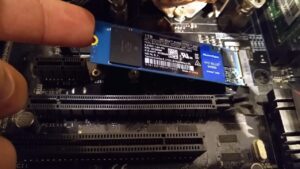
What to Do When Your SSD Fails: Data Recovery Options
Your SSD just stopped working. Maybe your laptop won’t boot, or your desktop suddenly can’t find the drive. Maybe the SSD vanished from your BIOS entirely. Whatever happened, one thing is clear: your data is trapped on a drive that refuses to cooperate, and you need it back.
If you’ve been through a traditional hard drive failure before, you might assume SSD recovery follows the same playbook. It doesn’t. SSDs store data in fundamentally different ways than HDDs, and those differences make recovery significantly more complicated. In some cases, they make it nearly impossible. This guide will walk you through exactly why SSD recovery is so difficult, what your realistic options are, and how to give yourself the best chance of getting your files back.
Why SSD Data Recovery Is Harder Than HDD Recovery
When a traditional hard drive fails, your data usually still exists on the magnetic platters inside. A skilled technician can swap out the read/write heads, repair the PCB, or even transplant the platters into a donor drive. The data itself is physically “written” onto spinning disks, and it tends to stay put even when the mechanical components around it break down. If you’ve ever dealt with a clicking hard drive, you know the sound is terrifying, but the data on those platters often survives.
SSDs don’t work this way. They store data as electrical charges in NAND flash memory cells. There are no moving parts, no platters, and no magnetic residue to scan. When an SSD’s controller chip fails, accessing those NAND chips directly is a nightmare because the controller uses proprietary algorithms to map where data is physically stored. Without the controller, a recovery technician has to reverse-engineer that mapping, which can take days or weeks of specialized work.
Additionally, SSDs distribute data across multiple NAND chips using a process called wear leveling. This ensures no single chip wears out faster than the others, which is great for extending SSD lifespan. But it also means your files aren’t stored sequentially. A single Word document might be scattered across four or five different chips, and only the controller knows how to reassemble it.
The TRIM Problem: Why Your Deleted Data May Already Be Gone
TRIM is a command that your operating system sends to your SSD to let it know which data blocks are no longer in use. When you delete a file or empty your recycle bin, the OS tells the SSD, “Hey, you can erase these blocks whenever you’re ready.” The SSD’s garbage collection process then zeroes out those blocks in the background, making them available for new data.
This is incredibly efficient for performance. It’s one of the reasons SSDs stay fast over time, as we’ve covered in our guide on why SSDs slow down and how to fix it. But for data recovery, TRIM is devastating.
On a traditional HDD, deleting a file only removes the pointer to that file. The actual data sits on the platter until it’s overwritten by something new, which could be hours, days, or even months later. Recovery software can scan the platter and reconstruct those orphaned files with high success rates.
On a TRIM-enabled SSD, once the garbage collection process runs, those blocks are electrically reset. The data isn’t hiding somewhere waiting to be found. It’s genuinely gone. And modern SSDs run garbage collection aggressively, sometimes within seconds of receiving a TRIM command. This means that if you accidentally deleted files and your SSD has been powered on since then, the window for recovery may have already closed.
When TRIM Doesn’t Apply
There are a few scenarios where TRIM won’t have wiped your data:
- The drive is encrypted and uses hardware encryption. Some encrypted SSDs don’t TRIM in the traditional sense, preserving data patterns even after deletion.
- The SSD was in a RAID array. Many RAID configurations don’t pass TRIM commands to individual drives. If you’ve been running a RAID 0 or RAID 1 setup, your deleted data might still be recoverable.
- The drive failed completely. If the SSD died before garbage collection could run (a sudden controller failure, for example), the NAND chips may still hold all your data intact.
- TRIM was never enabled. Older systems, some external SSD enclosures, and certain operating system configurations don’t support TRIM. In these cases, deleted data may persist on the drive.
Immediate Steps When Your SSD Fails
What you do in the first few minutes after discovering an SSD failure matters enormously. The wrong move can permanently destroy your chances of recovery.
Step 1: Stop Using the Drive Immediately
Power down the computer or disconnect the SSD right away. Every second the drive stays powered on gives the SSD’s internal processes more time to run garbage collection, redistribute data, or further corrupt the storage. If your OS is installed on the failed SSD, shut down the computer and boot from a different drive or USB stick if you need to use the machine.
Step 2: Don’t Try to Reformat or Repair
When Windows detects a problematic drive, it often offers to format or repair it. Decline every one of these prompts. Formatting will trigger TRIM and erase recoverable data. Running repair utilities can overwrite data blocks during the repair process. Your instinct might be to “fix” the drive first and then recover data later, but the fixing process itself can destroy what you’re trying to save.
Step 3: Assess the Type of Failure
SSD failures generally fall into a few categories, and identifying which one you’re dealing with will help determine your next move:
- Logical failure: The drive is still detected by BIOS/UEFI, but the file system is corrupted. Files may be inaccessible, or the drive may show as unformatted. This is the most recoverable type of failure.
- Firmware failure: The SSD is recognized but behaves erratically, freezes the system, or shows an incorrect capacity (like a 1TB drive appearing as 8MB). The controller’s firmware has become corrupted.
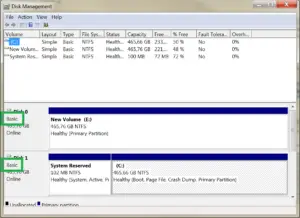
- Controller failure: The drive isn’t detected at all. The SSD doesn’t appear in BIOS, disk management, or any diagnostic tool. The controller chip has died.
- NAND degradation: The flash memory cells themselves have worn out, causing increasing read errors and data corruption over time.
If your SSD falls into a situation similar to what happens with external drives, our guide on fixing drives that aren’t showing up covers some basic troubleshooting steps worth trying before you escalate to professional recovery.
DIY Recovery: Software Options for Logical Failures
If your SSD is still detected by your system but the data is inaccessible, you may be able to recover files using software. This approach only works for logical failures where the hardware itself is still functional.
Before attempting any software recovery, create a full disk image first. Tools like ddrescue (Linux) or HDDSuperClone can create a sector-by-sector copy of the drive, and you can then run recovery software against the image instead of the failing drive. This protects you from making the original drive worse.
Recommended Recovery Software
R-Studio is widely considered the gold standard for data recovery software. It supports NAND-based recovery, can reconstruct damaged file systems, and handles both NTFS and APFS partitions. It’s what many professional recovery shops use as their first-pass tool before resorting to hardware-level recovery.

R-Studio Data Recovery Software
Industry-grade recovery software trusted by professionals, excellent for SSD logical failures
Disk Drill and EaseUS Data Recovery Wizard are more user-friendly alternatives that work well for simpler recoveries. If you’ve accidentally deleted files and TRIM hasn’t wiped them yet, these tools can scan the drive and often find them. They’re also good for recovering data from corrupted partitions.
For a deeper look at software-based recovery methods that apply to both internal and external drives, check out our guide on recovering data from a failed external drive.
One important caveat: if your SSD makes your system hang, causes blue screens, or takes an extremely long time to respond to read commands, stop the software recovery attempt. These symptoms point to hardware-level issues that software can’t fix, and continued read attempts can make the problem worse.
Professional SSD Recovery Services
When software can’t help, whether because of controller failure, firmware corruption, or severe NAND degradation, professional recovery services are your only option. These companies have specialized equipment that can read NAND chips directly, bypass failed controllers, and reconstruct data from raw flash dumps.
Top Professional Recovery Services
DriveSavers is one of the oldest and most respected data recovery companies in the world, operating out of Novato, California. They maintain a Class 100 cleanroom (more relevant for HDD work, but it speaks to their standards), and they’ve invested heavily in SSD-specific recovery tools and techniques. They offer free evaluations and a “no data, no charge” policy. Expect premium pricing, but their success rates on SSD recovery are among the highest in the industry.
Ontrack is a global data recovery provider with labs in multiple countries. They handle everything from consumer SSDs to enterprise NVMe drives and have developed proprietary tools for reading raw NAND flash. Like DriveSavers, they offer free diagnostics and only charge if they recover your data. They’re particularly strong with enterprise and server-grade SSD recovery.
Gillware has built a reputation for being more affordable than DriveSavers and Ontrack while still delivering professional-grade results. Based in Madison, Wisconsin, they focus heavily on SSD and flash recovery and have published some of the most detailed technical write-ups on NAND-level recovery in the industry. Their “no data, no charge” guarantee applies as well.
ACE Data Recovery operates multiple labs across the United States and offers competitive pricing for SSD recovery. They handle consumer drives and enterprise storage alike, and they’re transparent about estimated timelines and success probabilities during their initial evaluation.
What to Expect from Professional Recovery
Professional SSD recovery typically follows this process:
- Initial evaluation: The lab examines your drive, identifies the failure mode, and provides a quote. Most reputable labs do this for free.
- Controller bypass or repair: If the controller failed, technicians may attempt firmware repair, controller replacement with a compatible chip, or direct NAND chip reading.
- NAND chip desoldering: For severe failures, individual NAND chips are removed from the PCB and read using specialized equipment like a PC-3000 Flash reader.
- Data reconstruction: Raw data dumps from NAND chips are processed through custom software that reverse-engineers the controller’s data mapping algorithms.
- File delivery: Recovered files are provided on a new drive or via secure download.
The entire process can take anywhere from a few days to several weeks, depending on the complexity of the failure. Controller repairs are typically faster. NAND-level reconstruction takes the longest.
Preventing SSD Data Loss: Backup Strategies That Actually Work
The best time to plan for an SSD failure is before it happens. No storage device lasts forever, and SSDs can fail suddenly without the warning signs (like clicking or grinding) that traditional HDDs sometimes give you.
A solid backup strategy follows the 3-2-1 rule: three copies of your data, on two different types of media, with one copy stored offsite. For most people, this means your primary SSD, a local backup on an external drive or NAS, and a cloud backup. We’ve broken down the cost differences between cloud and local options in our cloud backup vs. local NAS comparison.
For your local backup drive, a reliable external SSD or HDD works well. The Samsung T7 Portable SSD is a popular choice for quick local backups, offering fast transfer speeds in a compact form factor. If you need more capacity at a lower cost per gigabyte, an external HDD like the WD Elements 4TB gives you plenty of room for full system images.
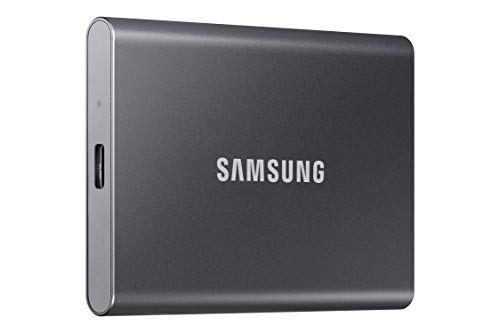
Samsung T7 Portable SSD 1TB
Fast and compact backup drive, ideal for keeping a local copy of your most important data
Automated backup tools like Windows File History, macOS Time Machine, or third-party solutions like Acronis True Image can run on a schedule so you never have to remember to back up manually. If you’re using a NAS, you can set up automated backups that run nightly without any intervention on your part.
SSD Recovery Tools and Accessories Worth Having
If you want to be prepared for SSD emergencies, or if you’re the go-to tech person for friends and family, a few tools can make a significant difference in your ability to attempt recovery before sending a drive to a lab.
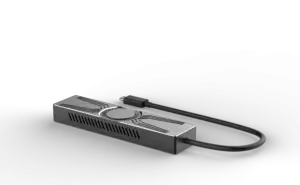
A USB-to-SATA adapter lets you connect a 2.5-inch SATA SSD to another computer externally. This is useful for testing whether the drive is still readable when it’s not functioning as a boot drive. For NVMe drives, you’ll need an NVMe-to-USB enclosure instead.

Sabrent USB 3.0 to SATA Adapter
Essential tool for connecting a failed SATA SSD to another computer for diagnosis and recovery attempts
A bootable Linux USB drive (Ubuntu works fine) is invaluable for SSD recovery because Linux can often read drives that Windows can’t mount. It also gives you access to tools like ddrescue for creating disk images and TestDisk for partition recovery, all without writing anything to the failed drive.
Frequently Asked Questions
Can data be recovered from a completely dead SSD?
Yes, but only through professional recovery services. When an SSD is completely dead (not detected by any system), the NAND flash chips inside usually still contain your

James Kennedy is a writer and product researcher at Drives Hero with a background in IT administration and consulting. He has hands-on experience with storage, networking, and system performance, and regularly improves and optimizes his home networking setup.