How to Back Up a Laptop the Right Way
Laptops are inherently risky storage devices. They travel with you, get bumped around in bags, connect to sketchy Wi-Fi networks, and occasionally take a tumble off a coffee table. If your laptop died tomorrow, could you recover everything on it within a few hours? If the answer is “maybe” or “I’m not sure,” this guide is for you.
A good backup strategy for a laptop isn’t the same as one for a desktop. You need something that works when you’re mobile, doesn’t require plugging in a cable every night, and protects you from both hardware failure and accidental deletion. Let’s walk through the three main approaches and how to combine them for real protection.
The 3-2-1 Rule (And Why It Actually Matters)
You’ve probably seen the 3-2-1 backup rule mentioned before: keep three copies of your data, on two different types of media, with one copy stored offsite. It sounds excessive until the day your laptop gets stolen from your car or your internal SSD fails without warning. If you want to understand how often that actually happens, our breakdown of how long SSDs really last puts some real numbers behind it.
For laptop users specifically, the 3-2-1 rule translates to: your laptop’s internal drive (copy one), a local external backup (copy two), and a cloud backup (copy three, stored offsite). Each layer protects against different threats, and skipping any one of them leaves a gap.
Local Backup: Your First Line of Defense
A local backup to an external drive is the fastest way to restore your files if something goes wrong. Cloud restores can take hours or days depending on how much data you have and your internet speed. A local backup on a fast drive can get you back up and running in under an hour.
Choosing the Right External Drive
For laptops, portability matters. You don’t want a bulky desktop drive with its own power adapter taking up space in your bag. Stick with bus-powered drives (ones that draw power from the USB port) so you only need a single cable.
You have two main choices: a portable HDD or a portable SSD. For a pure backup drive that mostly sits on your desk, a portable HDD like the Seagate Portable 2TB or WD Elements 2TB gives you plenty of space at an affordable price point. These are fine for scheduled backups where speed isn’t critical.
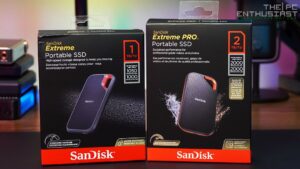
If you travel frequently and want a backup drive you can toss in your bag without worrying about drops, a portable SSD is the better pick. The Samsung T7 and SanDisk Extreme Portable SSD are both excellent options with no moving parts to break. We’ve tested several models in our roundup of the best portable SSDs for travel in 2026, and those two consistently rank near the top for reliability.
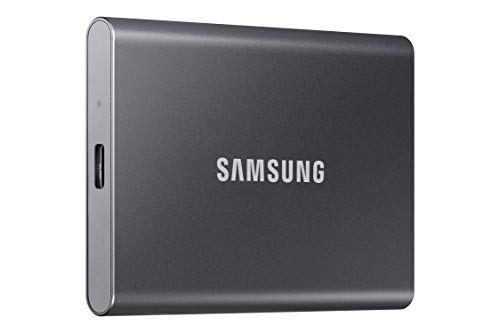
Samsung T7 1TB Portable SSD
Fast, lightweight, and durable enough for daily carry in a laptop bag.
Backup Software That Works
Windows users: The built-in File History feature is decent for document recovery, but for a full system image backup, use the free version of Macrium Reflect or Veeam Agent for Windows. Both let you create a complete image of your drive, meaning you can restore your entire operating system, apps, and files to a new drive if the original fails. If you ever need to move to a new SSD, this pairs perfectly with our guide on how to clone your hard drive without losing data.
Mac users: Time Machine is genuinely good. Plug in an external drive, enable Time Machine, and it handles versioned backups automatically. It runs hourly when the drive is connected and picks up where it left off when you reconnect after being away. For Mac-specific drive recommendations, check out our list of the best external hard drives for Mac.
How Often Should You Run Local Backups?
If your external drive stays connected to your desk setup, let your backup software run automatically (hourly or daily). If you’re a road warrior who only connects the backup drive periodically, aim for at least once a week. Set a recurring calendar reminder so it doesn’t slip.
Cloud Backup: Protection Against Physical Disasters
A local backup protects you from drive failure, but it won’t help if your laptop and backup drive are both in a bag that gets stolen, or if a house fire destroys everything. Cloud backup is your offsite safety net.
There’s an important distinction between cloud sync and cloud backup. Services like Dropbox, Google Drive, and OneDrive sync specific folders to the cloud. If you delete a file locally (or ransomware encrypts it), that deletion can sync to the cloud too. True cloud backup services like Backblaze and Carbonite continuously back up your entire drive in the background and maintain file version history so you can roll back to earlier copies.
Backblaze Personal Backup is the standout choice for most laptop users. It backs up everything on your internal drive (and one connected external drive) with unlimited storage. It runs quietly in the background, handles intermittent internet connections well, and lets you restore via download or a shipped hard drive. The subscription is competitively priced for unlimited data, which makes it hard to beat.
For a deeper look at how the costs break down between cloud and local solutions over time, our cloud backup vs. local NAS cost comparison lays out the real numbers.
The Hybrid Approach: Putting It All Together
The best backup strategy for a laptop combines local and cloud backups. Here’s a practical setup that covers all your bases:
- Daily cloud backup: Install Backblaze (or a similar service) and let it run continuously. This covers you even when you’re traveling without your external drive.
- Weekly local backup: Connect your portable SSD or HDD and run a full system image. On Mac, just plug in and let Time Machine do its thing. On Windows, use Macrium Reflect or Veeam.
- Real-time file sync: Keep your most critical working files in a synced folder (OneDrive, Google Drive, or Dropbox) for instant access across devices and quick recovery of individual documents.
This three-layer approach means you always have at least two recent backups available, no matter where you are.
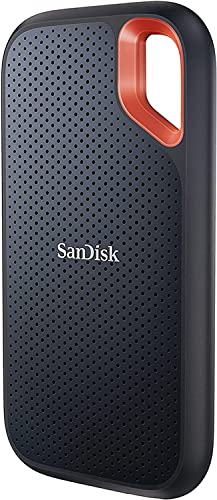
SanDisk Extreme Portable SSD 1TB
IP65-rated dust and water resistance makes it ideal for laptop users who travel frequently.
Laptop-Specific Tips Most Guides Miss
- Encrypt your backup drive. If your laptop is portable, your backup drive probably is too. Use BitLocker (Windows) or FileVault-compatible encryption (Mac) on external drives so a lost drive doesn’t become a data breach.
- Watch your USB connection. If your external drive keeps disconnecting during backups, the issue is often a flaky USB port or cable, not the drive itself. We’ve covered the most common causes and fixes in our article on why your external drive keeps disconnecting.
- Test your backups periodically. At least once every few months, try restoring a file (or do a full test restore to a spare drive). A backup you’ve never tested is a backup you can’t trust.
- Don’t forget your boot drive. Backing up your documents is great, but a full system image saves you from reinstalling Windows or macOS, reconfiguring apps, and losing hours of setup time.
- Size your backup drive appropriately. For local backups with version history, your external drive should be at least 1.5 to 2 times the size of your laptop’s internal storage. A 512GB laptop pairs well with a 1TB backup drive. A 1TB laptop should use a 2TB backup drive.
Frequently Asked Questions
Can I just use Google Drive or Dropbox as my only backup?
Cloud sync services are useful, but they’re not true backups. They typically only sync files in specific folders, and deletions or ransomware changes can propagate to the cloud. They also don’t back up your operating system, installed applications, or system settings. Use sync as one layer, but pair it with a dedicated cloud backup service and a local external drive for real protection.
How long does the first cloud backup take?
The initial backup depends entirely on how much data you have and your upload speed. For a typical laptop with 200 to 500GB of data on a connection with 10 Mbps upload, expect the first backup to take several days to two weeks. After that initial upload, daily incremental backups usually complete in minutes. Most services let you throttle bandwidth so your internet stays usable during the process.
Should I use an SSD or HDD for my external backup drive?
For a backup drive that mostly sits on a desk, a portable HDD offers more storage per dollar and works perfectly fine. For a backup drive you carry in your bag regularly, a portable SSD is worth the investment because it’s faster, lighter, and far more resistant to drops and bumps. If you want to dig into the full comparison, our SSD vs. HDD guide covers the trade-offs in detail.
This article contains affiliate links. We may earn a small commission at no extra cost to you.

James Kennedy is a writer and product researcher at Drives Hero with a background in IT administration and consulting. He has hands-on experience with storage, networking, and system performance, and regularly improves and optimizes his home networking setup.