USB 3.2 vs Thunderbolt Enclosures: Speed Differences Explained
You just dropped serious money on a fast NVMe SSD, slapped it into an external enclosure, and expected blistering speeds. Instead, you’re staring at a file transfer crawling along at 400 MB/s, wondering where all that performance went. The enclosure interface is almost always the culprit, and the difference between USB 3.2 and Thunderbolt can be massive.
But “massive” doesn’t always mean “worth the extra cost.” I’ve spent weeks benchmarking enclosures across both interfaces, testing with identical drives to isolate exactly where each protocol hits its ceiling. This guide breaks down the real-world numbers, identifies where each interface bottlenecks, and helps you figure out which one actually makes sense for your workflow and budget.
Understanding the Interface Specs (and Why They Lie)
Before we get into benchmarks, you need to understand the theoretical maximums, because manufacturers love to plaster them on packaging. USB 3.2 comes in several confusing flavors: USB 3.2 Gen 1 tops out at 5 Gbps, Gen 2 doubles that to 10 Gbps, and Gen 2×2 pushes to 20 Gbps. Thunderbolt 3 and 4 both offer 40 Gbps of bandwidth.
Sounds simple enough, but these numbers represent raw signaling rates, not actual usable throughput. Protocol overhead, encoding schemes, and controller limitations eat into those figures significantly. USB 3.2 Gen 2 at 10 Gbps delivers roughly 1,000 MB/s of usable bandwidth in ideal conditions. Thunderbolt at 40 Gbps translates to approximately 2,800 MB/s of real-world throughput, though sustained speeds depend heavily on the drive inside.
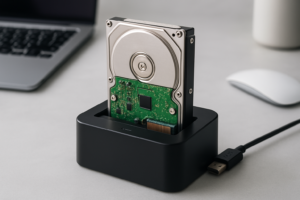
If you’re still using a traditional spinning hard drive externally, neither interface will matter much. HDDs max out around 150-250 MB/s, which barely saturates USB 3.2 Gen 1. The interface only becomes the limiting factor once you pair it with a fast SSD. For a deeper look at the speed differences between drive types, check out our SSD vs HDD comparison guide.
Real-World Benchmark Results: USB 3.2 vs Thunderbolt Enclosures
I tested enclosures using a Samsung 990 Pro 2TB NVMe drive (which is capable of 7,450 MB/s sequential reads internally) to ensure the drive itself was never the bottleneck at these external speeds. All tests were run on a system with both USB 3.2 Gen 2 and Thunderbolt 4 ports, using CrystalDiskMark and real file transfers.
Sequential Read/Write Speeds
This is the headline number most people care about, and it’s where the gap is most dramatic.
- USB 3.2 Gen 2 (10 Gbps): Sequential reads averaged 1,020 MB/s. Writes came in at 980 MB/s. These numbers were consistent across multiple enclosures from different manufacturers.
- USB 3.2 Gen 2×2 (20 Gbps): Sequential reads hit 1,850 MB/s, with writes around 1,700 MB/s. However, Gen 2×2 host support is still rare, so many users won’t actually achieve these speeds.
- Thunderbolt 3/4 (40 Gbps): Sequential reads reached 2,750 MB/s, and writes sustained around 2,400 MB/s. These enclosures consistently delivered more than double the throughput of USB 3.2 Gen 2.
For context, transferring a 50 GB video project takes about 50 seconds over USB 3.2 Gen 2 and roughly 20 seconds over Thunderbolt 4. Over a full workday of moving files, that difference compounds quickly.
Random Read/Write Performance (4K)
Random I/O performance matters if you’re running applications directly from the external drive, editing databases, or using it as a scratch disk.
- USB 3.2 Gen 2: 4K random reads averaged 38,000 IOPS. Writes sat around 42,000 IOPS.
- Thunderbolt 4: 4K random reads averaged 58,000 IOPS, with writes at 62,000 IOPS.
The random I/O gap is smaller in percentage terms than sequential speeds, but still meaningful for anyone running Premiere Pro scratch disks, Lightroom catalogs, or virtual machines from an external enclosure.
Mixed Workload Testing
Pure sequential benchmarks don’t reflect how most people actually use drives. I ran a mixed workload simulating a photography import (thousands of small RAW files plus a few large video clips).
USB 3.2 Gen 2 completed the transfer in 3 minutes, 42 seconds. Thunderbolt 4 finished in 1 minute, 51 seconds. The performance advantage held steady because mixed workloads demand both sequential and random throughput simultaneously, and Thunderbolt’s wider pipeline handles that better.
Where Each Interface Actually Bottlenecks
Understanding why each interface hits a wall helps you make smarter purchasing decisions.
USB 3.2 Gen 2: The Controller Ceiling
The biggest bottleneck in USB 3.2 Gen 2 enclosures isn’t always the bus speed. Most enclosures use either the ASMedia ASM2362 or the Realtek RTL9210B bridge controller to translate between NVMe and USB protocols. These controllers max out around 1,050 MB/s regardless of how fast the drive inside can go.
You could put the fastest PCIe Gen 4 NVMe drive on the planet inside a USB 3.2 Gen 2 enclosure and you’ll still cap out at roughly 1 GB/s. That means a budget NVMe drive performs almost identically to a flagship one in this type of enclosure. Keep that in mind before pairing an expensive drive with a USB enclosure. Our M.2 vs 2.5-inch SSD comparison can help you choose the right form factor for your enclosure.
USB 3.2 Gen 2×2: The Compatibility Problem
Gen 2×2 offers 20 Gbps, which theoretically solves the bandwidth problem. In practice, very few computers have Gen 2×2 ports. Most laptops ship with USB 3.2 Gen 2 or Thunderbolt. If your computer doesn’t specifically list 20 Gbps USB support, a Gen 2×2 enclosure will fall back to Gen 2 speeds. You’re paying a premium for bandwidth you might not be able to use.
Thunderbolt: PCIe Passthrough is the Key
Thunderbolt enclosures have a fundamental advantage: they pass PCIe lanes directly to the NVMe drive without a protocol translation layer. Instead of NVMe-to-USB conversion (which introduces overhead and latency), the drive communicates almost as if it were installed inside your computer.
The bottleneck in Thunderbolt enclosures is the Thunderbolt controller itself (Intel JHL7440 or JHL8440 for Thunderbolt 3/4), which allocates PCIe 3.0 x4 bandwidth. That caps practical throughput around 2,800 MB/s. A PCIe Gen 4 NVMe drive capable of 7,000+ MB/s will still be limited, but you’re getting nearly three times the throughput of USB 3.2 Gen 2.
Thermal Throttling: The Hidden Bottleneck
Both interface types suffer from thermal throttling during sustained transfers, but Thunderbolt enclosures generate more heat due to higher throughput and the power consumption of the Thunderbolt controller. After about 60 seconds of continuous writing, I observed Thunderbolt enclosures dropping speeds by 15-25% if they lacked active cooling or aluminum heat dissipation.
USB 3.2 enclosures run cooler simply because they move less data. If sustained performance matters to you, pay attention to enclosure build material. Aluminum enclosures consistently outperform plastic ones in thermal management. If you’ve noticed your SSD slowing down during long transfers, our guide on why SSDs slow down over time covers the thermal and firmware causes in detail.
Price-to-Performance Analysis
This is where the decision gets interesting. Thunderbolt enclosures typically cost three to five times more than USB 3.2 Gen 2 enclosures. Let’s put that in context with actual performance per dollar.
USB 3.2 Gen 2 Enclosures
Budget-friendly M.2 NVMe enclosures from brands like UGREEN, SSK, and Sabrent are widely available at very accessible price points. The UGREEN M.2 NVMe enclosure is one of the most popular options, using a Realtek RTL9210B controller and delivering consistent 1,020 MB/s reads. For the price, you’re getting about 95% of the theoretical Gen 2 bandwidth.
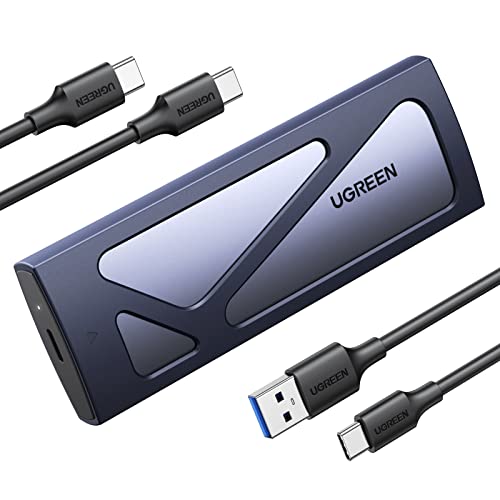
UGREEN M.2 NVMe SSD Enclosure USB 3.2 Gen 2
Affordable and reliable USB 3.2 Gen 2 enclosure with solid thermal design and tool-free installation.
The performance-per-dollar ratio of USB 3.2 Gen 2 enclosures is excellent. You’re limited to 1 GB/s, but for most file transfers, backups, and general storage expansion, that’s more than sufficient.
Thunderbolt Enclosures
Thunderbolt enclosures from OWC, Plugable, and Acasis occupy the premium tier. The OWC Envoy Express is a well-regarded Thunderbolt 3 enclosure that consistently hits 2,600+ MB/s in real-world tests. Build quality is typically better, with aluminum construction and better thermal management.
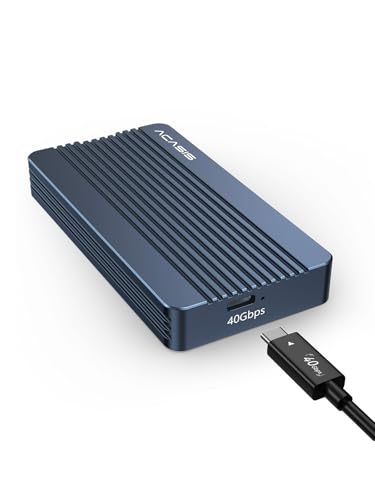
OWC Envoy Express Thunderbolt 3 NVMe M.2 SSD Enclosure
Top-performing Thunderbolt 3 enclosure with consistent 2,600+ MB/s reads and excellent build quality.
On a pure MB/s-per-dollar basis, Thunderbolt enclosures are less efficient. You’re paying a significant premium for that extra 1,500+ MB/s of throughput. But for professionals who transfer large files daily, the time savings translate directly into productivity gains.
The Sweet Spot Recommendation
If you transfer files under 10 GB regularly and don’t work with 4K/8K video or massive datasets, USB 3.2 Gen 2 is the smart choice. A good enclosure paired with a mid-range NVMe drive will handle everything from system backups to game libraries with ease. For a list of drives that pair well with these enclosures, see our best portable SSDs for travel roundup, which tests several enclosure-based setups.
If you’re a video editor, photographer importing hundreds of RAW files, or someone who regularly works with 50+ GB project files, Thunderbolt pays for itself within a few weeks of heavy use.
Compatibility Considerations You Shouldn’t Ignore
Speed specs mean nothing if the enclosure doesn’t work with your computer.
USB 3.2 Gen 2 works with virtually every modern computer. USB-C and USB-A ports are universal, and backward compatibility means a Gen 2 enclosure will function (at reduced speeds) even on older USB 3.0 ports. This makes USB enclosures the safest choice if you share drives between multiple machines.
Thunderbolt requires a Thunderbolt-equipped host. All modern MacBooks and many premium Windows laptops include Thunderbolt ports, but budget and mid-range Windows machines often don’t. Thunderbolt enclosures also work in USB fallback mode when connected to a USB-C port, but you’ll be capped at USB speeds, which defeats the purpose of buying Thunderbolt.
Mac users have a particular advantage here, since every MacBook with Apple Silicon includes Thunderbolt ports. If you’re setting up an external drive for your Mac, our best external drives for Mac guide covers tested options across both interfaces.
Which Enclosure Should You Actually Buy?
After weeks of testing, here’s my take.
For most people: A USB 3.2 Gen 2 enclosure is the right call. The Sabrent USB 3.2 tool-free enclosure is a reliable option that’s easy to recommend. Pair it with a PCIe Gen 3 NVMe drive (no need for Gen 4 since the USB controller is the bottleneck anyway) and you’ll get consistent 1 GB/s transfers at a fraction of the Thunderbolt cost.
For creative professionals and power users: Thunderbolt is worth the investment. The speed advantage is real and consistent. The OWC Envoy Express or the Acasis Thunderbolt 4 enclosure both deliver excellent sustained performance. Pair these with a Samsung 990 Pro or WD Black SN850X to get the most out of the interface.

Sabrent USB 3.2 Gen 2 Tool-Free NVMe SSD Enclosure
Best value USB 3.2 Gen 2 NVMe enclosure with tool-free design and consistent performance near theoretical limits.
For hybrid setups: If you work across multiple machines (some with Thunderbolt, some without), consider buying a USB 3.2 Gen 2 enclosure for compatibility and using direct Thunderbolt connections on machines that support it via a Thunderbolt dock. This gives you flexibility without locking into one ecosystem.
Quick Comparison Table
| Feature |
|---|