How to Set Up a Hybrid Cloud and Local Backup Strategy
Losing data to a single point of failure is an expensive lesson most people only need to learn once. A hard drive dies, a ransomware attack encrypts your files, or a house fire takes out your office. If all your backups lived in one place, they’re gone too. The fix isn’t choosing between local and cloud backup. It’s using both.
A hybrid backup strategy gives you the speed and control of local storage combined with the off-site protection of the cloud. Setting one up is simpler than you’d think, and this guide walks you through the exact steps.
Step 1: Choose Your Local Backup Hardware
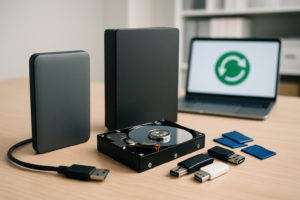
Your local backup should be your first line of defense. It’s faster to restore from, doesn’t depend on internet speed, and gives you full control over your data. You have two main options here: an external drive or a NAS (network-attached storage).
For individuals or single-computer households, an external hard drive works well. Something like a WD My Book Desktop in the 4TB to 8TB range handles most personal backup needs. If you’re a Mac user, we’ve tested the top options in our best external hard drives for Mac roundup.
For multi-device households, creative professionals, or anyone wanting automated network backups, a NAS is the better call. A two-bay NAS like the Synology DS224+ paired with two NAS-rated drives gives you redundancy through RAID 1 mirroring. If you’re unfamiliar with RAID configurations, our guide on RAID 0 vs RAID 1 breaks down which setup makes sense for backup purposes.

Synology DS224+ NAS
An excellent two-bay NAS with built-in cloud sync apps, making it ideal for hybrid backup setups.
For the drives themselves, go with NAS-rated HDDs like the Seagate IronWolf or WD Red Plus series. These are designed for always-on operation and handle the vibration inside multi-bay enclosures far better than standard desktop drives. If you’re building your first NAS from scratch, our budget home NAS build guide covers the entire process.
Step 2: Pick Your Cloud Backup Service
Your cloud backup covers the scenarios local backups can’t: theft, fire, flooding, or any disaster that takes out your physical hardware. Here are the services worth considering:
- Backblaze Personal Backup offers unlimited backup from one computer with no file size limits. It’s the simplest option for individuals.
- Backblaze B2 is an object storage service that pairs perfectly with Synology’s built-in Hyper Backup app. You pay only for the storage you actually use.
- iDrive supports multiple devices on one account, which makes it a strong choice for families or small businesses with several computers.
- Wasabi provides hot cloud storage with no egress fees, a good pick if you plan to restore large datasets frequently.
For most people running a NAS, Backblaze B2 combined with Synology Hyper Backup is the winner. The integration is native, the pricing is transparent, and restores are reliable. If you want a detailed cost breakdown comparing cloud services against local-only approaches, we’ve done the math in our cloud backup vs local NAS cost comparison.
Step 3: Configure Your Backup Schedule
Having the hardware and services is only half the equation. You need a schedule that actually runs without you thinking about it. Here’s the framework I recommend:
- Local backups: hourly or daily. Use Time Machine (Mac), File History (Windows), or your NAS’s built-in backup tools to pull automatic snapshots from every device on your network. Our guide on setting up automated NAS backups walks through this in detail.
- Cloud backups: daily, running overnight. Schedule your NAS-to-cloud sync (via Hyper Backup, Cloud Sync, or your chosen tool) to run during off-peak hours. This avoids competing with your daytime internet usage.
- Monthly verification. Set a calendar reminder to test a restore. Download a random file from your cloud backup and restore a folder from your local backup. A backup you’ve never tested is a backup you can’t trust.
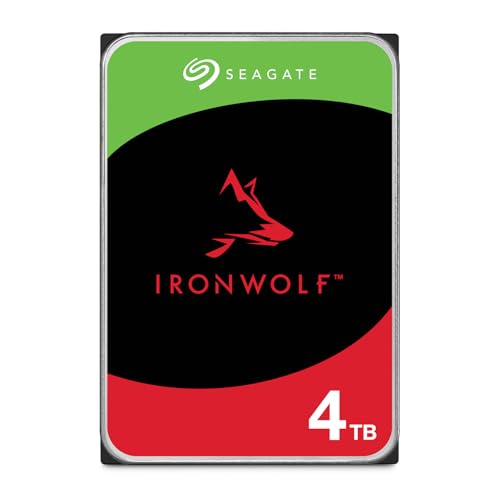
Seagate IronWolf 4TB NAS Hard Drive
Purpose-built for NAS enclosures with vibration resistance and 24/7 operation ratings.
One important detail: enable versioning in both your local and cloud backups. Versioning keeps multiple snapshots of your files over time, which protects you from ransomware or accidental overwrites. If a file gets corrupted today but you don’t notice for a week, you can roll back to last week’s clean copy.
Frequently Asked Questions
How much cloud storage do I actually need?
Start by measuring your current data footprint. Most households have between 500GB and 2TB of critical data (documents, photos, videos, projects). Services like Backblaze Personal offer unlimited storage per computer, which removes the guesswork. If you’re using B2 or Wasabi with a NAS, plan for at least 1.5x your current data volume to accommodate versioned backups.
Can I use an external SSD instead of a NAS for my local backup?
Absolutely. A portable SSD like the Samsung T7 works great for single-computer setups, especially if you travel. The tradeoff is that external drives require manual connection (or staying plugged in), and they don’t support multi-device network backups the way a NAS does. For travel-specific recommendations, check our best portable SSDs for travel roundup.
This article contains affiliate links. We may earn a small commission at no extra cost to you.

James Kennedy is a writer and product researcher at Drives Hero with a background in IT administration and consulting. He has hands-on experience with storage, networking, and system performance, and regularly improves and optimizes his home networking setup.