
How to Check Samsung SSD Warranty by Serial Number
Your Samsung SSD just started acting up, or maybe you’re buying one used and want to know how much warranty is left on it. Either way, the answer is sitting right there on the drive itself, printed in tiny text you’ve probably never looked at closely. Finding it and checking it properly only takes a few minutes if you know where to look.
This guide walks you through locating your Samsung SSD’s serial number, telling it apart from the model number and firmware version, and running an official warranty check instead of trusting some random third-party site with your drive’s info.
Where to Find the Serial Number on a Samsung SSD
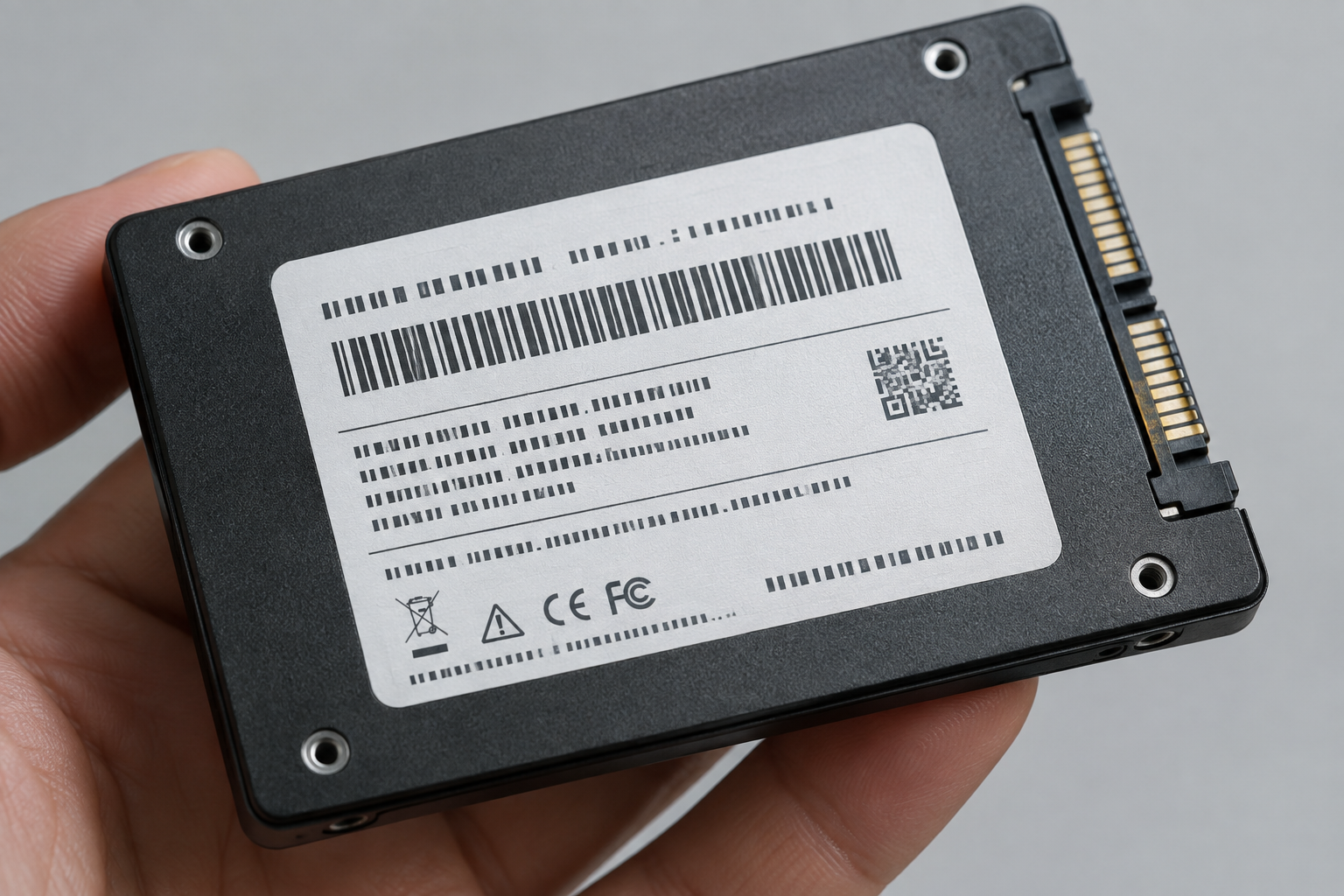
Every Samsung SSD has a label on the drive itself with a bunch of identifying information printed on it. The serial number is usually a string of letters and numbers, often starting with something like “S” followed by a mix of digits, located near the barcode on the sticker.
If your SSD is already installed in a laptop or desktop, you’ll need to physically remove it to read the label unless you can pull the info through software instead. For 2.5-inch SATA drives, the label covers most of the top of the drive. For M.2 NVMe drives, the label is smaller but still legible if you look closely.
You don’t always need to open your machine, though. Samsung Magician software (their free management tool) displays the serial number, model number, and firmware version all in one screen without you touching a screwdriver. If you’re not sure whether your system even has an NVMe drive or a older SATA-based one, it’s worth checking our breakdown of NVMe SSD vs Intel SSD differences first, since that affects how you’ll physically access the drive.
Using Samsung Magician to Pull the Serial Number
Download Samsung Magician from Samsung’s official site, install it, and open the app. It will detect any Samsung SSD connected to your system and list the serial number, model number, firmware revision, and total capacity right on the dashboard.
This is the fastest method if your drive is already installed and working. It’s also the safest option since you’re pulling data straight from Samsung’s own software rather than typing serial numbers into a search bar on a website you’ve never heard of.
Serial Number vs Model Number vs Firmware Version
These three terms get mixed up constantly, and mixing them up is one of the most common reasons warranty checks fail on the first try.
- Serial number: A unique identifier for that specific physical drive. No two drives share the same one. This is what warranty databases use to look up purchase and coverage info.
- Model number: Identifies the product line and capacity, like “MZ-V8P1T0B” for a 970 EVO Plus 1TB. Every drive of that exact model shares the same model number.
- Firmware version: The software running on the drive’s controller, something like “2B2QEXM7.” This updates over time and has nothing to do with warranty status, though outdated firmware can cause performance or compatibility issues.
If you’re trying to check warranty status, the serial number is what matters. The model number helps confirm you’re looking at the right product page, but it won’t pull up your specific coverage details.
If you’ve never updated your drive’s firmware and you’re troubleshooting odd behavior, it’s worth checking our guide on how to upgrade Samsung SSD firmware before assuming the drive itself is failing.
How to Check Your Samsung SSD Warranty Officially
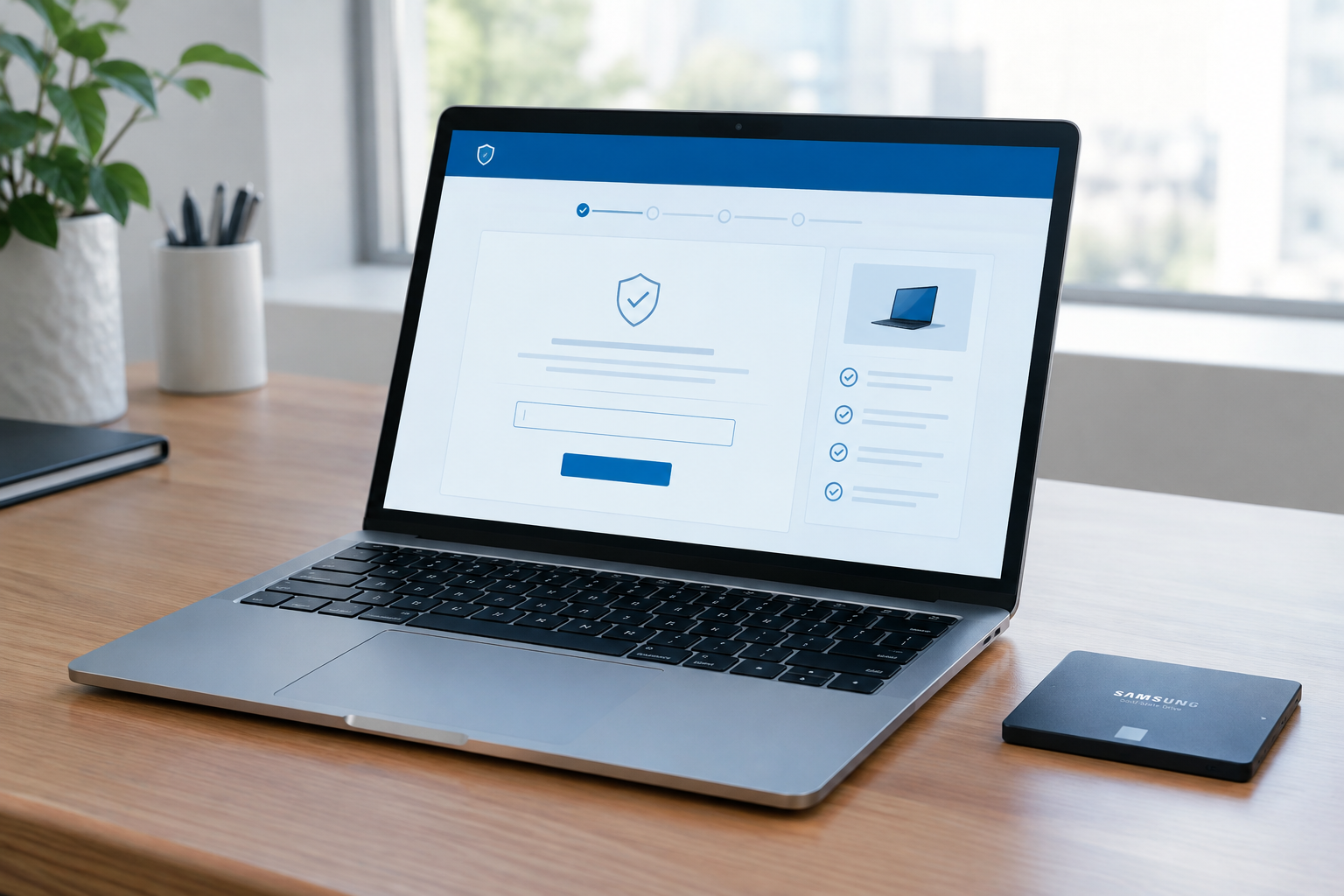
Samsung runs its own warranty check tool through its official support site. Here’s the process:
- Go to Samsung’s official semiconductor or memory storage support page (search “Samsung SSD warranty check” and confirm the URL is samsung.com before entering anything).
- Locate the warranty check or product registration tool, usually under Support or Service sections.
- Enter your drive’s serial number and model number exactly as printed on the label or shown in Samsung Magician.
- Submit and review the coverage dates, remaining warranty period, and any notes on eligibility.
Stick to Samsung’s own domain for this. Third-party “SSD warranty lookup” sites have popped up over the years, and handing your serial number to a site that isn’t Samsung doesn’t get you anything a manufacturer’s own tool can’t, and it adds an unnecessary privacy risk. There’s no upside to using them when the official process takes about the same amount of time.
What to Do If the Warranty Tool Shows No Record
Sometimes a legitimate drive won’t show up in the warranty database right away, especially if it was purchased recently or through certain retail channels. If that happens, contact Samsung support directly and provide your serial number along with a copy of your purchase receipt. They can usually verify eligibility manually even when the automated tool comes back empty.
Why Warranty Eligibility Isn’t Always Simple
Samsung SSD warranties typically run three to five years depending on the product line, but the exact terms depend on more than just the date stamped on the drive.
Region matters. A drive purchased in one country may carry different warranty terms or service options than the same model sold elsewhere. Samsung’s regional support policies aren’t identical worldwide, so a warranty check run through the US support site may return different results than the same serial number checked through a different country’s portal.
Seller matters too. Drives bought from unauthorized resellers, gray market sellers, or bundled into pre-built systems sometimes have different coverage than one purchased directly from Samsung or an authorized retailer. If you bought your SSD as part of a laptop upgrade kit or through a marketplace seller you’re not familiar with, double check that the listing specified an authorized channel.
Proof of purchase can make or break a claim. Even when a drive shows valid warranty dates in Samsung’s system, you may still need to provide a receipt or invoice to actually process a claim. Keep that documentation somewhere you won’t lose it, ideally a folder or cloud storage account separate from the box the drive came in.
Purchase date is the other variable people forget about. Warranty periods count from the original purchase date, not the manufacture date, so a drive that sat on a shelf for a year before you bought it still gets its warranty clock started at your purchase, provided you have the receipt to prove it.
Protecting Your Data Before You Ever Need a Warranty Claim
A warranty replaces a failed drive, but it won’t get your files back. If your SSD is showing early warning signs like slow read speeds, frequent freezes, or SMART errors in Samsung Magician, back up your data immediately before you go through the claims process.
This is also a good moment to think about whether your current setup is even using your SSD’s capabilities properly. If you’re running an older SATA drive and considering a switch, our comparison of SATA vs NVMe SSD for gaming lays out the real-world performance difference, and our piece on whether NVMe is really faster than SATA SSDs covers the technical side if you want more detail before your next purchase.
Frequently Asked Questions
Can I check my Samsung SSD warranty without removing it from my computer?
Yes, in most cases. Samsung Magician software reads the serial number and model directly from an installed drive, so you don’t need to physically remove anything unless the software fails to detect it.
Does the warranty transfer if I bought a used Samsung SSD?
Warranty coverage is usually tied to the original purchase date and, in some cases, the original purchaser. A used drive may still have time left on its original warranty period, but Samsung may require proof of purchase from the original buyer to process any claim, which isn’t always available with used hardware.
What should I do if my Samsung SSD is out of warranty but still failing?
Back up any recoverable data immediately, since an out-of-warranty drive won’t qualify for free replacement. From there, weigh the cost of a data recovery service against simply replacing the drive, and consider whether upgrading to a newer, higher-capacity SSD makes more sense than repairing an aging one.

James Kennedy is a writer and product researcher at Drives Hero with a background in IT administration and consulting. He has hands-on experience with storage, networking, and system performance, and regularly improves and optimizes his home networking setup.