Best Budget NAS Setups for Home Users in 2026
Setting up a NAS (Network Attached Storage) at home used to feel like a project reserved for IT professionals. But in 2026, the hardware has gotten so user-friendly that most people can go from unboxing to streaming files in under an hour. The real challenge isn’t the setup process itself. It’s figuring out which combination of enclosure and drives gives you the best value without blowing your budget.
I’ve spent months testing and researching different NAS configurations at various price points, and I’ve broken everything down into four budget tiers. Each tier includes a specific enclosure recommendation, the drives to pair with it, and the total storage you’ll get. If you’re brand new to home network storage, our NAS setup guide for beginners covers the fundamentals before you buy anything.
What to Look for in a Budget NAS Setup
Before we get into specific recommendations, you need to understand the three things that matter most when choosing a NAS on a budget: the enclosure’s CPU and RAM, the number of drive bays, and the drives themselves.
The enclosure is the brain of the operation. It runs the operating system, manages file sharing, handles user permissions, and often runs apps like media servers or download managers. A weak CPU will bottleneck everything, especially if you plan to transcode video through Plex or Jellyfin. At minimum, you want a quad-core ARM or Intel Celeron processor and at least 1GB of RAM (2GB is much better).
Drive bays determine your expansion potential. A single-bay NAS works for basic backups, but a two-bay unit lets you run RAID 1 for redundancy. If you’re unsure which RAID configuration makes sense for your situation, our RAID 0 vs RAID 1 comparison breaks it down clearly.
Hard drives are where most of your budget goes. NAS-rated drives (like the WD Red Plus or Seagate IronWolf series) are designed for 24/7 operation and handle the vibration of multi-bay enclosures better than standard desktop drives. You can use regular drives in a pinch, but NAS-rated drives last significantly longer in this use case.
Tier 1: The Starter Setup (Single-Bay NAS)
This tier is perfect if you just want centralized storage for documents, photos, and phone backups. You won’t get redundancy here since there’s only one drive, so you’ll want to pair this with a cloud backup service. We’ve actually compared the long-term costs of cloud backup vs. local NAS storage, and running both together is the smartest approach for most people.
Recommended Enclosure: Synology DS124
The Synology DS124 is a single-bay NAS with a quad-core Realtek processor and 1GB of RAM. It runs Synology’s DiskStation Manager (DSM), which is widely considered the best NAS operating system available. Setup takes about 15 minutes through a web browser, and the mobile apps for iOS and Android are excellent.
For a single-bay unit, it handles media serving, file syncing, and automated backups with ease. You won’t be running virtual machines on it, but for a home user’s first NAS, it’s exactly the right amount of capability.
Recommended Drive Pairing
Pair the DS124 with a WD Red Plus 4TB (WD40EFPX). The Red Plus line uses CMR (Conventional Magnetic Recording) technology, which is more reliable for NAS use than the cheaper SMR-based WD Red drives. Four terabytes is plenty for most home users starting out, and you can always upgrade to a larger drive later.

Synology DS124 NAS Enclosure
The easiest NAS to set up for beginners, with Synology’s industry-leading DSM software and excellent mobile apps.
Total usable storage: ~4TB (no RAID in a single-bay setup)
Best for: Phone backups, document storage, light photo libraries, first-time NAS users.
Tier 2: The Smart Value Setup (Two-Bay NAS with Redundancy)
This is the tier I recommend most often. A two-bay NAS running RAID 1 (mirroring) gives you real data protection. If one drive fails, your files are still safe on the other drive. You lose half your raw storage capacity to the mirror, but the protection is absolutely worth it.
Recommended Enclosure: Synology DS225+
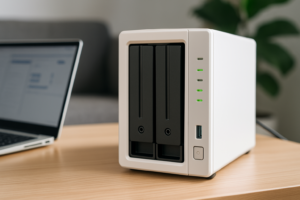
The Synology DS225+ is the 2026 refresh of Synology’s beloved two-bay plus series. It comes with an Intel Celeron processor, 2GB of DDR4 RAM (expandable), and two Gigabit Ethernet ports with link aggregation support. This thing handles Plex transcoding, Docker containers, Synology Drive file syncing, and surveillance camera recording without breaking a sweat.
If you can’t find the DS225+ in stock, the Synology DS224+ from the previous generation is nearly identical in capability and often available at a lower price point. Both are outstanding choices.
Recommended Drive Pairing
Go with two Seagate IronWolf 4TB (ST4000VN006) drives. The IronWolf line is built specifically for NAS environments, with rotational vibration sensors and a workload rating of 180TB per year. Running two 4TB drives in RAID 1 gives you 4TB of usable, redundant storage.
If you need more room and your budget allows, stepping up to two Seagate IronWolf 8TB drives in RAID 1 gives you 8TB of protected storage. Check current pricing on Amazon to see if the per-terabyte cost works out in your favor.

Synology DS225+ Two-Bay NAS
The best overall two-bay NAS for home users who want Plex, Docker, and reliable RAID 1 protection.
Total usable storage: ~4TB in RAID 1 (with 4TB drives) or ~8TB in RAID 1 (with 8TB drives)
Best for: Family media servers, Plex/Jellyfin streaming, photo libraries, automated backups for multiple computers.
Once you’ve got this set up, make sure to configure automated backups right away. Our guide on setting up automated NAS backups in 30 minutes walks you through the whole process.
Tier 3: The Power User Setup (Four-Bay NAS)
Four bays open up more flexible RAID configurations and significantly more storage. With four drives, you can run Synology’s SHR (Synology Hybrid RAID) or a traditional RAID 5, which gives you the storage equivalent of three drives while tolerating one drive failure. This is where home NAS setups start to feel truly professional.
Recommended Enclosure: Synology DS423
The Synology DS423 (or the still-excellent DS923+ if the DS423 isn’t available yet) gives you four bays, an AMD Ryzen embedded processor, 4GB of ECC RAM, and two M.2 NVMe slots for SSD caching. The NVMe cache is a fantastic feature. It accelerates random read/write operations so your NAS feels snappy even under heavy use.
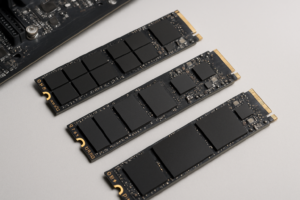
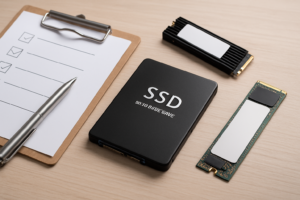
If you’re considering the M.2 cache slots, our M.2 vs 2.5-inch SSD comparison can help you understand the form factor differences before you buy cache drives.
For a more budget-conscious four-bay option, consider the QNAP TS-464. QNAP’s software (QTS) has a steeper learning curve than Synology’s DSM, but the hardware specs are often more generous at similar price points. The TS-464 includes an Intel Celeron N5095, 8GB of RAM, and HDMI output for direct media playback.
Recommended Drive Pairing
Fill all four bays with WD Red Plus 6TB (WD60EFPX) drives. In a RAID 5 or SHR configuration, you’ll get approximately 18TB of usable storage with single-drive fault tolerance. The 6TB sweet spot often offers the best price-per-terabyte ratio in the Red Plus lineup, though you should compare with the 8TB model to see which gives more value at the time you’re buying.
Total usable storage: ~18TB in RAID 5/SHR (with 4x 6TB drives)
Best for: Large media libraries (20,000+ photos, extensive video collections), multi-user households, running Docker apps, small business file sharing, surveillance systems with 4+ cameras.
Tier 4: The DIY Approach
Pre-built NAS enclosures from Synology and QNAP are convenient, but you pay a premium for that convenience. If you’re comfortable building a PC, you can repurpose old hardware or buy budget components and install free NAS software like TrueNAS or OpenMediaVault.
We’ve written a detailed walkthrough on building a budget home NAS from scratch that covers part selection, assembly, and software installation. The short version: an old mini PC or a used Dell OptiPlex with a few SATA ports can become a surprisingly capable NAS. Pair it with any of the NAS drives mentioned above, and you’ve got a system that rivals the pre-built options.
The trade-off is time and troubleshooting. Synology’s DSM gives you a polished, app-store-like experience out of the box. TrueNAS and OpenMediaVault are powerful but require more tinkering. If you enjoy that kind of project, the DIY route can save you a meaningful amount on the enclosure while giving you more processing power.
HDD vs. SSD for NAS Storage: Does It Matter?
You might be wondering whether to use SSDs instead of traditional hard drives in your NAS. For most home users, the answer is no. HDDs still dominate NAS storage for good reason: they offer dramatically more storage per dollar, and NAS workloads (streaming, backups, file serving) don’t typically need the random I/O performance that SSDs excel at.
SSDs make sense as cache drives (like the M.2 slots on the DS923+) or if you have a very specific workload like running databases or virtual machines. For general file storage, stick with NAS-rated HDDs. If you’re curious about the broader differences between the two technologies, our SSD vs. HDD breakdown for 2026 covers everything you need to know.
Essential Tips for Your New NAS
Once you’ve assembled your NAS setup, a few extra steps will save you from headaches down the road.
Use a UPS (Uninterruptible Power Supply)
A sudden power outage during a write operation can corrupt your data or damage your RAID array. A small UPS battery backup connected via USB to your NAS will trigger a safe shutdown when the power goes out. This is one of the most important accessories you can buy. Don’t skip it.

APC Back-UPS 650VA UPS Battery Backup
Essential protection for your NAS investment, providing safe shutdown during power outages.
Enable Two-Factor Authentication
If you plan to access your NAS remotely (and you probably will), enable two-factor authentication on all user accounts. Both Synology DSM and QNAP QTS support this natively. It takes two minutes to set up and prevents unauthorized access even if your password is compromised.
Set Up a 3-2-1 Backup Strategy
A NAS with RAID is not a backup. RAID protects against drive failure, but it won’t protect you from accidental deletion, ransomware, fire, or theft. The 3-2-1 rule means three copies of your data, on two different types of media, with one copy stored offsite. Your NAS handles the local copies. Add a cloud backup destination (Synology’s Hyper Backup supports Backblaze B2, Amazon S3, and others) for the offsite piece.
Keep Your Firmware Updated
Both Synology and QNAP regularly release security patches and feature updates. Turn on automatic update notifications and install them promptly. NAS devices connected to the internet are targets for malware if left unpatched.
Frequently Asked Questions
Can I use regular desktop hard drives in a NAS instead of NAS-rated drives?
Technically, yes. A standard WD Blue or Seagate Barracuda will physically work in any NAS enclosure. But desktop drives aren’t designed for the 24/7 operation and vibration that NAS environments produce. They tend to fail sooner and may cause issues in multi-bay setups where vibration from adjacent drives is a factor. NAS-rated drives like the WD Red Plus and Seagate

James Kennedy is a writer and product researcher at Drives Hero with a background in IT administration and consulting. He has hands-on experience with storage, networking, and system performance, and regularly improves and optimizes his home networking setup.