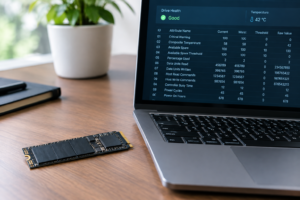
Is 90% SSD Health Good?
You check your SSD’s health in CrystalDiskInfo or Samsung Magician and see 90%. Your first instinct is probably to panic a little, or at least wonder if you should start shopping for a replacement drive. Neither reaction is really justified until you understand what that number is actually measuring.
A 90% health reading is, in most cases, completely normal for a drive that’s been in daily use for a year or two. But the number by itself doesn’t tell the full story, and treating it as a simple countdown to failure can lead you to either replace a perfectly good drive or ignore a warning sign buried in a different field entirely.
What That Percentage Actually Represents

SSD health percentages are almost always derived from wear leveling data, specifically how much of the drive’s rated write endurance has been consumed. Every NAND cell can handle a finite number of program/erase cycles before it becomes unreliable, and manufacturers build in a total terabytes written (TBW) rating for each drive.
When your software reports 90% health, it’s usually saying you’ve used about 10% of that TBW allowance, not that the drive is 10% closer to some universal failure point. A drive rated for 300TBW that’s absorbed 30TB of writes will show roughly 90% life remaining, and depending on your usage pattern, that could represent years of remaining service.
This is where things get inconsistent across brands. Samsung Magician calculates health based on its own wear-leveling algorithm and TBW estimates. CrystalDiskInfo pulls raw SMART attribute 231 (SSD Life Left) or byte counts and does its own math depending on the drive vendor. Western Digital, Crucial, and Kingston all have slightly different formulas baked into their own utilities.
That means a 90% reading on a Samsung 970 EVO and a 90% reading on a WD Black SN770 aren’t necessarily measuring the exact same thing the exact same way. If you’re comparing drives, especially in something like the WD Black SN770 vs SN850X lineup, don’t assume the health percentages are apples to apples across tools or brands.
When 90% Is Normal (and When It Isn’t)
For most consumer drives, dropping to 90% health after one to three years of typical use is expected and not a cause for concern. Consumer NVMe and SATA SSDs are rated for hundreds of terabytes of writes, and average users rarely write more than a few terabytes per year through normal browsing, gaming, and document work.
A 90% reading becomes worth paying attention to only when it’s paired with other red flags, not in isolation. Here’s what actually matters more than the percentage itself:
- Reallocated sector count: any nonzero value here on an SSD (attribute 5) suggests cells are already failing and being remapped.
- Uncorrectable error count: rising numbers here (attribute 187 or 198 depending on the drive) mean the controller is struggling to read data reliably.
- Media wearout indicator trending down fast: if health dropped from 100% to 90% in a few months rather than a couple of years, your write volume is unusually high and worth investigating.
- Critical warning flags in NVMe SMART data: on NVMe drives, check the “critical_warning” byte in tools like smartctl. Any nonzero value here is far more urgent than a wear percentage.
- Unexpected power loss count: frequent unsafe shutdowns can degrade a drive faster than normal writes and sometimes corrupt the SMART data itself.
If the only thing you’re seeing is a 90% wear indicator with clean SMART attributes across the board, keep using the drive. If you’re also seeing climbing error counts or reallocated sectors alongside it, that’s your actual warning sign, and it justifies backing up immediately regardless of what the percentage says.
What To Actually Do About It

Back up your data as routine maintenance, not as a reaction to a scary-looking number. Any drive, healthy or not, can fail without warning due to controller issues or firmware bugs that have nothing to do with wear leveling.
If you want a second opinion beyond the built-in health percentage, run a full SMART report through CrystalDiskInfo or, on Linux and Mac, smartctl from the smartmontools package. Look specifically at the attributes mentioned above rather than trusting a single summary score.
If you’re already noticing slower read/write speeds, apps failing to launch, or the system freezing during disk-heavy tasks, that’s a stronger practical signal than any SMART attribute. At that point, planning a replacement makes sense, and it’s a good excuse to look at whether NVMe is actually faster than your current SATA SSD for your next upgrade.
Frequently Asked Questions
Should I replace my SSD at 90% health?
No, not based on that number alone. A 90% reading with no other warning signs typically means you have years of normal use left. Only prioritize replacement if error counts, reallocated sectors, or critical warning flags show up alongside it.
How fast should SSD health decrease normally?
For typical consumer use, expect health to drop gradually over years, not months. Losing 10% in the first year or two of light to moderate use is common. If you see a rapid drop over a few weeks, you’re either running unusually write-heavy workloads or something abnormal is happening with the drive.

James Kennedy is a writer and product researcher at Drives Hero with a background in IT administration and consulting. He has hands-on experience with storage, networking, and system performance, and regularly improves and optimizes his home networking setup.