NVMe Percentage Used Explained
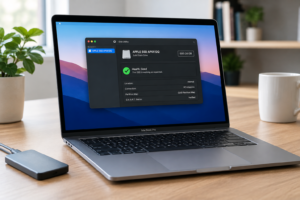
You open Samsung Magician, CrystalDiskInfo, or your BIOS storage health screen and see a number staring back at you: “Percentage Used: 12%.” Your first instinct might be relief, or panic, depending on how that number compares to what you expected. But most people have no idea what that percentage is actually measuring, and that’s a problem because misreading it can lead you to either ignore a dying drive or panic-replace a perfectly healthy one.
This guide breaks down what NVMe Percentage Used actually tracks, which other SMART attributes you should be checking alongside it, and where the real warning signs show up before a drive fails.
What NVMe Percentage Used Actually Measures

Percentage Used is an official NVMe SMART attribute (byte offset 5 in the SMART/Health Information log, if you want to get technical). It’s not a general health score. It’s a measure of how much of the drive’s rated write endurance has been consumed based on wear leveling data reported by the controller.
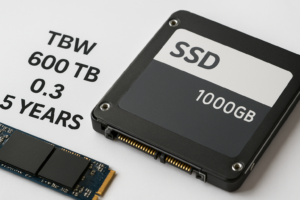
Every NAND flash cell can only handle a finite number of program/erase cycles before it starts losing reliability. Manufacturers rate their drives with a Terabytes Written (TBW) or Drive Writes Per Day (DWPD) figure. Percentage Used is essentially a running tally of how close you are to that rated ceiling, expressed as a number from 0 to 100 (and it can technically exceed 100 on some drives, which doesn’t mean instant failure).
A drive rated for 600TBW that has recorded 60TB of total writes will typically show around 10% used. It’s a linear estimate, not a countdown clock. A drive at 100% hasn’t necessarily failed, it’s just passed the point where the manufacturer guarantees reliability under warranty.
Why This Number Rarely Matters As Much As You Think
For the vast majority of laptop and desktop users, Percentage Used barely moves. Consumer NVMe drives are rated for hundreds of terabytes of writes, and a typical user writes maybe 10 to 20GB per day between OS updates, downloads, and normal use. That’s not enough to meaningfully wear out a modern drive within a normal ownership window.
If you’re curious why storage health matters so much for daily performance and not just longevity, it ties directly into how important your SSD is to your laptop’s overall speed and responsiveness. A drive with plenty of endurance left but poor thermal management or firmware issues can still feel sluggish.
Where Percentage Used actually matters is in specific workloads: video editing scratch disks, database servers, cache drives for game libraries with constant read/write cycling, or NAS boxes running NVMe cache tiers. If you’re writing hundreds of gigabytes daily, checking this number every few months is worth the habit.
The SMART Fields You Should Actually Be Watching

Percentage Used tells you about wear, but it says nothing about whether the drive is currently healthy. For that, you need to look at a handful of other NVMe SMART attributes together.
- Media and Data Integrity Errors: This should stay at zero. Any nonzero count means the controller detected uncorrectable errors reading or writing data. This is a far more urgent red flag than Percentage Used.
- Available Spare: NVMe drives reserve extra NAND blocks to replace ones that wear out. This value starts at 100% and drops as spare blocks get consumed. Most drives trigger a warning threshold around 10%, and that threshold is the real “time to worry” signal.
- Critical Warning flags: This is a bitfield that flags things like temperature threshold breaches, spare capacity below threshold, or read-only mode. If this field is anything other than zero, investigate immediately.
- Unsafe Shutdowns: A high count here, especially rising quickly, suggests power delivery issues or a system crashing rather than a drive problem, but repeated unsafe shutdowns can also accelerate wear and corruption.
- Temperature: Sustained high temperatures degrade NAND faster and can trigger thermal throttling. If you’re seeing your drive regularly hit 70C or higher under load, that’s worth addressing regardless of what Percentage Used says.
A drive at 5% used with a nonzero Media Errors count is in worse shape than a drive at 60% used with clean error logs and full spare capacity. The combination of fields tells the story, not any single number in isolation.
Manufacturer Health Percentages Are Not the Same Thing
Here’s where a lot of confusion comes from. Samsung Magician shows a “Good/Warning/Bad” health status. WD Dashboard shows its own health percentage. Crucial Storage Executive does the same. These are not raw NVMe Percentage Used values, they’re proprietary calculations that blend multiple SMART attributes, sometimes including Percentage Used, sometimes weighting spare capacity or error counts more heavily.
Two drives with identical raw SMART data can show different “health scores” simply because Samsung’s algorithm and WD’s algorithm weigh factors differently. If you’re comparing drives across brands, like when deciding between something similar to a WD Black SN770 and an SN850X, don’t assume the health percentage in one vendor’s tool means the same thing as another vendor’s tool.
Samsung’s tool tends to be more conservative and detailed, especially if you keep drive firmware current using guidance like this walkthrough on upgrading Samsung SSD firmware, which can actually resolve some reporting quirks and improve wear leveling behavior. Outdated firmware occasionally misreports SMART data entirely, so before you panic over a weird number, check whether a firmware update is available.
When to Actually Back Up or Replace the Drive
Percentage Used climbing steadily toward 90-100% on a drive you use for heavy write workloads is a legitimate signal to start planning a replacement, not because the drive will die the moment it crosses 100%, but because you’re now operating past the manufacturer’s tested reliability window.
More urgent than wear percentage are these combinations:
- Available Spare dropping below 10% at any wear level
- Any nonzero Media and Data Integrity Error count that increases over multiple checks
- Critical Warning flags showing anything other than zero
- SMART reads becoming increasingly slow or timing out
- Unexplained file corruption or repeated boot failures
If you see any of these, back up your data immediately, regardless of what the wear percentage says. A drive can fail suddenly even at low Percentage Used if a controller fault or NAND die failure occurs. Wear leveling estimates assume normal, gradual degradation, not sudden component failure.
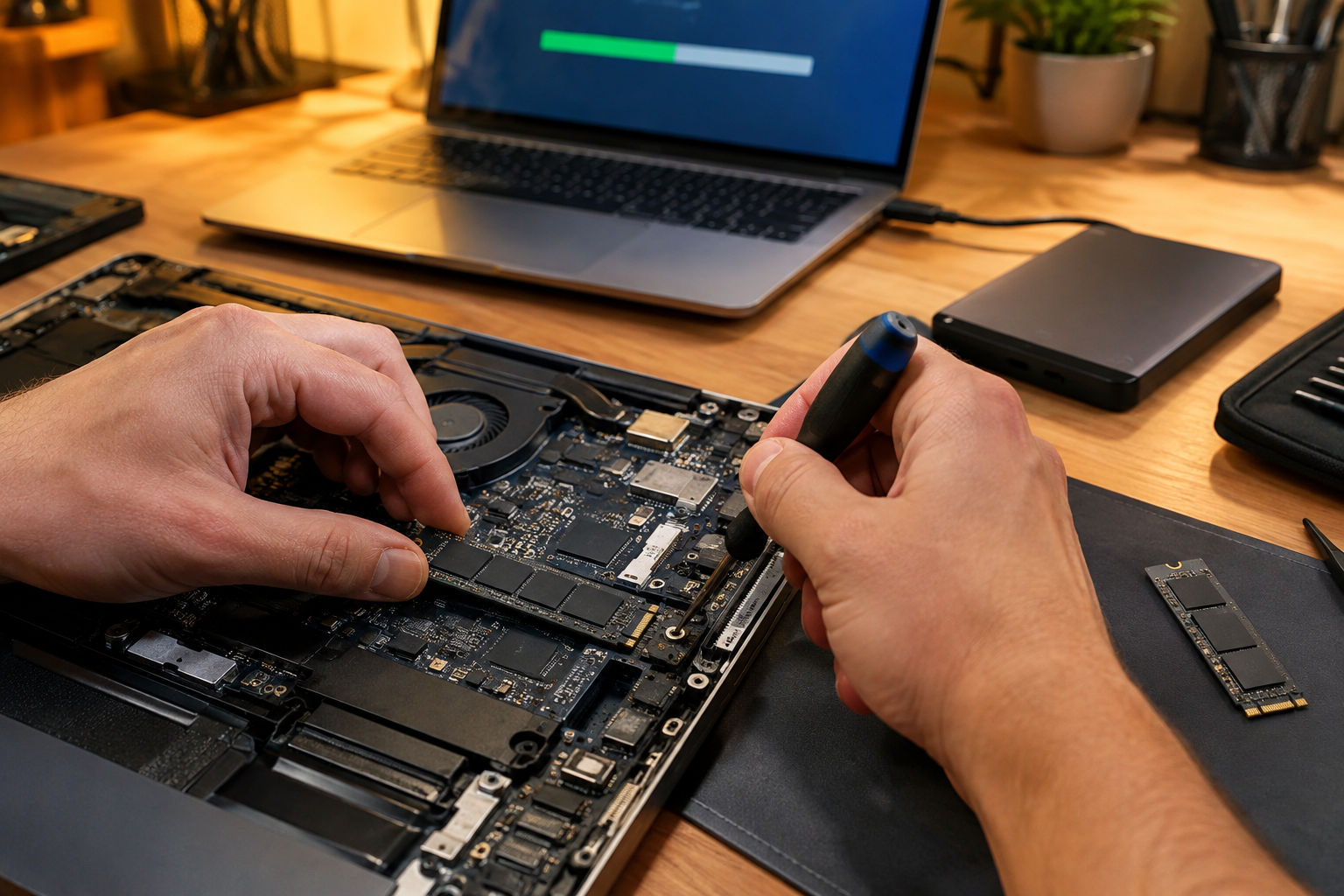
When it’s time to actually swap the drive, you don’t need to reinstall everything from scratch. Cloning tools make it possible to upgrade your SSD without losing any data, and if you’re moving to a larger capacity at the same time, the process for upgrading to a larger SSD covers the cloning and partition resizing steps in detail.
Frequently Asked Questions
Is 5% Percentage Used after two years normal?
Yes, that’s typical for average consumer use. Most people write well under the daily amount needed to meaningfully wear out a modern NVMe drive within a few years. If your usage is light to moderate, you’ll likely retire the laptop or PC for other reasons long before wear becomes a concern.
Can Percentage Used decrease over time?
No, it’s a cumulative counter based on total lifetime writes and won’t reset unless the drive is replaced or, in rare cases, reflashed at the factory level. If you see it drop, that usually indicates a reporting bug or a firmware issue rather than an actual improvement in drive health.
Does a high Percentage Used mean my drive will fail soon?
Not necessarily. It means you’ve used a larger portion of the rated write endurance, but plenty of drives keep working well past 100% used with no data integrity issues. Treat it as a maintenance and backup trigger, not a failure prediction, and pay closer attention to error counts and available spare capacity instead.

James Kennedy is a writer and product researcher at Drives Hero with a background in IT administration and consulting. He has hands-on experience with storage, networking, and system performance, and regularly improves and optimizes his home networking setup.