How to Check SSD Health in Linux
Your SSD won’t warn you with a slow grinding noise before it dies like an old hard drive would. It just quietly accumulates wear until one day it either becomes read-only or disappears from your system entirely. Checking its health on Linux takes about two minutes once you know which tools and numbers actually matter, and this guide walks you through exactly that.
The Tools You Need
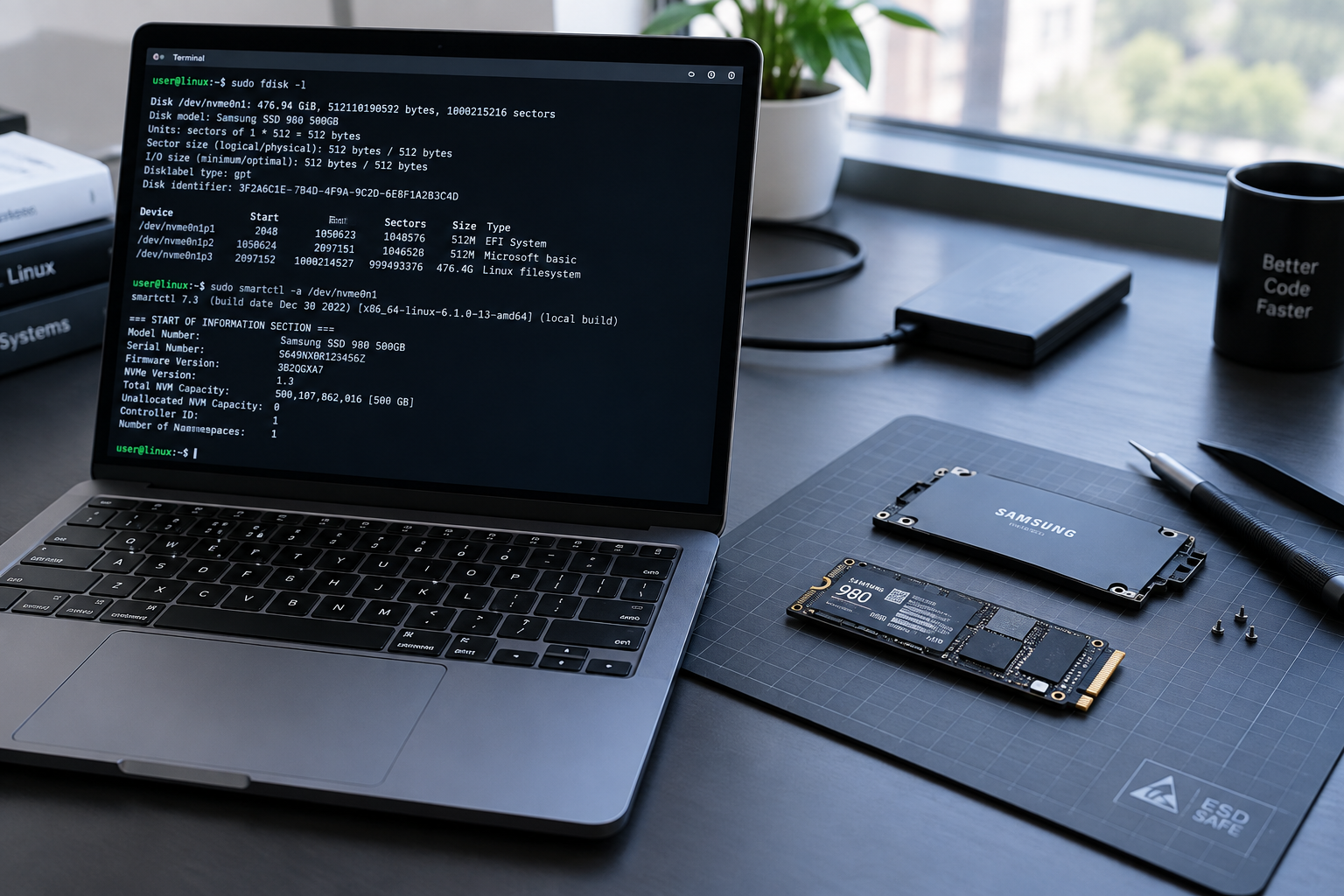
For SATA SSDs, you’ll use smartmontools, which reads SMART data the same way it would on a spinning hard drive. Install it with sudo apt install smartmontools on Debian/Ubuntu or sudo dnf install smartmontools on Fedora.
For NVMe drives, you want nvme-cli instead. SMART attributes were designed for SATA drives, and NVMe uses a cleaner, standardized log page instead of the messy vendor-specific SMART fields. Install it with sudo apt install nvme-cli or the equivalent for your distro.
Run these commands to check your drive:
- SATA SSD:
sudo smartctl -a /dev/sda - NVMe SSD:
sudo nvme smart-log /dev/nvme0
If you’d rather have a GUI, GNOME Disks (already installed on most Ubuntu and Fedora desktop systems) shows a simplified SMART overview under the drive’s menu. It’s fine for a quick glance, but the terminal output gives you the detail you actually need to make a judgment call.
What to Look for on SATA SSDs
SMART output on a SATA SSD is a wall of numbers, but only a handful of attributes actually matter. Ignore anything related to seek errors or spin-up time, those are hard drive leftovers that don’t apply to solid state storage.
- ID 5, Reallocated Sector Count: should stay at 0. Any nonzero value means cells have already failed and been remapped.
- ID 9, Power-On Hours: just tells you how long the drive has been running, useful for context rather than health on its own.
- ID 177 or 173, Wear Leveling Count: this is your real wear indicator on most SATA SSDs, showing how evenly data has been spread across cells.
- ID 179 or 180, Used Reserved Block Count: tracks how much of the drive’s spare capacity has already been consumed replacing bad blocks.
- ID 202 or 233, Media Wearout Indicator / Percentage Used: this is the closest thing to a single “health score,” starting at 100 and counting down (or starting at 0 and counting up, depending on the vendor).
Samsung, Crucial, and Kingston all label these IDs slightly differently, and some vendors add proprietary attributes on top. If a number looks odd, cross-check the ID against your specific model’s documentation before assuming the worst. Some tools like smartctl -x will also display raw values that need interpretation in hex rather than decimal, which is another common source of false alarms.
What NVMe Health Data Actually Tells You

NVMe drives report health through a standardized log rather than scattered SMART IDs, which makes them easier to read at a glance. Running nvme smart-log gives you output that includes these key fields:
- percentage_used: this is the number everyone fixates on, and it represents how much of the drive’s rated write endurance has been consumed, not remaining physical lifespan. A drive at 50% has used half its warrantied write budget, but that doesn’t mean it will die at 100%. Plenty of drives keep working well past that mark.
- available_spare: shows the percentage of spare blocks still available for wear leveling and bad block replacement. This should stay near 100%.
- available_spare_threshold: the point at which the drive itself considers spare capacity critically low. If available_spare drops to this threshold, that’s a real problem, not a cosmetic one.
- media_errors: should be 0. Any nonzero count here means actual data corruption has been detected on the media.
- critical_warning: a bitmask flag that should read 0. Anything else means the drive’s own firmware is raising an alarm about temperature, spare capacity, or reliability.
Percentage_used is a countdown against the manufacturer’s endurance rating (measured in total bytes written, or TBW), not a live prediction of failure. A Samsung 970 EVO Plus rated for 600 TBW that’s written 300TB will show roughly 50% used, but that’s a warranty metric, not a crystal ball. If you’re weighing NVMe options for an upgrade and want to understand how these endurance ratings stack up against older SATA drives, our NVMe SSD vs Intel SSD comparison breaks down the practical differences.
Why a Single Percentage Isn’t a Universal Failure Predictor
Every manufacturer calculates its “health percentage” using its own formula, weighing wear leveling, spare blocks, and error counts differently. A Samsung drive at 85% health and a Crucial drive at 85% health aren’t necessarily equivalent in real-world risk, because the underlying math isn’t standardized across brands.
Some vendor tools, like Samsung Magician or Crucial Storage Executive, calculate health scores that don’t map directly to the raw SMART or NVMe values you’d see through smartctl or nvme-cli. This is why running the manufacturer’s own diagnostic alongside the Linux command line tools is a good habit, especially before assuming a low number means imminent failure. If you’re specifically running Samsung hardware, updating firmware can also affect how these numbers are reported, which is covered in our guide on upgrading Samsung SSD firmware.
A drive showing 20% remaining life with zero reallocated sectors, zero media errors, and stable temperatures is usually fine to keep using for months or years. A drive showing 90% remaining life but with climbing reallocated sectors or nonzero media errors is the one you should worry about immediately. Wear percentage is a trend to watch, not a standalone verdict.
Warning Signs That Actually Justify Backing Up
Stop treating the wear percentage as your only signal. These are the numbers and behaviors that mean it’s time to back up your data and start shopping for a replacement:
- Reallocated sector count or media error count that is nonzero and increasing between checks.
- Available spare capacity approaching or hitting the drive’s own threshold value.
- Critical_warning flag showing anything other than 0 in nvme-cli output.
- Frequent uncorrectable read errors appearing in dmesg or system logs, especially alongside file corruption or applications crashing on launch.
- The drive suddenly mounting as read-only, which usually means the controller has already given up trying to write.
None of these require a specific wear percentage to be alarming. A drive at 10% used with a nonzero media error count is a bigger risk than a drive at 70% used with clean SMART data across the board.
If any of these signs show up, back up your data immediately and start planning a replacement. Since you’re already comparing drives at that point, it’s worth reading up on the benefits of upgrading to an SSD if you’re still running mixed storage, or checking our walkthrough on upgrading an SSD without losing data so the swap goes smoothly.
Setting Up Regular Monitoring

Checking health manually every few months is fine, but you can automate it with smartd, the daemon that ships with smartmontools. Add a line for your drive in /etc/smartd.conf and it will email you or log a warning when key attributes cross a threshold, catching problems before you’d notice them on your own.
For NVMe drives, cron a simple script that runs nvme smart-log and greps for critical_warning or media_errors weekly. It’s a small setup cost that saves you from discovering a failing drive the hard way, mid-project with no recent backup.
Frequently Asked Questions
What SSD health percentage should I actually worry about?
There’s no universal cutoff, but once percentage_used or the wear leveling indicator climbs past 90%, or available spare capacity drops below 10%, it’s time to start budgeting for a replacement. Combine that with clean error counts and you likely still have a comfortable buffer before real trouble starts.
Can I trust smartctl output on an external USB SSD?
Sometimes. Many USB-to-SATA or USB-to-NVMe bridges strip out SMART pass-through support, so smartctl either returns nothing useful or fails outright. You may need to add flags like -d sat to force the correct device type, and some enclosures simply don’t support it no matter what you try.
Does a high power-on hours count mean my SSD is dying?
No. Power-on hours just tracks how long the drive has been running, not how worn out it is. An SSD with 40,000 power-on hours and low write volume can be healthier than one with 5,000 hours that’s been hammered with constant writes, so always check wear and error attributes alongside it rather than hours alone.

James Kennedy is a writer and product researcher at Drives Hero with a background in IT administration and consulting. He has hands-on experience with storage, networking, and system performance, and regularly improves and optimizes his home networking setup.