When Should You Replace an SSD Based on Health?
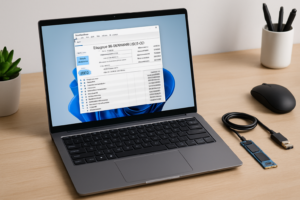
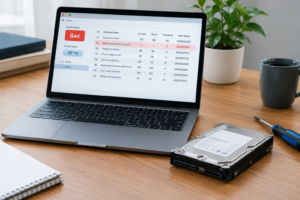
You open CrystalDiskInfo or Samsung Magician and see a number staring back at you: 87% health, or maybe it says “Caution” in yellow text. Your first instinct is probably panic, but that single percentage doesn’t tell you nearly as much as you think it does. Knowing which fields actually matter, and which ones are just noise, is the difference between replacing a drive too early or riding a failing one until you lose your data.
What That Health Percentage Actually Represents

Every SSD manufacturer calculates “health” a little differently, and that’s the first thing to understand before you trust any number on your screen. Samsung’s tools weigh wear leveling and total bytes written. WD and Crucial lean more heavily on the Available Spare attribute, which tracks how many backup memory blocks are left after bad ones get retired.
None of these percentages are standardized across brands, so an 80% reading on a Samsung 970 EVO doesn’t mean the same thing as 80% on a Crucial MX500. This is exactly why you shouldn’t treat one number as a universal failure predictor. It’s a rough estimate built from a formula the manufacturer chose, not a countdown timer.
If you’re trying to figure out whether your drive’s spec even matches your usage in the first place, it helps to understand how important your SSD really is to overall laptop performance before you start chasing health percentages at all.
The SMART and NVMe Fields That Actually Matter

Skip the summary percentage and look at the raw attributes instead. These are the ones worth checking:
- Percentage Used (NVMe attribute): This is the closest thing to an honest wear indicator. It’s based on the drive’s rated write endurance versus how much data you’ve actually written. Under 80% used is generally fine, but this number only climbs, it never resets.
- Available Spare: NVMe drives reserve extra flash blocks to swap in when others fail. If this drops below the manufacturer’s threshold (usually flagged automatically), the drive is telling you it’s running out of replacement parts.
- Media and Data Integrity Errors: Any nonzero value here on a relatively new drive is worth investigating immediately. This tracks actual data corruption events, not just wear.
- Reallocated Sector Count (SATA SSDs): A few reallocated sectors over years of use isn’t alarming. A number that’s climbing month over month is.
- Power-On Hours and Power Cycle Count: These give you context. A drive with 40,000 power-on hours and a slightly elevated wear number is aging normally. The same wear number after six months is not normal.
Tools like CrystalDiskInfo (Windows), Smartmontools (cross-platform), and each manufacturer’s own utility, like Samsung Magician or WD Dashboard, will show you these raw values, not just the color-coded summary.
Normal Readings vs. Real Warning Signs

A drive sitting at 90-95% health after a year or two of normal use is completely expected. NAND flash wears down with every write cycle, and that’s built into the design, not a defect. If you’re using an NVMe drive for heavy workloads, it’s also worth reading up on what NVMe SSDs are actually built to handle so you know what “normal” wear looks like for your specific use case.
Here’s when a reading actually justifies action:
- Percentage Used above 90% combined with any reallocated sectors or media errors. Wear alone at 90% isn’t an emergency, but paired with errors it’s a clear signal.
- Available Spare below the critical threshold your software flags (usually shown as a warning icon, not just a number).
- Sudden drops in read/write speed that aren’t explained by a full drive or thermal throttling.
- Frequent freezing, file corruption, or failed boots even when SMART data looks mostly fine. Software sometimes lags behind real hardware failure.
- Uncorrectable error counts increasing over consecutive checks, even if the number is still small.
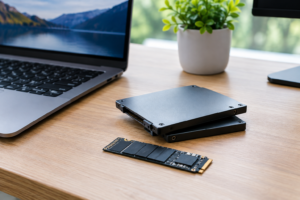
If you see any of these, back up your data that day, not next week. Once you’ve secured your files, decide whether you’re replacing like for like or moving up to something faster. If you’re weighing NVMe against a standard SATA SSD for the replacement, this comparison of NVMe versus SATA-based drives breaks down the practical differences in speed and longevity.
Replacing the drive itself is usually simpler than people expect, even on laptops that aren’t marketed as upgradeable. Guides like how to upgrade an SSD without losing your data walk through cloning your existing drive so you’re not starting from a clean install.
Frequently Asked Questions
Can an SSD show 100% health and still fail?
Yes. Health percentages primarily track wear from write cycles, but SSDs can fail from controller defects, firmware bugs, or power surges that have nothing to do with how many times the flash has been written to. Sudden, unexplained failures on “healthy” drives happen more often than most people realize, which is why backups matter regardless of what the health meter says.
Should I replace an SSD just because it’s a few years old?
Age alone isn’t a reason to replace a drive. A five-year-old SSD with low Percentage Used, no reallocated sectors, and stable performance can keep running for years more. Base your decision on the actual attributes covered above, not a calendar date, and you’ll avoid replacing drives that still have plenty of life left.

James Kennedy is a writer and product researcher at Drives Hero with a background in IT administration and consulting. He has hands-on experience with storage, networking, and system performance, and regularly improves and optimizes his home networking setup.