Is 70% SSD Health Still Safe?
Seeing “70% Health” pop up in CrystalDiskInfo or Samsung Magician can feel like a warning siren, especially if you weren’t expecting it. But that number by itself doesn’t tell you much without context. A 70% reading on a drive that’s five years old and full of your OS, games, and work files means something completely different than the same number on a six-month-old SSD.
This guide breaks down what that percentage actually measures, which SMART and NVMe attributes you should actually be watching, and when 70% is a non-issue versus a sign you need to back up your data tonight.
What That Health Percentage Actually Represents
The “health” number you see in monitoring software isn’t a single measurement pulled from the drive’s firmware. It’s a calculated estimate built from multiple SMART or NVMe attributes, and different tools weigh those attributes differently.
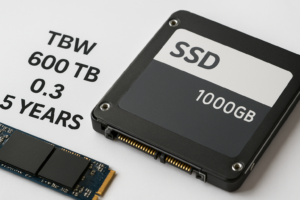
Most consumer SSDs use NAND flash that can only handle a finite number of write and erase cycles before cells start wearing out. The health percentage is mostly a proxy for how much of that write endurance budget you’ve used. A drive rated for 300 terabytes written (TBW) that has recorded 90TB of writes might report around 70% health, because it’s estimating remaining life based on used endurance, not actual failure risk.
That’s an important distinction. Endurance wear and imminent failure are not the same thing. Plenty of SSDs keep running fine well past their rated TBW, while others fail early due to controller issues or bad NAND batches that have nothing to do with the percentage shown.
Manufacturer Tools Calculate Health Differently
If you’re comparing health readings across drives or software, don’t expect consistency. Samsung Magician, Crucial Storage Executive, WD Dashboard, and third-party tools like CrystalDiskInfo all pull from slightly different SMART attributes and apply their own formulas.
- Samsung Magician leans heavily on the drive’s own “Percentage Used” NVMe attribute, which Samsung calibrates against its rated TBW for that specific model.
- Crucial Storage Executive factors in both media wear and remaining spare blocks, so two Crucial drives with identical write totals can show different percentages if one has used more spare area.
- CrystalDiskInfo often just relays raw SMART data without much interpretation, meaning “Health Status” can look more alarming or more optimistic depending on the drive’s own reporting quirks.
This is why a 70% reading from one tool isn’t necessarily comparable to 70% from another, even on similar hardware. If you want a second opinion, check the drive with its own manufacturer software rather than relying on a generic third-party number alone.
The SMART and NVMe Fields That Actually Matter

The overall health percentage is a summary. The individual attributes underneath it are where the real diagnostic information lives. These are the ones worth checking directly.
Percentage Used / Media Wearout Indicator
On NVMe drives, this is attribute value 202 or the “Percentage Used” field in the NVMe SMART log. It’s essentially the inverse of your health score and directly tracks endurance consumption against the manufacturer’s TBW rating.
Reallocated Sector Count
This tracks how many storage cells have failed and been swapped out for spare ones. A handful of reallocated sectors on an older drive isn’t unusual. A number that’s climbing fast between checks is a real red flag, regardless of what the overall health percentage says.
Available Spare / Spare Block Count
SSDs keep a reserve of unused NAND blocks to replace failing ones over time. Once available spare drops below the drive’s threshold (often flagged at 10% remaining), you’re looking at a drive nearing genuine end-of-life, not just heavy use.
Critical Warning Flag (NVMe)
This is a binary alert built into the NVMe spec. If it’s flagged, the drive itself is reporting a condition like temperature threshold exceeded, reliability degraded, or read-only mode triggered. Take this more seriously than any percentage score.
Uncorrectable Error Count
These are errors the drive’s error correction couldn’t fix on its own. Even a small, steadily increasing count here matters more than a low health percentage, because it points to actual data integrity problems happening right now.
Is 70% Health Normal or a Warning Sign?
For most everyday users, 70% health is not an emergency. It usually just reflects a drive that’s been in service for a few years and done a reasonable amount of writing, especially if you’ve been using it for gaming installs, video editing scratch disks, or as a boot drive with heavy paging activity.
Context matters more than the raw number:
- Normal: A 2 to 4 year old drive at 70% health with stable reallocated sector counts and no critical warnings. This is typical wear, not failure risk.
- Worth monitoring: A drive under a year old already at 70%. This suggests unusually heavy write activity, possibly from a misconfigured application, excessive swap usage, or a background process writing far more than expected.
- Concerning: 70% health paired with rising uncorrectable errors, a critical warning flag, or available spare dropping fast. Here the percentage isn’t the problem, the accompanying attributes are.
If your drive is a boot SSD running Windows or macOS, it’s also worth thinking about how much daily write load it’s under. If you’re curious how much that actually matters for everyday performance, our breakdown on how important SSDs are in a laptop covers why write-heavy workloads age drives faster than simple storage use.
Warning Signs That Justify Backing Up or Replacing the Drive

Don’t wait for the health percentage to hit some arbitrary low number before acting. These signs matter more than the summary score:
- Frequent freezes or the system suddenly switching to read-only mode
- Reallocated sector count increasing noticeably over a few weeks
- Available spare percentage dropping below 10%
- Any NVMe critical warning flag being set
- File corruption or files that won’t open despite no obvious cause
- SMART self-test failures when run through CrystalDiskInfo or the manufacturer’s tool
If you see any of these, back up your data immediately, even if the overall health percentage still looks decent. Health scores lag behind real-time problems. A drive can look fine on paper and fail within days once physical degradation starts compounding.
If backup convinces you it’s time to move on, upgrading is usually simpler than people expect. Guides like how to upgrade an SSD without losing data and how to upgrade to a larger SSD walk through cloning your existing drive so you don’t lose anything in the process.
Choosing a Replacement Drive
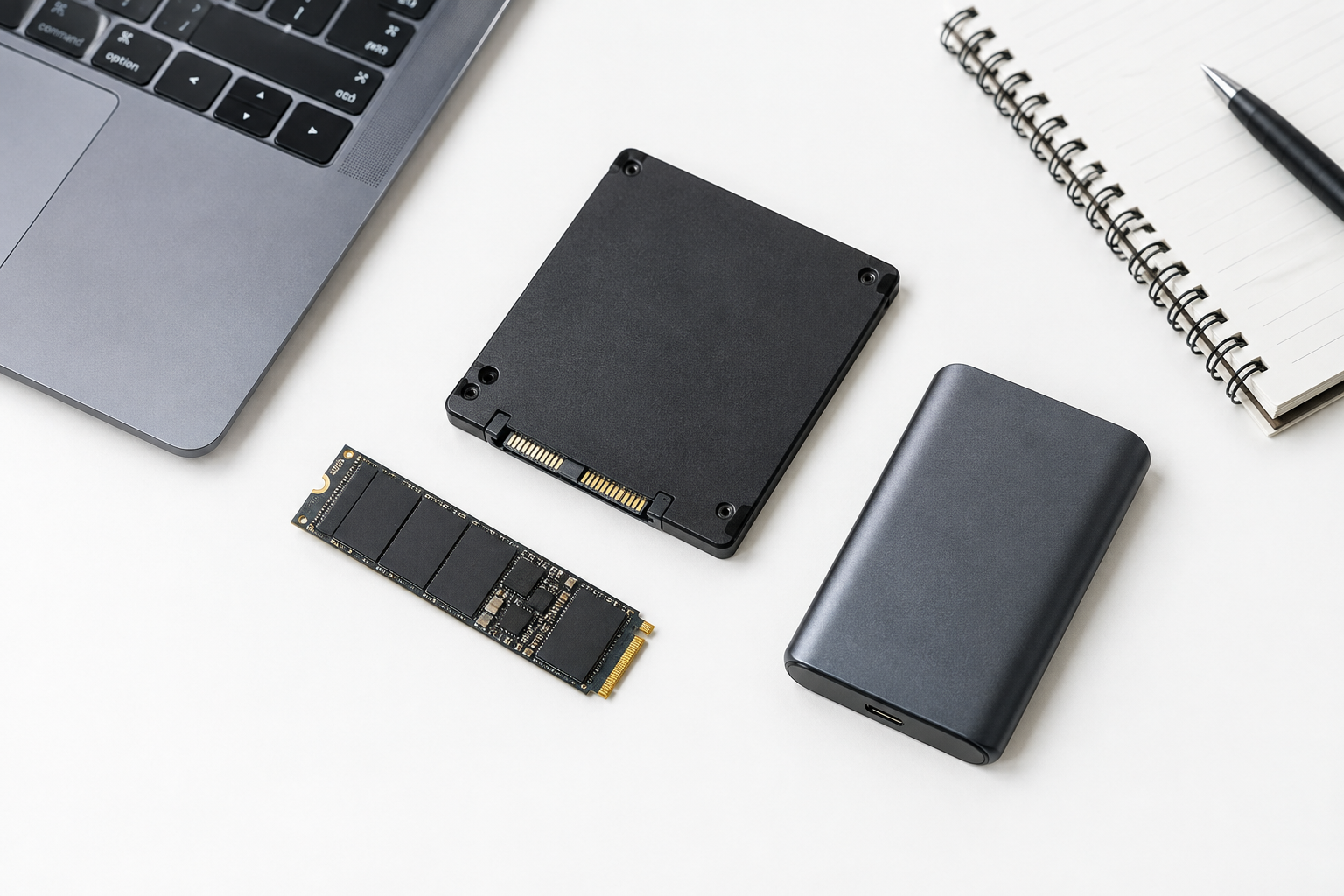
When you do replace an aging SSD, pay attention to the TBW rating relative to your usage pattern, not just capacity or price. A drive with a higher endurance rating will handle heavy write workloads, like video editing or virtual machines, far longer before hitting the same wear levels.
If you’re deciding between SATA and NVMe for the replacement, our comparison of NVMe SSD vs Intel SSD and the more general look at whether NVMe is really faster than SATA SSDs can help you figure out if the upgrade is worth it for your specific laptop or desktop.
Frequently Asked Questions
Does 70% SSD health mean the drive will fail soon?
Not necessarily. It usually reflects endurance used relative to the manufacturer’s rated TBW, not an imminent failure prediction. Plenty of SSDs run reliably well below 50% reported health as long as reallocated sectors, spare blocks, and error counts stay stable.
Why do different tools show different health percentages for the same drive?
Each tool calculates health from a different combination of SMART or NVMe attributes, and manufacturers calibrate these formulas against their own TBW ratings. Samsung Magician, Crucial Storage Executive, and CrystalDiskInfo can all report slightly different numbers for the exact same drive.
Should I back up my drive at 70% health even if it seems fine?
Yes, it’s good practice regardless of the health reading. But if 70% comes with rising uncorrectable errors, a dropping spare block count, or any critical warning flag, treat backing up as urgent rather than optional.

James Kennedy is a writer and product researcher at Drives Hero with a background in IT administration and consulting. He has hands-on experience with storage, networking, and system performance, and regularly improves and optimizes his home networking setup.