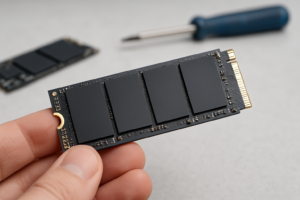
Why Is My SSD Health Dropping So Fast?
You check your SSD’s health status one day and it says 98%. A few months later, it’s down to 85%. Your gut says something’s wrong, but the number alone doesn’t tell you nearly as much as you think it does. Before you panic and start shopping for a replacement, it helps to understand what that percentage is actually measuring and which numbers underneath it actually matter.
What That Health Percentage Actually Represents

Most SSD health tools (CrystalDiskInfo, Samsung Magician, WD Dashboard, or the health readout in Windows Storage settings) calculate a single percentage based on how much of the drive’s rated write endurance you’ve used up. Every NAND flash cell can only handle a finite number of program/erase cycles before it wears out, and manufacturers rate drives in TBW (terabytes written) or DWPD (drive writes per day).
So if your 1TB SSD is rated for 600TBW and you’ve written 300TB of data to it over the years, a lot of tools will report roughly 50% health. That’s it. It’s a simple math ratio, not a prediction of when the drive will die.
Here’s the part people miss: manufacturers calculate this differently. Samsung’s Magician software leans heavily on the Percentage Used SMART attribute reported by the drive’s own controller. WD and Crucial tools sometimes factor in additional wear-leveling data. Two drives with identical write totals can show different health percentages depending on whose software you’re using and how conservatively that brand rates its own endurance.
That’s why you shouldn’t treat one app’s health score as gospel. A drive reading 80% in one tool might read 75% in another, and neither number is “wrong.” They’re just using slightly different formulas built around the same underlying wear data.
The SMART and NVMe Fields That Actually Matter More

The single percentage is a summary. The individual SMART attributes (for SATA SSDs) or NVMe log entries (for NVMe drives) are where the real diagnostic information lives.
- Percentage Used (NVMe attribute): This is the field most health calculators pull from directly. It’s normalized against the manufacturer’s endurance rating, so it’s already accounting for TBW.
- Reallocated Sector Count / Media Wearout Indicator: Rising reallocated sectors on a SATA SSD means cells are failing and being swapped for spares. A small number here is normal over years of use. A number that jumps rapidly in weeks is not.
- Available Spare (NVMe): This tells you how much backup NAND capacity is left for the controller to use as cells wear out. Manufacturers typically set a warning threshold around 10%. Anything close to that needs your attention immediately.
- Critical Warning flag (NVMe): If this field shows anything other than 0, your drive’s firmware is actively flagging a problem, whether that’s temperature, spare capacity, or read-only mode being triggered.
- Uncorrectable Error Count: Occasional corrected errors are normal. Uncorrectable errors climbing over time mean data is at risk of actual loss, not just theoretical wear.
If you’re comparing drives before a purchase, it’s also worth knowing that endurance ratings vary a lot between drive classes. Our breakdown of NVMe SSDs vs Intel SSDs gets into how different controller and NAND choices affect long-term durability, which is useful context if you’re shopping for a replacement.
When a Drop Is Normal vs When It’s a Warning Sign
A slow, steady decline in health percentage over months or years is completely normal. Every write cycle uses up a tiny fraction of endurance, and that’s expected behavior, not a defect.
What’s not normal is a sudden, sharp drop. If your health percentage falls 10 or 15 points in a short window with no corresponding jump in your actual usage (no huge file transfers, no heavy gaming installs, no video editing binges), that points to a controller problem or bad NAND blocks rather than ordinary wear.
Watch for these signs that go beyond the percentage itself:
- Frequent freezing or the system becoming unresponsive during file operations
- Files that won’t open, or that show corruption after a normal shutdown
- The drive disappearing from BIOS or File Explorer intermittently
- SMART tools reporting “Caution” or “Bad” status rather than just a lower number
- Available Spare dropping below 10% on an NVMe drive
If you see any of those, back up your data immediately, regardless of what the health percentage says. A drive at 60% health with stable SMART data and no errors can keep running fine for years. A drive at 90% health throwing uncorrectable errors could fail next week.
Keeping firmware current also matters more than people realize, since manufacturers frequently patch bugs that cause premature wear reporting or actual data corruption. If you’re on a Samsung drive, our guide on how to upgrade Samsung SSD firmware walks through the process safely. And if the diagnosis points toward replacement rather than repair, check out how to upgrade your SSD without losing data so you don’t have to reinstall everything from scratch.
Frequently Asked Questions
Can an SSD health percentage go back up?
No. Health percentage is a cumulative measure of wear, so it only moves in one direction. If you see it increase, that’s usually a reporting glitch or a firmware update changing how the tool calculates the number, not the drive actually healing itself.
Is 70% SSD health still safe to use?
In most cases, yes. Endurance ratings are conservative estimates, and plenty of drives keep working well past the point where their rated TBW is technically used up. What matters more at that stage is whether SMART attributes like reallocated sectors or uncorrectable errors are climbing alongside the percentage. If those stay flat, you likely have a lot of usable life left.

James Kennedy is a writer and product researcher at Drives Hero with a background in IT administration and consulting. He has hands-on experience with storage, networking, and system performance, and regularly improves and optimizes his home networking setup.