CrystalDiskInfo Says Caution: What Does It Mean?
You open CrystalDiskInfo to do a quick health check, and instead of the reassuring blue “Good” you’re used to seeing, there’s a yellow “Caution” status staring back at you. Your first instinct is probably to panic and start shopping for a replacement drive. Before you do that, it helps to understand what’s actually triggering that warning, because “Caution” covers a huge range of situations, from a genuinely dying drive to a perfectly healthy SSD that just tripped a conservative threshold.
What the Health Percentage Actually Means
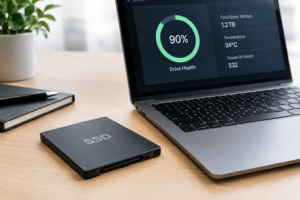
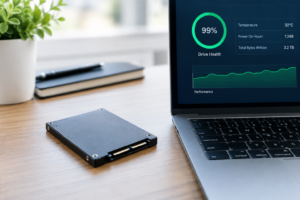
CrystalDiskInfo’s headline health percentage isn’t a magic number pulled from thin air. It’s typically calculated from one or two specific SMART attributes, most commonly the drive’s wear leveling count or a manufacturer-reported “percentage used” value on NVMe drives. In other words, that number is often a proxy for how much of the drive’s rated write endurance has been consumed, not a holistic prediction of imminent failure.
This matters because a drive can show 60% health and still have years of reliable use left, especially if you’re a light user who mostly browses and streams. It also matters because two different drives from two different manufacturers can hit “Caution” for completely different reasons, since each vendor implements its own SMART reporting quirks.
If you’re trying to decide whether an aging drive is even worth keeping around, it helps to understand what SSDs bring to the table in the first place. Our guide on how important an SSD is in a laptop is a good refresher on why these drives matter so much for everyday performance.
Which SMART Attributes Actually Matter
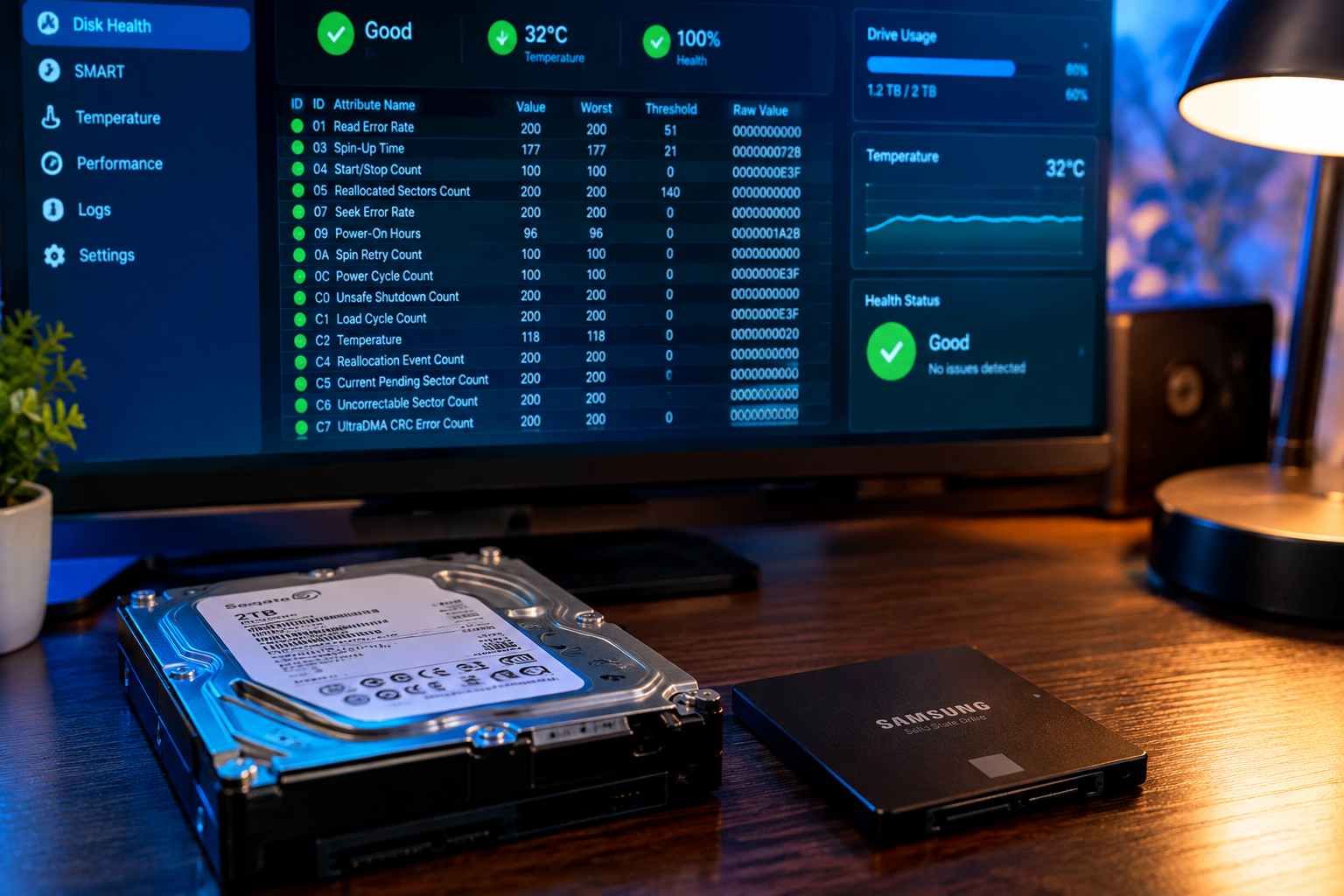
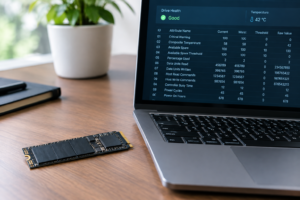
The overall status color is a summary, but the real diagnostic information lives in the individual attribute list below it. A handful of fields deserve your attention far more than the others.
- Reallocated Sectors Count: This tracks sectors that have failed and been swapped for spares. A nonzero value on an SSD isn’t always alarming, but a number that keeps climbing over weeks is a real red flag.
- Current Pending Sector Count: These are sectors the drive is unsure about and hasn’t confirmed as bad yet. Any nonzero, growing value here deserves attention.
- Uncorrectable Sector Count: Data that couldn’t be recovered even with error correction. This one is serious almost regardless of the raw number.
- Wear Leveling Count / Percentage Used: This is usually what drives the overall health percentage. On NVMe drives, this often shows up directly as “Percentage Used” and is based on the manufacturer’s rated total bytes written (TBW).
- Program Fail Count and Erase Fail Count: These indicate failed write or erase operations at the flash level. Occasional low counts are common; rapidly rising counts are not.
- Temperature: Not a failure predictor by itself, but sustained high temperatures accelerate wear and can trigger throttling.
If you’re comparing drives before an upgrade and want to understand how these wear metrics differ between architectures, our breakdown of NVMe SSD vs Intel SSD covers some of the reporting differences you’ll run into.
Manufacturer-Specific Health Calculations
Here’s where a lot of confusion comes from. Samsung, WD, Crucial, and Kingston don’t calculate “health” the same way, and CrystalDiskInfo just reports whatever the drive’s firmware hands over.
Samsung SSDs, for example, tend to report a health percentage tied closely to remaining spare blocks and wear leveling, and Samsung’s own Magician software often shows a slightly different number than CrystalDiskInfo for the same drive. WD drives frequently lean on the “Percentage Used” NVMe attribute, which is directly tied to TBW consumption rather than actual error rates. Some budget drives from lesser-known brands report SMART data inconsistently or don’t populate certain fields at all, which can make CrystalDiskInfo default to a more cautious status even when nothing is actually wrong.
This is why a 90% health reading on one brand and a 90% reading on another aren’t necessarily equivalent. If you’re weighing brands for a future upgrade, it’s worth reading our comparison of WD Black vs Samsung SSD to see how their endurance ratings and reporting styles differ in practice.
When Caution Is Normal (And When It Isn’t)

A “Caution” status by itself, without any other symptoms, is often just the wear leveling counter crossing a threshold the software considers worth flagging. That’s a normal part of an SSD’s life cycle, especially on drives that are three or more years old or that have handled heavy write workloads like video editing or large game installs.
You should treat it as normal, or at least not urgent, when:
- Only the wear leveling or percentage used attribute has changed, and it’s been a gradual decline over months.
- Reallocated, pending, and uncorrectable sector counts all remain at zero.
- The drive still performs normally, with no slowdowns, freezes, or file corruption.
You should treat it as a genuine warning when:
- Reallocated or pending sector counts are nonzero and rising over successive scans.
- You’re seeing actual symptoms: files that won’t open, sudden read/write errors, the drive disappearing from the system, or Windows reporting disk errors in Event Viewer.
- The health percentage has dropped sharply in a short window rather than declining gradually.
- Temperatures are consistently running hot and coincide with a jump in error-related attributes.
What to Do When You See Caution

Regardless of the exact cause, a Caution status is your cue to back up your data immediately, not eventually. SSDs don’t always fail gracefully with a slow decline; some go from working fine to completely unreadable within days once real degradation sets in.
Start by copying anything irreplaceable to another drive or cloud storage. If you’re planning to move to a new SSD anyway, our guide on how to upgrade an SSD without losing data walks through cloning your existing drive so you don’t have to reinstall Windows and all your programs from scratch.
Next, run a longer diagnostic pass. CrystalDiskInfo’s snapshot is useful, but manufacturer tools like Samsung Magician, WD Dashboard, or Crucial Storage Executive often run more thorough self-tests and can give you a second opinion using the vendor’s own thresholds. If two different tools agree something is wrong, that’s a much stronger signal than either one alone.
If sector counts are climbing or you’re seeing actual read errors, stop treating the drive as primary storage right away. Move your OS and files off it and relegate it to non-critical use, or retire it entirely. Given how affordable SSDs have become, it’s rarely worth gambling important data on a drive that’s already showing hard failure signs, and our overview of the benefits of upgrading to an SSD is a useful reminder of just how much better even an entry-level modern drive performs compared to what you might be replacing.
Frequently Asked Questions
Does a Caution status mean my SSD is about to fail?
Not necessarily. Caution often just means one attribute, usually wear leveling or percentage used, crossed a threshold that CrystalDiskInfo flags conservatively. Check whether reallocated, pending, or uncorrectable sector counts are also nonzero and rising before assuming failure is imminent.
Why do CrystalDiskInfo and my SSD manufacturer’s software show different health percentages?
Each manufacturer calculates health using its own formula and its own SMART attribute weighting. CrystalDiskInfo applies a generalized interpretation to whatever raw data the drive reports, so discrepancies between it and Samsung Magician or WD Dashboard are common and don’t necessarily mean either tool is wrong.
Can a drive stay in Caution status for years without failing?
Yes, this happens fairly often. If the wear leveling count is the only attribute driving the status and the drive shows no sector errors or performance issues, it can continue working reliably for a long time. Keep monitoring it periodically and maintain backups regardless of the status color.

James Kennedy is a writer and product researcher at Drives Hero with a background in IT administration and consulting. He has hands-on experience with storage, networking, and system performance, and regularly improves and optimizes his home networking setup.