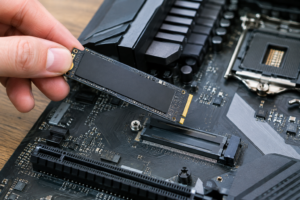
SSD Disappeared After Restart
You restart your computer and your SSD is just gone. No drive letter, no icon in File Explorer, nothing. It’s one of the more unsettling things that can happen to a PC, especially if that drive had files you needed, but in most cases the SSD isn’t actually dead. It’s just not being recognized at the stage where you’re looking for it.
The fix depends entirely on where exactly the drive stops showing up. A drive missing from BIOS is a completely different problem than a drive missing from File Explorer but visible in Disk Management. Before you touch anything, figure out which of these situations you’re actually in.
Step 1: Find Out Exactly Where the Drive Disappears
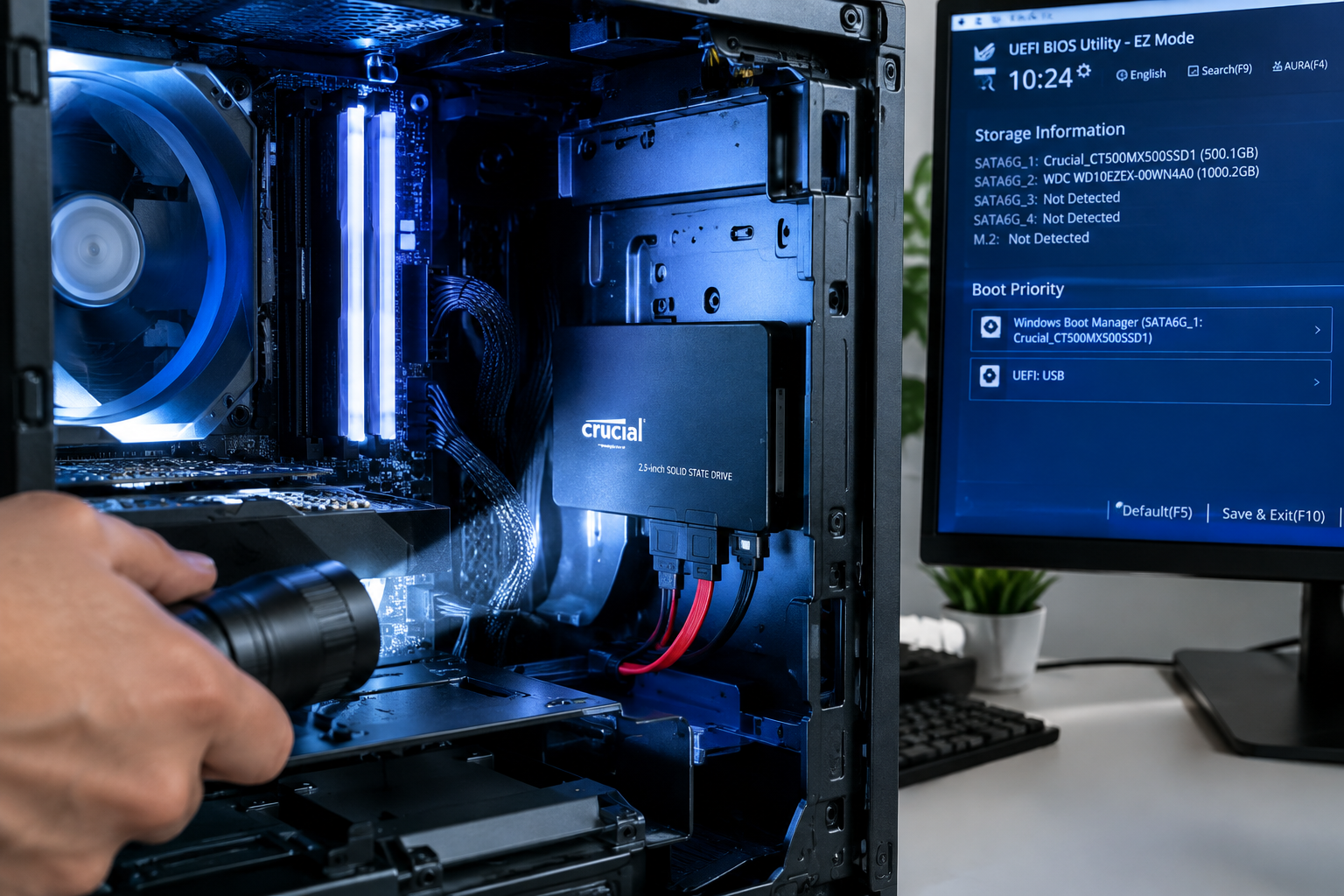
Check these locations in order and note where the drive stops appearing:
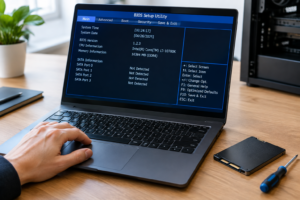
- BIOS/UEFI: Restart and enter your BIOS setup (usually Del, F2, or F10 during boot). Look under the storage or boot menu for the drive’s model name.
- Windows installer: If you’re doing a fresh install and the drive doesn’t show up as a target, that’s a different fix than a drive vanishing from an already-installed system.
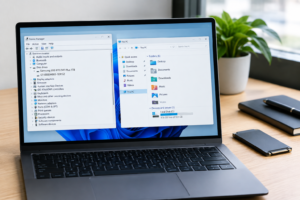
- Device Manager: Open it and check under “Disk drives.” If your SSD’s name shows up here, the hardware is being detected at the driver level.
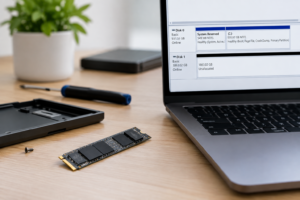
- Disk Management: Press Windows+X and open Disk Management. If the drive shows up here as “Unallocated” or without a letter, Windows sees it but it’s not usable yet.
- File Explorer: This is the last place drives show up, so if it’s missing here but visible everywhere else above, it’s almost always a drive letter or partition issue.
- Boot menu: If this is your boot drive and it’s missing from the boot order entirely, that points to BIOS settings or a corrupted boot record.
Once you know where the trail goes cold, skip straight to the matching section below. There’s no reason to mess with partition tables if the real problem is a loose cable.
Step 2: Fixes Based on Where the Drive Disappeared
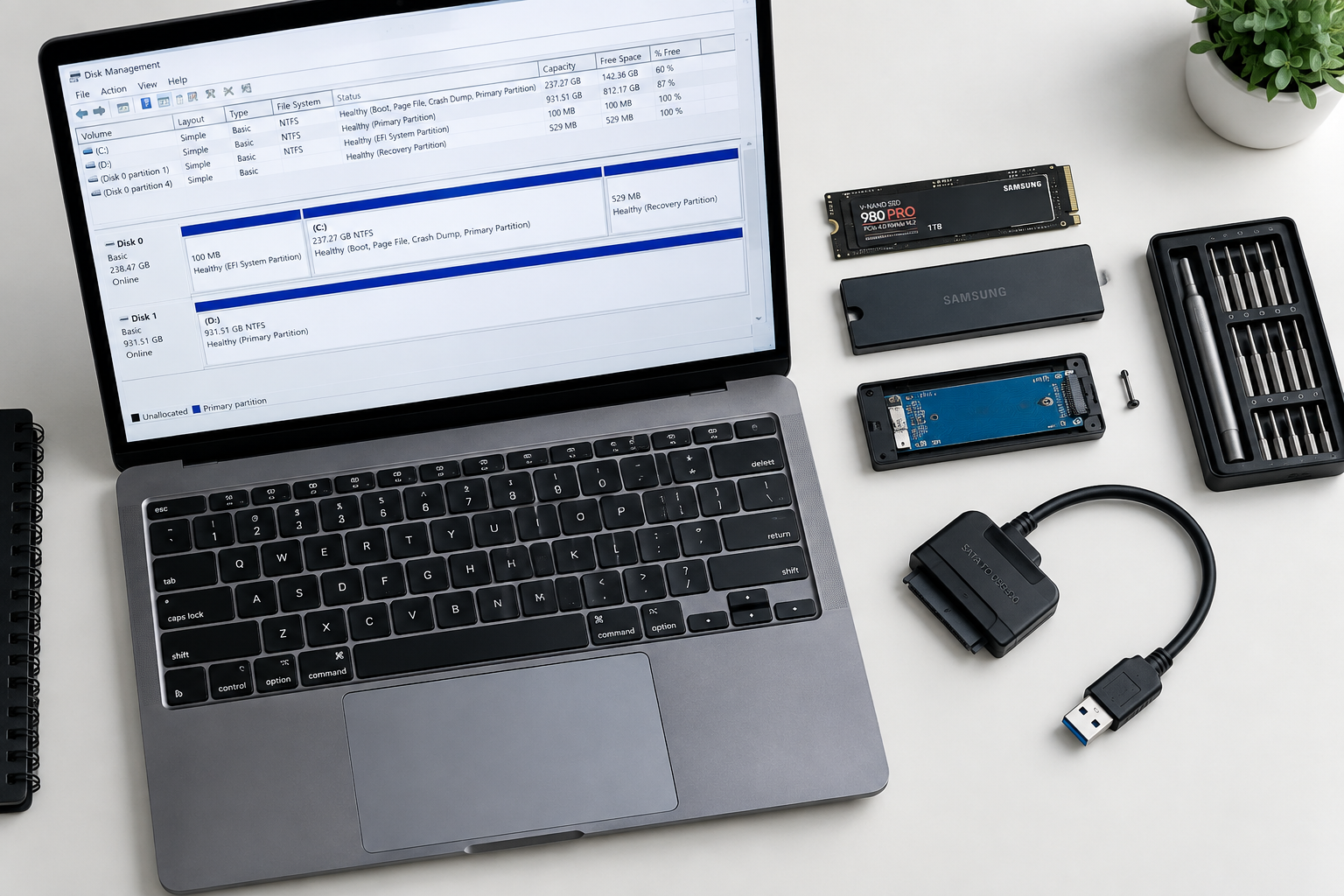
Missing from BIOS entirely
If BIOS doesn’t see the drive, Windows never will either, so start here. For internal SSDs, check the physical connection first. Reseat the SATA and power cables, or if it’s an NVMe drive, make sure it’s fully seated in the M.2 slot and the retention screw is tight.
M.2 slots are notorious for sharing bandwidth with SATA ports on many motherboards. Check your motherboard manual for a note about “SATA slot sharing.” Populating one M.2 slot can disable specific SATA ports, which makes a perfectly good drive vanish for no obvious reason.
Also check your BIOS storage mode. If it’s set to RAID and your drive was configured for AHCI (or vice versa), it can disappear completely. Switching modes without the right drivers loaded can also break your existing Windows install, so don’t flip this setting on your boot drive unless you’re prepared to troubleshoot boot issues afterward.
If you’re running an Intel system with VMD (Volume Management Device) enabled, an NVMe drive can go missing from BIOS if the VMD/RST drivers weren’t loaded correctly during setup. This is common after BIOS updates that reset VMD settings back to default.
Visible in Device Manager or Disk Management, but not in File Explorer
This is actually good news. Your hardware is fine, and Windows sees it. The drive just doesn’t have a usable format or letter.
Open Disk Management and check the drive’s status:
- If it says “Not Initialized,” right-click it and choose Initialize Disk. Pick GPT unless you have a specific reason to use MBR.
- If it shows as “Unallocated” space with no partition, you’ll need to create a new volume before it shows up anywhere else.
- If it has a partition but no letter, right-click the volume and choose “Change Drive Letter and Paths,” then assign one manually.
Before initializing, formatting, or creating a new partition, make sure you’re looking at the right disk. Wipe the wrong drive and you’ll lose everything on it permanently. Disk Management labels drives by size and existing partitions, so double check against what you know about your data drive versus your OS drive.
Not showing up anywhere, but it’s an external SSD
External and portable SSDs have their own quirks. Try a different USB port, ideally one directly on the motherboard rather than a front-panel header or hub. Some enclosures, especially cheaper ones, have compatibility issues with USB-C ports that only support certain power delivery modes.
If you’re using an external NVMe enclosure, check whether it needs a driver or firmware update from the manufacturer. Not all enclosures play well with every motherboard’s USB controller, and this is a more common issue than people expect.
Boot drive missing from the boot menu
If your OS drive vanished and your PC won’t boot at all, the boot record itself may be damaged. Boot from Windows installation media, open the command prompt through the repair options, and run these in order:
bootrec /fixmbrbootrec /fixbootbootrec /rebuildbcd
These commands rebuild the boot configuration without touching your files. Avoid running any “clean” command in diskpart during this process unless you’re intentionally wiping the drive, since that command erases everything on it instantly with no confirmation prompt.
When It’s Time to Consider the Drive Is Failing
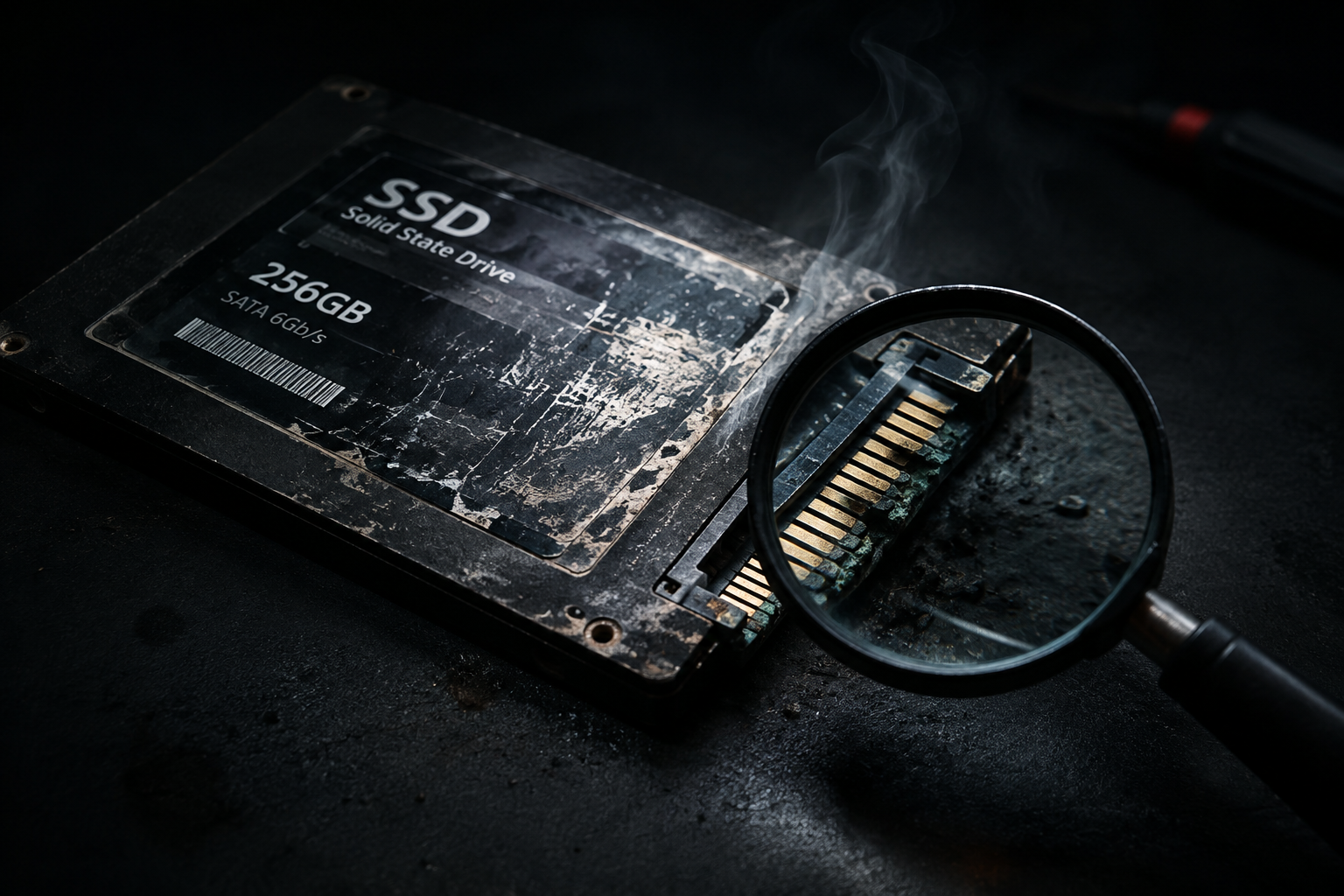
If your SSD shows up inconsistently, disappears randomly during use, or BIOS detects it sometimes and not other times, that’s a different problem than a settings or driver issue. Intermittent detection is one of the more reliable signs of a drive that’s failing, not just misconfigured. Back up anything you can access immediately and start planning for a replacement rather than continuing to troubleshoot a dying drive.
If you’re due for a replacement anyway, it’s a decent excuse to check whether NVMe is actually faster than your current SATA SSD for your setup, since a failing drive swap is a natural point to upgrade rather than replace like-for-like.
Frequently Asked Questions
Will initializing a disk in Disk Management delete my files?
Initializing an already-blank or unallocated disk doesn’t delete anything because there’s nothing on it yet. But if the disk previously had data and now shows as “uninitialized” due to corruption, initializing it can make recovery harder. In that case, try data recovery software first, or consult a professional before touching Disk Management.
Why does my SSD disappear only after a specific type of restart?
This usually points to a BIOS setting related to fast boot or a driver that isn’t loading consistently, particularly with NVMe drives on Intel systems using VMD or RST. Try disabling Fast Startup in Windows power settings, and check for a BIOS update, since manufacturers frequently patch NVMe detection bugs in firmware updates.

James Kennedy is a writer and product researcher at Drives Hero with a background in IT administration and consulting. He has hands-on experience with storage, networking, and system performance, and regularly improves and optimizes his home networking setup.