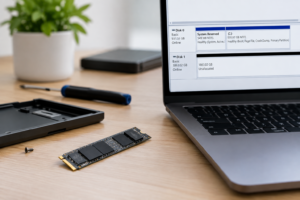
SSD Shows in Device Manager but Not File Explorer
You installed a new SSD, opened Device Manager, and there it is, listed clean as day under Disk Drives. But when you open File Explorer to actually use it, nothing shows up. No new drive letter, no folder, nothing. That gap between “Windows sees the hardware” and “Windows lets you use it” trips up a lot of people, and the fix depends entirely on where exactly the drive disappears from view.
This guide walks through the most common failure points one at a time. Find the section that matches your situation and skip the rest. There’s no reason to mess with BIOS settings if your problem is actually just a missing drive letter.
First, Confirm Exactly Where the Drive Is Visible
Before changing anything, check these four places in order: BIOS/UEFI, Device Manager, Disk Management, and File Explorer. Your symptoms tell you exactly which fix applies.
- Visible in BIOS but not Device Manager: This points to a driver or controller mode issue (RAID/AHCI, VMD).
- Visible in Device Manager but not Disk Management: Usually a driver conflict or a drive that needs a restart to fully enumerate.
- Visible in Disk Management but not File Explorer: The drive almost certainly needs to be initialized, partitioned, or assigned a letter.
- Visible in Device Manager and shows as “unknown” in Disk Management: Same fix as above, plus a possible corrupted partition table.
Since your title specifies the drive shows in Device Manager, we’ll focus on the scenarios where Windows recognizes the hardware but you can’t access it as storage. That almost always means the problem lives in Disk Management, not in the physical connection.
Open Disk Management and Check the Drive’s Status

Right-click the Start button and choose Disk Management. Look at the bottom panel where all your drives are listed as boxes. Find your new SSD and check its status label.
If It Says “Not Initialized”
Brand new drives, and drives pulled from another system, often show up as raw, uninitialized disks. Windows won’t let File Explorer touch a disk until it has a partition table.
Right-click the disk (the gray box on the left labeled “Disk 1” or similar, not the black bar) and choose Initialize Disk. Pick GPT for modern systems running UEFI, which is basically every PC built in the last decade. Choose MBR only if you’re dealing with an older BIOS-only system or a drive going into a legacy machine.
If It Shows “Unallocated Space”
This means the disk is initialized but has no partition yet. Right-click the black unallocated bar and select New Simple Volume. Walk through the wizard, assign a drive letter, and format it as NTFS (or exFAT if you need cross-platform compatibility with Mac).
Before you format anything, make sure this is actually a blank drive and not one that previously held data you need. Formatting wipes the partition and any data currently on it. If this SSD came out of another computer or enclosure, don’t format until you’re certain there’s nothing on it worth recovering.
If It Has a Partition But No Drive Letter
Sometimes a volume exists and is healthy, but Windows never assigned it a letter, so File Explorer has nothing to display. Right-click the volume and choose “Change Drive Letter and Paths,” then click Add and assign any unused letter. This is one of the most common causes of this exact issue and takes about ten seconds to fix.
If Disk Management Doesn’t Show the Drive at All
If Device Manager sees the SSD but Disk Management shows nothing, even after clicking Action > Rescan Disks, the problem is usually one of these:
- RAID/VMD mode instead of AHCI: On many Intel systems, if your BIOS storage controller is set to Intel RST/VMD mode instead of AHCI, Windows may load the NVMe device at the hardware level but fail to properly hand it off for partitioning until the correct driver is installed. Check Device Manager under “Storage controllers” for anything named Intel RST VMD. If it’s there, you likely need to install Intel’s RST driver package matching your BIOS mode, or switch BIOS mode to AHCI if you don’t need RAID.
- NVMe slot sharing: Many motherboards disable a SATA port or lane when a second M.2 slot is populated. Check your motherboard manual for a lane-sharing diagram. This is common on boards with three or more M.2 slots.
- Driver needs a restart: Windows sometimes half-loads a new NVMe controller driver. A full shutdown (not just restart) and cold boot often clears this.
If you’re building a new machine or replacing your primary boot drive, it helps to understand how storage bandwidth is allocated in the first place. Our comparison of SATA vs NVMe SSDs for gaming covers how slot and lane sharing can affect performance, which ties directly into why some SSDs go missing when a second drive is installed.
Special Case: Drive Appears During Windows Installation But Not After
If you’re trying to install Windows fresh and the SSD shows up in Device Manager during setup but the installer’s drive selection screen shows nothing to install to, this is a driver issue, not a hardware issue. Windows setup media doesn’t always ship with the NVMe or RAID driver your motherboard needs.
Download the RST/VMD driver package from your motherboard manufacturer’s website onto a separate USB drive, then use the “Load Driver” option on the Windows installer’s drive selection screen. This is extremely common on newer Intel chipsets running in RAID mode by default.
External and Enclosure SSDs: A Different Set of Problems
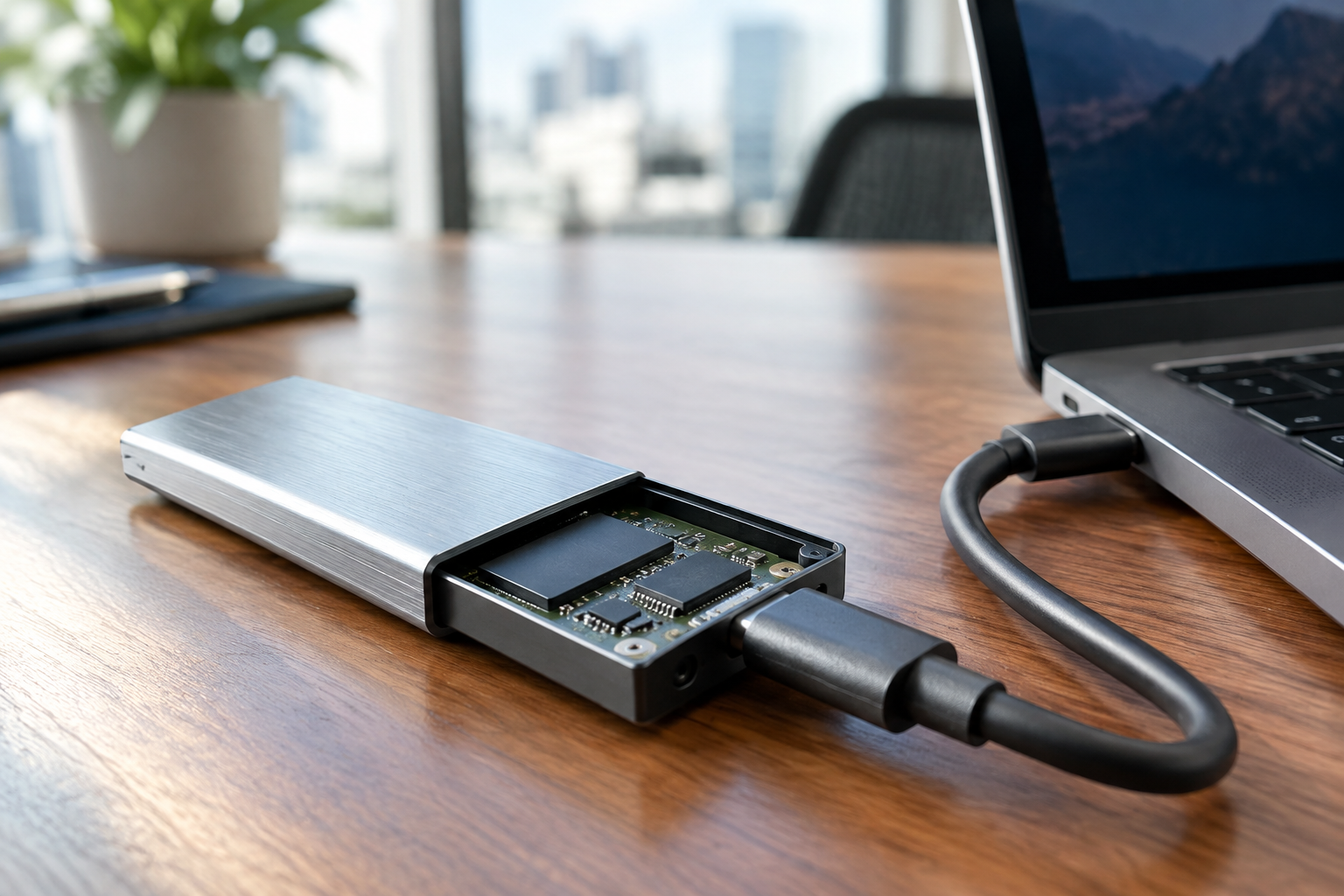
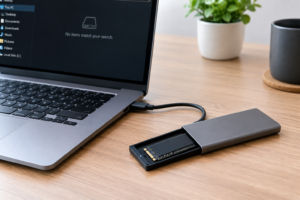
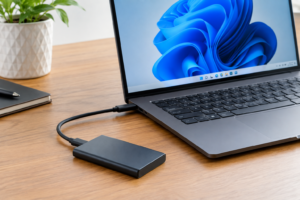
If this is an SSD in a USB enclosure rather than an internal drive, the troubleshooting shifts slightly. Enclosures add another layer that can fail independently of the drive itself.
- Try a different USB cable and a different port, ideally directly on the motherboard’s rear I/O rather than a front panel header or hub.
- Check whether the enclosure’s controller chip supports the drive’s capacity and interface. Some older USB-to-SATA bridges cap out at 2TB.
- Test the bare SSD in Disk Management by connecting it directly via SATA or M.2 if possible, to rule out an enclosure fault entirely.
If you’re shopping for an enclosure to use with a spare drive, it’s worth reading whether an external SSD will actually make your laptop faster before you invest in one, since interface speed and enclosure quality both matter more than people expect.
When You Might Need to Reset the Drive Entirely
If the drive shows up as “unknown” with a corrupted partition table, or Disk Management throws errors when you try to initialize it, a clean wipe might be the only path forward. In Command Prompt (run as administrator), you can use diskpart with the commands list disk, select disk (your disk number), and clean.
The clean command in diskpart erases the partition table and all data on the selected disk permanently. Double-check the disk number before running this. Selecting the wrong disk number will wipe the wrong drive, including your Windows install if you’re not careful.
Once cleaned, the disk goes back to unallocated space and you can initialize and partition it fresh using the steps above. This is also the right move if you’re repurposing an old drive and don’t need anything currently on it, similar to prepping a drive during any SSD capacity upgrade.
Frequently Asked Questions
Why does my SSD show in Device Manager but not Disk Management?
This usually points to a driver issue rather than a partition problem. It’s common on systems using Intel RST/VMD RAID mode, where the storage controller driver hasn’t fully loaded the NVMe device for partition access. Installing the correct RST driver or switching BIOS mode to AHCI typically resolves it.
Is it safe to initialize a new SSD that shows as “Not Initialized”?
Yes, if it’s genuinely a new or blank drive. Initializing a disk only writes a partition table and doesn’t erase existing data on a truly empty drive, but if the SSD came from another system, confirm you don’t need anything from it first, since the process that follows (creating a new volume) does involve formatting.
Why does my SSD disappear when I add a second NVMe drive?
Many motherboards share PCIe lanes between M.2 slots and SATA ports. Populating a second M.2 slot can disable one or more SATA ports, or reduce a slot to a lower lane count that some drives don’t tolerate well. Check your motherboard’s manual for the specific lane-sharing chart for your model.

James Kennedy is a writer and product researcher at Drives Hero with a background in IT administration and consulting. He has hands-on experience with storage, networking, and system performance, and regularly improves and optimizes his home networking setup.