USB-C vs USB-A Flash Drives: Future-Proofing Your Storage
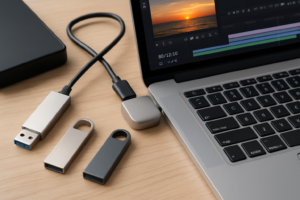
You just bought a shiny new laptop, and it doesn’t have a single USB-A port. Everything is USB-C. You reach for your trusty flash drive, the same one that’s been riding in your pocket for years, and there’s nowhere to plug it in. If this hasn’t happened to you yet, it will soon.
The USB-C transition is well underway. Apple ditched USB-A years ago. Most Windows ultrabooks and Chromebooks have followed. Even budget laptops are shipping with USB-C only or a mix of one USB-A and two USB-C. Your flash drive strategy needs to catch up, and choosing the right connector type today can save you real frustration for years to come.
USB-A vs USB-C: What’s Actually Different?
USB-A is the rectangular port you’ve used since the late 1990s. It only goes in one way (and somehow always takes three tries). USB-C is the smaller, oval-shaped connector that’s reversible, meaning you can plug it in without looking. Beyond the physical shape, the two connectors differ in what they can carry.
USB-A ports on most computers still run USB 3.0 or USB 3.2 Gen 1, which tops out at 5 Gbps. USB-C ports, depending on the device, can support USB 3.2 Gen 2 (10 Gbps), USB 3.2 Gen 2×2 (20 Gbps), or even USB4 and Thunderbolt 4 (40 Gbps). The connector alone doesn’t determine speed, but USB-C is the only physical connector that supports the fastest modern protocols.
For flash drives specifically, the speed difference matters more than you might think. A USB-C flash drive running at USB 3.2 Gen 2 can transfer a 10GB video file in roughly 10 seconds. The same file on a USB 3.0 Type-A drive takes closer to 25 seconds. That gap widens dramatically with larger files. If you regularly move big files between devices, connector type and protocol version both matter. For a deeper look at how different storage technologies compare on speed, our SSD vs HDD comparison guide breaks down the fundamentals.
The Problem with Going USB-C Only (Right Now)
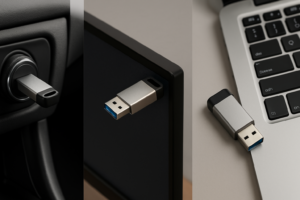
If every device you own has USB-C, a USB-C-only flash drive makes perfect sense. But most people aren’t living in that world yet. Your work desktop probably still has USB-A. The hotel business center runs USB-A. Your friend’s older laptop, the printer at the library, the USB port in your car: all USB-A.
Going USB-C only in 2026 means carrying a dongle or adapter as a backup. Adapters are cheap and small, but they’re also easy to lose, and they add a point of failure. A loose adapter can cause the same kind of intermittent disconnection issues that plague external drives with bad cables. If you’ve ever dealt with an external drive that keeps disconnecting, you know how maddening that can be.
Going USB-A only is the opposite problem. You’ll work fine on older hardware but won’t be able to connect directly to newer laptops, tablets, or phones without an adapter going the other direction.
Dual-Interface Drives: The Best of Both Worlds
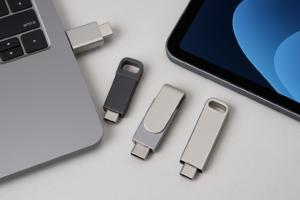
This is where dual-interface flash drives earn their spot in your kit. These drives have both a USB-C and a USB-A connector built into one device. Some use a sliding mechanism that reveals one connector at a time. Others have a connector on each end. Either way, you get universal compatibility in a single drive.
The SanDisk Ultra Dual Drive USB Type-C is one of the most popular options, and for good reason. It’s compact, available in capacities from 32GB up to 1TB, and the swivel design protects both connectors when not in use. Read speeds hit around 150 MB/s on the USB 3.1 Gen 1 interface, which is plenty for documents, photos, and moderately sized video files.

SanDisk Ultra Dual Drive USB Type-C
The go-to dual-interface flash drive with a compact swivel design, available up to 1TB, and reliable cross-device compatibility.
For faster transfers, the Samsung DUO Plus steps things up with USB 3.1 Gen 1 speeds up to 300 MB/s read and a rugged metal body that survives being tossed in a bag. It’s also waterproof, shock-proof, and magnet-proof. Samsung rates it for up to 72 years of endurance based on their internal testing, which is more than enough for any reasonable use. If you’re interested in how long flash storage actually lasts in real-world conditions, our SSD lifespan analysis covers the data on NAND endurance.
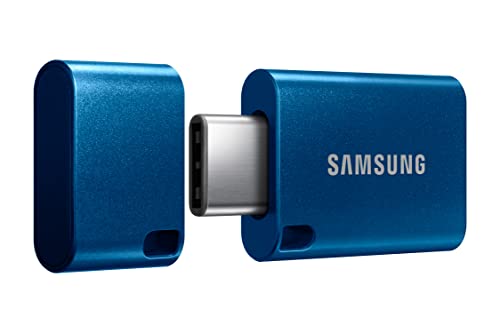
Samsung DUO Plus USB-C Flash Drive
Faster read speeds (up to 300 MB/s), durable metal construction, and excellent dual-connector design from a trusted brand.
Another solid choice is the Kingston DataTraveler Max, which pushes into USB 3.2 Gen 2 territory with read speeds up to 1,000 MB/s. It’s closer to a portable SSD crammed into a flash drive body. The trade-off is that it’s slightly larger than traditional thumb drives and the USB-A version is sold separately rather than built in. If you need blazing speed on USB-C devices and don’t mind carrying a separate USB-A drive for legacy gear, it’s a strong pick.
When a Portable SSD Makes More Sense Than a Flash Drive
Flash drives max out around 1TB for most brands, and the fastest models still can’t match a proper portable SSD. If you’re regularly transferring large video projects, disk images, or game libraries, a portable SSD with a USB-C cable will outperform any flash drive. Our roundup of the best portable SSDs for travel covers the top options if you need that level of performance.
But for everyday file transfers, bootable recovery drives, sharing documents with colleagues, or keeping a backup of important files on your keychain, a dual-interface flash drive hits the sweet spot of size, convenience, and compatibility.
How to Future-Proof Your Storage Strategy
The transition to USB-C is inevitable, but it won’t happen overnight. Here’s a practical plan:
- Buy dual-interface drives for daily carry. This covers you whether you’re plugging into a 2024 MacBook Air or a 2018 office desktop. A 128GB or 256GB dual drive handles most portable file-transfer needs.
- Choose USB-C for any new portable SSDs. Most portable SSDs already ship with USB-C cables (and often include a USB-C to USB-A adapter cable). This gives you top speed on modern hardware with a fallback for older ports.
- Keep one USB-C to USB-A adapter in your laptop bag. Even if you go all USB-C on your drives, a small adapter costs very little and bails you out when you encounter a USB-A-only machine.
- Format your drives for cross-platform compatibility. Use exFAT if you move files between Windows and Mac. Both operating systems read and write exFAT natively, and it supports files over 4GB, unlike FAT32.
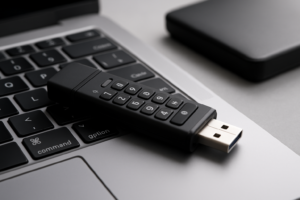
- Encrypt sensitive drives. If you’re carrying a flash drive with personal or work data, use BitLocker (Windows) or Disk Utility encryption (macOS). And before you repurpose or sell any old drives, make sure you securely wipe them first.

USB-C USB-A Dual Flash Drive
Browse all dual-interface flash drives on Amazon to find the right capacity and speed for your needs.
Frequently Asked Questions
Can I use a USB-C flash drive with my phone or tablet?
Yes, if your phone or tablet has a USB-C port and supports USB OTG (On-The-Go). Most modern Android phones and iPads with USB-C work with flash drives natively through the Files app. iPhones with USB-C (iPhone 15 and later) also support external storage. Just make sure the drive is formatted in a compatible file system like exFAT or FAT32.
Are USB-C flash drives faster than USB-A flash drives?
Not automatically. The speed depends on the USB protocol the drive supports, not just the connector shape. A USB-C drive running USB 3.1 Gen 1 transfers data at the same 5 Gbps maximum as a USB-A 3.0 drive. You’ll only see higher speeds with USB-C drives that support USB 3.2 Gen 2 or faster, paired with a computer port that matches. Always check the drive’s rated speeds, not just the connector type.
Will USB-A ports disappear completely?
Not anytime soon. While manufacturers are steadily reducing the number of USB-A ports on new laptops and desktops, USB-A is too deeply embedded in peripherals, enterprise hardware, and older equipment to vanish quickly. Expect USB-A to remain common through at least 2030, though it will increasingly become the secondary rather than primary port on new devices. Buying dual-interface drives now means you won’t have to worry about this transition at all.
This article contains affiliate links. We may earn a small commission at no extra cost to you.

James Kennedy is a writer and product researcher at Drives Hero with a background in IT administration and consulting. He has hands-on experience with storage, networking, and system performance, and regularly improves and optimizes his home networking setup.