Why Your USB Flash Drive Is So Slow (and How to Fix It)
You plug in your USB flash drive, start copying files, and the progress bar crawls along like it’s 2005. You stare at “23 minutes remaining” for what feels like an eternity, wondering if something is broken. Most of the time, something is wrong, but it’s fixable. Here are the most common reasons your flash drive is painfully slow and what you can do about it right now.
You’re Plugged Into the Wrong USB Port
This is the single most common culprit, and it takes about two seconds to fix. If your flash drive is USB 3.0 (or newer) but you’ve plugged it into a USB 2.0 port on your computer, you’re bottlenecking yourself to roughly 35 MB/s at best. USB 3.0 ports can handle up to 625 MB/s in theory, which translates to real-world speeds that are 5 to 10 times faster than USB 2.0.
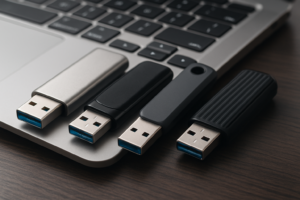
Look at your computer’s USB ports. USB 3.0 ports are usually blue on the inside, while USB 2.0 ports are black or white. On laptops, check the spec sheet if you can’t tell by color. Also look at the flash drive itself. A USB 3.0 drive typically has a blue connector or additional pins inside the plug.
If your drive keeps randomly disconnecting when you move it to a different port, that’s a separate issue. Our guide on why your external drive keeps disconnecting covers seven quick fixes for that problem.
Your Flash Drive Is Still USB 2.0
If you bought your flash drive more than a few years ago, or if it was a freebie from a conference, there’s a good chance it’s USB 2.0. These older drives max out around 25 to 35 MB/s for reads and often drop to 5 to 10 MB/s for writes. Transferring a 4 GB video file at those speeds can take several minutes.
There’s no software trick that will make a USB 2.0 drive perform like a USB 3.0 drive. The controller hardware inside the drive is the limiting factor. If you regularly transfer large files, upgrading to a modern USB 3.2 Gen 1 flash drive will make an enormous difference. The Samsung BAR Plus is a great all-around option with read speeds up to 400 MB/s, and it’s built like a tank with a metal body.
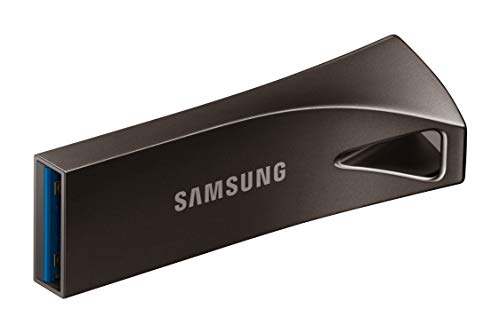
Samsung BAR Plus 256GB USB 3.1 Flash Drive
Durable metal design with read speeds up to 400 MB/s, a massive upgrade from any USB 2.0 drive
For even faster performance, consider the SanDisk Extreme Pro USB 3.2, which pushes read speeds up to 420 MB/s and write speeds up to 380 MB/s. If you need something beyond a flash drive entirely, a portable SSD designed for travel will outperform even the fastest thumb drives.

SanDisk Extreme Pro 256GB USB 3.2 Flash Drive
Top-tier flash drive with 420 MB/s reads and 380 MB/s writes for heavy file transfers
Your File System Format Is Slowing You Down
Most flash drives ship formatted as FAT32, which is universally compatible but has real performance penalties. FAT32 can’t handle files larger than 4 GB (they simply won’t copy), and it adds overhead that drags down transfer speeds, especially with lots of small files.
Reformatting your drive to exFAT is the best move for most people. It removes the 4 GB file size limit, works on both Windows and macOS, and generally delivers faster write performance than FAT32. Here’s how to do it:
- Back up everything on the drive first. Formatting erases all data.
- On Windows, right-click the drive in File Explorer, select “Format,” choose exFAT, and click Start.
- On macOS, open Disk Utility, select the drive, click Erase, and choose exFAT as the format.
If you only use the drive with Windows machines, NTFS is another solid choice with slightly better performance for very large files. Before you format, make sure you’ve pulled everything off the drive. If you’re planning to sell or give away an old drive afterward, securely wiping it first is a smart move to protect your data.
Small Files Are Your Real Enemy
Flash drives handle large sequential files reasonably well, but they choke on thousands of small files. Copying a single 2 GB video file might take 30 seconds, while copying 2 GB of tiny documents and photos could take 15 minutes or more. This is because each file requires a separate read/write operation, and flash memory controllers have high latency per operation.
The fix is simple: compress folders of small files into a single .zip or .7z archive before transferring them. You’ll often see a 3x to 5x improvement in total transfer time. This trick works regardless of your drive’s speed or USB version. Similar performance quirks affect SSDs too, and if you’ve noticed your internal SSD getting sluggish, the causes are surprisingly similar.
FAQ
How can I check if my USB flash drive is USB 2.0 or 3.0?
On Windows, open Device Manager, expand “Universal Serial Bus controllers,” and find your drive. The entry will usually indicate “USB 3.0” or “USB 2.0” in the device name. You can also check the drive’s physical connector: USB 3.0 flash drives typically have a blue plastic insert or extra pins visible inside the plug. On macOS, go to Apple Menu > About This Mac > System Report > USB, and it will list the speed of each connected device.
Will a USB hub slow down my flash drive?
It depends on the hub. A cheap, unpowered USB 2.0 hub will absolutely bottleneck a USB 3.0 flash drive. Even a USB 3.0 hub can reduce speeds slightly due to shared bandwidth if multiple devices are connected simultaneously. For the best performance, plug your flash drive directly into your computer’s built-in USB 3.0 or 3.2 port whenever possible.
This article contains affiliate links. We may earn a small commission at no extra cost to you.

James Kennedy is a writer and product researcher at Drives Hero with a background in IT administration and consulting. He has hands-on experience with storage, networking, and system performance, and regularly improves and optimizes his home networking setup.