How to Transfer Hdd to Ssd? 8 Steps!
Transitioning from a traditional HDD (Hard Disk Drive) to a lightning-fast SSD (Solid State Drive) is a pivotal upgrade for improving system speed and performance.
Check out this helpful video on the topic:
If you’re looking to make the switch, transferring your data from your old HDD to a new SSD is the crucial first step.
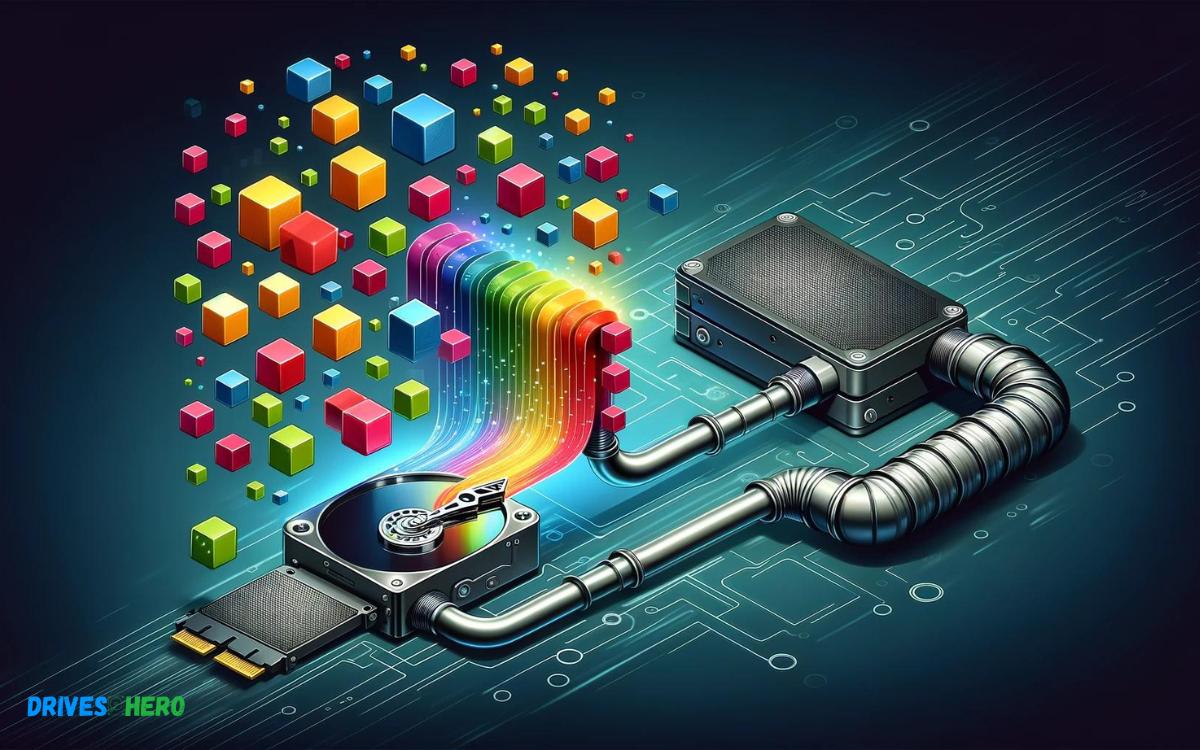
We’ll walk you through the process of seamlessly migrating your data, ensuring a smooth transition and maximizing the benefits of your SSD upgrade.
Key Takeaway
Step-by-Step Guide: Transferring HDD to SSD
Step 1: Backup Your Data
- Before starting, back up all your important files and documents to an external hard drive or cloud storage.
Step 2: Connect the SSD
- Connect the SSD to your computer using a SATA-to-USB cable.
Step 3: Clone Your HDD
- Download and install disk cloning software.
- Open the cloning software and select your HDD as the source disk and the SSD as the target disk.
- Follow the prompts to clone the HDD to the SSD.
Step 4: Physically Install the SSD
- Shut down your computer and disconnect all cables.
- Open your computer case and locate the HDD bay.
- Install the SSD into the same bay using screws.
Step 5: Boot from the SSD
- Restart your computer and enter BIOS/UEFI settings by pressing the designated key during boot (usually F2, F12, or Del).
- Set the SSD as the primary boot device.
- Save changes and exit BIOS/UEFI settings.
Step 6: Verify the SSD
- Once your computer boots up, check if it’s running from the SSD.
- Make sure all your data and applications are intact on the SSD.
Step 7: Format the HDD
- If you’re replacing the HDD completely, format it for additional storage.
- Open Disk Management (Windows) or Disk Utility (macOS).
- Locate the HDD, right-click, and select Format.
- Follow the on-screen instructions to format the HDD.
Step 8: Enjoy Your Upgraded System
- Your data is now successfully transferred to the SSD. Enjoy the improved performance of your system!
By following these steps, you can easily transfer your data from the HDD to the SSD and upgrade your system for faster performance.
Understanding Hdd And Ssd
Understanding the basics of HDDs and SSDs is the crucial first step before transferring your data. These storage devices are the backbone of your system; thus, knowing how they operate and differ is key to a seamless upgrade.
Differences Between Hdd And Ssd
When delving into the digital world, the distinction between an HDD (Hard Disk Drive) and an SSD (Solid State Drive) is fundamental.
Here are the main differences:
- HDDs are older storage devices using spinning disks to read/write data.
- SSDs, on the other hand, store data on flash memory chips, operating without moving parts.
- The presence of moving parts in HDDs can result in slower data access times and increased vulnerability to physical shock.
- SSDs are faster, more durable, and consume less power than their HDD counterparts.
- HDDs generally offer more storage capacity for a lower cost, while SSDs tend to be more expensive per gigabyte but offer better performance.
Storage Technology
| Feature | HDD | SSD |
|---|---|---|
| Data Storage Mechanism | Magnetic spinning disks | Non-volatile NAND flash memory |
| Noise | Emit sounds due to moving parts | Silent operation due to lack of moving parts |
| Power Consumption | Higher due to mechanical parts | Lower, more energy-efficient |
Speed And Performance
One of the most compelling reasons to upgrade from an HDD to an SSD is the significant boost in system speed and overall performance. This advantage comes from the way SSDs access data.
Let’s dive into the performance aspects:
- SSDs have extremely fast data access speeds, dramatically reducing boot times and file transfers.
- With no moving parts, SSDs offer enhanced reliability and are less prone to data corruption from physical shocks.
- The performance gains extend to applications, with software and games loading much quicker on SSDs.
- Overall system responsiveness is greatly improved, from launching programs to multitasking between complex tasks.
Why Upgrade To Ssd
Swapping out a traditional hard disk drive (HDD) for a solid-state drive (SSD) can breathe new life into an aging computer or noticeably improve the performance of even newer systems.
As technology rapidly evolves, the shift to SSDs has become more of a necessity than a luxury for those seeking speed and reliability in thier data management.
Benefits Of Upgrading To Ssd
- Faster boot times: SSDs provide a considerable improvement in how quickly your system starts up.
- Quick data access: Dramatically reduce the time needed for data retrieval.
- Energy efficiency: SSDs consume less power, which means a cooler computing environment and extended battery life for laptops.
- Durability: With no moving parts, SSDs are more durable and better suited to withstand accidental bumps or drops.
- Quieter operation: The absence of mechanical parts means silent operation, enhancing the user experience.
- Less weight: SSDs are lighter, making them an excellent choice for laptops and mobile computing.
Speed And Reliability
| Aspect | HDD | SSD |
|---|---|---|
| Access Time | 5,000 to 10,000 microseconds | 35 to 100 microseconds |
| Data Transfer Rate | Up to 140 MB/s | Up to 550 MB/s |
| Reliability Factor | Lower (moving parts) | Higher (no moving parts) |
Enhanced System Responsiveness
- Almost instantaneous launching of software applications.
- Swift performance in multitasking scenarios, allowing you to switch between applications with ease.
- Reduced lag when accessing or saving large files.
- Smoother and more reliable gaming experiences, with faster loading of game levels.
- Enhancements in editing and rendering tasks for video and photo editors.
Upgrading to an SSD is akin to putting your digital life into fast-forward. The days of being hindered by sluggish hard drives can be a thing of the past with a reliable and responsive SSD.
Backing Up Data
Elevate your computer’s performance by transferring your hard drive data to a solid-state drive. This process involves cloning your HDD onto an SSD, ensuring a seamless transition and faster access to your files.
Methods For Backing Up Data
There are several proven strategies for backing up data:
- Cloud Backup: Utilize cloud storage services for remote backups accessible from any location. Services like Google Drive, Dropbox, or OneDrive offer seamless sync options.
- Local Backup: Employ external HDDs or SSDs to create a direct copy of your data. Cloning software can replicate your drive entirely, providing a quick restore option.
- Network Attached Storage (NAS): For those with more extensive backup needs, a NAS provides a centralized backup solution within a local network.
- File History or Time Machine: Windows and macOS users can leverage built-in tools that continuously back up versions of files to an external drive.
Regardless of the chosen method, ensure to verify the backup’s completeness and accessibility before moving forward.
Ensuring Data Integrity
- Checksum: Compare the original data’s checksum with that of the backup to confirm accuracy.
- Test Restore: Perform a test restoration of several files to validate their usability post-backup.
- Backup Software Verification: Modern backup solutions often include verification features. Utilize them for peace of mind.
Remember to retain the backup until the SSD transition is complete and you’ve confirmed that all data have been successfully transferred and are functioning as expected.
Post-transfer Optimization
Exploring the concept of transferring data from an HDD to an SSD, post-transfer optimization emerges as a crucial step. It fine-tunes system settings to ensure that your new SSD delivers its maximum performance and reliability.
Maximizing Ssd Performance
- DRAM Cache: Confirm if your SSD has a DRAM cache and if it does, ensure it is enabled for better speed and longevity.
- Firmware: Update your SSD’s firmware to the latest version to improve stability and performance.
- TRIM: Enable TRIM to assist in the maintenance of the SSD’s speed and health over time.
Configuring System Settings
- Boot Order: Alter the boot order in BIOS to make the SSD the first boot device.
- AHCI Mode: Activate AHCI Mode in BIOS for enhanced performance.
- Power Options: Adjust power settings in your OS for optimal SSD functioning—preferably using a ‘High Performance’ profile.
Software Optimization Tips
- Operating System: Reinstall or update your OS to the latest version to ensure compatibility and optimal functioning with the new SSD.
- Drive Indexing: Consider disabling drive indexing since SSDs can quickly locate files without this feature, which also extends SSD lifespan.
- Page File: Adjust or relocate the page file to reduce wear on the SSD, if system RAM allows.
Data Validation And Testing
After successfully transferring your data from an old HDD to a new SSD, data validation and testing become paramount to ensure a smooth transition.
Verifying Data Integrity
- Use file comparison software to compare old and new drive contents.
- Run checksum or hash comparison for large volumes of data.
- Ensure that system files and folders have identical properties and sizes.
These actions work in tandem to offer peace of mind your data has leaped to SSD without leaving anything behind.
Testing Ssd Performance
- Sequential read and write speeds to understand basic performance levels.
- Random read and write speeds to mimic real-world usage patterns.
- Access times for near-instantaneous data retrieval confirmation.
This assessment confirms whether the SSD is up to the mark or if additional tweaks are necessary to unleash its full potential.
Troubleshooting Common Issues
| Issue | Potential Solution |
|---|---|
| SSD not recognized | Check the SATA cable connection or BIOS settings. |
| Slow performance | Update SSD firmware or enable AHCI mode in BIOS. |
| Data mismatch errors | Recheck cloning process and re-clone if necessary. |
Troubleshooting will help rectify any anomalies and guarantee your SSD operates flawlessly. With these steps, rest assured your data is secure and your computing experience has been vastly improved.
How to transfer HDD to SSD Windows 11?
Transferring your Windows 11 installation from an HDD (Hard Disk Drive) to an SSD (Solid State Drive) can significantly improve system performance and boot times.
Here’s a general guide on how to do it:
Backup Important Data: Before you begin, it’s crucial to back up all your important data from the HDD to an external drive or cloud storage. Although the process is generally safe, there’s always a risk of data loss during disk cloning or migration.
Choose Migration Method:
- Disk Cloning: You can use disk cloning software like Macrium Reflect, EaseUS Todo Backup, or Clonezilla to clone the entire HDD to the SSD. This method creates an exact copy of your HDD, including the operating system, applications, and data.
- Fresh Windows Installation: You can perform a clean installation of Windows 11 on the SSD and then manually transfer your files and reinstall applications. This method allows for a fresh start and ensures optimal performance, but it requires more time and effort.
Prepare SSD:
- Connect the SSD to your computer using a SATA-to-USB adapter or an external enclosure if you’re using a laptop without available internal slots.
- Initialize and format the SSD using Disk Management or a third-party partition manager. Ensure it has enough capacity to accommodate all data from the HDD.
Clone HDD to SSD:
- If you’re using disk cloning software, follow the instructions provided by the software to clone the HDD to the SSD. This typically involves selecting the source (HDD) and destination (SSD) drives, and then initiating the cloning process.
- Once the cloning process is complete, shut down your computer and disconnect the HDD.
Install SSD: If the SSD is an internal drive, open your computer case and physically install the SSD in an available drive bay. If it’s an external SSD, connect it to your computer via USB.
Configure BIOS/UEFI:
- Enter your computer’s BIOS or UEFI settings by pressing the designated key during boot (usually Del, F2, F10, or Esc).
- Set the SSD as the primary boot device to ensure that your computer boots from the SSD after the migration.
Verify Boot: Start your computer and ensure that it boots from the SSD without any issues.
Post-Migration Tasks:
- Once Windows boots from the SSD, verify that all your data, applications, and settings are intact.
- If necessary, update drivers and software to ensure compatibility with the new SSD.
Securely Erase HDD (Optional): If you’re not planning to use the HDD anymore, you can securely erase it using disk-wiping software to prevent data recovery.
Enjoy Your SSD: With the migration complete, you should experience faster boot times and improved overall system performance with your new SSD.
Remember to consult the documentation provided by the disk cloning software for detailed instructions specific to the software you choose. Ensure you have all the necessary cables and tools before starting the migration process.
Conclusion
Switching from an HDD to an SSD is a game-changer for system performance. Follow our steps for a hassle-free upgrade.
Remember, data safety is paramount, so back up crucial files. Consult a professional to help preserve your data and peace of mind during the transition.

Harold Williams is a senior writer and technical editor at Drives Hero with 20+ years of experience in IT administration. He specializes in storage systems, SSD reviews, and performance testing, bringing real-world insight to every guide.