Can I Upgrade Ssd on Macbook Pro 2015? Yes!
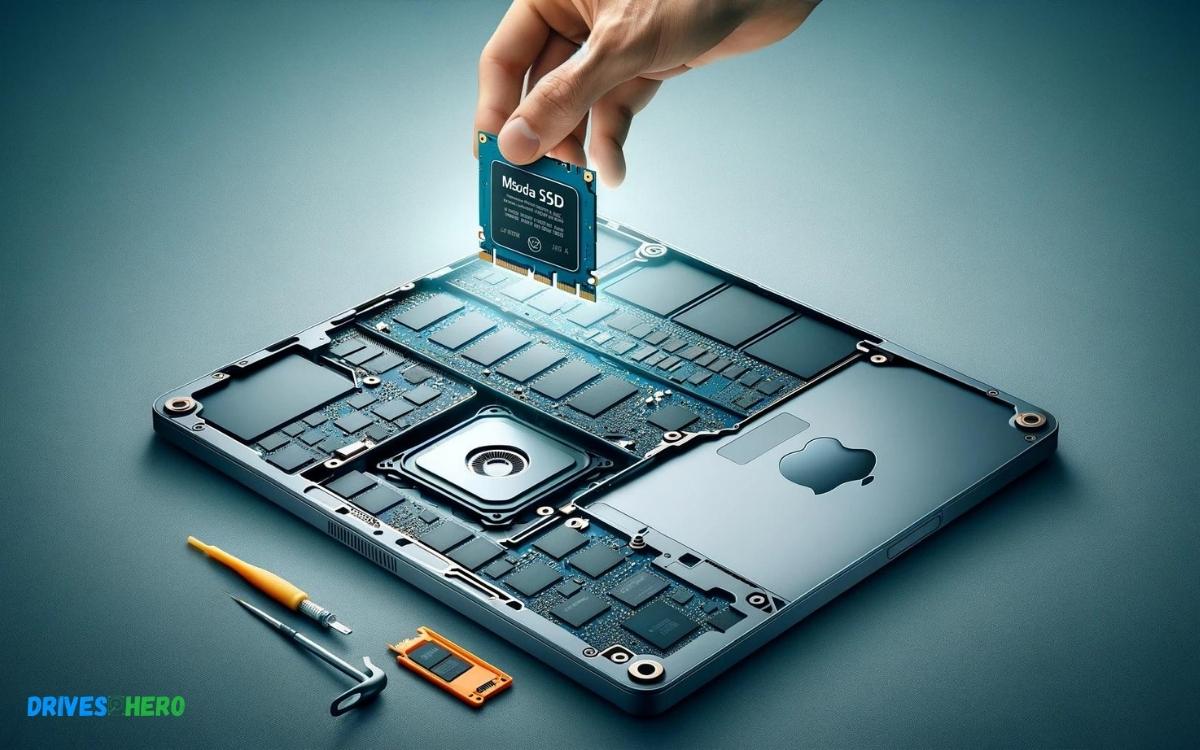
Yes, you can upgrade the SSD on a MacBook Pro 2015, but it requires a specific type of SSD and the process might be challenging for those with no experience in upgrading computer components.
The MacBook Pro 2015 typically comes with a proprietary PCIe-based flash storage, which means you cannot use just any SSD for the upgrade; you must find one that is compatible with the MacBook’s interface.
Before undertaking this process, you should consider the following:
Here’s a short example of the steps you might follow:
- Back up your data using Time Machine or another backup method.
- Obtain the correct replacement SSD.
- Gather the necessary tools.
- Shut down the MacBook Pro and disconnect all cables.
- Open the back cover of the MacBook Pro.
- Remove the old SSD and replace it with the new one.
- Reassemble the MacBook Pro and perform a clean installation of macOS.
Upgrading the SSD on a MacBook Pro 2015 can breathe new life into your machine with increased storage and improved performance, provided you use a compatible SSD and follow the proper installation procedures
Key Takeaway
Introduction To Macbook Pro 2015 Ssd Upgrades
The MacBook Pro 2015 model is a testament to durable design and reliable performance. But even the most robust machines can benefit from a boost, and one of the most effective ways is through upgrading the Solid-State Drive (SSD).
This enhancement not just revitalizes the system but also aligns it with the swiftly escalating demands of modern software and workloads.
Overview Of The Macbook Pro 2015 Model
The MacBook Pro 2015 model emerged as a formidable device in Apple’s lineup, boasting remarkable specs and efficiency.
Available primarily in 13 and 15-inch variants, this MacBook Pro established itself with hallmark features such as the Retina display, Force Touch trackpad, and high-performance processors.
Designed to cope with a range of tasks, these models initially came with various SSD capacities, which, years down the line, users might seek to upgrade for enhanced storage and speed.
Importance Of Ssds In Modern Computing
- SSDs stand as a colossal leap forward from the traditional spinning disk hard drives.
- They provide lightning-fast data access, shortened boot times, swift application loading, and an overall nimbler computing experience.
- This switch to SSDs is pivotal in modern computing, where agility and instantaneity occupy center stage.
They leverage cutting-edge technology to support high-bandwidth activities and reduce power consumption, bringing both performance and environmental benefits.
General Considerations For Upgrading SSD on Macbook Pro 2015
- Compatibility: Before upgrading, confirming the SSD’s compatibility with the MacBook Pro 2015 model is crucial.
- Data Backup: Safeguarding data with a full backup is essential before commencing the upgrade process.
- Tools Required: Specific tools may be necessary to open the MacBook and perform the upgrade successfully.
- Technical Know-How: While the process is straightforward for tech enthusiasts, less tech-savvy users might require professional assistance.
- Warranty Implications: Users should examine if SSD upgrades impact their current warranty or Apple Care terms.
Performing an SSD upgrade on the MacBook Pro 2015 can redefine the system’s utility and extend its lifespan.
With meticulous planning, appropriate tools, and consideration of compatibility, this upgrade can be a game-changer, ensuring the beloved MacBook keeps pace with the innovations of the contemporary digital realm.
Understanding The Upgradability Of Macbook Pro 2015
Understanding the Upgradability of MacBook Pro 2015 begins with diving into the possibilities and inherent limitations of Apple’s design.
This particular model of MacBook Pro has stirred conversations among tech enthusiasts for its performance and relative ease of making hardware enhancements compared to its successors.
Apple’s Stance On User-upgradable Components
Apple has traditionally maintained a restrictive stance regarding user upgrades. This approach aims to preserve the integrity and performance of the devices.
However, the MacBook Pro 2015 stands out as an exception. This model offers a glimmer of hope for users eager to enhance their machine’s capabilities through SSD upgrades.
Technical Specifications Of The Macbook Pro 2015’s Ssd
The MacBook Pro 2015 features a proprietary PCIe-based flash storage, which significantly outperforms the traditional SATA drives found in earlier models.
Here are the technical specifics:
- Interface: Custom Apple PCIe 2.0 x4
- Form Factor: Proprietary Apple SSD
- Transfer Speed: Up to 2GB/s
Savvy users can seek compatible third-party SSDs that match these specifications to ensure compatibility and peak performance post-upgrade.
Comparison With Other Macbook Pro Generations
Putting the MacBook Pro 2015 in perspective with other generations reveals its unique position. Prior models, like the MacBook Pro 2012, offered greater upgradability with standard drives and user-replaceable RAM.
In contrast, later generations, such as the MacBook Pro from 2016 onwards, saw a complete shift with soldered storage and memory components, effectively ending user upgrades.
Here’s a comparison:
| Model | SSD | RAM | Upgradability |
|---|---|---|---|
| MacBook Pro 2012 | SATA | User-replaceable | High |
| MacBook Pro 2015 | Proprietary PCIe | Onboard | Moderate |
| MacBook Pro 2016 and later | Soldered | Soldered | None |
Understanding the landscape of MacBook Pro generations can guide users in making informed decisions about upgrades or new purchases based on their needs for performance enhancements and future-proofing their investment.
The Process Of Upgrading Your Macbook Pro 2015 Ssd
Revamping your MacBook Pro might seem like a daunting task, but with the right tools and a bit of know-how, boosting your 2015 MacBook Pro’s performance with an SSD upgrade is entirely achievable.
Pre-upgrade Preparation And Data Backup
Before diving into the hardware swap, there are important precautions to take. It’s essential to back up your data.
A Time Machine backup is advisable, giving you a comprehensive snapshot of your current system that can be restored later. Correctly preparing will pave the way for a straightforward SSD upgrade.
- Ensure your MacBook is powered off and disconnected from the power source.
- Use Time Machine or your preferred backup method to secure your files.
- Have your Apple ID handy for reinstalling macOS after the upgrade.
Choosing The Right Ssd For Your Macbook Pro 2015
Selecting the appropriate SSD for your MacBook Pro is critical. The 2015 MacBook Pro requires a specific type of SSD, so compatibility is key.
Look for reputable brands that guarantee compatibility with the MacBook Pro’s proprietary PCIe 2.0 x4 interface.
| Brand | Model | Capacity Options |
|---|---|---|
| OWC | Aura Pro X2 | 240GB, 480GB, 1TB, 2TB |
| Transcend | JetDrive 820 | 240GB, 480GB, 960GB |
Step-by-step Guide To Replacing The Ssd
To replace your MacBook Pro’s SSD, ground yourself to prevent static discharge and follow this guide:
- Power off your MacBook Pro and disconnect all cables.
- Open the back cover by unscrewing the necessary Pentalobe screws.
- Locate the SSD and gently remove the existing SSD by unscrewing the Torx screws.
- Insert the new SSD, being sure to align it properly in the slot.
- Secure the new SSD with the Torx screws.
- Replace the back cover and fasten with the Pentalobe screws.
- Power on your MacBook and initiate macOS reinstallation.
Tools Required For The Upgrade Process
Having the correct tools is paramount for a successful SSD upgrade. These specialty tools can be sourced from electronics stores or online retailers.
- P5 Pentalobe screwdriver – for opening the MacBook.
- T5 Torx screwdriver – for securing the SSD.
- Anti-static wrist strap (optional) – for grounding yourself.
Post-upgrade Considerations
Once you’ve successfully upgraded your MacBook Pro 2015 with a new SSD, it’s time to shift your attention to the aftermath of this enhancement.
Post-upgrade considerations play a critical role in maintaining the longevity of your device and ensuring that the perks of a speedier SSD are fully realized.
Reinstalling Macos And Restoring Data
Reinstalling macOS is the first step after physically installing your new SSD. It involves two main methods: performing an internet recovery or using a bootable USB drive.
Both ensure you have a clean, fresh start on your newly-equipped Mac. Followed by macOS installation, the process of restoring data commences.
Users can effortlessly retrieve files through Time Machine backups or by transferring data from the old drive with a SATA to USB cable.
Performance Improvements And Benchmarking
After the upgrade, users generally notice a significant boost in speed and responsiveness. Using benchmarking tools such as the Blackmagic Disk Speed Test or Geekbench, you can quantitatively measure performance improvements.
These metrics not only provide validation for the upgrade but also serve as a baseline for future comparisons should issues arise.
Potential Issues And How To Troubleshoot Them
Troubleshooting is a necessity if you encounter hiccups post-upgrade. Common issues such as the SSD not being recognized, slow performance, or booting problems are typically solvable.
Techniques include ensuring proper drive format in Disk Utility, resetting the NVRAM and SMC, and checking the connection and integrity of the new SSD.
Warranty And Support Implications
Lastly, be mindful of warranty and support implications. Upgrades can potentially void warranties, so it’s best to check with Apple or the SSD manufacturer regarding their policies.
Fortunately, most third-party SSD vendors offer extended support for installation or operational issues, providing peace of mind to users embarking on this technical endeavor.
Alternatives To Internal Ssd Upgrades
If you’re using a MacBook Pro from 2015 and finding yourself constrained by its storage capacity, internal SSD upgrades might seem like the natural solution.
Using External Ssds For Additional Storage
When internal upgrades are not feasible, external SSDs become your go-to solution.
These devices are easy to use simply connect them to your MacBook Pro via a USB or Thunderbolt port, and you’re ready to go. External SSDs offer a hassle-free way to expand storage without the need for internal modifications.
- Portability: Easily transport large files between different devices.
- Speed: Recent SSD models offer lightning-fast data transfer rates.
- Convenience: No need to open up your MacBook Pro; plug-and-play simplicity.
Benefits Of Cloud Storage Solutions
Cloud storage is another excellent avenue for expanding your data horizons. Services like iCloud, Dropbox, and Google Drive provide ample storage in the ether of the internet.
Let’s explore some benefits:
- Accessibility: Access files from any device with an internet connection.
- Security: Enhanced security features protect your data from physical theft.
- Collaboration: Share and collaborate on documents and projects with ease.
When To Consider Buying A Newer Macbook Instead
At times, the smartest move may be to evaluate whether your current MacBook Pro meets your performance needs or if a new model could serve you better.
Investing in a new MacBook might be more cost-effective in the long run when considering:
| Current MacBook Pro | Newer MacBook |
|---|---|
| Limited upgrade potential | Latest technology & features |
| Aging hardware | Improved performance & efficiency |
| Warranty or support may have expired | New warranty and support included |
Scrutinize your specific demands and usage patterns to decide whether sticking to your current model or upgrading to a newer MacBook Pro aligns best with your goals.
Remember to weigh the pros and cons of both maintaining your existing machine and investing in a new one to find the most cost-effective and efficient solution for your needs.
Conclusion
Upgrading the SSD in your MacBook Pro 2015 is possible. This simple change can breathe new life into your device, enhancing performance and storage capabilities.
Whether it’s for professional tasks or personal usage, an SSD upgrade means a faster, more efficient MacBook at your fingertips.

Harold Williams is a senior writer and technical editor at Drives Hero with 20+ years of experience in IT administration. He specializes in storage systems, SSD reviews, and performance testing, bringing real-world insight to every guide.