Can You Upgrade Macbook Air Ssd? Yes!
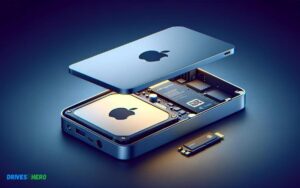
Yes, you can upgrade the SSD on some MacBook Air models, but the ability to do so depends on the year and model of the MacBook Air.
Models from 2013 to 2017 typically have upgradable SSDs, while models from 2018 onwards have SSDs that are integrated into the motherboard and are not user-upgradable.
The MacBook Air has seen different design philosophies over the years when it comes to upgradability. Earlier models, specifically those released between 2013 and 2017, often came with SSDs that users could replace or upgrade.
This allowed for extending the life of the machine by increasing storage capacity or replacing a failing drive.
However, with the redesign of the MacBook Air in 2018, Apple started to solder the SSD directly to the motherboard, making user upgrades or replacements impossible.
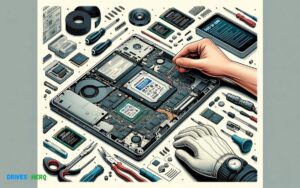
For those with older models looking to upgrade their SSD, it is important to purchase a compatible drive and to have the necessary tools and instructions, or seek professional assistance to perform the upgrade.
- Identify your MacBook Air model year.
- Check if the SSD is upgradable for your specific model.
- Purchase a compatible SSD replacement.
- Use the proper tools to open the MacBook Air.
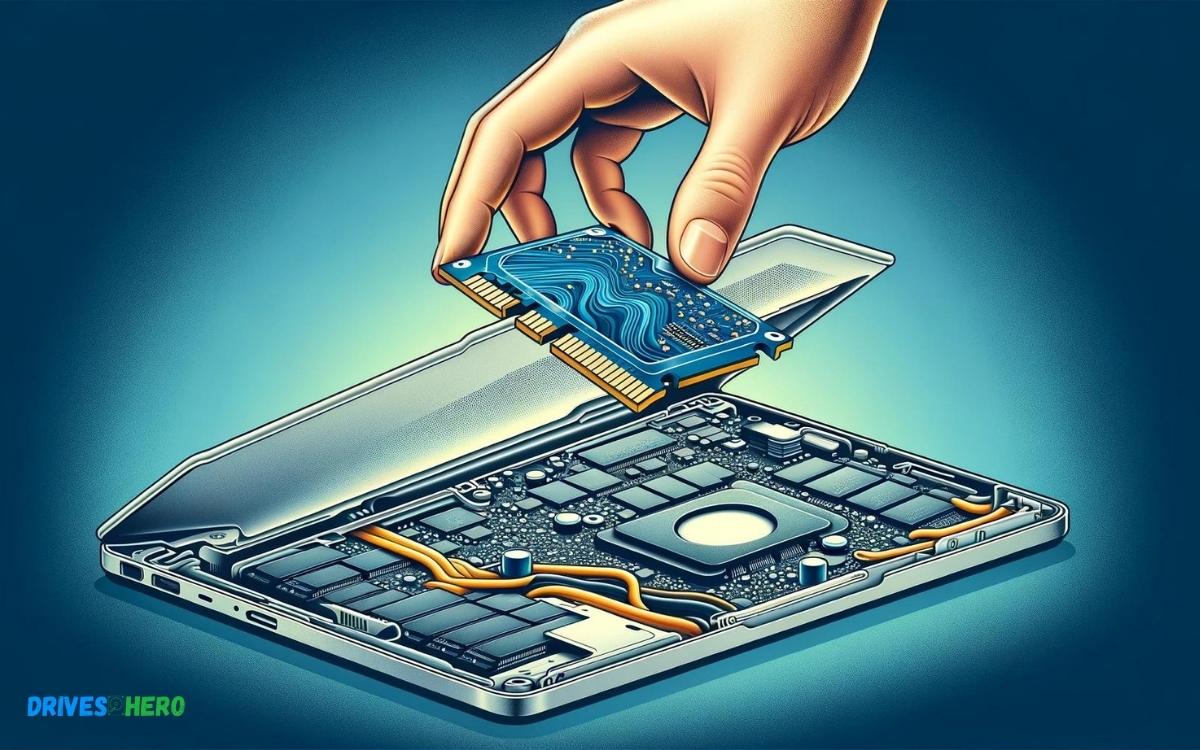
- Replace the old SSD with the new one.
- Restore or reinstall macOS on the new SSD.
Before attempting to upgrade your MacBook Air’s SSD, ensure compatibility with your model and prepare by backing up your data and having the right tools on hand.
Key Takeaway
Introduction To Macbook Air SSD Upgrade Possibilities
Are you pondering over the potential to give your MacBook Air a boost with an SSD upgrade? The idea of speeding up your device with additional storage capacity can be enticing.
With technology advancing rapidly, understanding your MacBook Air’s upgrade capabilities is invaluable.
We will dissect the feasibility of SSD upgrades for different MacBook Air models, providing clarity on where you stand with your current device.
Initial Overview Of Macbook Air’s Ssd
The MacBook Air, known for its sleek design and portability, originally came with a certain set of specifications tailored to provide a balance between performance and convenience.
The SSD, a critical component responsible for storage and speed, was built to complement this balance.
Initially, some MacBook Air models were equipped with SSDs that could be replaced or upgraded, offering users the possibility to enhance their devices post-purchase.
Generational Changes And Upgrade Potentials
Understanding the generational shifts in MacBook Air designs is crucial when considering SSD upgrades.
Throughout its evolution, the MacBook Air has seen changes that impact upgrade feasibility:
- Early models (pre-2013): These typically have replaceable SSDs, making upgrades a more straightforward endeavor.
- Middle-generation models (2013-2015): The introduction of PCIe-based SSDs offered faster performance but also started a trend towards less user-friendly upgrade options.
- Recent models (2018 onwards): These commonly feature soldered SSDs, which are not intended to be upgraded by the user, signaling a shift toward a closed system architecture.
This transition to less user-serviceable components is a critical consideration for MacBook Air owners evaluating their upgrade options.
Apple’s Stance On User-performed Upgrades
Apple has historically maintained a restrictive stance on user-performed hardware upgrades. This approach aligns with Apple’s design philosophy, emphasizing system integrity and uniformity.
- With each MacBook iteration, Apple has moved closer to a non-upgradable model, where components like the SSD are integrated directly into the logic board.
- For users of the latest MacBook Air models, Apple recommends seeking professional assistance for any service needs.
- It should be noted that unauthorized modifications can void your warranty and may affect the functionality and resale value of the device. Therefore, any upgrade consideration must be weighed against these factors.
Stay tuned as we dive deeper into the specifics of MacBook Air SSDs, and unfold what your options are.
Whether you’re a tech enthusiast or seeking practical enhancements, knowing the ins and outs of your machine’s capabilities is the first step toward making an informed decision.
Understanding The Different Macbook Air Models
Apple’s MacBook Air has evolved significantly since its debut, becoming a flagship for portability and performance. However, with each new release, internal components like the SSD (Solid State Drive) also change, impacting upgrade possibilities.
Distinguishing Between The Macbook Air Generations
MacBook Air generations are distinguishable by key design and hardware changes.
For instance:
- Original to 2017 models: Known for their iconic tapered design and silver bezels around the screen.
- 2018 and newer models: Feature a redesigned thinner chassis, Retina display with black bezels, and utilize USB-C ports exclusively.
Understanding your MacBook Air’s generation is the first step to identifying the correct SSD upgrade path.
Identifying Your Macbook Air’s Model And Ssd Type
You can identify your MacBook Air model by checking the ‘About This Mac’ section under the Apple menu.
Look for the Model Identifier, which specifies the model year and size, like MacBookAir7,2 for a 13-inch, Early 2015 MacBook Air.
Next, research the SSD type that corresponds to your model. Different generations come with various types of SSD connectors and form factors, which are critical for selecting the right upgrade kit.
To understand your MacBook Air’s specific SSD type:
- Search Apple’s official support site with your model identifier.
- Consult user forums or SSD vendor sites for compatibility guides.
Pre-retina Vs. Retina Macbook Air: Upgrade Considerations
The MacBook Air models are primarily categorized into two groups: Pre-Retina and Retina display models.
Each group has distinct SSD upgrade considerations:
| Pre-Retina Models (2008-2017) | Retina Models (2018 and later) |
|---|---|
| Utilize proprietary SSDs, but many third-party upgrade options are available. | Feature soldered SSDs on most models, limiting upgrade potential. |
| Require specific tools for safely opening the device. | May void Apple’s warranty or AppleCare plan if opened. |
| Easier to find compatible SSD upgrades and instructions. | Upgrade generally not recommended due to complexity and potential risks. |
Step-by-step Guide To Upgrading Your Macbook Air Ssd
The thought of upgrading the SSD on your MacBook Air can be daunting, but it’s a great way to enhance your Mac’s performance.
Whether you’re looking to expand storage or breathe new life into an older machine, a well-executed SSD upgrade can accomplish just that.
Essential Tools And Preparations For A Successful Upgrade
Preparation is key to a smooth SSD upgrade.
Assemble the necessary tools and backup your data before proceeding.
- Pentalobe screwdriver: Specifically designed for MacBook’s unique screws.
- External enclosure or USB adapter: For data cloning and SSD formatting.
- Anti-static wrist strap: To prevent electrostatic discharge damage.
- Time Machine or cloning software: For data backup and transfer.
Ensure you have a full backup of your MacBook Air data using Time Machine or cloning software to an external drive. You don’t want to lose precious files during the upgrade.
Detailed Upgrade Process For Pre-retina Macbook Air Models
Older MacBook Air models without a Retina display offer easier SSD upgrading options.
If you own one of these models, you’re in luck.
- Power down your MacBook Air and disconnect all power sources and cables.
- Flip your MacBook Air over and locate the ten screws on the bottom cover.
- Use your Pentalobe screwdriver to remove these screws and carefully lift off the bottom cover.
- You’ll see the current SSD. Gently remove the screw holding the drive in place.
- Slide out the old SSD and replace it with the new one, aligning the contacts properly.
- Secure the new SSD with the screw you removed earlier.
- Replace the bottom cover and its screws.
- Boot your MacBook Air while holding down the Command + R keys to enter recovery mode.
- Use Disk Utility to format your new SSD, then restore your data from the Time Machine backup or the cloning software.
Ssd Upgrade Limitations In Retina Macbook Air Models
Since 2018, Retina MacBook Air models come with SSDs that are soldered onto the motherboard, making user upgrades significantly more challenging, if not impossible for most users.
Before attempting an upgrade for these models, it’s critical to understand the technical limitations and warranty implications.
| Model | Upgradability |
|---|---|
| MacBook Air (Retina, 2018 and later) | Not user-upgradeable |
| MacBook Air (2017 and earlier) | User-upgradeable |
For Retina models, it’s strongly advised to consult with a certified professional or consider utilizing external storage solutions.
Potential Risks And Considerations When Upgrading The Ssd
Potential Risks and Considerations When Upgrading the SSD are critical for MacBook Air owners considering a storage performance boost.
The allure of greater capacity and snappier response times can be enticing, but proceed with caution various factors can influence the success and longevity of your upgrade.
Warranty Implications And Apple Support Policies
Before upgrading your MacBook Air’s SSD, understand the warranty implications and Apple’s support policies.
Apple’s limited one-year warranty and, by extension, the AppleCare Protection Plan – may be voided if unauthorized modifications are made to your device.
This includes replacing the SSD with a non-Apple component. Confirm the warranty status and review Apple’s policies to ensure the upgrade does not result in unexpected coverage lapses or support denials.
Common Challenges And Troubleshooting During The Upgrade
Numerous challenges could arise during an SSD upgrade on a MacBook Air. Users may encounter compatibility issues, data migration complications, or even hardware recognition problems.
To mitigate such risks:
- Ensure compatibility of the new SSD with your MacBook Air model.
- Back up all essential data before commencing the upgrade to prevent data loss.
- Follow step-by-step guides meticulously to avoid mishandling components.
If the MacBook Air fails to recognize the new SSD after installation, resetting the NVRAM/PRAM or running a disk utility may resolve the issue. It’s also advisable to have access to professional technical support should unexpected challenges occur.
Long-term Performance And Reliability Of Third-party Ssds
While third-party SSDs offer an attractive option for extending your MacBook Air’s lifespan, their performance and reliability play a pivotal role in the long term. It’s crucial to select SSDs from reputable manufacturers with proven track records.
Look out for:
- SSDs with positive user reviews and high reliability ratings.
- Warranty offerings that provide some security against early failure.
- Firmware updates that maintain compatibility with macOS.
An SSD that operates flawlessly on day one may not necessarily do so years down the line. Monitor drive health regularly and stay ready to back up data in case of an unforeseen SSD failure.
Alternatives To Physical Ssd Upgrades
Exploring alternatives to physical SSD upgrades for your MacBook Air is essential, especially when you’re looking to enhance storage capacity without the hassles of hardware modifications.
As internal upgrades can sometimes be challenging or impossible, expanding storage through external methods is a viable and often more flexible solution.
Leveraging External Storage Options
When internal upgrade paths are limited, external storage devices prove to be a savior. They offer simple plug-and-play functionality and are perfect for users needing additional space for large files or backups.
Explore these options:
- Portable SSDs: Compact and speedy, they can significantly augment your storage.
- USB flash drives: Good for small data transfers and backup essentials.
- Hard Drives: A cost-effective solution for massive storage requirements.
These devices can easily connect to your MacBook Air via USB-C or Thunderbolt ports, ensuring seamless access to your data whenever you need it.
Cloud Storage Solutions For Macbook Air Users
Cloud storage emerges as a versatile option, offering accessibility and security for your files across devices.
MacBook Air users can leverage platforms such as:
| Service | Benefit |
|---|---|
| iCloud Drive | Seamless integration with macOS and iOS devices. |
| Dropbox | Widely used, with ample collaboration tools. |
| Google Drive | Generous free tier and integration with Google services. |
| OneDrive | Great for those invested in the Microsoft ecosystem. |
Cloud services allow you to store, manage, and access your data without worrying about physical space. You can access your files from any location with an internet connection, ensuring your data moves with you.
Making The Most Of Your Current Ssd Capacity
If upgrading hardware or relying on external solutions doesn’t fit your preference, optimizing your existing SSD is key.
Start by:
- Cleaning Unnecessary Files: Use built-in tools such as macOS Storage Management to locate and remove old documents, apps, and downloads.
- Offloading Large Files: Transfer rarely used huge files to an alternate storage solution.
- Streamlining Apps and Services: Uninstall unused applications and use cloud-based services to save space.
Efficient management of your files ensures you have ample space for critical data, extending the utility of your MacBook Air’s existing SSD.
Concluding Thoughts On Macbook Air SSD Upgrades
Considering an SSD upgrade for your MacBook Air can be likened to breathing new life into an older machine. It’s an opportunity not just to enhance performance and storage capacity, but also to extend the useful life of your beloved MacBook.
Before taking the plunge, let’s delve into the crucial aspects of costs, benefits, risks, and the long-term outlook to ensure you make an informed decision.
Balancing Costs, Benefits, And Risks
An SSD upgrade can significantly boost the speed and responsiveness of your MacBook Air. However, understanding the interplay between the costs, benefits, and risks involved is vital.
Here’s a quick breakdown:
- Costs: The price of SSDs has fallen over the years, but it’s still a considerable expense, especially for higher-capacity drives.
- Benefits: Expect a faster boot-up time, quicker file accesses, and an overall snappier performance post-upgrade.
- Risks: There’s always a potential for compatibility issues or data loss, so ensure you have a complete backup before any hardware changes.
Future-proofing Your Macbook Air
Investing in an SSD upgrade can be seen as a step towards future-proofing your device. As software requirements evolve, having an SSD can help ensure your MacBook Air remains relevant and efficient for a more extended period.
Consider the long-term benefits against the initial expenditure and contemplate how an SSD investment aligns with your technological needs for the coming years.
Recommendations For Users Considering An Upgrade
For those weighing the possibility of an SSD upgrade, a few recommendations could guide your decision-making process:
- Assess your current and future storage needs to select an SSD with appropriate capacity.
- Research the SSD compatibility with your specific MacBook Air model.
- Back up all important data before proceeding with the upgrade to avert potential data loss scenarios.
- Consider professional installation if you’re not comfortable with DIY computer hardware tasks.
- Keep the original drive as a backup or for use in an external enclosure.
Ultimately, carefully weigh the potential performance improvement against the investment required to ensure the best outcome for your MacBook Air.
Conclusion
Upgrading your MacBook Air SSD can revolutionize your device’s performance and storage capacity. It’s a savvy move for tech enthusiasts and professionals alike.
With the right tools and guidance, this upgrade is a practical step towards prolonging your MacBook’s lifespan and enhancing its functionality. Embrace the change and watch your MacBook Air soar to new heights.

Harold Williams is a senior writer and technical editor at Drives Hero with 20+ years of experience in IT administration. He specializes in storage systems, SSD reviews, and performance testing, bringing real-world insight to every guide.