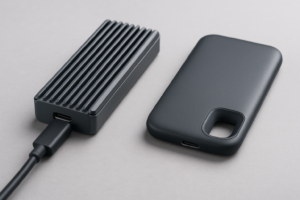
Xbox Series X Storage Expansion Card vs Cheap NVMe in Enclosure
If you own an Xbox Series X or Series S, you’ve already felt the storage crunch. Modern games regularly eat up 50GB to 100GB or more, and that 1TB internal drive fills up fast. Microsoft’s official solution is the Seagate Storage Expansion Card, a proprietary module that slots into the back of your console. But you’ve probably also noticed that your Xbox has a regular USB port, and cheap NVMe enclosures exist. Can you just grab a budget NVMe drive, stick it in an enclosure, and call it a day?
The short answer: yes, but with significant limitations. The longer answer involves understanding what each option actually lets you do, where it falls short, and which approach makes sense for your gaming habits and budget. I’ve tested both setups extensively, and the differences matter more than most articles let on.
How Xbox Series X Storage Actually Works
Before comparing the two options, you need to understand how the Xbox Series X handles storage internally. The console uses a custom 1TB NVMe SSD built on the Xbox Velocity Architecture. This isn’t just marketing fluff. The system relies on specific hardware features, including a custom decompression block and direct storage pipeline, to deliver the fast load times that Xbox Series X|S games are designed around.
Microsoft locked the expansion slot to a specific format: the CFexpress-based Seagate Storage Expansion Card. This card plugs directly into a proprietary port on the back of the console and is treated identically to the internal drive. Games installed here run exactly as they would on the internal SSD, with full Xbox Velocity Architecture support.
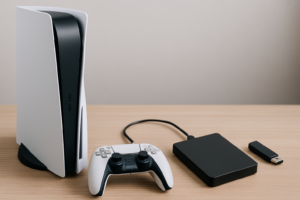
The USB 3.2 port on the console serves a different purpose. You can connect external USB storage, including NVMe drives in enclosures, but the Xbox treats these drives as “cold storage” for Series X|S optimized games. You can store those games there, but you cannot play them directly from the USB drive. You’ll need to transfer them back to the internal drive or the Seagate card before launching. Older Xbox One, Xbox 360, and original Xbox backward-compatible games, however, can be played directly from USB storage.
The Official Option: Seagate Storage Expansion Card
The Seagate Storage Expansion Card comes in 512GB, 1TB, and 2TB capacities. It’s a small rectangular module that clicks into the dedicated slot on the back of your Xbox. Installation takes about two seconds, and the console recognizes it immediately.
Performance matches the internal drive. Games load at the same speeds, and the Quick Resume feature works identically whether games are on the internal SSD or the expansion card. There’s zero compromise in functionality. If you want more storage that works exactly like your internal drive, this is the only option.

Seagate Storage Expansion Card 2TB for Xbox Series X|S
The only way to expand your Xbox Series X storage with full performance parity to the internal drive
The downsides are real, though. Seagate has an exclusive license for these cards, so there’s no competition driving prices down. The cost per gigabyte is significantly higher than standard NVMe drives. You’re also limited to the capacities Seagate offers. And if something goes wrong with the card, you can’t just swap in a different drive since it’s a sealed unit.
For what it’s worth, reliability has been solid across the board. The card uses quality NAND flash, and since it’s designed specifically for this use case, compatibility issues are nonexistent. If you want to understand more about how long SSDs typically last under heavy use, the Seagate card falls within normal NVMe endurance expectations.
The DIY Option: NVMe SSD in a USB Enclosure
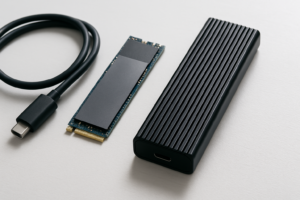
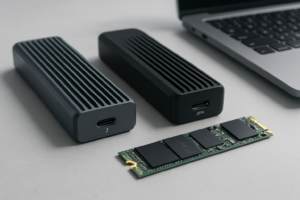
Here’s where things get interesting for budget-minded gamers. You can buy a standard M.2 NVMe SSD and a USB 3.2 Gen 2 enclosure, assemble them in about five minutes, and plug the result into your Xbox’s USB port. The console will format the drive and let you use it for storage.
I recommend using a quality NVMe drive like the WD Black SN770 or the Samsung 980 Pro paired with a USB 3.2 Gen 2 (10Gbps) NVMe enclosure. For the enclosure, look for one based on the Realtek RTL9210B or JMicron JMS583 chipset, as these handle sustained transfers well without overheating. If you’re unfamiliar with the different SSD form factors at play here, our M.2 vs 2.5-inch SSD comparison guide breaks down the physical differences.

WD Black SN770 1TB NVMe SSD
Excellent NVMe drive for an Xbox cold storage enclosure, with fast transfer speeds and great endurance
The combined cost of an NVMe drive plus an enclosure is substantially less than the Seagate expansion card at equivalent capacities. You also get the flexibility to choose whatever capacity you want, and you can repurpose the drive for other uses later. It’s a much more versatile investment.
What You Can and Can’t Do with USB Storage
This is the critical section, so read it carefully. The functionality differences between the Seagate card and a USB-connected NVMe enclosure are significant.
What Works from USB Storage
- Playing Xbox One, Xbox 360, and original Xbox games: Backward-compatible titles run directly from USB storage with no issues. Load times are often faster than playing these games from a mechanical hard drive on the original consoles.
- Storing Xbox Series X|S optimized games: You can move these titles to USB storage to free up internal space. This avoids re-downloading large games when you want to play them again.
- Transferring games back to the internal drive: Moving a game from USB storage to the internal SSD takes a fraction of the time compared to re-downloading it, even with a fast internet connection.
What Doesn’t Work from USB Storage
- Playing Xbox Series X|S optimized games: These titles require the Xbox Velocity Architecture and will not launch from a USB drive. The console will prompt you to transfer the game to the internal drive or Seagate card.
- Quick Resume for Series X|S games on USB: Since those games can’t run from USB, Quick Resume doesn’t apply.
- Matching internal drive speeds: USB 3.2 Gen 2 maxes out at roughly 10Gbps theoretical, which is far slower than the internal NVMe connection. Transfers between USB and internal storage are bottlenecked by the USB interface.
The practical impact depends on what you play. If your library is heavy on backward-compatible titles, a USB NVMe enclosure is incredibly useful. If you play mostly current-gen games, USB storage becomes a glorified download cache, still helpful, but you’ll spend time shuffling games back and forth.
Transfer Speed: How Long Does Shuffling Games Take?
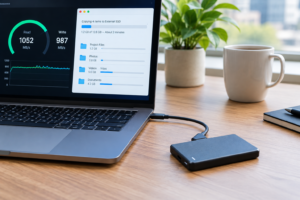
When using a USB 3.2 Gen 2 NVMe enclosure, real-world transfer speeds to and from the Xbox internal drive land around 1.0 to 1.2 GB/s in my testing. This means a 100GB game takes roughly 80 to 100 seconds to move from USB storage to the internal drive. Compare that to re-downloading the same game, which could take 15 minutes to several hours depending on your internet speed.
Using a slower USB drive, like a SATA SSD in a USB enclosure or a traditional external HDD, will significantly increase transfer times. A SATA-based USB drive typically tops out around 400 to 500 MB/s, roughly doubling or tripling the transfer time. An external mechanical hard drive will be slower still. If you’re buying specifically for Xbox cold storage, an NVMe drive in a proper enclosure is worth the small premium over SATA for this reason alone. Our comparison of SATA vs NVMe SSDs in real-world gaming tests shows just how meaningful this speed gap is.
With the Seagate expansion card, there’s no transfer step at all for Series X|S games. They just work, exactly like the internal drive. That convenience has real value if you frequently rotate through a large library of current-gen titles.
Which Option Should You Choose?
I’ll give you my honest recommendation based on different scenarios.
Get the Seagate Expansion Card If:
- You play mostly Xbox Series X|S optimized games and want everything instantly accessible
- You hate managing storage and moving games around
- You value convenience over cost savings
- You have a large current-gen library and don’t want to choose which five games live on your internal drive
Get an NVMe Enclosure If:
- You play a lot of backward-compatible Xbox One, 360, or original Xbox titles (these run directly from USB)
- You want cold storage to avoid re-downloading large games
- You’re on a tighter budget and don’t mind a 90-second transfer when switching games
- You want a drive you can repurpose for a PC, laptop, or portable SSD setup later
My Pick for Most Gamers
For the majority of Xbox gamers, I’d recommend starting with the NVMe enclosure approach. The cost savings are substantial, and the cold storage workflow is genuinely practical. A 2TB NVMe drive in an enclosure gives you a massive game library on standby, and moving titles back to the internal drive takes less time than making a cup of coffee. If you later find that the game-shuffling routine annoys you, you can always add the Seagate card and keep the USB drive for backward-compatible titles and overflow storage.
If budget isn’t a concern and you just want maximum convenience, the 2TB Seagate expansion card is the cleanest solution. Plug it in and forget about storage management entirely.
Tips for Setting Up a USB NVMe Enclosure for Xbox
If you go the DIY route, a few practical tips will save you headaches.
Choose the right enclosure chipset. Enclosures using the Realtek RTL9210B chipset have been consistently reliable with Xbox. Avoid the cheapest no-name enclosures, as thermal throttling and disconnections are common problems. If you’ve dealt with external drives that keep disconnecting, a poor enclosure is often the culprit.
Use a short, high-quality USB cable. The cable matters more than you’d think. Stick with a USB 3.2 Gen 2 certified cable, ideally the one included with the enclosure. Longer cables or USB 2.0 cables will tank your speeds.
Let the Xbox format the drive. When you plug the enclosure in for the first time, the Xbox will ask to format it. Say yes. The console uses its own file system, and the drive won’t be readable by a PC afterward without reformatting. If you ever plan to reuse the drive for another purpose, you’ll want to know how to properly wipe it first.
Don’t cheap out on the NVMe drive itself. You don’t need a top-tier Gen 4 drive since USB 3.2 Gen 2 is the bottleneck anyway. But avoid the absolute cheapest drives with poor controllers. The Silicon Power A60 and the Kingston NV2 are solid budget options. A Gen 3 NVMe drive is perfectly fine for this use case and will save you money over Gen 4 models.
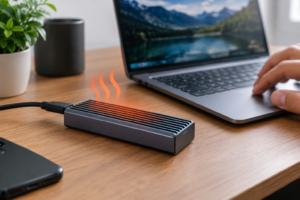
Consider thermal management. NVMe drives in enclosures can get warm during sustained transfers. An enclosure with an aluminum housing acts as a passive heatsink and keeps thermals in check. Avoid plastic enclosures if possible, particularly if your console area has limited airflow.
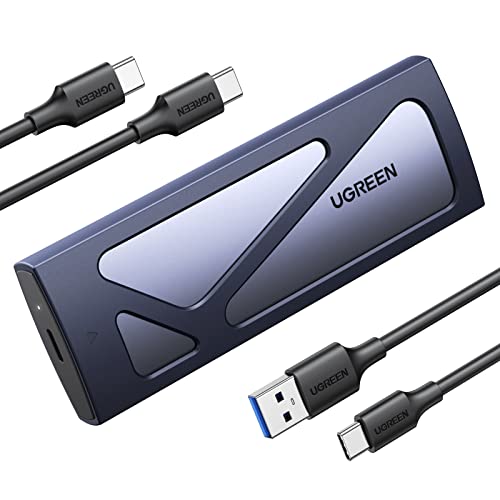
UGREEN M.2 NVMe SSD Enclosure USB 3.2 Gen 2
Aluminum build with solid thermal performance, ideal for Xbox cold storage use
Frequently Asked Questions
Can I play Xbox Series X games directly from a USB NVMe enclosure?
No. Games that are specifically optimized for Xbox Series X|S require the Xbox Velocity Architecture, which only works with the internal drive or the official Seagate Storage Expansion Card. You can store these games on a USB drive and transfer them back to the internal SSD when you want to play, but they won’t launch directly from USB. Older Xbox One, Xbox 360, and original Xbox backward-compatible games can be played directly from USB storage without any transfer.
Will any NVMe SSD work in a USB enclosure for Xbox?
Most standard M.2 2280 NVMe SSDs will work, but the enclosure needs to support USB 3.2 Gen 2 (10Gbps) for optimal transfer speeds. Both Gen 3 and Gen 4 NVMe drives will function since the USB interface is the bottleneck, not the drive itself. Avoid using a SATA M.2 drive in an NVMe-only enclosure, as the two are not interchangeable despite sharing a similar physical form factor. If you need help understanding these distinctions, check our M.2 form factor guide.
Is the Seagate Expansion Card faster than an NVMe enclosure for transferring games?
The Seagate card doesn’t require transferring games at all for Series X|S titles, which is its primary advantage. It connects via a proprietary CFexpress-based interface that matches the internal drive’s speed. A USB NVMe enclosure is limited to USB 3.2 Gen 2 speeds (roughly 1.0

James Kennedy is a writer and product researcher at Drives Hero with a background in IT administration and consulting. He has hands-on experience with storage, networking, and system performance, and regularly improves and optimizes his home networking setup.