The Complete Guide to SSDs: SATA, NVMe, External, and More
Solid-state drives have completely reshaped how we think about storage. They’re faster, more reliable, and quieter than traditional hard drives. But once you start shopping for one, the alphabet soup of acronyms and form factors can make your head spin. SATA, NVMe, M.2, PCIe, QLC, TLC, DRAM cache. It’s a lot.
This guide breaks down every major SSD type, interface, and technology you need to understand before buying. Whether you’re upgrading a laptop, building a desktop, setting up a NAS, or just looking for a portable drive to carry in your bag, you’ll find the right answer here. I’ll also recommend specific models worth your money and point out the pitfalls that trip up most buyers.
SSD Fundamentals: How They Work and Why They’re Faster
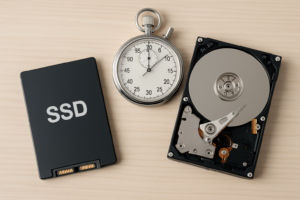
Unlike traditional hard drives that read data from spinning magnetic platters with a mechanical arm, SSDs store data on interconnected flash memory chips. There are no moving parts. This single difference is responsible for virtually every advantage SSDs have: faster read/write speeds, near-instant access times, lower power consumption, silence, and better shock resistance.
If you’re still running a mechanical hard drive as your boot drive, the comparison between SSDs and HDDs isn’t even close anymore. A basic SATA SSD will make a five-year-old laptop feel brand new. An NVMe drive will make file transfers feel almost instant.
The flash memory inside SSDs comes in several types, categorized by how many bits each cell stores:
- SLC (Single-Level Cell): 1 bit per cell. Fastest and most durable, but extremely expensive. Found mostly in enterprise drives.
- MLC (Multi-Level Cell): 2 bits per cell. Great balance of performance and endurance. Increasingly rare in consumer drives.
- TLC (Triple-Level Cell): 3 bits per cell. The sweet spot for most consumer SSDs today. Good performance, reasonable endurance, affordable pricing.
- QLC (Quad-Level Cell): 4 bits per cell. Cheapest per gigabyte, but slower sustained writes and lower endurance. Fine for read-heavy workloads and bulk storage.
Most SSDs you’ll encounter use TLC NAND, and that’s perfectly fine for the vast majority of users. QLC drives have improved significantly and work well as secondary storage or for anyone who mostly reads data rather than writing large files constantly. For a deeper look at how long these drives actually last in practice, check out our data analysis on SSD lifespan.
SATA SSDs: The Reliable Workhorse
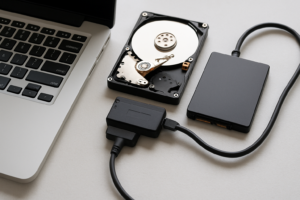
SATA (Serial ATA) is the older interface that traditional hard drives use. SATA SSDs connect to the same ports and use the same cables, which makes them drop-in replacements for any hard drive in a desktop or laptop. The maximum bandwidth of SATA III tops out at 600 MB/s, and in practice, the best SATA SSDs hit around 550 MB/s for sequential reads.
That speed ceiling might sound limiting compared to NVMe drives, but for everyday computing, web browsing, office work, and even moderate gaming, a SATA SSD is more than fast enough. Boot times, app launches, and general system responsiveness are night-and-day better than a hard drive, and the difference between a SATA SSD and an NVMe drive during typical desktop use is barely perceptible.
SATA SSDs come in the standard 2.5-inch form factor (the same size as a laptop hard drive) and also in the M.2 form factor. An M.2 SATA drive looks physically identical to an M.2 NVMe drive, so you need to check the keying on the connector and your motherboard’s specifications. Our M.2 vs 2.5-inch SSD comparison guide explains the physical differences in detail.
Best SATA SSDs Worth Buying
The Samsung 870 EVO remains the gold standard for SATA SSDs. It offers excellent sustained write performance, a long endurance rating, and Samsung’s Magician software for drive management. Available in capacities from 250GB to 4TB, it’s the safest pick for most people.

Samsung 870 EVO 1TB SATA SSD
The best all-around SATA SSD with top-tier reliability, performance, and a generous endurance rating.
For budget builds, the Crucial MX500 delivers strong performance at a lower price point. It includes a DRAM cache (important for consistent performance) and has been a reliable pick for years. You can also explore more options in our roundup of the best budget SSDs with strong performance-per-dollar.
NVMe SSDs: Speed That Actually Matters
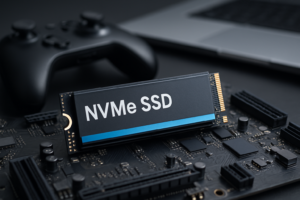
NVMe (Non-Volatile Memory Express) is a storage protocol designed specifically for flash memory, running over the PCIe (PCI Express) bus instead of the older AHCI protocol that SATA uses. This removes the bottleneck entirely. A Gen 3 NVMe drive can hit around 3,500 MB/s, and Gen 4 drives push past 7,000 MB/s. Gen 5 drives, the newest generation, are reaching 12,000+ MB/s in sequential reads.
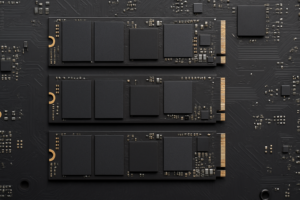
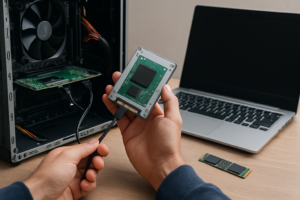
These drives use the M.2 form factor and slot directly into your motherboard. No cables needed. Installation takes about 60 seconds: slide the drive in at an angle, push it down, secure it with a screw. If you’ve never done it before, our NVMe installation guide walks you through every step.
Gen 3 vs Gen 4 vs Gen 5: Which Generation Do You Need?
Gen 3 NVMe drives (up to ~3,500 MB/s) are still plenty fast for most users. They’re mature, well-priced, and run cool. The WD Blue SN570 is an excellent Gen 3 option for everyday use.
Gen 4 NVMe drives (up to ~7,400 MB/s) are the current mainstream choice. They offer a meaningful speed bump for large file transfers, video editing, and loading massive game libraries. The Samsung 990 Pro and WD_BLACK SN850X are the two best Gen 4 drives on the market. We’ve compared them head-to-head in our Samsung 990 Pro vs WD_BLACK SN850X showdown.

Samsung 990 Pro 2TB NVMe SSD
The fastest Gen 4 NVMe SSD available, ideal for gaming, creative work, and PS5 storage expansion.
Gen 5 NVMe drives (12,000+ MB/s) exist, but they run hot, require good airflow or heatsinks, and the real-world benefit over Gen 4 is minimal for most tasks. Unless you’re transferring enormous datasets daily, Gen 4 is the smarter buy right now.
For Gaming: SATA vs NVMe
This is one of the most common questions I hear. For most games, a SATA SSD and an NVMe SSD will produce nearly identical load times. The exception is games that use DirectStorage or similar asset-streaming tech, where NVMe can make a noticeable difference. Our real-world gaming benchmark comparison breaks down the actual numbers across popular titles. My recommendation: if you’re building new, go NVMe since the price gap has shrunk considerably. If you’re upgrading an older system that only supports SATA, don’t stress about it.
External and Portable SSDs: Storage You Can Take Anywhere
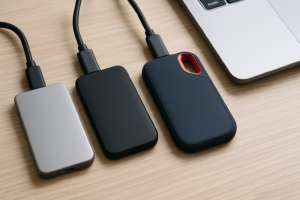
Portable SSDs have become essential gear for photographers, videographers, and anyone who needs fast storage on the go. They’re small (often smaller than a credit card), typically shock-resistant, and dramatically faster than external hard drives.
The best portable SSDs use NVMe internals with a USB 3.2 Gen 2 or Thunderbolt connection. Here’s what to look for:
- USB 3.2 Gen 2 (10 Gbps): Theoretical max of ~1,000 MB/s. Real-world speeds around 900-1,050 MB/s. Most popular connection type.
- USB 3.2 Gen 2×2 (20 Gbps): Theoretical max of ~2,000 MB/s. Requires a compatible port, which many computers lack.
- Thunderbolt 3/4 (40 Gbps): Fastest option. Common on Macs and high-end Windows laptops. Premium pricing on both drives and cables.
The Samsung T7 Shield is my top pick for most people. It’s IP65 rated for dust and water resistance, fast enough for 4K video editing off the drive, and compact enough to toss in a pocket. For Mac users specifically, we’ve tested a range of options in our guide to the best external drives for Mac. And if you travel frequently, our durability-tested portable SSD roundup covers the toughest options available.

Samsung T7 Shield 1TB Portable SSD
Dust and water resistant with fast USB 3.2 Gen 2 speeds, perfect for on-the-go storage and field work.
One word of caution with external SSDs: if yours keeps dropping the connection intermittently, it’s usually a cable or power delivery issue rather than a drive failure. We’ve covered the most common fixes for external drives that keep disconnecting if you run into this.
Choosing the Right Capacity
SSD pricing per gigabyte continues to drop, but picking the right capacity still matters. Here’s a practical breakdown:
- 250GB: Bare minimum for a boot drive. You’ll fill it fast with Windows updates and a handful of apps. Not recommended unless budget is extremely tight.
- 500GB: Workable for a boot drive plus essential applications. You’ll need to be disciplined about what you install.
- 1TB: The sweet spot for most users. Enough for your OS, apps, a decent game library, and working files. This is what I recommend to most people.
- 2TB: Ideal for gamers with large libraries, video editors, or anyone who doesn’t want to think about storage management. Our 1TB vs 2TB comparison helps you decide if the extra capacity is worth it for your use case.
- 4TB+: Available but expensive. Best reserved for professional workstations or as a single-drive solution where simplicity matters most.
A common and smart strategy is pairing a smaller NVMe SSD as your boot drive with a larger SATA SSD or HDD for bulk storage. We explain exactly how to set this up in our guide on using an SSD and HDD together in one PC.
What to Look For Beyond Raw Speed
Speed numbers dominate SSD marketing, but several other specs matter just as much for long-term satisfaction.
DRAM Cache
A DRAM cache stores the drive’s mapping table (essentially its index of where files are located) in fast volatile memory. Drives with DRAM handle random read/write operations and sustained workloads much better than DRAM-less drives. For a boot drive or primary storage, always choose a drive with DRAM. DRAM-less drives like the Kingston A400 are acceptable for secondary storage or as a simple HDD replacement.
TBW (Terabytes Written) and Endurance
Every SSD has a rated endurance measured in total terabytes written (TBW). A typical 1TB TLC drive is rated for 600 TBW, meaning you could write 600 terabytes to it before expected wear-out. For perspective, even heavy consumers rarely write more than 30-50 TB per year. Most SSDs will outlast the rest of your computer.
Controller Quality
The controller is the brain of the SSD. Phison, Samsung (in-house), and Silicon Motion are the major controller manufacturers. Samsung’s in-house controllers in the 870 EVO and 990 Pro are considered best-in-class. Budget drives sometimes use less capable controllers that can cause slowdowns during sustained writes or when the SLC cache fills up. If your SSD seems to be losing performance over time, here’s why that happens and how to fix it.
Thermal Management
NVMe drives, especially Gen 4 and Gen 5, generate significant heat under load. Thermal throttling can reduce performance to protect the drive. Many motherboards include M.2 heatsinks, and aftermarket options are inexpensive. If your M.2 slot doesn’t have a heatsink, buy one. They cost very little and can prevent throttling during large file transfers.
SSD Use Cases: Matching the Right Drive to Your Needs
James Kennedy is a writer and product researcher at Drives Hero with a background in IT administration and consulting. He has hands-on experience with storage, networking, and system performance, and regularly improves and optimizes his home networking setup.