How to Check Sabrent SSD Warranty by Serial Number
If your Sabrent SSD suddenly starts throwing errors, disappearing from your system, or just feels slower than it used to, checking your warranty status should be one of your first moves before you start troubleshooting or shopping for a replacement. Sabrent backs most of its drives with multi-year warranties, but knowing exactly how much coverage you have left (and what it actually covers) means digging up your serial number and going through the right channels. Skip the random third-party “warranty checker” sites you’ll find in search results. They can’t verify anything real, and some are just fishing for your drive’s info.
This guide walks you through finding your serial number, telling it apart from your model number and firmware version, and using Sabrent’s actual support process to confirm your coverage.
Finding the Serial Number on Your Sabrent SSD
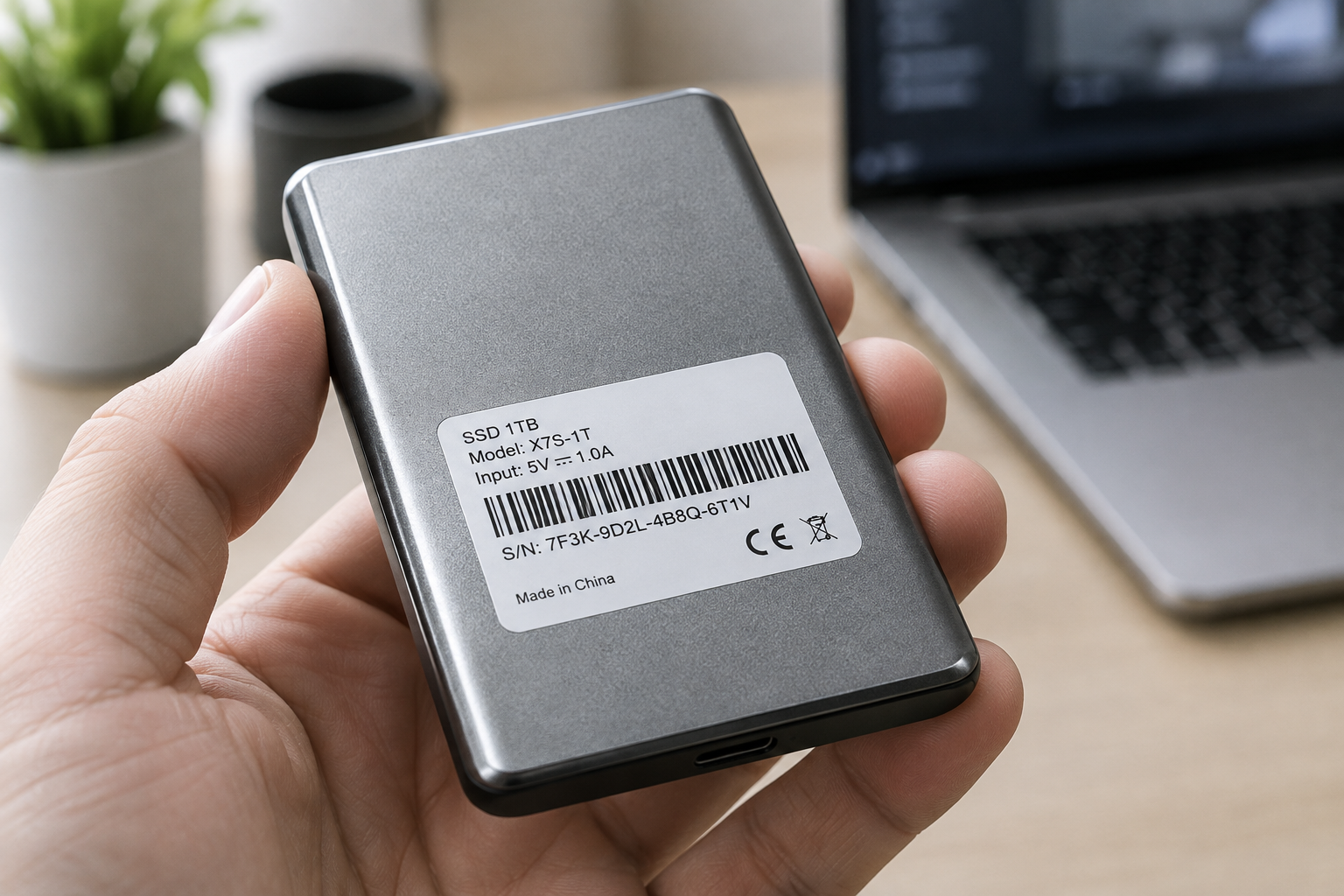
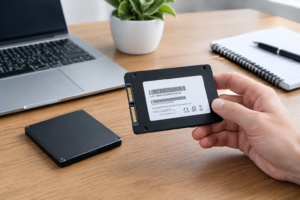
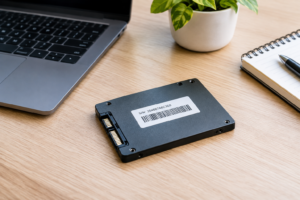
Your serial number is printed directly on the drive label, not in a manual or on the retail box (though the box usually has a matching sticker too). Where you’ll find it depends on the form factor:
- External SSDs (Rocket Nano, Rocket XTRM-Q, etc.): Check the bottom or back panel of the enclosure. The serial number is usually printed alongside a barcode.
- Internal M.2 NVMe drives (Rocket 4 Plus, Rocket Q, etc.): You’ll need to physically remove the drive from your laptop or desktop, or check the packaging if you kept it. The label sits on the top of the PCB, sometimes under a heatsink if your drive shipped with one.
- 2.5-inch SATA SSDs: Flip the drive over. The serial number is on the sticker along with the model and capacity.
If you don’t want to crack open your laptop just to find a sticker, you can also pull the serial number through software. On Windows, open Command Prompt and run:
wmic diskdrive get serialnumber,model
On a Mac, open System Information and look under the Storage section for the drive’s details. Both methods will show you the serial number without any disassembly, which is handy if your Sabrent drive is already installed inside your machine.
Serial Number vs. Model Number vs. Firmware Version
These three pieces of information get mixed up constantly, and mixing them up is the number one reason warranty checks fail or support tickets get delayed.
Serial Number
This is the unique identifier for your specific physical drive. No two Sabrent SSDs share the same serial number, even if they’re the exact same model. It’s what Sabrent uses to verify your individual unit and its manufacture date.
Model Number
This identifies the product line, not the individual unit, things like SB-ROCKET-1TB or SB-RKT4P-2TB. Every drive of that model shares the same model number. You’ll need this alongside your serial number for support tickets, since it tells Sabrent what specs and warranty terms apply to your drive type.
Firmware Version
This refers to the software running on the drive’s controller, and it has nothing to do with warranty eligibility directly. However, support often asks for it when troubleshooting performance issues, since outdated firmware can cause problems that look like hardware failures. If you’re dealing with a drive that’s underperforming rather than dead, it’s worth ruling out firmware issues first. This matters even more with NVMe drives, where firmware bugs can mimic the kind of slowdowns people mistake for a bad drive when comparing NVMe SSDs against other storage types.
How to Check Your Warranty Through Sabrent
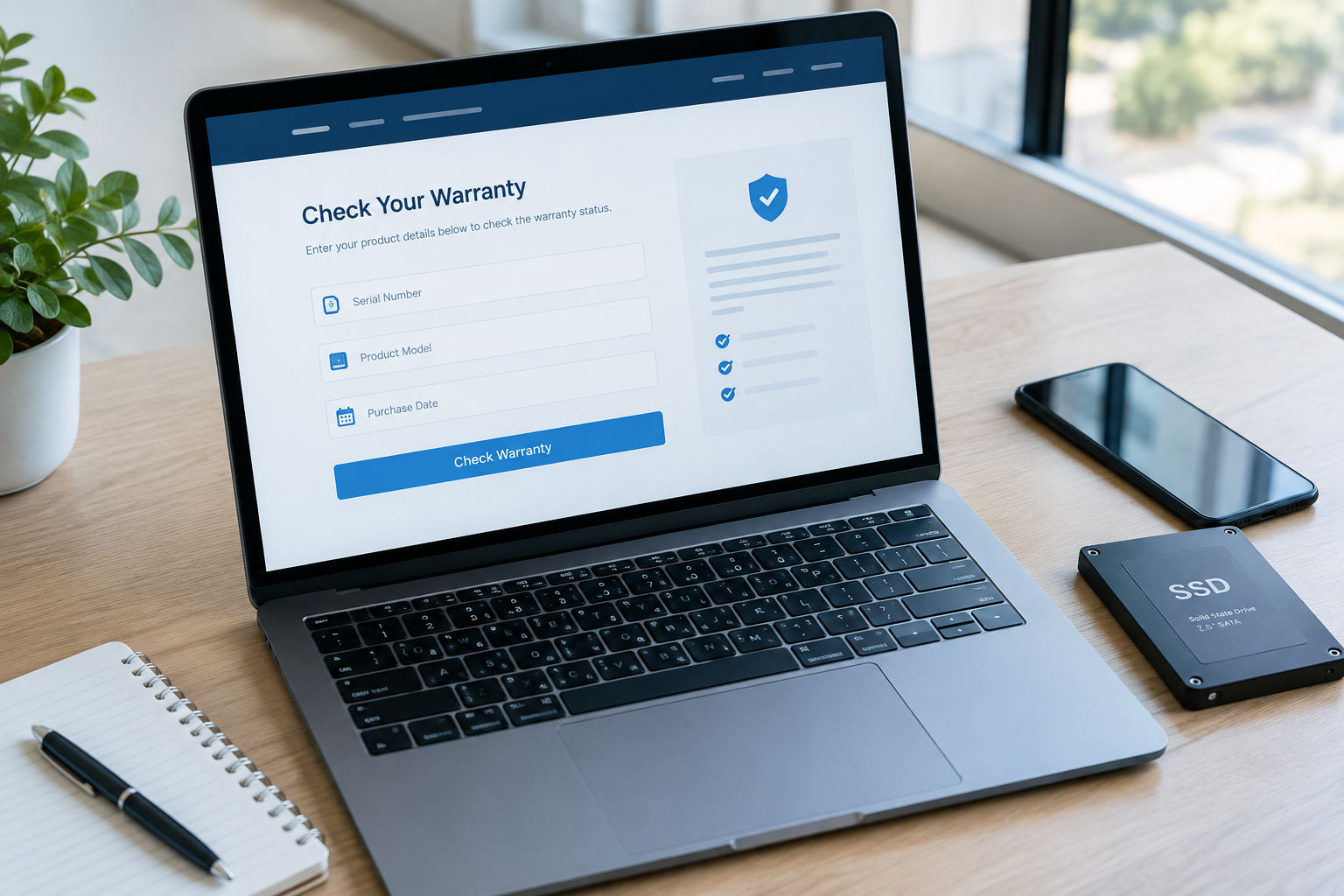
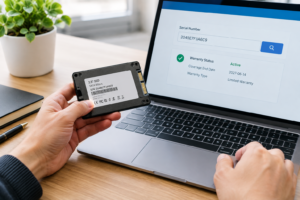
Sabrent doesn’t run a public, instant “enter serial number here” warranty lookup tool on its website the way some brands do. Instead, warranty verification happens through their support ticket system, which actually works in your favor since a real person reviews your specific case rather than an automated database giving you a generic answer.
Here’s the process:
- Go to Sabrent’s official support page and open a new support ticket.
- Select the category related to warranty or RMA (Return Merchandise Authorization) requests.
- Provide your serial number, model number, and a copy of your proof of purchase.
- Describe the issue you’re experiencing with the drive, even if you’re just checking eligibility rather than filing a claim.
- Wait for a response confirming your warranty status and remaining coverage period.
Sabrent typically responds within a few business days. If your drive is still covered, they’ll walk you through next steps for repair, replacement, or troubleshooting.
What Affects Your Warranty Eligibility
Having a valid serial number doesn’t automatically guarantee coverage. A few other factors come into play, and they trip up a lot of people who assume warranty terms are identical everywhere.
- Region: Sabrent’s warranty terms can vary depending on where you purchased the drive and where you’re requesting service from. A drive bought in the US and shipped overseas may face different support timelines or requirements.
- Seller: Drives bought directly from Sabrent or from authorized retailers like Amazon are generally covered without issue. Drives purchased from unauthorized third-party sellers, gray market listings, or used marketplaces may not qualify, even if the serial number checks out as legitimate.
- Purchase date: Warranty length varies by product line, some Sabrent SSDs carry three-year coverage, others carry five-year coverage. Your purchase date, not the manufacture date, typically starts the warranty clock.
- Proof of purchase: Keep your receipt or order confirmation. Without it, Sabrent may still help based on serial number alone, but having documentation speeds up the process significantly and removes any ambiguity about when you bought the drive.
If you’re not sure which warranty tier applies to your drive, check the product listing or manual for your specific model before opening a ticket. It saves you a back-and-forth with support.
Why You Should Avoid Third-Party Serial Lookup Sites

A quick search for “Sabrent warranty checker” will turn up sites that promise instant results if you just type in your serial number. Don’t use them.
These sites have no actual connection to Sabrent’s database. At best, they give you a made-up answer based on nothing. At worst, they’re collecting serial numbers and personal details for reasons that have nothing to do with helping you. Sabrent’s own support ticket system is slower, but it’s the only method that pulls from real purchase and manufacturing records.
If your drive is still under warranty and it’s failing, that’s a good moment to think about how you’re using storage in your setup overall. A failing SSD is also a reasonable excuse to reconsider whether you actually need more capacity or a faster interface next time around, something covered in more detail in our breakdown of whether NVMe drives are actually faster than standard SSDs.
Frequently Asked Questions
Can I check my Sabrent SSD warranty without the original box?
Yes. As long as you can find the serial number on the drive itself or pull it using system software, you don’t need the retail box. You will still need some form of proof of purchase, like an order confirmation email or receipt, to speed up verification.
Does Sabrent warranty cover data recovery?
No. Sabrent’s warranty covers hardware repair or replacement of the defective drive itself, not the data stored on it. If your drive fails and you need the data recovered, that’s a separate service you’d need to arrange independently, and it’s worth backing up regularly so you’re not caught off guard.
What if my Sabrent SSD serial number isn’t readable anymore?
If the label is worn, scratched, or damaged to the point you can’t read it, try pulling the serial number through your operating system’s disk management tools instead of relying on the physical sticker. If that also fails, contact Sabrent support directly. They may be able to help based on your purchase records and order history even without a legible serial number.

James Kennedy is a writer and product researcher at Drives Hero with a background in IT administration and consulting. He has hands-on experience with storage, networking, and system performance, and regularly improves and optimizes his home networking setup.