Windows 11 Says No Drives Found During Installation
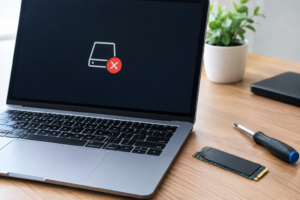
You’re trying to do a clean install of Windows 11, you get to the “Where do you want to install Windows?” screen, and it just says no drives were found. Your SSD or hard drive is sitting right there in the machine, but the installer acts like it doesn’t exist. This is one of the most common installation snags, and the fix depends entirely on where exactly the drive goes missing.
Before you try anything else, figure out which stage of the process actually sees your drive. That single detail narrows down the cause from a dozen possibilities to usually just one or two.
Step 1: Figure Out Where the Drive Is Actually Missing
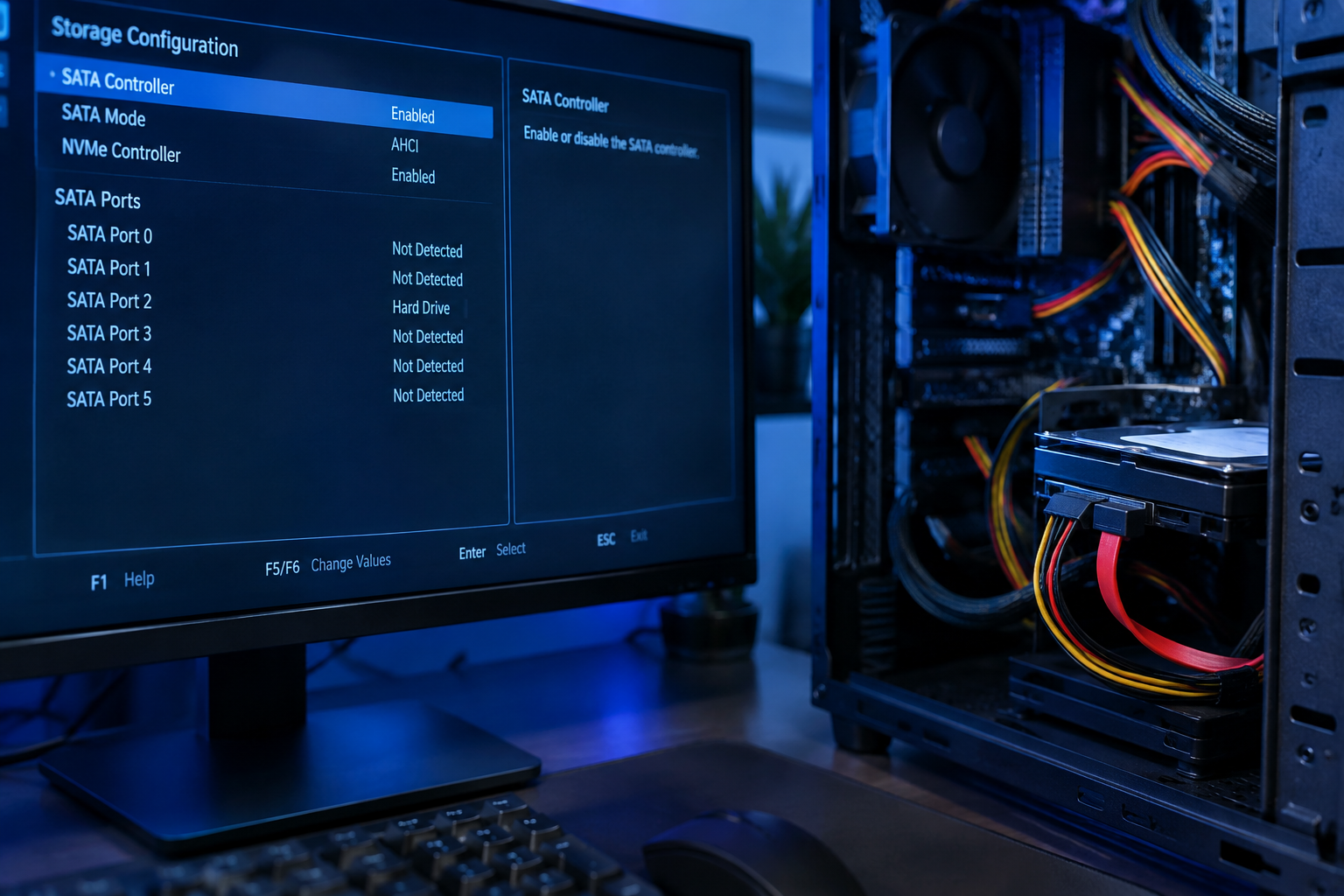
Don’t jump into fixes yet. Check each of these spots and note exactly where the drive shows up and where it doesn’t:
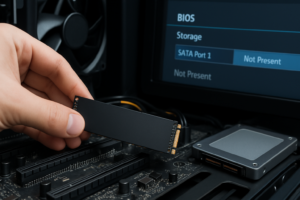
- BIOS/UEFI: Restart, enter BIOS setup, and look under Storage Configuration or Boot Order. If it’s not listed here, you’re dealing with a hardware, cable, or controller mode issue, not a Windows problem.
- Windows installer: This is the “no drives found” screen itself. If BIOS sees the drive but the installer doesn’t, it’s almost always a driver or storage mode mismatch.
- Device Manager: Only relevant once you’re inside a working Windows install. Look under Disk Drives for a yellow warning icon or missing entry.
- Disk Management: Shows drives that Windows recognizes but that may be uninitialized, unallocated, or missing a letter.
- File Explorer: A drive can be fully functional and still invisible here if it has no assigned letter or no partition.
- Boot menu: If the drive appears in BIOS but not as a boot option, the boot record or partition table is likely damaged.
Once you know which category you’re in, skip straight to the matching fix below instead of trying everything at once.
Fixes Based on Where the Drive Disappears
Drive Missing in BIOS/UEFI
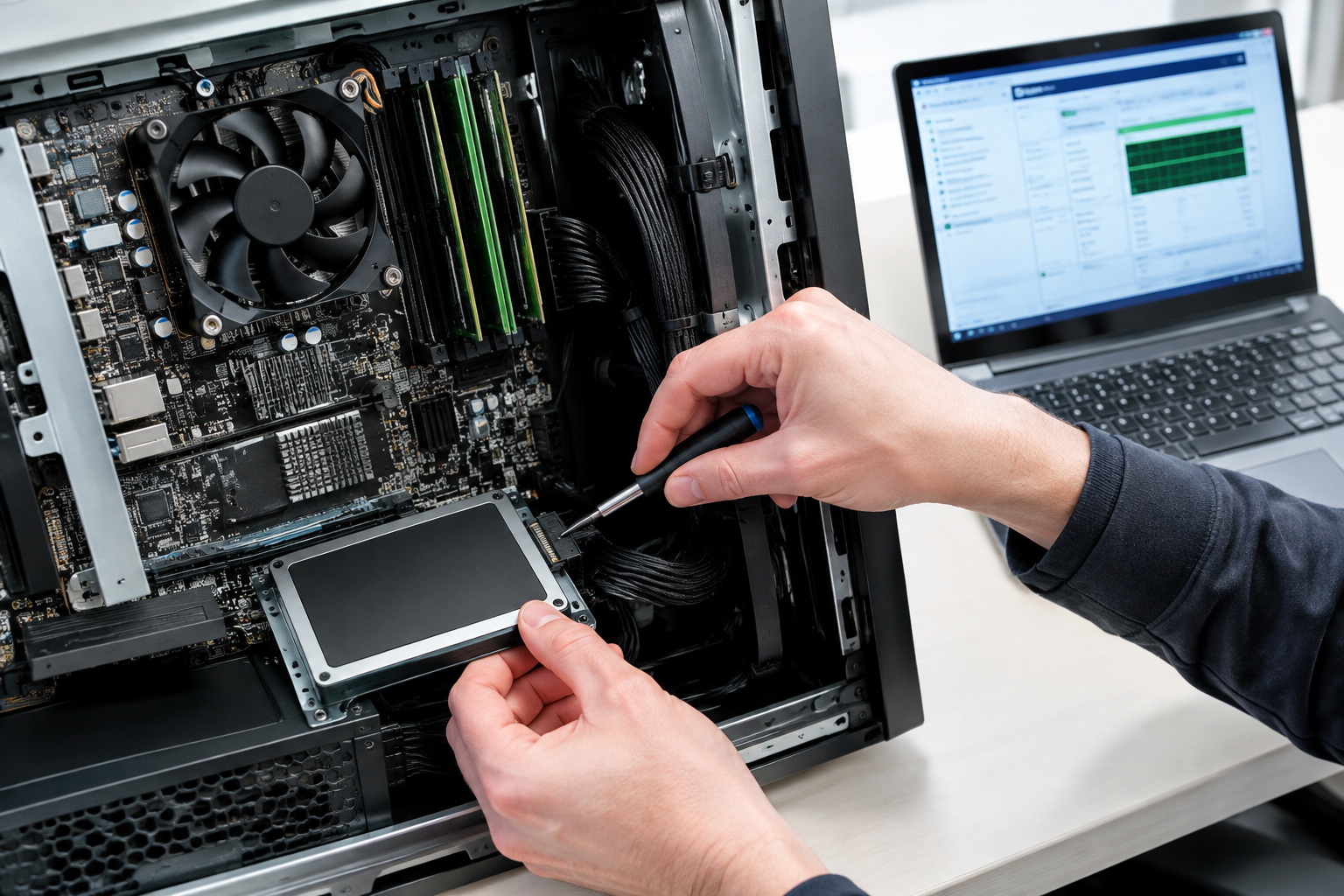
If the drive doesn’t even register in BIOS, this is a physical or firmware issue, not a Windows one:
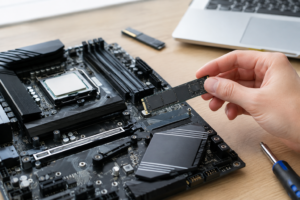
- Reseat the SATA and power cables, or reseat the NVMe stick directly in its M.2 slot.
- Try a different SATA port and cable. Cheap or damaged cables cause this constantly.
- Check your motherboard manual for M.2 slot sharing. Many boards disable a SATA port or second M.2 slot when another slot is populated.
- Update your motherboard’s BIOS firmware, especially on older boards paired with newer NVMe drives.
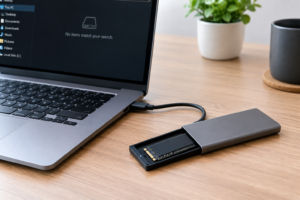
- If it’s a new drive, confirm it’s actually receiving power. Try it in another machine or an external enclosure if you have one.
Drive Visible in BIOS but Not in the Windows Installer
This is the classic scenario, and it’s almost always about storage controller mode or missing drivers.
- Check AHCI vs RAID/VMD mode: Go into BIOS storage settings. If it’s set to RAID or Intel VMD, either switch it to AHCI, or load the matching VMD/RST driver during Windows setup using a USB drive.
- Load storage drivers manually: On the “no drives found” screen, click “Load driver” and browse to a USB stick containing the Intel RST or VMD driver downloaded from your motherboard or laptop manufacturer’s site.
- Try a different USB port for your installer: USB 3.0 ports on older BIOS versions sometimes conflict with storage controller initialization. Switching the install media to a USB 2.0 port has fixed this for plenty of people.
- Recreate your installer USB: A corrupted or incorrectly built Windows 11 USB can behave erratically. Rebuild it with the official Media Creation Tool.
If you’re setting up a fresh NVMe drive for this install, it’s worth understanding what NVMe SSDs are actually built for and whether your board’s slot supports the speed you’re paying for, since some M.2 slots run at reduced bandwidth depending on configuration.
Drive Shows in Disk Management but Not File Explorer
This usually means the drive is uninitialized, unpartitioned, or missing a drive letter, not actually broken.
- Open Disk Management (right-click Start, select it from the menu).
- If the drive shows as “Unallocated,” you’ll need to create a new volume and assign a letter.
- If it shows as “Not Initialized,” right-click and initialize it, choosing GPT for modern UEFI installs.
Before initializing, partitioning, formatting, or running a clean or secure erase command, make absolutely sure you’re targeting the correct drive. These operations destroy all existing data with no recovery option. Double-check drive size and label against what you expect before confirming anything.
Drive Missing from the Boot Menu Only
If BIOS and Windows both see the drive but it won’t boot from it, the issue is usually the boot record rather than the drive itself. Boot from your Windows installer, open Command Prompt (Shift+F10), and run bootrec /fixboot and bootrec /rebuildbcd. If that fails, the partition style (MBR vs GPT) may not match your BIOS boot mode, which typically requires reformatting the drive as GPT for UEFI systems.
External Drives and Enclosures
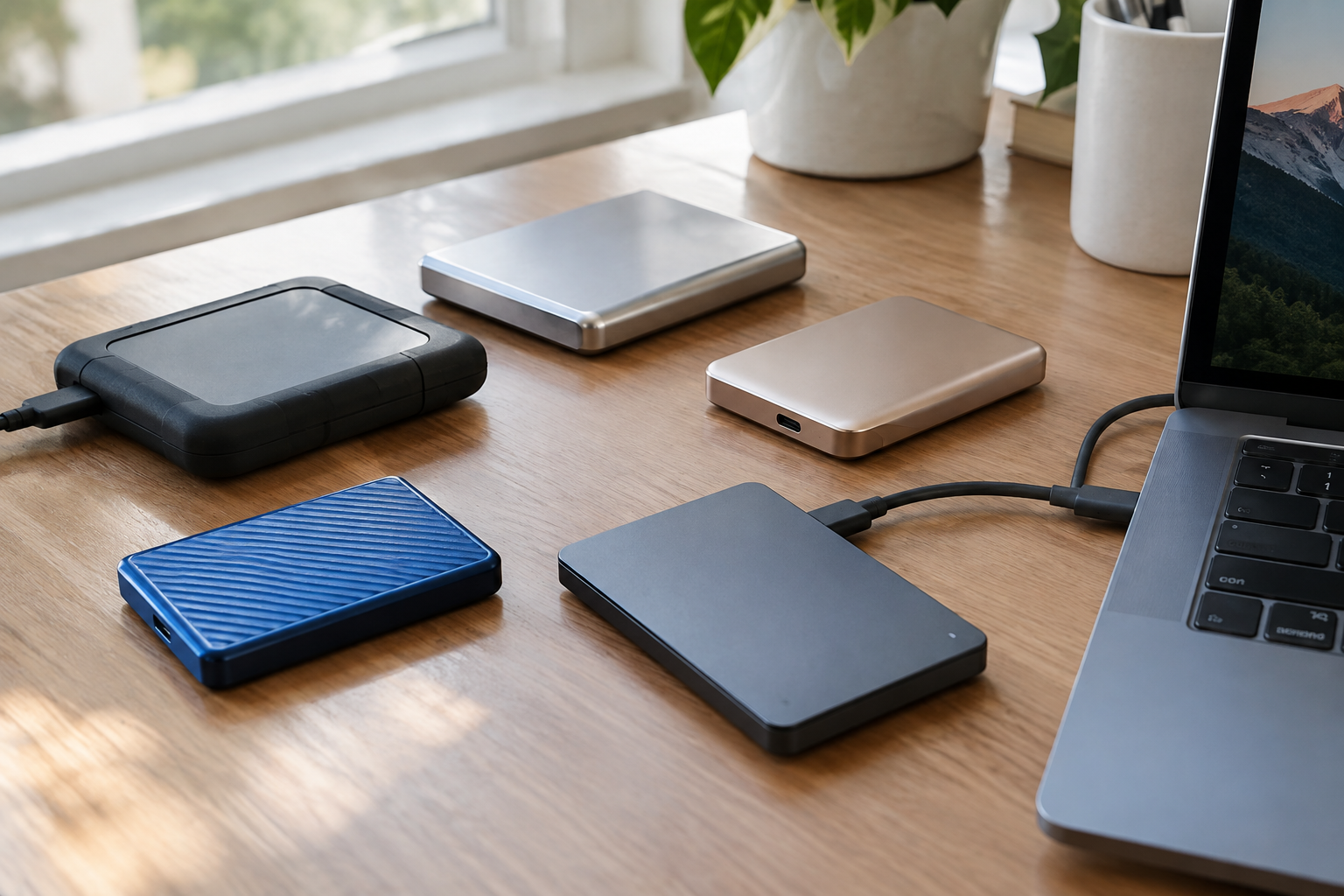
If you’re trying to install to or from an external SSD, compatibility gets trickier. Some USB-to-NVMe enclosures don’t support UASP or bootable configurations properly. If you’re building a portable setup, check out our guide on whether an external SSD actually improves performance before assuming the enclosure is the right tool for the job.
Frequently Asked Questions
Why does my brand new SSD show up in BIOS but not during Windows setup?
This almost always comes down to storage controller mode. If your BIOS is set to RAID or Intel VMD instead of AHCI, Windows setup can’t see the drive without the correct driver loaded manually from a USB stick. Switching to AHCI in BIOS, if your setup allows it, is usually the fastest fix.
Is it safe to initialize a drive that shows as unallocated?
Yes, as long as it’s genuinely a new or empty drive with nothing you need on it. Initializing and creating a new volume doesn’t recover any existing data, so if there’s any chance this drive previously held files you care about, stop and try data recovery software first before touching it in Disk Management.

James Kennedy is a writer and product researcher at Drives Hero with a background in IT administration and consulting. He has hands-on experience with storage, networking, and system performance, and regularly improves and optimizes his home networking setup.