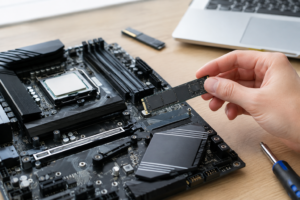
SSD Shows in Disk Management but Has No Drive Letter
You just installed a brand new SSD, opened Disk Management, and there it is: your drive, visible, healthy, and completely useless because Windows won’t give it a drive letter. It doesn’t show up in File Explorer, you can’t save anything to it, and it’s not obvious why a drive that Windows clearly detects is being this stubborn.
The good part is that this is one of the more fixable SSD problems out there. Unlike a drive that’s missing from BIOS entirely, a drive that shows up in Disk Management is alive, communicating with your system, and almost always just needs a partition, a letter, or a driver fix. Let’s walk through exactly what to check based on where things stand.
First, Confirm Exactly Where the Drive Is (and Isn’t) Showing Up

Before you touch anything, figure out which layer of your system can see the drive. This tells you which fix actually applies to your situation instead of wasting time on the wrong one.
- BIOS/UEFI: If the drive shows here, the hardware connection is good. That’s a solid starting point.
- Disk Management: If it appears here as “Online” but shows “Unallocated” or has no letter next to it, Windows sees the drive fine, it just needs configuration.
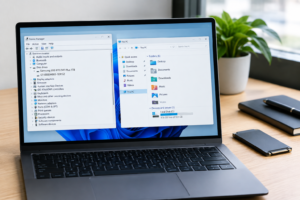
- Device Manager: Check under “Disk drives” to confirm Windows has loaded a driver for it and there’s no yellow warning icon.
- File Explorer: This is usually where the drive is missing, because File Explorer only shows drives that have both a partition and a letter assigned.
If your drive shows up in BIOS and Disk Management but nowhere else, you’re dealing with a Windows-side configuration issue, not a hardware failure. That’s good news, because it means no soldering irons or warranty claims are required.
Fix 1: The Drive Isn’t Initialized or Has No Partition
Open Disk Management by right-clicking the Start button and selecting it from the menu. If your new SSD shows up as a black bar labeled “Unallocated Space,” it simply hasn’t been set up yet. This is completely normal for a brand new drive straight out of the box.
Right-click the disk label on the left side (not the unallocated space) and choose “Initialize Disk.” You’ll be asked to pick between MBR and GPT. For any drive over 2TB, or if you’re using a modern UEFI system, choose GPT. For older systems or drives under 2TB where compatibility matters more, MBR still works fine.
Once initialized, right-click the unallocated space, select “New Simple Volume,” and walk through the wizard to assign a drive letter and format it. This is the standard process anytime you’re bringing a fresh SSD online, and it applies whether you’re setting one up for the first time or following a guide on how to upgrade to a larger SSD.
Formatting a drive erases everything on it. If this SSD previously had data on it (from another PC, an old build, or a drive you’re repurposing), back up anything important before you initialize or format it.
Fix 2: The Drive Has a Partition But Still No Letter
Sometimes a drive already has a partition and even shows a file system, but Windows just never assigned it a letter. This happens a lot with drives cloned from another system, drives pulled from an old laptop, or after certain Windows updates.
In Disk Management, right-click the volume and choose “Change Drive Letter and Paths.” If there’s no letter listed, click “Add,” pick an available letter, and confirm. The drive should appear in File Explorer within a few seconds, no reboot required.
If the “Add” option is grayed out, the partition might be marked as a hidden or system-reserved volume, or it could be formatted with a file system Windows doesn’t fully support out of the box, like APFS from a Mac or ext4 from Linux. In that case, you’ll need third-party software to read it, or you’ll need to reformat it for Windows use, which brings us back to the earlier warning about backing up data first.
Fix 3: VMD, RST, and RAID/AHCI Mode Issues

This one trips up a lot of people building new PCs or upgrading NVMe SSDs. If your SSD shows up in BIOS but Windows Setup can’t see it during a fresh install, or Disk Management shows it as inaccessible, the culprit is often your storage controller mode.
Many newer Intel systems ship with VMD (Volume Management Device) enabled in BIOS, which is required for Intel RST (Rapid Storage Technology) and certain RAID configurations. Windows doesn’t include VMD drivers by default, so an NVMe drive can go completely invisible until you either load the VMD driver during setup or disable VMD in BIOS if you’re not using RAID.
Similarly, switching your SATA controller between AHCI and RAID mode after Windows is already installed can make your existing SSD disappear from booting entirely, since the driver Windows loaded at install time won’t match the new controller mode. If you’re not actively using RAID, AHCI is the simpler and more compatible choice for a single SSD setup. This matters more on NVMe drives than older SATA models, which is part of why understanding the difference covered in what NVMe SSDs are actually used for helps make sense of these BIOS quirks.
Fix 4: Slot Sharing, Cables, and Enclosure Problems
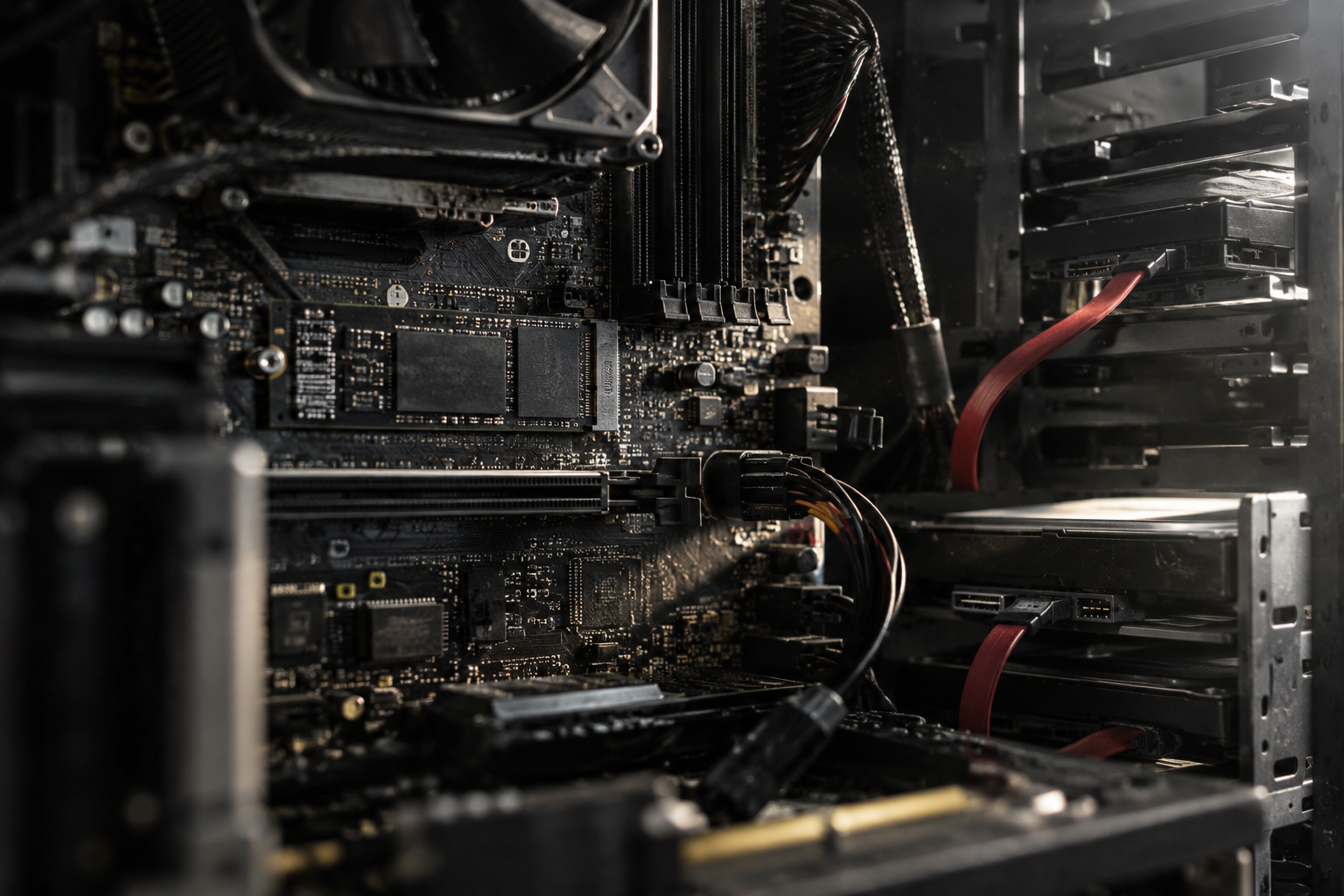
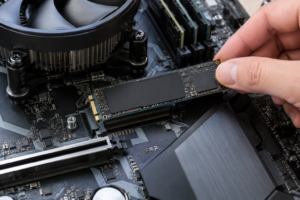
If your SSD shows up intermittently, or only under certain conditions, check your motherboard manual for M.2 slot sharing. Many boards disable a SATA port or a second M.2 slot when a particular slot is populated. Installing an NVMe drive in the “wrong” slot for your setup can silently disable another connected drive, including the one giving you trouble.
For SATA SSDs, try a different cable and a different port on the motherboard before assuming the drive itself is faulty. Cables degrade, connectors loosen, and a five-minute swap often resolves what looks like a mysterious detection issue.
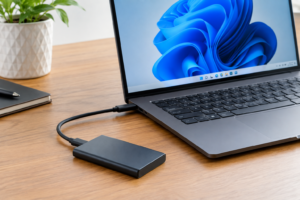
For external SSDs in a USB enclosure, the enclosure’s controller chip matters more than people expect. Older enclosures sometimes don’t support drives over a certain capacity, or they don’t play well with certain SSD controllers. If you’re building your own external drive, this is worth researching before you assume your new SSD is defective, especially since a fast internal SSD paired with a bad USB bridge won’t deliver the speed boost people expect when they read about whether an external SSD will make a laptop faster.
When It’s Time to Consider a Deeper Problem
If you’ve initialized the disk, assigned a letter, checked your BIOS storage mode, and swapped cables, and the drive still won’t hold a partition or keeps disappearing, you might be looking at a genuinely failing SSD. Run a manufacturer diagnostic tool (Samsung Magician, Crucial Storage Executive, or similar) to check the drive’s health status before spending more time troubleshooting software settings.
It’s also worth remembering that not every laptop or desktop makes SSD installation equally easy. If you’re setting up storage in a system with limited access, checking a model-specific guide first, like the process for upgrading the SSD on a Dell XPS 15, can save you from misdiagnosing a physical seating issue as a software problem.
Frequently Asked Questions
Why does my SSD show up in Disk Management but not File Explorer?
This almost always means the drive has no assigned letter or no partition yet. File Explorer only displays volumes that are formatted and have a letter, while Disk Management shows every physical disk Windows can detect, regardless of its setup state.
Is it safe to initialize a new SSD without losing data?
If the SSD is truly new and unused, initializing it is completely safe since there’s nothing on it yet. If it’s a drive that previously held data, initializing and formatting it will erase that data, so back up anything you need first, similar to the precautions covered in how to upgrade an SSD without losing data.
Why does my SSD disappear after switching BIOS storage mode?
Windows loads a specific storage driver based on the controller mode (AHCI, RAID, or VMD) active at install time. Switching modes afterward often causes a boot failure or makes the drive vanish from Windows entirely, even though it’s still detected in BIOS, because the loaded driver no longer matches the active mode.

James Kennedy is a writer and product researcher at Drives Hero with a background in IT administration and consulting. He has hands-on experience with storage, networking, and system performance, and regularly improves and optimizes his home networking setup.