External SSD Not Showing Up in Windows 11
Plugging in an external SSD and watching Windows 11 ignore it completely is one of the more annoying tech problems out there. The fix depends entirely on where the drive is actually failing to show up, so before you try anything, you need to figure out exactly which stage is broken. Guessing at solutions wastes time and can sometimes make things worse.
Step 1: Figure Out Where the Drive Disappears
Check these four spots in order and note where the drive stops appearing:
- Device Manager: Open it (right-click Start, select Device Manager) and look under “Disk drives.” If your SSD shows up here, Windows sees the hardware at least.
- Disk Management: Press Windows key + X, choose Disk Management. This shows drives that Device Manager sees but File Explorer doesn’t.
- File Explorer: This Computer view. Most people only check here, but it’s actually the last place to look, not the first.
- BIOS/UEFI: If the drive doesn’t show in Device Manager either, restart and check your BIOS storage page. If it’s invisible here too, you’re likely dealing with a hardware or connection issue, not a Windows problem.
This order matters because each stage rules out different causes. A drive visible in Device Manager but missing from File Explorer points to a partition or drive letter problem. A drive invisible everywhere, including BIOS, points to cables, power, or the enclosure itself.
Visible in Device Manager or Disk Management, But Not File Explorer
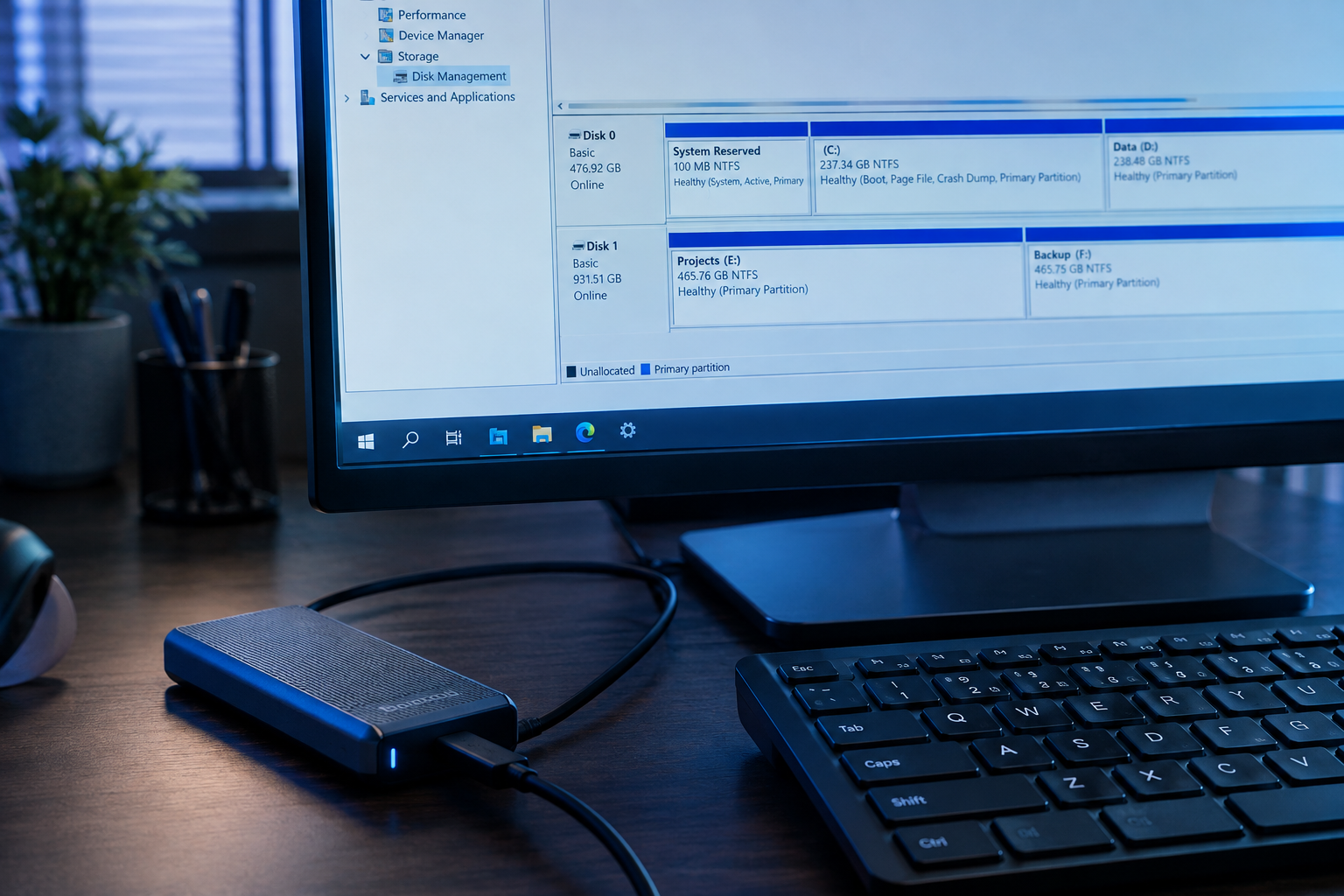
This is the most common scenario, and it’s usually one of these three issues.
No Drive Letter Assigned
In Disk Management, right-click the SSD’s partition and select “Change Drive Letter and Paths.” If there’s no letter listed, click Add and assign one. This alone fixes a huge percentage of “missing drive” reports.
The Drive Shows as Unallocated
If Disk Management shows the space as “Unallocated,” Windows doesn’t see a usable partition on it. You’ll need to create a new volume, but understand this only applies if the drive is genuinely blank or you’re fine wiping it. If you have data on there and it suddenly shows unallocated, stop and don’t format anything yet. That’s a sign of partition table corruption, and formatting will make recovery much harder. In that case, try the SSD on another computer first or use recovery software before writing anything new to it.
The Drive Needs Initialization
Brand new SSDs sometimes show up as “Not Initialized.” Right-click the disk (not the partition, the disk itself on the left side) and choose “Initialize Disk.” Pick GPT unless you specifically need MBR for an older system. This is safe for new, empty drives, but never initialize a drive that already has data you care about without backing it up first.
Any operation involving formatting, initializing, or creating new volumes will erase existing data on that partition. If the SSD has files you need, back them up or clone the drive before touching Disk Management’s destructive options.
Not Showing Up in Device Manager or BIOS at All
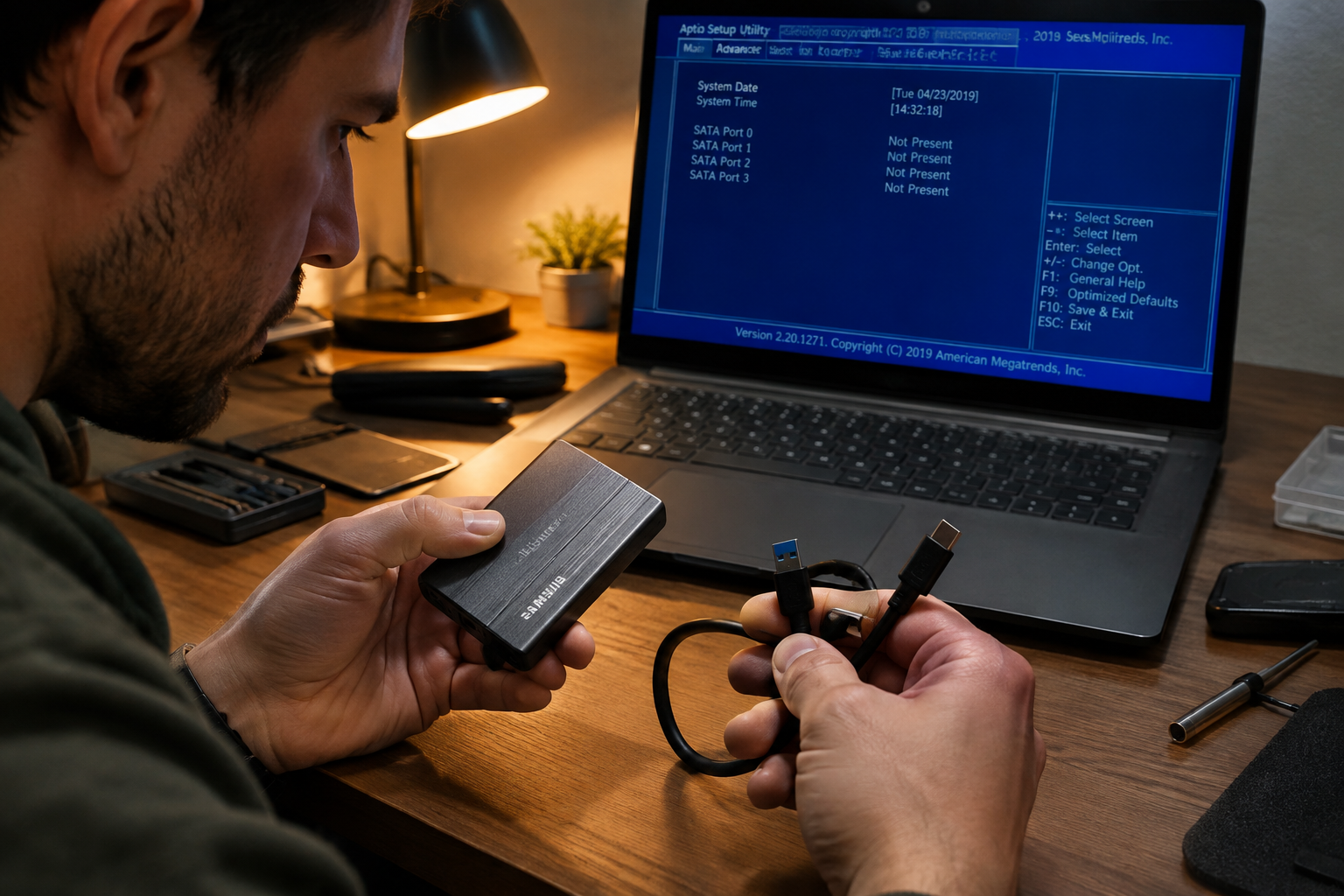
If the drive is invisible at the hardware level, the problem usually isn’t Windows.
Cable and Enclosure Issues
USB-C to USB-C cables and adapters are notoriously inconsistent, and a cable that charges a phone fine might not carry enough power or data bandwidth for an SSD enclosure. Try a different cable and a different USB port, ideally a USB-A port directly on the motherboard’s rear I/O rather than a front panel header or hub. If you’re due for a replacement, a good USB-C SSD cable is cheap insurance against this exact problem.
Sabrent USB 3.2 SSD Enclosure
A reliable, well-ventilated enclosure that avoids the detection and overheating issues cheaper enclosures run into.
If you built the SSD into a bare enclosure yourself, double check the drive is seated fully in the connector. It’s an easy step to rush through, and a loose connection looks identical to a dead drive from Windows’ perspective.
VMD, RST, and RAID/AHCI Settings
On newer Intel systems, Volume Management Device (VMD) mode can cause external NVMe enclosures to disappear entirely from Windows even though BIOS sees them. Check your BIOS storage configuration page for a VMD toggle and try disabling it if your enclosure uses NVMe. Similarly, if your BIOS storage mode is set to RAID/Intel RST when your system doesn’t actually use a RAID array, switching to AHCI can resolve detection issues, though this is more relevant to internal drives than external ones.
Power-Related Detection Failures
Some SSD enclosures, especially NVMe ones, draw more power than a single USB port can reliably supply, particularly on laptops running on battery. Try plugging into a powered USB hub or a different port, and if you’re using a laptop, plug it into AC power before troubleshooting further.
Visible in BIOS But Not in the Windows Installer or Boot Menu
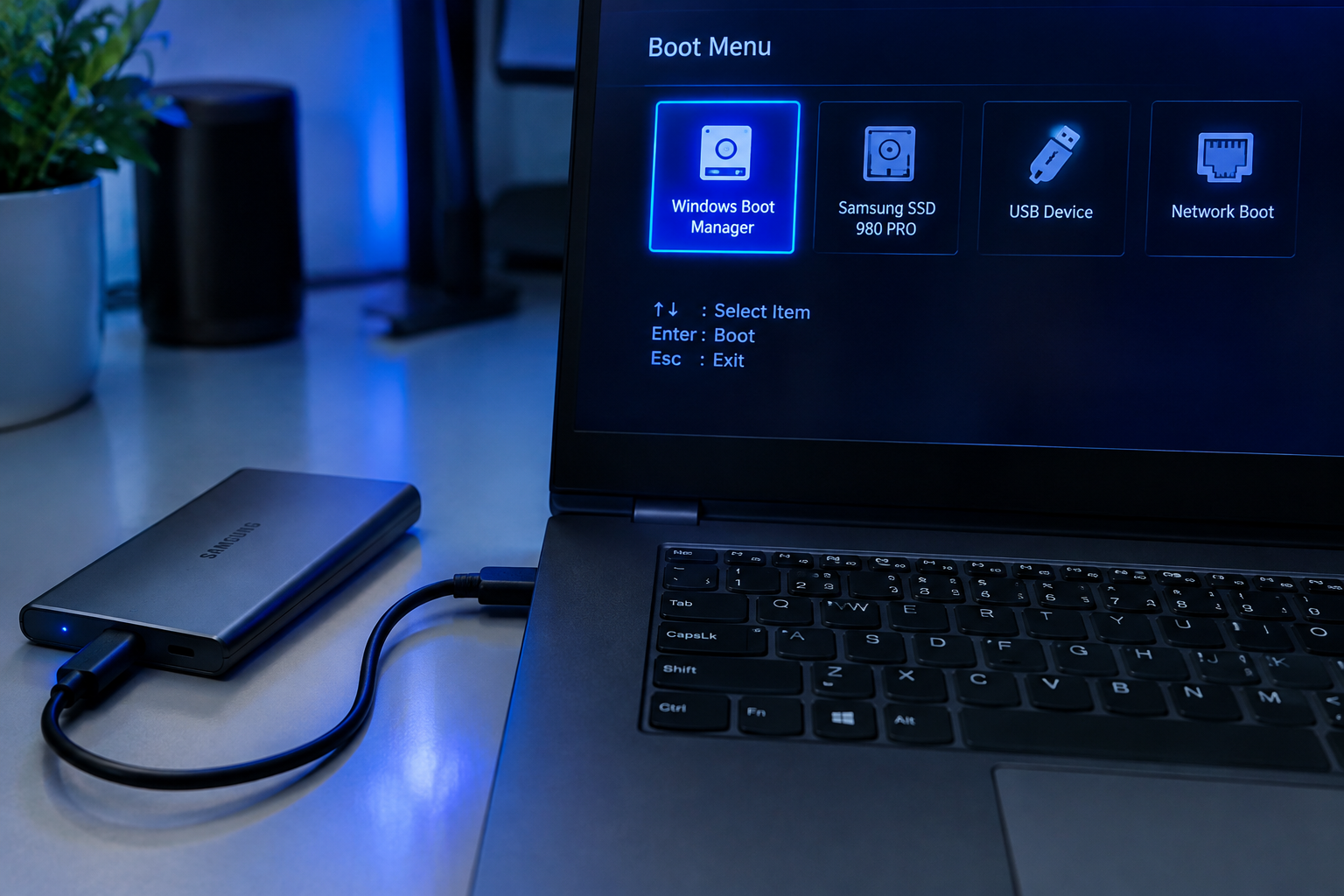
If you’re trying to install Windows to the external SSD, or boot from it, and it shows in BIOS but not in the installer’s drive list, load the storage drivers manually during setup, especially on systems using RAID/VMD mode. Also confirm the SSD is formatted with a partition scheme matching your boot mode (GPT for UEFI, MBR for Legacy).
Windows generally doesn’t support booting the OS itself from most external USB enclosures, so if your goal is a bootable external drive, check your enclosure and drive combination for USB boot support specifically before assuming something is broken.
FAQ
Why does my external SSD show up sometimes but disappear randomly?
This points to a power or connection issue rather than a software one. Loose cables, insufficient power from the USB port, or a failing enclosure controller are the usual suspects. Swap the cable and port first, and if the problem follows the enclosure to a different computer, the enclosure itself is likely the culprit.
Is it safe to update USB or chipset drivers to fix detection issues?
Yes, and it’s often overlooked. Outdated USB controller drivers, especially on motherboards with Intel or AMD chipsets, can cause intermittent detection problems with external drives. Check Windows Update for optional driver updates, or grab the latest chipset driver package directly from your motherboard or laptop manufacturer’s support page.
If this experience has you rethinking your external storage setup entirely, it might be worth reading about whether an external SSD actually makes a laptop faster before you buy another one. And if the drive giving you trouble is getting old, comparing it against something newer like the options in our WD Black vs Samsung SSD breakdown isn’t a bad idea either.
This article contains affiliate links. We may earn a small commission at no extra cost to you.

James Kennedy is a writer and product researcher at Drives Hero with a background in IT administration and consulting. He has hands-on experience with storage, networking, and system performance, and regularly improves and optimizes his home networking setup.