SSD Detected but Not Bootable
You installed a new SSD, powered up your machine, and something feels off. Maybe Windows won’t boot. Maybe the drive shows up somewhere but not everywhere it should. This is one of the most common headaches after a drive upgrade, and the fix depends entirely on where in the chain the SSD actually disappears.
Before you touch anything, figure out exactly which stage is failing. That single piece of information tells you whether you’re dealing with a partitioning issue, a driver problem, a BIOS setting, or a dead cable. Guessing and trying random fixes wastes time and, in some cases, risks your data.
Step One: Identify Exactly Where the Drive Shows Up
Go through this checklist in order and note where the SSD appears and where it doesn’t. This determines which section below actually applies to your situation.
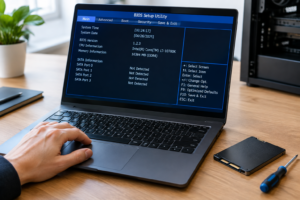
- BIOS/UEFI: Does the drive appear in the storage section or boot order list?
- Windows installer: When installing Windows, does the drive show up as a target for installation?
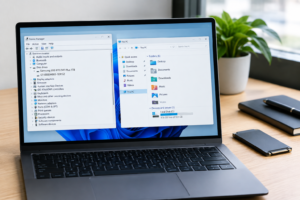
- Device Manager: Does it appear under Disk Drives (even if Windows is already installed on another drive)?
- Disk Management: Does it show as a disk, even if unallocated or without a letter?
- File Explorer: Does it have a drive letter and show up as a usable volume?
- Boot menu (F8, F11, F12 depending on your board): Does the drive appear as a bootable option?
Once you know exactly where things break down, skip straight to the matching section below. There’s no reason to reseat cables if the drive is already showing up fine in BIOS.
SSD Is Missing From BIOS Entirely
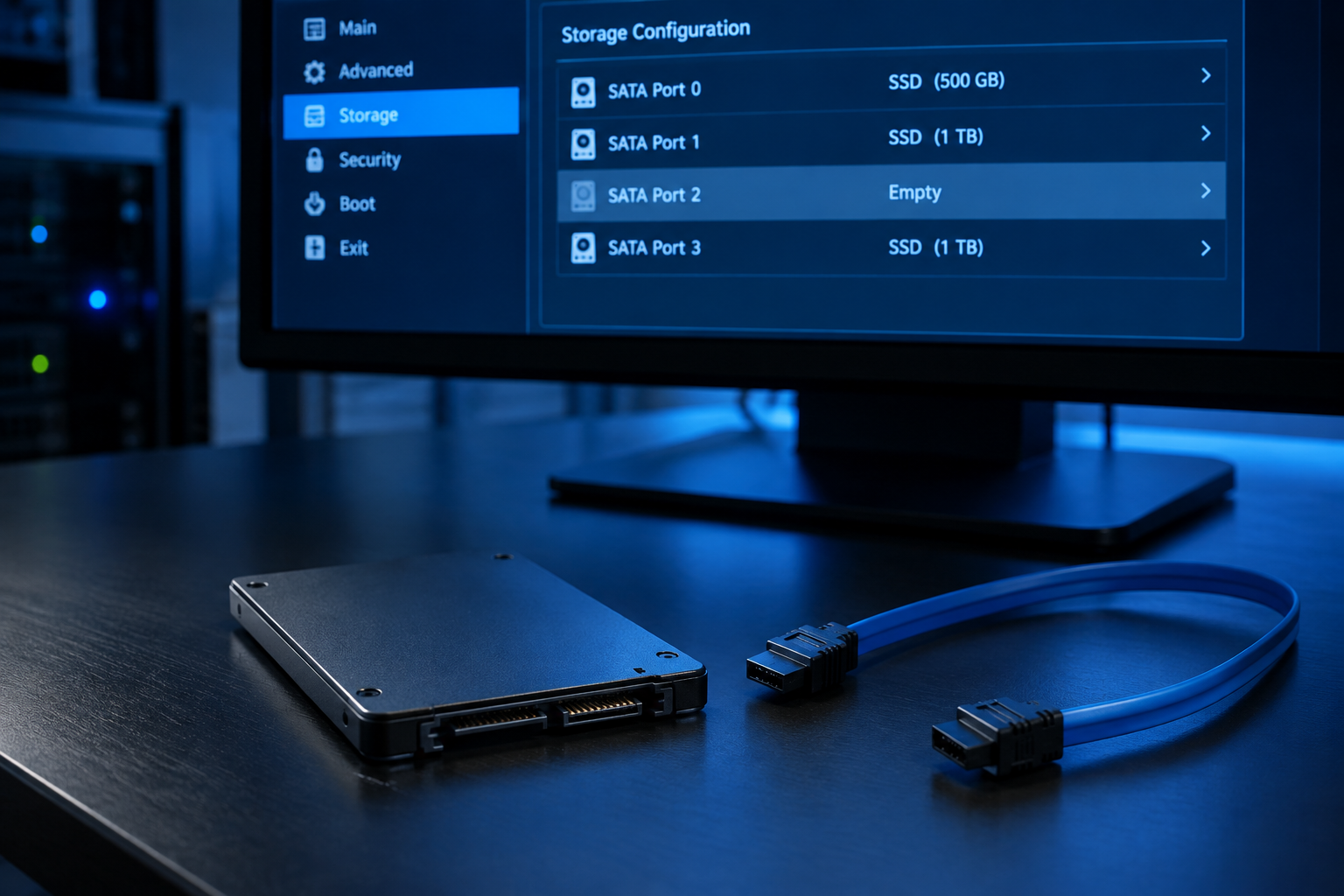
If the drive doesn’t show up in BIOS/UEFI at all, the operating system isn’t the problem yet. This is a hardware or firmware detection issue.
Check the physical connection first
For SATA SSDs, reseat both the SATA data cable and the power cable. A loose or damaged SATA cable is one of the most common causes of a drive vanishing from BIOS, and it’s often a five-minute fix. Try a different SATA port on the motherboard and a different cable if you have one on hand.
For NVMe M.2 drives, reseat the drive in its slot and make sure the retention screw is properly tightened. Also check whether that particular M.2 slot shares bandwidth with a SATA port on your motherboard. Many boards disable one or more SATA ports when a specific M.2 slot is populated, and the reverse happens too on some boards. Check your motherboard manual for a lane-sharing diagram before assuming the drive itself is faulty.
Look at BIOS storage settings
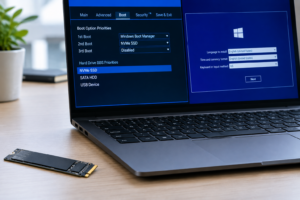
Some motherboards need a manual toggle to detect newly installed NVMe drives, especially on older UEFI firmware versions. Check for a setting related to “M.2 PCIe Storage Remapping” or similar language, and make sure the slot is enabled if there’s an on/off toggle.
Also confirm the drive isn’t set to a mode your BIOS doesn’t support. If your board is configured for legacy IDE emulation on an NVMe-only system, the drive simply won’t show up. Switching to AHCI or the appropriate native mode usually resolves it.
Drive Shows in BIOS But Not in the Windows Installer
This is a very specific and common failure state, and it almost always points to one of two things: a missing storage driver or RAID/VMD mode mismatch.
VMD and RST driver issues
Newer Intel systems (12th gen and later, and some 11th gen boards) often ship with Intel VMD (Volume Management Device) enabled in BIOS by default. When VMD is on, Windows Setup can’t see the NVMe drive unless you load the Intel RST (Rapid Storage Technology) driver manually during installation.
You have two options here:
- Download the Intel VMD/RST driver package from Intel’s site or your motherboard manufacturer’s support page, put it on a USB drive, and load it when Windows Setup asks for a driver.
- Go into BIOS and disable VMD mode entirely, switching storage to standard NVMe/AHCI mode. This is the simpler fix if you don’t specifically need VMD for a RAID array.
RAID mode instead of AHCI
If your BIOS storage controller is set to RAID mode instead of AHCI and you’re not actually running a RAID array, Windows Setup may not detect the drive without the matching RAID driver loaded. Switching the SATA controller mode to AHCI in BIOS usually clears this up immediately for single-drive setups.
Drive Appears in Device Manager But Not in Disk Management or File Explorer
If Windows recognizes the drive exists (it shows in Device Manager under Disk Drives) but it’s invisible in Disk Management and File Explorer, this is typically a driver or connection instability issue rather than a partition problem.
Try updating the storage controller driver in Device Manager, or rolling it back if the issue started right after a driver update. Also check the drive’s properties under Device Manager and look at the Events tab for any connection reset or timeout errors, which often point to a failing cable or a power delivery problem on that specific port.
Drive Appears in Disk Management But Won’t Boot
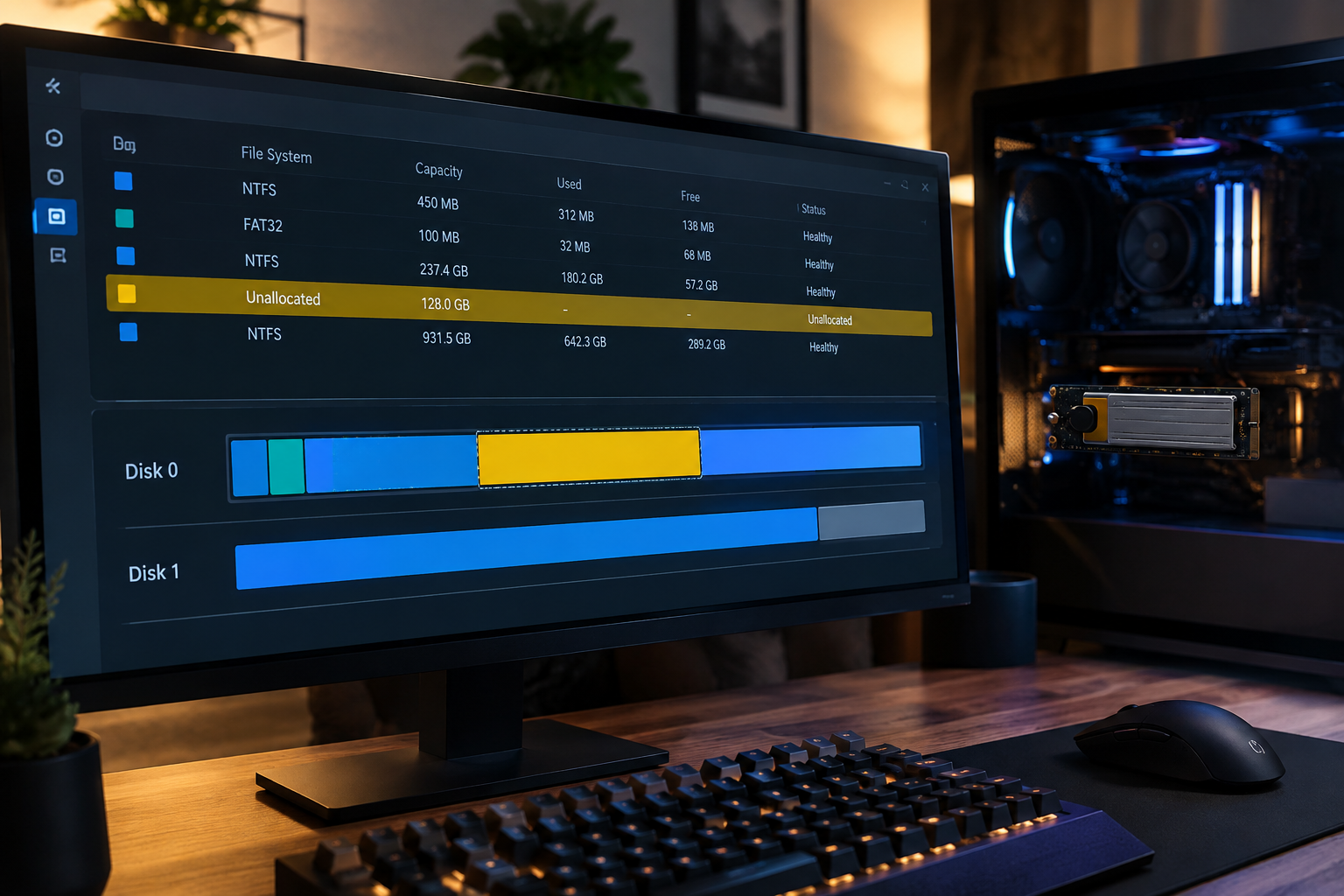
This is the most common scenario for people reading this article. The drive is detected, Windows can technically see it, but the machine won’t boot from it. Here’s what to check, depending on what you see in Disk Management.
The disk shows as “Unallocated”
A brand new SSD, or one that was previously used in a different system, often shows up as unallocated space. This means it has no partition structure yet. You’ll need to initialize the disk (right-click it and choose Initialize Disk, selecting GPT for modern UEFI systems) and then create a new volume before Windows can install to it or use it as a data drive.
Initializing a disk and creating new partitions will erase any existing data on that drive. If the SSD previously had files or a working operating system on it, do not initialize it until you’ve confirmed there’s nothing on it worth recovering.
The disk shows a volume but no drive letter
Sometimes a perfectly good partition just doesn’t get assigned a drive letter, especially after cloning a drive or moving it between systems. Right-click the volume in Disk Management and choose “Change Drive Letter and Paths,” then assign one manually. This alone fixes a surprising number of “missing drive” complaints.
The partition style doesn’t match your boot mode
If you’re trying to boot Windows from a drive partitioned as MBR while your system is set to UEFI boot mode (or the reverse), Windows will refuse to boot even though the drive is fully visible and healthy. Check your BIOS boot mode setting and compare it against the disk’s partition style shown in Disk Management. Converting between MBR and GPT typically requires wiping the drive, so if you’re moving an existing Windows installation, it’s safer to do a clean install matching the correct partition style than to convert in place.
Drive Doesn’t Appear in the Boot Menu
If the SSD shows up fine in Disk Management and File Explorer while running Windows from another drive, but it never appears as an option in the boot menu, the boot files themselves are likely missing or corrupted rather than the drive having a hardware issue.
This typically happens after cloning a drive incorrectly, after a failed Windows update, or when a system partition got separated from the main OS partition. Boot into Windows Recovery Environment from installation media and run these commands from the command prompt:
bootrec /fixmbrbootrec /fixbootbootrec /rebuildbcd
If you cloned an existing drive rather than doing a fresh install, and you’re running into boot record issues, it’s worth reading through our guide on how to upgrade an SSD without reinstalling Windows for the correct cloning sequence, since a lot of these boot failures trace back to skipped steps during the clone itself.
External SSD Detected But Won’t Boot or Mount Properly
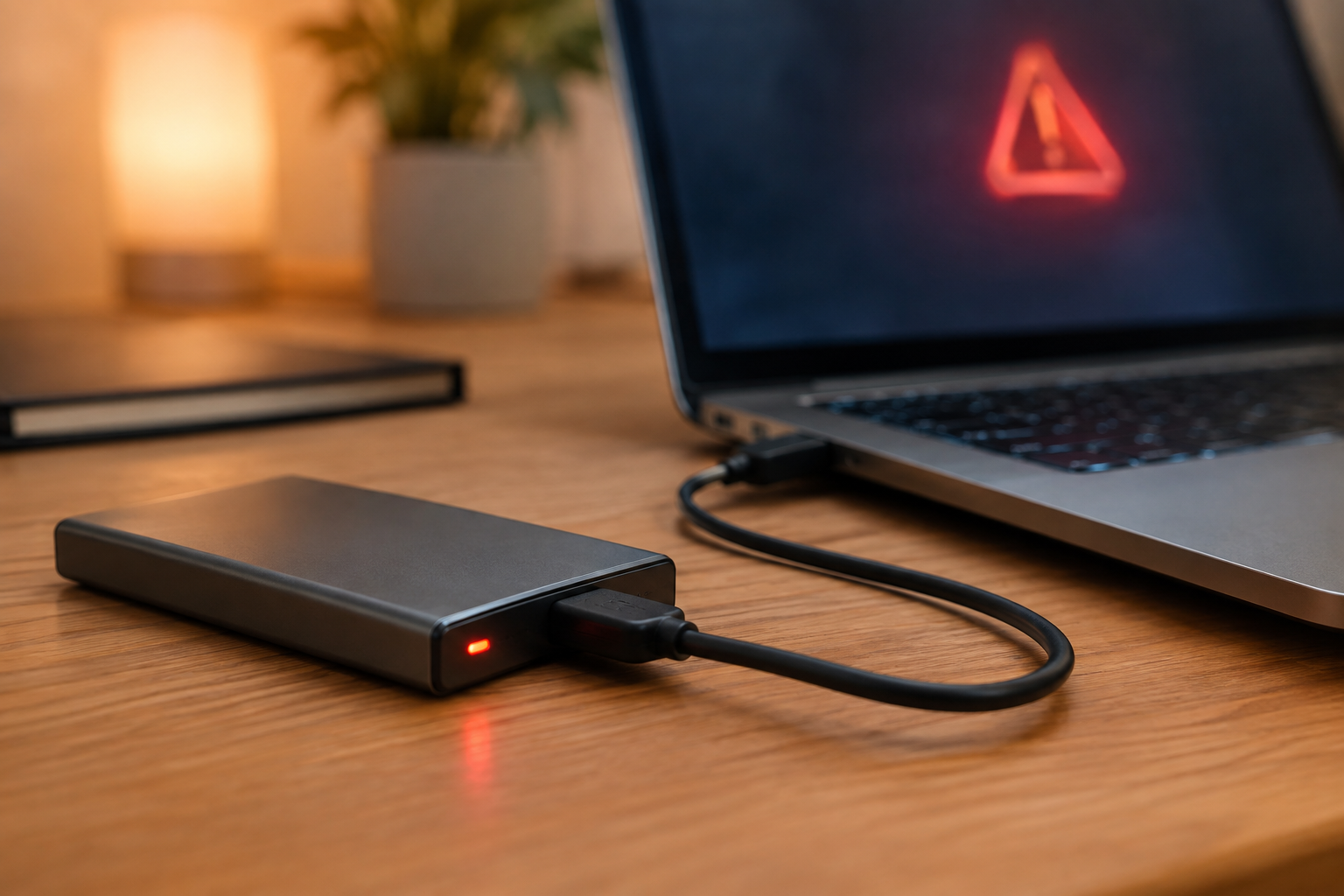
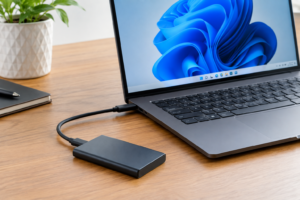
External SSDs in USB enclosures come with their own set of quirks. If your external drive shows up inconsistently or refuses to act as a boot drive, check these first:
- USB controller compatibility: Some enclosures use USB-to-SATA or USB-to-NVMe bridge chips that don’t support booting at all, even if the drive works fine for storage.
- Power delivery: NVMe drives in enclosures can draw more power than a USB port supplies, especially through hubs. Try a direct port on the back of a desktop rather than a front panel header or hub.
- Format compatibility: A drive formatted as exFAT or APFS won’t be visible the same way on every operating system. Make sure the format matches what your target system expects.
If you’re using an external SSD purely for extra storage or to speed up an aging laptop rather than as a boot drive, it’s worth reading whether an external SSD will actually make your laptop faster before assuming an enclosure issue is a dealbreaker.
Before You Format, Clean, or Secure Erase Anything
A few Disk Management and diskpart commands are irreversible, and it’s easy to run them on the wrong drive when you’re frustrated and troubleshooting quickly.
Commands like
clean, Quick Format, and Secure Erase permanently remove data with no built-in undo. Always double-check the disk number and drive letter in Disk Management before running any destructive command, especially on a multi-drive system where it’s easy to select the wrong disk.
If you’re not sure whether your current drive still holds recoverable data, back up anything important first, even if that means temporarily connecting the SSD to another machine as a secondary drive. Our guide on upgrading an SSD without losing data covers safe backup and migration steps that apply here too.
FAQ
Why does my new SSD show up in BIOS but not during Windows installation?
This almost always comes down to a missing storage driver, usually related to Intel VMD or RAID mode being enabled in BIOS. Load the correct RST driver during setup, or switch your storage controller mode to AHCI/standard NVMe if you’re not using RAID.
Is it safe to initialize a disk that shows as unallocated?
Only if you’re certain the drive is new or you’ve already confirmed there’s nothing important on it. Initializing and creating a new volume removes any existing partition structure and data, so back up first if there’s any doubt.
Why does my SSD work as storage but won’t let me boot from it?
This usually points to a partition style mismatch between the drive (MBR or GPT) and your system’s boot mode (Legacy or UEFI), or missing boot files if the drive was cloned incorrectly. Check Disk Management for the partition style and compare it to your BIOS boot mode setting.
Can a bad SATA cable really cause a drive to disappear completely?
Yes, and it’s one of the most overlooked causes. A worn or loose SATA cable can cause a drive to intermittently disappear from BIOS or drop out mid-session even though the drive itself is perfectly healthy. Swapping the cable is a cheap first troubleshooting step before assuming the SSD is defective.

James Kennedy is a writer and product researcher at Drives Hero with a background in IT administration and consulting. He has hands-on experience with storage, networking, and system performance, and regularly improves and optimizes his home networking setup.