NVMe Enclosure Only Getting 40 MB/s: Why?
If you just dropped a fast NVMe drive into a new enclosure expecting speeds north of 1,000 MB/s and you’re staring at 40 MB/s instead, something in the chain is badly misconfigured. That number isn’t random, either. It happens to be almost exactly the real-world ceiling of USB 2.0, which is the biggest clue in this whole troubleshooting process.
Before we go further, this video walks through a similar real-world enclosure speed test and shows what normal versus broken performance actually looks like:
Start With the Drive: SATA M.2 vs NVMe M.2
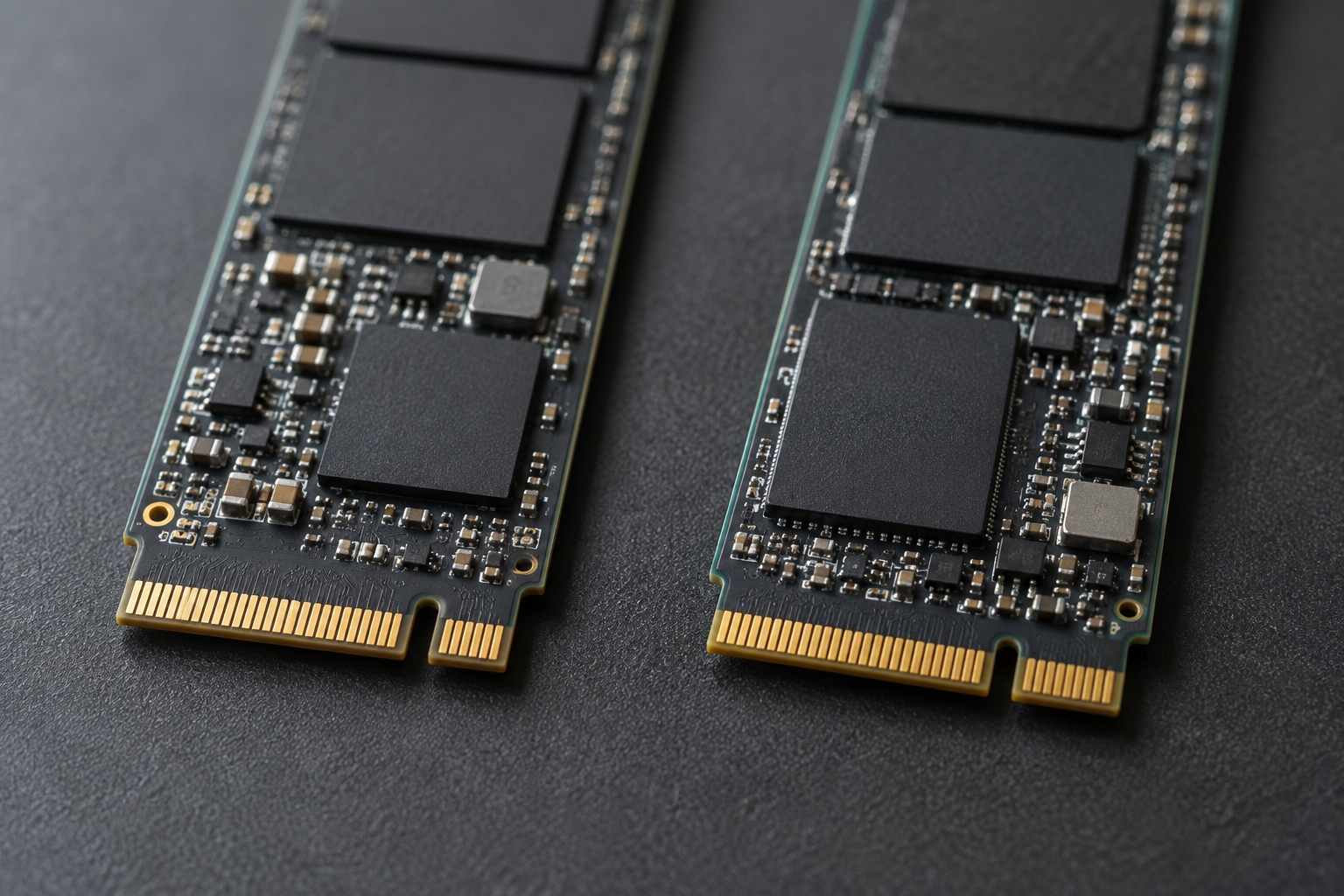
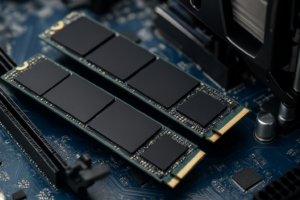
This is the mistake that trips up more people than anything else. SATA M.2 and NVMe M.2 drives use the same physical connector and the same size stick, but they are completely different protocols. A SATA M.2 SSD is capped around 550 MB/s even under perfect conditions, and if it’s mismatched with an NVMe-only enclosure, you can get partial detection, degraded link modes, or throughput that craters far below spec.
Check the key notch on your drive. NVMe drives typically have a single notch (key M), while SATA M.2 drives often have two notches (key B+M). If your enclosure is NVMe-only and you’ve got a B+M keyed SATA drive wedged in there, that’s very likely your entire problem.
If you’re unsure which type you’re actually running, our breakdown of NVMe SSD vs Intel SSD and whether NVMe is really faster than SATA SSDs covers the practical differences in plain terms.
The Enclosure Bridge Chip, Cable, and Port
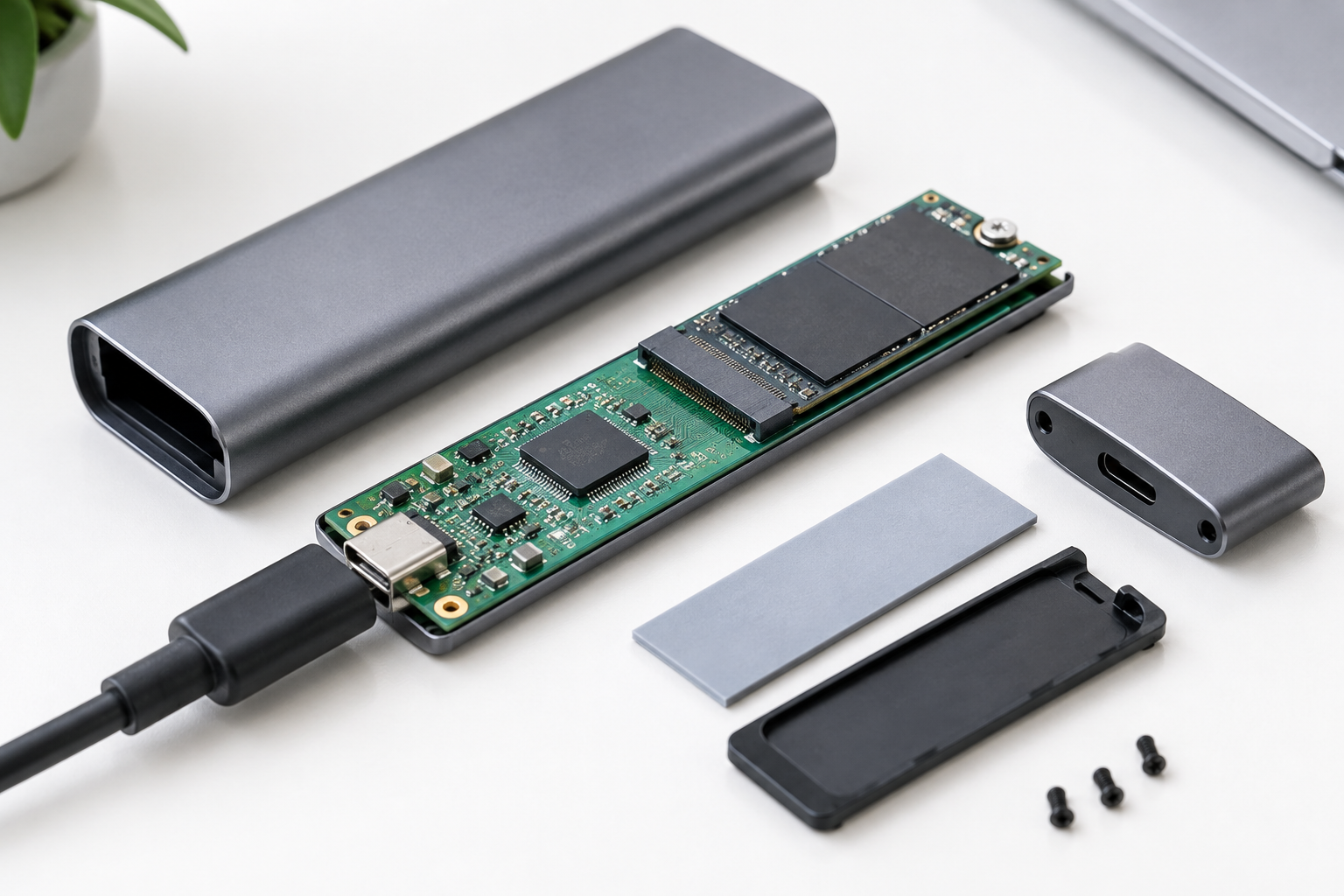
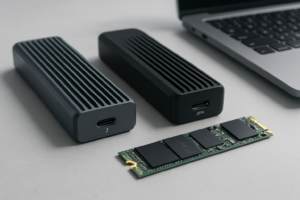
Every NVMe enclosure has a small controller chip inside that translates NVMe commands into USB or Thunderbolt data. Cheap bridge chips, especially older ASMedia or budget JMicron controllers, can bottleneck even a fast drive to SATA-like speeds or worse if the firmware is poorly optimized. This is separate from the drive itself and separate from your computer.
Then there’s the cable. A charge-only or low-quality USB-C cable will silently negotiate the connection down, sometimes all the way to USB 2.0 speeds, without any error message. Same goes for plugging into a USB 2.0 port, a USB hub, or a port on a monitor or dock that isn’t wired for full USB 3 bandwidth.
- USB 2.0: realistic throughput of 30 to 40 MB/s
- USB 3.0 / 3.1 Gen 1 (5Gbps): realistic throughput of 350 to 420 MB/s
- USB 3.1 Gen 2 (10Gbps): realistic throughput of 800 to 950 MB/s
- USB 3.2 Gen 2×2 (20Gbps): realistic throughput of 1,600 to 1,900 MB/s
- Thunderbolt 3/4 or USB4 (40Gbps): realistic throughput of 2,500 to 3,000 MB/s, depending on the drive and enclosure controller
None of these numbers hit the theoretical link speed, and that’s normal. Protocol overhead, controller efficiency, and drive limits always eat into the raw spec. But 40 MB/s doesn’t match any tier except USB 2.0, so if you’re seeing that number on a USB 3 or Thunderbolt port, the connection has fallen back to the lowest common denominator somewhere in the chain.
Sabrent NVMe USB Enclosure
A solid mid-range enclosure with a well-supported bridge chip that avoids the cheap-controller bottlenecks.
Pairing a good enclosure with a mediocre cable still ruins performance, so don’t overlook that part. A certified USB-C to USB-C cable rated for at least 10Gbps data (not just charging) makes a real difference, and it’s worth grabbing a USB-C 10Gbps data cable if you’re not sure your current one supports full speed.
Thermals, File Size, and Filesystem Overhead

Small enclosures with no thermal pad or airflow will throttle an NVMe drive hard during sustained transfers. This usually shows up as a fast start followed by a steep drop, rather than a flat 40 MB/s from the beginning, so it’s a secondary suspect here rather than the main cause.
File size and count matter too. Copying thousands of tiny files (photos, project files, node_modules folders) tanks throughput on any drive because each file carries filesystem overhead for creation, metadata, and closing. A single large video file will transfer far faster than the same total data spread across ten thousand small files, even on the same enclosure and cable.
Filesystem choice plays a role as well. exFAT is common for cross-platform enclosures but has more overhead on small-file operations than NTFS on Windows or APFS on Mac. If you’re moving a huge library of small files, expect noticeably lower real-world numbers regardless of how fast the drive is rated.
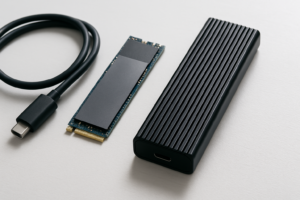
ORICO NVMe Enclosure with Aluminum Body
The aluminum shell doubles as a heatsink, which helps avoid thermal throttling on longer transfers.
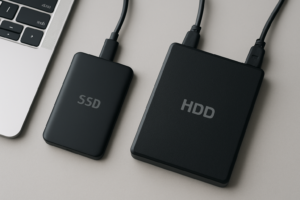
If you’re building out an external NVMe setup for the first time, it’s also worth reading whether an external SSD will actually make your laptop faster and how a fast external drive compares to upgrading your internal SSD instead, since the answer depends heavily on your specific port and use case.
Frequently Asked Questions
Why does my NVMe enclosure show USB 3.0 in Device Manager but still run at 40 MB/s?
Windows and macOS often report the negotiated USB standard, not the actual link speed being used at that moment. A drive can enumerate as USB 3.0 while the cable, port, or hub silently downgrades the active connection to USB 2.0 speeds due to a bad cable or a non-data USB port. Try a different, certified cable and plug directly into a rear or motherboard-based USB port rather than a hub or front panel header.
Can a good enclosure make a SATA M.2 drive as fast as NVMe?
No. SATA M.2 drives are capped by the SATA III interface at roughly 550 MB/s regardless of the enclosure, bridge chip, or connection standard you use. If you need NVMe-level speeds, you need an actual NVMe drive plus an NVMe-compatible enclosure, since no external adapter can push a SATA drive past its own interface limit.
If you’re still unsure whether your current drive setup is even worth optimizing, it’s worth revisiting how much your SSD choice actually matters before you sink more money into enclosures and cables. Sometimes the fix is simpler than a full troubleshooting chain, and sometimes it really is just a bad cable sitting in your drawer the whole time.
This article contains affiliate links. We may earn a small commission at no extra cost to you.

James Kennedy is a writer and product researcher at Drives Hero with a background in IT administration and consulting. He has hands-on experience with storage, networking, and system performance, and regularly improves and optimizes his home networking setup.