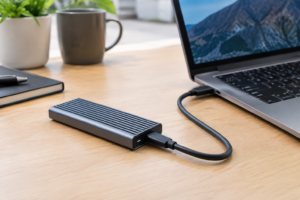
Thunderbolt vs USB4 for an NVMe SSD
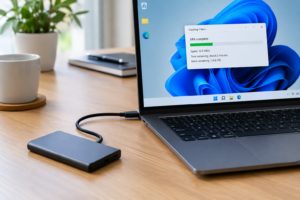
You bought a fast NVMe SSD, dropped it into an enclosure, and the transfer speeds are nowhere near what the box promised. Before you blame the drive, understand that an external NVMe setup has at least seven parts that can bottleneck your speed, and the Thunderbolt or USB4 label on the enclosure is only one of them.
This guide walks through each link in the chain so you can actually find what’s slowing you down instead of guessing.
Thunderbolt vs USB4: What the Numbers Actually Mean
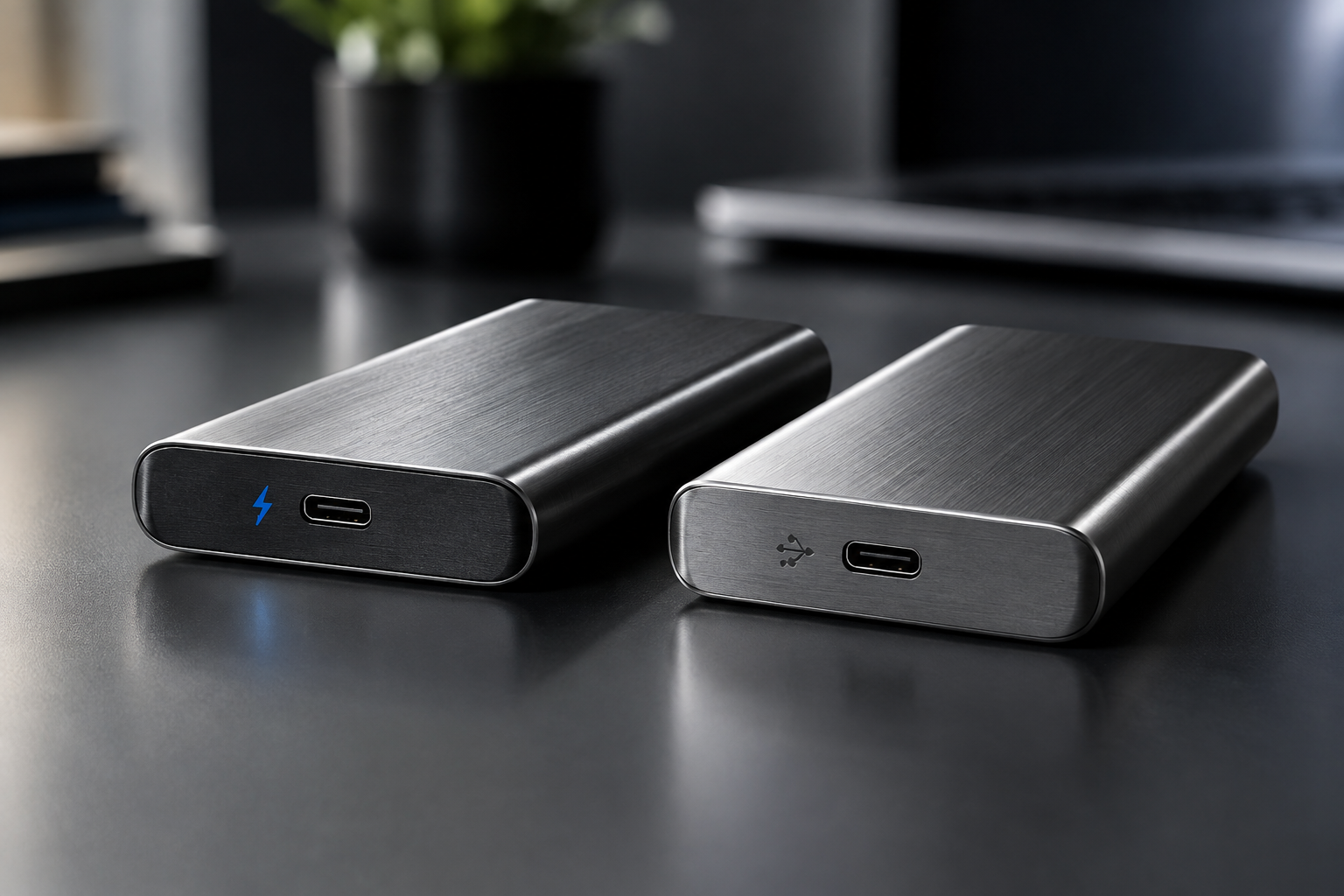
Thunderbolt 3 and Thunderbolt 4 both run at 40Gbps. USB4 also tops out at 40Gbps in its full spec, but plenty of “USB4” enclosures and laptop ports only support 20Gbps or even 10Gbps because USB4 allows multiple tiers. Always check the actual Gbps rating of both your port and your enclosure, not just the port shape.
In the real world, a single NVMe drive in a well-built Thunderbolt enclosure typically sustains 2,200 to 2,800 MB/s for large sequential files. That’s nowhere close to the theoretical 5,000 MB/s you’d get from that same drive installed internally over PCIe 4.0, because the bridge chip inside the enclosure and USB/Thunderbolt protocol overhead eat into the ceiling.
USB4 enclosures at the full 40Gbps tier perform similarly to Thunderbolt in sequential reads, often landing in the 2,000 to 2,600 MB/s range. Where Thunderbolt tends to pull ahead is consistency under sustained load and compatibility across Mac and PC, since Thunderbolt certification is stricter than generic USB4 branding.
The Real Bottlenecks: Enclosure, Cable, and Drive
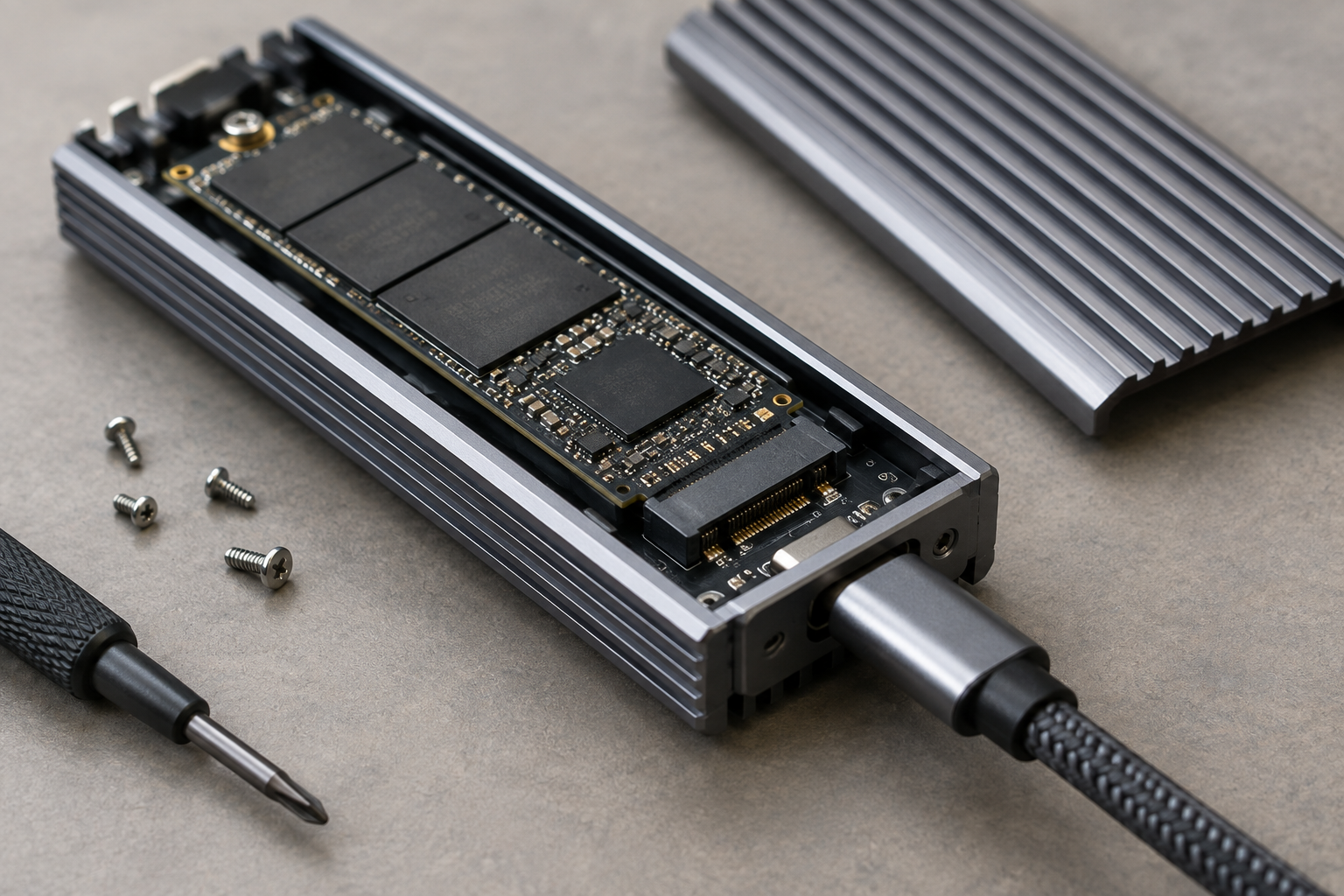
The enclosure’s bridge chip (the controller translating NVMe to USB or Thunderbolt) is often the actual limiter, not the standard itself. Cheap enclosures use older ASMedia or JMicron bridge chips capped around 1,000 MB/s even on a 40Gbps connection. If you’re seeing SATA-like speeds from an NVMe drive in a Thunderbolt enclosure, the bridge chip is almost always the culprit.
Cables matter more than people expect. A generic USB-C cable rated for charging only will negotiate down to USB 2.0 speeds even in a Thunderbolt enclosure. Always use the cable that shipped with the enclosure, or a certified Thunderbolt 4 cable, especially for cables longer than a half meter.
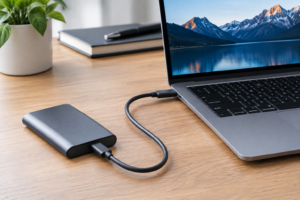
Thunderbolt 4 NVMe Enclosure
A certified Thunderbolt 4 enclosure with a modern bridge chip avoids the bottleneck cheaper USB enclosures introduce.
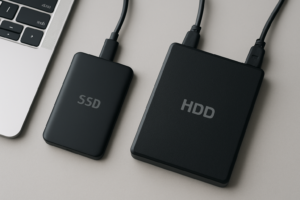
The drive itself matters too. Not every M.2 slot in an enclosure supports NVMe. Plenty of budget enclosures are built for SATA M.2 (B-key) drives only, and physically fitting an NVMe (M-key) drive into the slot doesn’t mean it’ll work or run at NVMe speeds. Check the enclosure’s listed interface (NVMe/PCIe vs SATA) before buying, since the connector shape alone tells you nothing about compatibility. If you’re unclear on the difference, our guide on NVMe SSD vs other SSD types breaks down why the interface, not the form factor, determines real throughput.
Thermals throttle sustained transfers too. Small aluminum enclosures with no thermal pad will throttle an NVMe drive after 60 to 90 seconds of continuous writing, dropping speeds by half or more on large file transfers. Enclosures with a metal body making direct contact with the drive, or an actual heatsink, hold peak speeds noticeably longer.
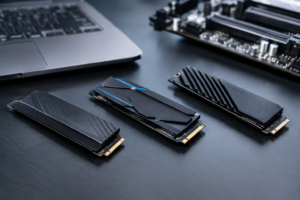
NVMe M.2 SSD
A PCIe 4.0 drive with good thermal throttling behavior gives you headroom for sustained external transfers.
File Size, Filesystem, and Protocol Overhead

Transferring one large video file behaves nothing like copying 50,000 small photos. Small files hit filesystem overhead hard, since every file requires separate read/write operations and metadata updates. Expect real-world speeds on small-file transfers to drop to a few hundred MB/s even on a fast Thunderbolt setup, regardless of the link speed.
Filesystem choice also plays a role. exFAT is the common cross-platform choice but has more overhead than APFS on Mac or NTFS on Windows for large sequential transfers. If you’re staying within one ecosystem, use the native filesystem for the best sustained speeds, and only use exFAT when you genuinely need cross-platform access.
If you’re deciding whether an external NVMe drive is even worth it for your workflow, our article on whether an external SSD will make your laptop faster covers the practical performance gains you can expect for everyday use versus heavy production work.
Our Recommendation
For most people, a Thunderbolt 4 enclosure paired with a PCIe 4.0 NVMe drive is the safer bet. It’s more consistent across sustained transfers, better tested for thermal management, and works reliably on both Mac and PC without hunting through spec sheets to confirm the USB4 tier is actually 40Gbps.
If you’re on a budget or your laptop only has USB4 ports without Thunderbolt certification, a quality 40Gbps USB4 enclosure will get you 90 percent of the performance for less money. Just verify the bridge chip and thermal design before buying rather than trusting the box copy alone.
Frequently Asked Questions
Will a Thunderbolt 4 enclosure work in a USB4 or USB-C port?
Yes, Thunderbolt 4 enclosures are backward compatible with USB4 and most USB-C ports, though you’ll only get full Thunderbolt speeds if the host port also supports the full 40Gbps standard. On a slower USB-C port, the enclosure will still work, just at reduced speed.
Can I put a SATA M.2 drive in an NVMe enclosure and expect it to work?
Physically, some enclosures accept both SATA and NVMe M.2 drives, but many NVMe-only enclosures won’t recognize a SATA drive at all because the electrical interface is different despite the identical connector shape. Always confirm the enclosure explicitly supports SATA M.2 (B-key or B+M key) if that’s what you’re installing, and check our comparison of NVMe SSD vs standard SSD if you’re unsure which type of drive you actually own.
This article contains affiliate links. We may earn a small commission at no extra cost to you.

James Kennedy is a writer and product researcher at Drives Hero with a background in IT administration and consulting. He has hands-on experience with storage, networking, and system performance, and regularly improves and optimizes his home networking setup.