NVMe Enclosure Keeps Disconnecting
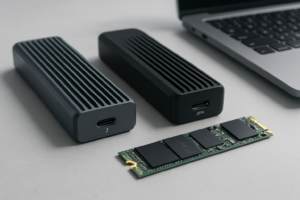
Your new NVMe enclosure worked fine for about ten minutes, then Windows threw a “drive disconnected unexpectedly” error, or your Mac ejected it mid-transfer with no warning at all. You reseated the drive, tried a different cable, maybe even bought a second enclosure, and the problem came back anyway. Before you return another product, it helps to understand that “the enclosure keeps disconnecting” almost never has one single cause. It’s usually a chain of components, and the weakest link in that chain is what’s failing.
This guide walks through every part of that chain, the drive, the bridge chip inside the enclosure, the USB or Thunderbolt standard, the port on your computer, the cable, heat, and even the file types you’re transferring. By the end you’ll know exactly where to point your troubleshooting instead of guessing.
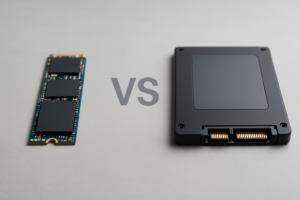
SATA M.2 vs NVMe M.2: The Mistake That Causes Half These Problems
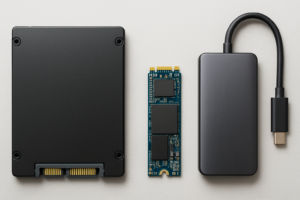
This is the single most common reason people think their enclosure is defective when it isn’t. M.2 is just a physical connector shape. It says nothing about the protocol the drive actually speaks. A SATA M.2 SSD and an NVMe M.2 SSD can look identical and fit in the same slot, but they communicate completely differently.
NVMe enclosures are built around a PCIe bridge chip. If you drop a SATA M.2 drive into an NVMe-only enclosure, it may not mount at all, or it may mount and then randomly drop the connection because the controller is trying to negotiate a protocol the drive doesn’t support. Some enclosures marketed as “M.2 NVMe” only work with NVMe drives, while others are dual-protocol and support both. Check the actual product listing before assuming compatibility, and if you’re unsure which drive you have, our breakdown of 512GB NVMe SSD vs 512GB SSD explains the practical differences between the two.
If you’re shopping for a new drive specifically for an enclosure, it’s also worth reading up on what NVMe SSDs are actually used for so you’re not overpaying for speed your enclosure can’t deliver anyway.
The Enclosure’s Bridge Controller Is Often the Real Culprit
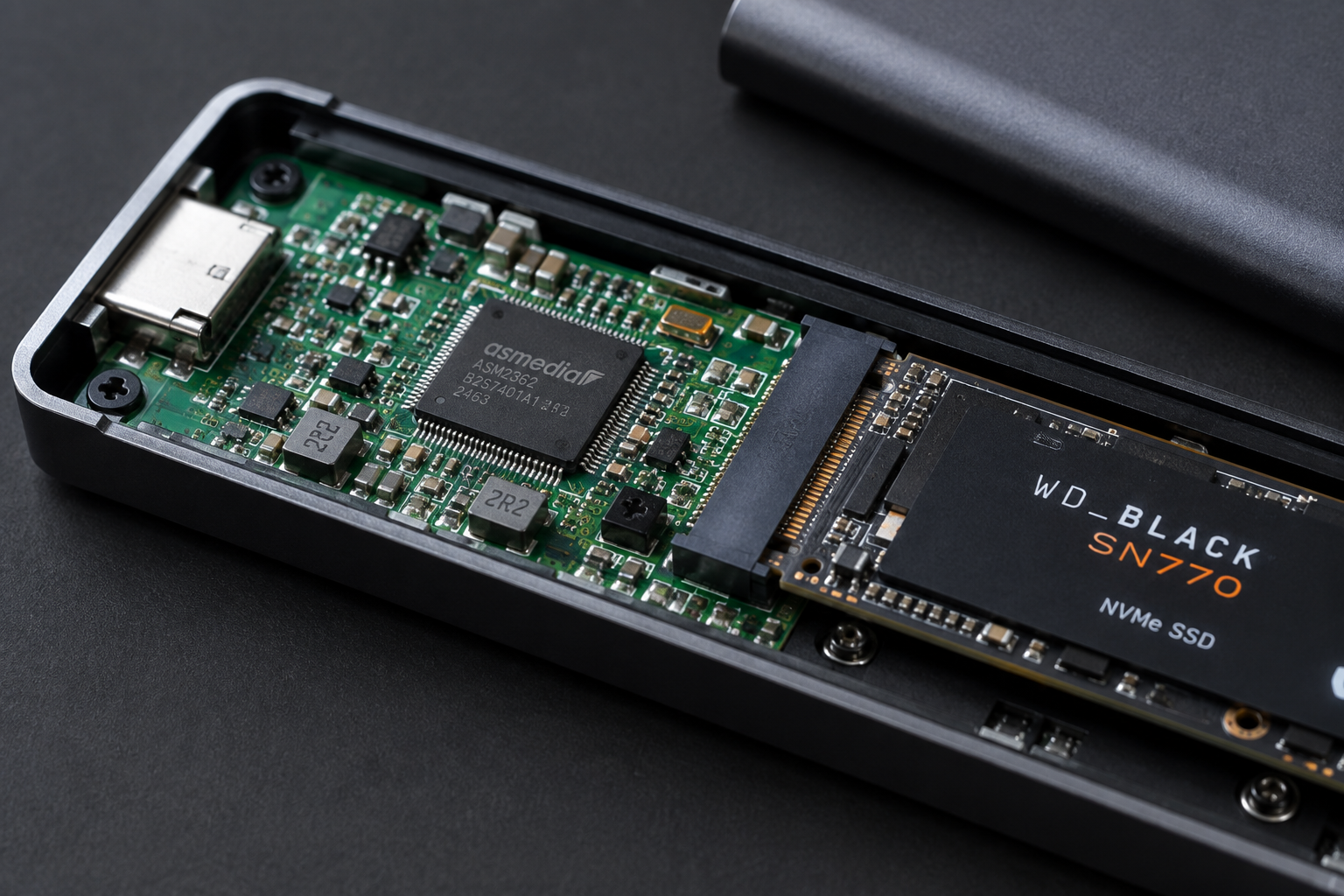
Every NVMe enclosure has a small chip that translates PCIe signals from the drive into USB or Thunderbolt signals your computer understands. Cheap enclosures cut corners here, and it shows. Common bridge chips include ASMedia, JMicron, and Realtek controllers, and their quality varies a lot even within the same brand’s product lineup.
A weak or poorly cooled bridge chip can cause the enclosure to drop off the bus under sustained load, even if the drive itself, the cable, and the port are all fine. This is why two enclosures that look nearly identical on the outside can behave completely differently in real use. If you’ve swapped drives and cables and you’re still seeing random disconnects, the enclosure’s internal controller is the next suspect, not the last one.
Sabrent NVMe USB-C Enclosure
A reliable pick with a well-regarded ASMedia controller and solid thermal design for sustained transfers.
USB and Thunderbolt Standards vs Real-World Throughput
Manufacturers love printing theoretical link speeds on the box, USB 3.2 Gen 2 at 10Gbps, USB4 at 40Gbps, Thunderbolt at 40Gbps. Almost nobody hits those numbers in practice, and that’s normal, not a defect.
Here’s what you should realistically expect:
- USB 3.2 Gen 1 (5Gbps): typically 350 to 420 MB/s sustained, well below an NVMe drive’s potential
- USB 3.2 Gen 2 (10Gbps): typically 800 to 1000 MB/s sustained on a good enclosure
- USB 3.2 Gen 2×2 (20Gbps): typically 1500 to 1800 MB/s, though support on host computers is still spotty
- Thunderbolt 3/4 or USB4 (40Gbps): typically 2200 to 2800 MB/s for a single NVMe drive, since almost nothing saturates the full 40Gbps in the real world
None of these numbers cause disconnects by themselves. But a mismatch between the enclosure’s rated standard and your computer’s actual port can. If you plug a USB4 enclosure into an older USB-C port that only supports USB 3.1 signaling, some combinations negotiate poorly and drop the link entirely instead of just running slower. Always confirm what your specific port supports, not just what the cable or enclosure claims.
The Cable Is a More Common Failure Point Than People Realize
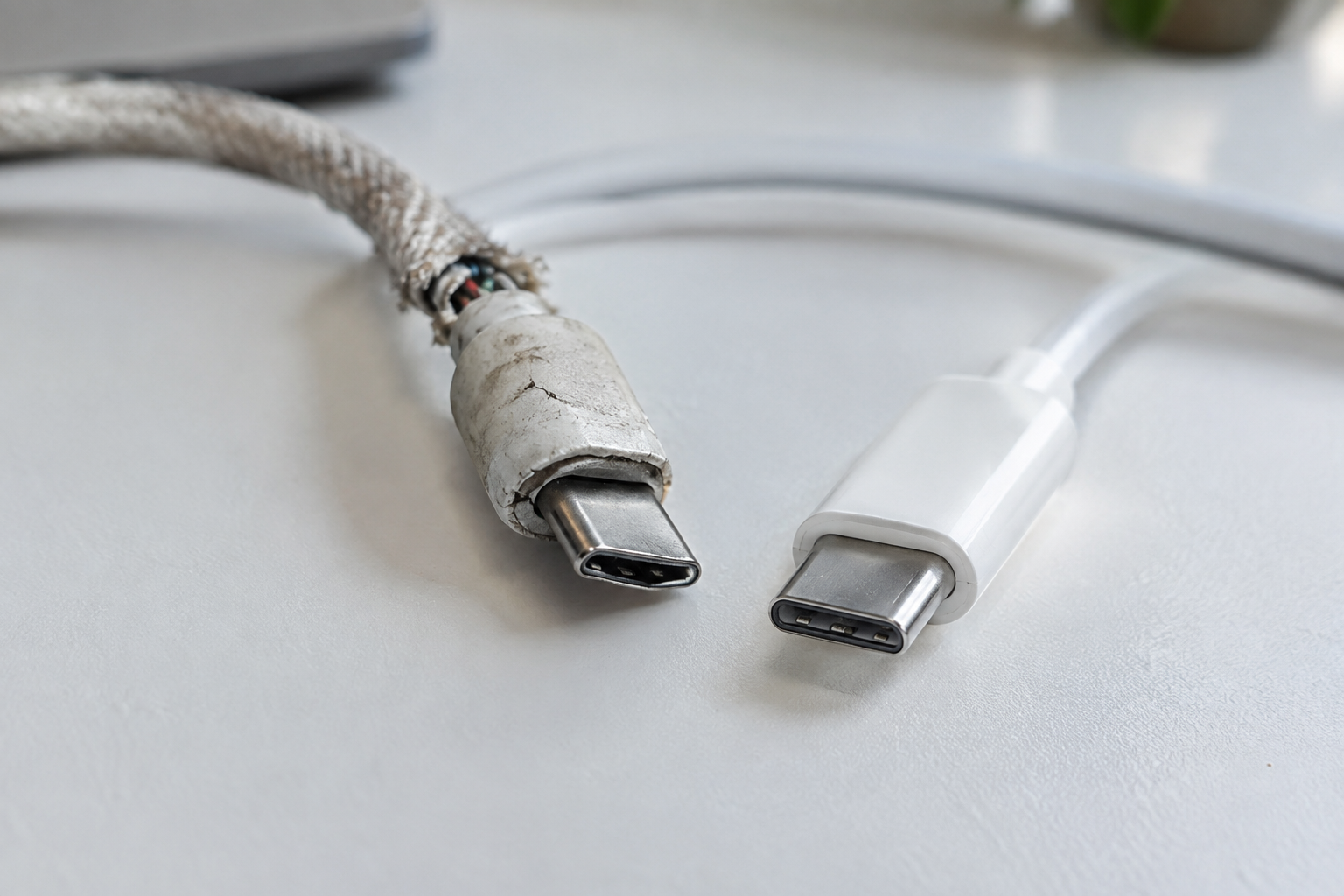
USB-C cables are not interchangeable the way people assume. A cable that came with your phone charger might only carry 480Mbps of data despite having the same connector shape as a 40Gbps Thunderbolt cable. Using the wrong cable is one of the most frequent causes of intermittent disconnects, because the connection sort of works, then fails under sustained data flow.
A few rules that actually matter here:
- Use the cable that shipped with the enclosure whenever possible, it was tested with that specific controller
- For anything above 10Gbps, use a certified cable rated for that speed, ideally under a meter long
- Avoid cheap generic USB-C cables for high-speed transfers, even if they physically fit and charge devices fine
- If you’re using a hub or dock in between, that adds another potential point of failure
If you’ve already ruled out the cable and the enclosure still disconnects, don’t skip straight to buying a new drive. Test the drive in a different enclosure first if you have access to one, since that isolates the variable much faster.
Thermals: The Silent Cause of Mid-Transfer Drops
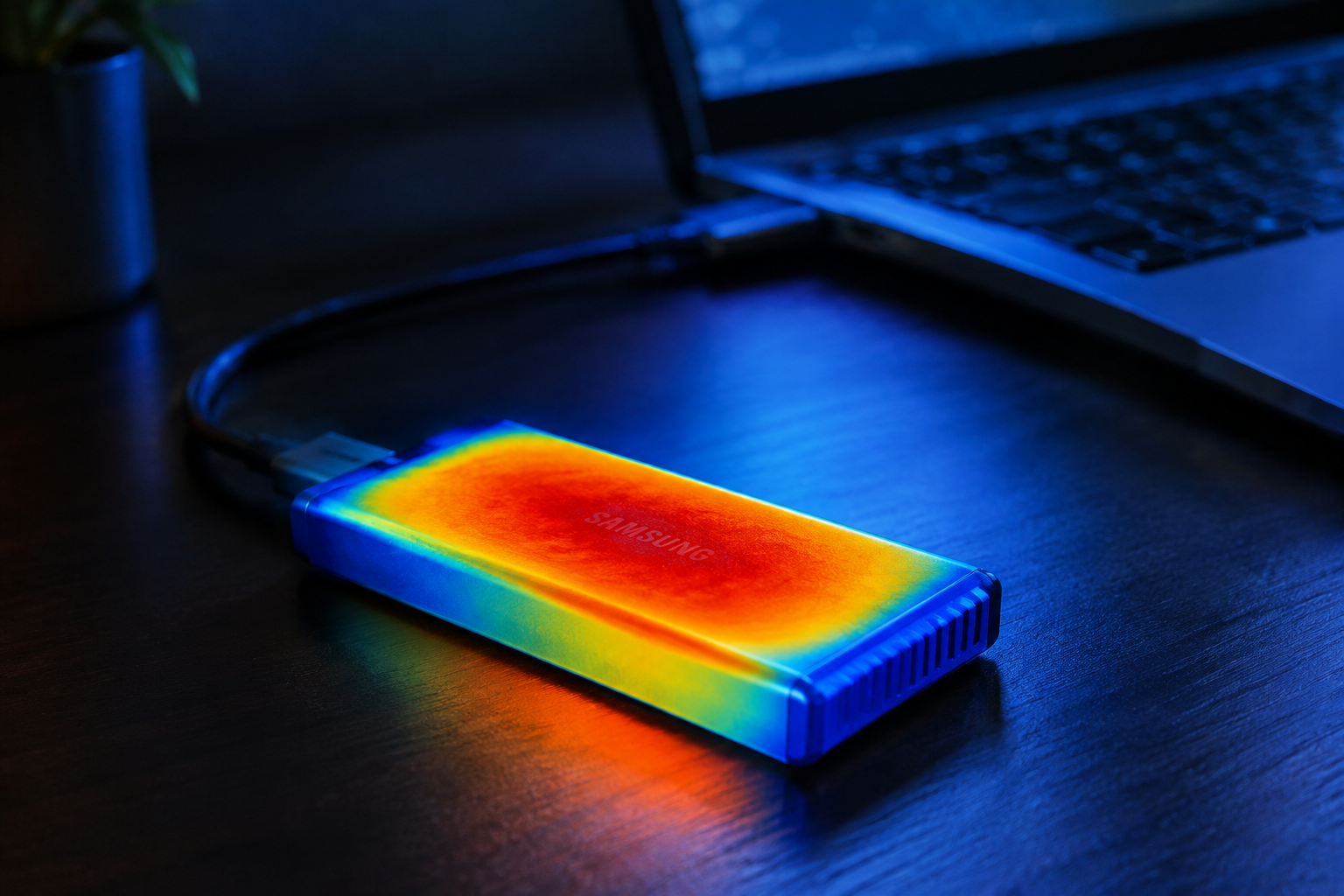
NVMe drives run hot, hotter than most people expect from something the size of a stick of gum. Inside a small aluminum or plastic enclosure with no airflow, that heat has nowhere to go. When the drive or the bridge controller hits its thermal limit, it can throttle hard or drop off the bus completely to protect itself.
This is why disconnects often happen specifically during large, sustained transfers, like copying a folder of 4K video files, rather than during quick file access. The drive works fine for the first minute or two, then heat builds up and the connection dies. Enclosures with an aluminum body and thermal pads that make direct contact with the NVMe chip handle this dramatically better than plastic shells with no thermal design at all.
ORICO Aluminum NVMe Enclosure
Full aluminum housing that acts as a heatsink, a smart choice if you regularly move large video files.
If you suspect thermals are the issue, run a large continuous transfer and touch the enclosure a few minutes in. If it’s uncomfortably hot to hold, that heat is very likely what’s killing your connection.
File Size, Filesystem, and Protocol Overhead
Disconnects don’t always mean hardware failure. Sometimes the pattern of your file transfer is part of the problem. Copying tens of thousands of small files generates far more protocol overhead and command overhead than copying a few large files of the same total size, and that extra overhead can expose weaknesses in a marginal connection that a simple large file transfer never would.
Filesystem choice matters too. exFAT is common for cross-platform drives but handles interrupted writes poorly, sometimes corrupting the filesystem table in a way that looks like the drive disconnected when it actually just got confused. NTFS and APFS journal more reliably. If your enclosure disconnects specifically during long copy jobs involving many small files, try reformatting with a more robust filesystem for your use case and see if the pattern changes.
It’s also worth remembering that an external NVMe enclosure will never fully replace the performance of an internal drive, protocol translation alone adds latency. If you’re trying to decide whether an external SSD is even the right move for your setup, this piece on whether an external SSD will make your laptop faster is a useful read before you sink more money into enclosures.
A Practical Troubleshooting Order
When an enclosure keeps disconnecting, work through these steps in order rather than randomly:
- Confirm the drive protocol matches the enclosure (NVMe drive in an NVMe enclosure, not SATA M.2)
- Swap the cable for one you know is rated for the enclosure’s full speed
- Try a different USB or Thunderbolt port directly on the computer, skip hubs and docks for the test
- Monitor enclosure temperature during a large sustained transfer
- Test the drive in a different enclosure, or a different drive in the same enclosure, to isolate the faulty part
- Reformat and test with a different filesystem if disconnects happen mainly with many small files
This process usually identifies the actual failing component within twenty or thirty minutes, instead of chasing the problem for days.
UGREEN USB4 NVMe Enclosure
Good middle ground for anyone who wants near-Thunderbolt speeds without paying premium Thunderbolt pricing.
For readers still deciding which drive to put in a new enclosure, it’s worth comparing raw NVMe performance against older SATA options first. Our guide on SATA vs NVMe SSD for gaming covers the real-world difference well, and if you’re curious whether NVMe’s speed advantage is overstated for everyday use, this comparison breaks it down honestly.
Frequently Asked Questions
Can a bad NVMe drive cause disconnects even if the enclosure and cable are fine?
Yes. A drive with failing NAND cells or a dying controller can drop off the bus under load even in a perfectly good enclosure. If you’ve tested a known-good drive in the same enclosure and it stays connected reliably, the original drive is likely the problem, not the enclosure.
Does using a USB hub increase the chance of disconnects?
Generally yes, especially with unpowered hubs or hubs that share bandwidth across multiple ports. NVMe enclosures draw meaningful power and need a stable, high-bandwidth connection, so plugging directly into a port on your computer eliminates a common variable.
Why does my enclosure work fine on one computer but disconnect on another?
This usually points to a port compatibility issue, different laptops implement USB-C and Thunderbolt differently, and some older or budget laptops have USB-C ports that don’t fully support the power delivery or data speeds a demanding enclosure needs.
Is it normal for an NVMe drive in an enclosure to run slower than it did inside a laptop?
Yes, this is expected. Protocol translation through a bridge chip, plus the bottleneck of whatever USB or Thunderbolt standard you’re using, means external NVMe performance is almost always lower than the same drive running natively over PCIe inside a laptop or desktop.
This article contains affiliate links. We may earn a small commission at no extra cost to you.

James Kennedy is a writer and product researcher at Drives Hero with a background in IT administration and consulting. He has hands-on experience with storage, networking, and system performance, and regularly improves and optimizes his home networking setup.