USB 3.2 Gen 2×2 SSD Only Running at 10 Gbps
You bought a drive and enclosure both rated for USB 3.2 Gen 2×2, which promises up to 20 Gbps, but every benchmark you run tops out around 10 Gbps. It feels like you paid for a feature you’re not getting. Before you assume you got a bad drive or a defective enclosure, it helps to understand that 20 Gbps is a link rate, not a guaranteed real-world speed, and there are several places in the chain where things quietly downgrade to Gen 2×1 speeds without any error message telling you why.
This guide walks through every link in that chain, from the NAND inside the drive to the cable sitting on your desk, so you can figure out exactly where your bottleneck is instead of guessing.
Start With What 20 Gbps Actually Means
USB 3.2 Gen 2×2 uses two lanes of 10 Gbps each, and 20 Gbps is the raw signaling rate, not the usable data rate. Once you subtract protocol overhead, encoding losses, and controller inefficiencies, real-world throughput typically lands between 1,600 and 1,900 MB/s on a well-built setup. That’s still a big jump over Gen 2×1, which realistically delivers 900 to 1,050 MB/s.
If your drive is sitting right around 1,000 MB/s, it isn’t broken. It’s running at Gen 2×1 speeds, which means somewhere in the chain, only one lane is being negotiated instead of two. That’s the symptom you’re troubleshooting, not the disease.
Check the Drive Itself First
Not every M.2 SSD can hit these speeds, and the physical form factor tells you nothing about the interface underneath it. This is the single most common mistake people make when shopping for an enclosure and drive combo.
SATA M.2 vs NVMe M.2
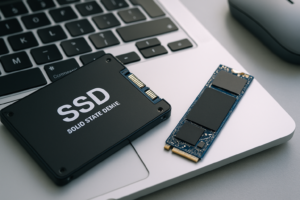
A SATA M.2 SSD fits the same slot as an NVMe drive but is capped at roughly 550 MB/s because it’s still limited by the SATA III interface. Plenty of enclosures accept both form factors physically, but only pass through NVMe’s PCIe lanes for full speed. If you dropped a SATA M.2 drive into a Gen 2×2 enclosure, you will never see more than SATA speeds no matter what the enclosure box promises.
If you’re unsure which type you have, check the model number against the manufacturer’s spec sheet before blaming the enclosure. We cover this distinction in more detail in our breakdown of NVMe SSD vs Intel SSD and in our comparison of SATA vs NVMe SSD for gaming, both of which explain why the interface matters more than the slot shape.
Even a genuine NVMe drive has a ceiling. Budget QLC drives often can’t sustain high write speeds once their cache fills up, dropping from thousands of MB/s down to 100 to 300 MB/s during large transfers. That drop can look like a USB bottleneck when it’s actually the NAND running out of steam.
WD Black SN850X NVMe SSD
A proven high-endurance NVMe drive with sustained write speeds that can actually take advantage of a Gen 2×2 enclosure.
If you’re deciding between drive families before you even get to the enclosure question, our guide comparing the WD Black SN770 vs SN850X specs is a good place to check whether your current drive is even capable of Gen 2×2 speeds in the first place.
The Enclosure’s Bridge Chip Matters More Than the Box
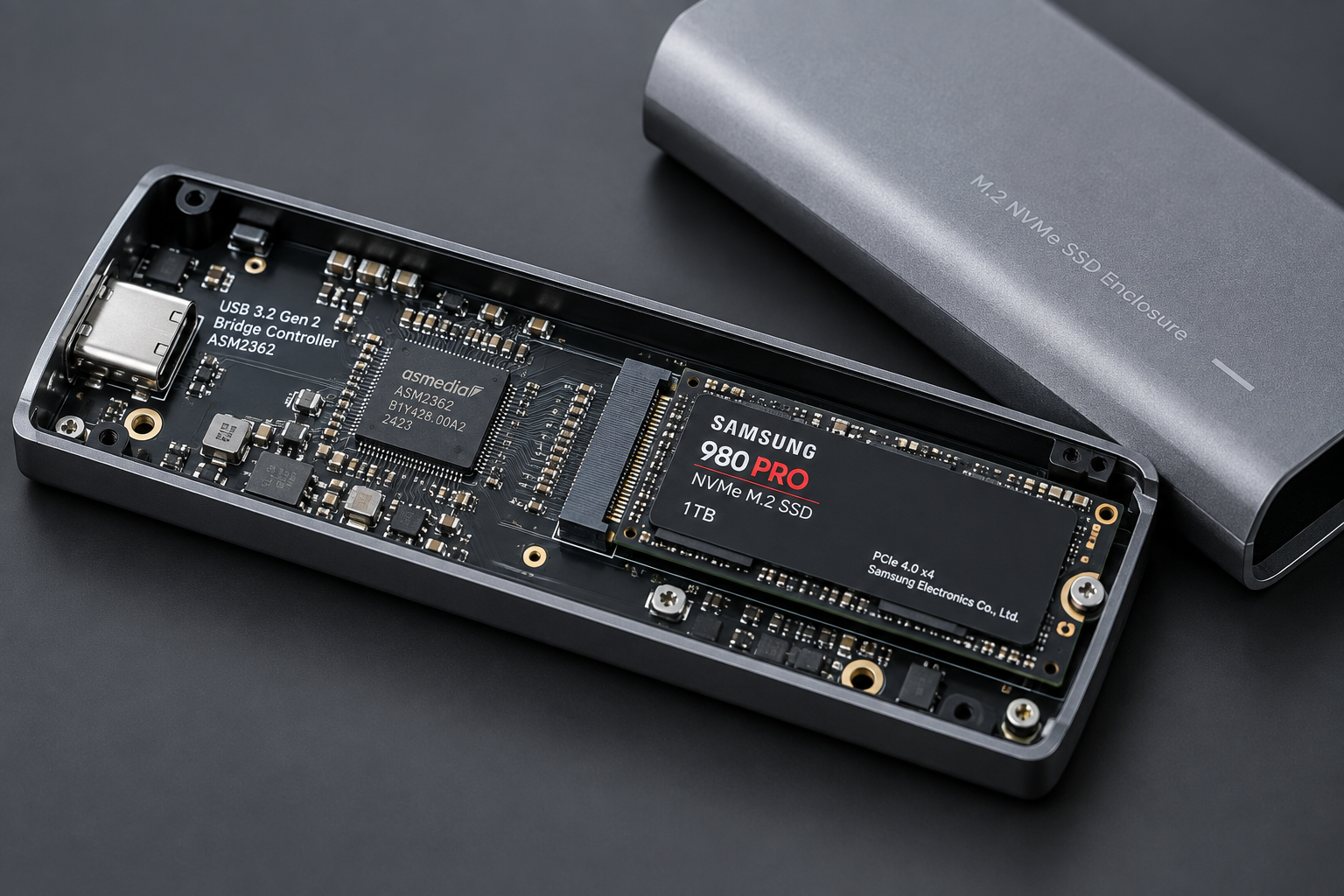
The enclosure itself is really just a housing around a bridge controller chip, and that chip is what actually negotiates the USB protocol with your NVMe drive. Popular chips like the ASMedia ASM2364 support genuine Gen 2×2 speeds, while cheaper or older controllers cap out at Gen 2×1 even if the box and cable are both labeled 20 Gbps.
Manufacturers don’t always advertise the bridge chip clearly, so check user reviews and teardown posts before buying an enclosure based on the outer packaging alone. A mismatched or outdated bridge chip is one of the most common reasons people get stuck at 10 Gbps despite having a fast drive and the right cable.
Cables, Ports, and Standards That Silently Downgrade
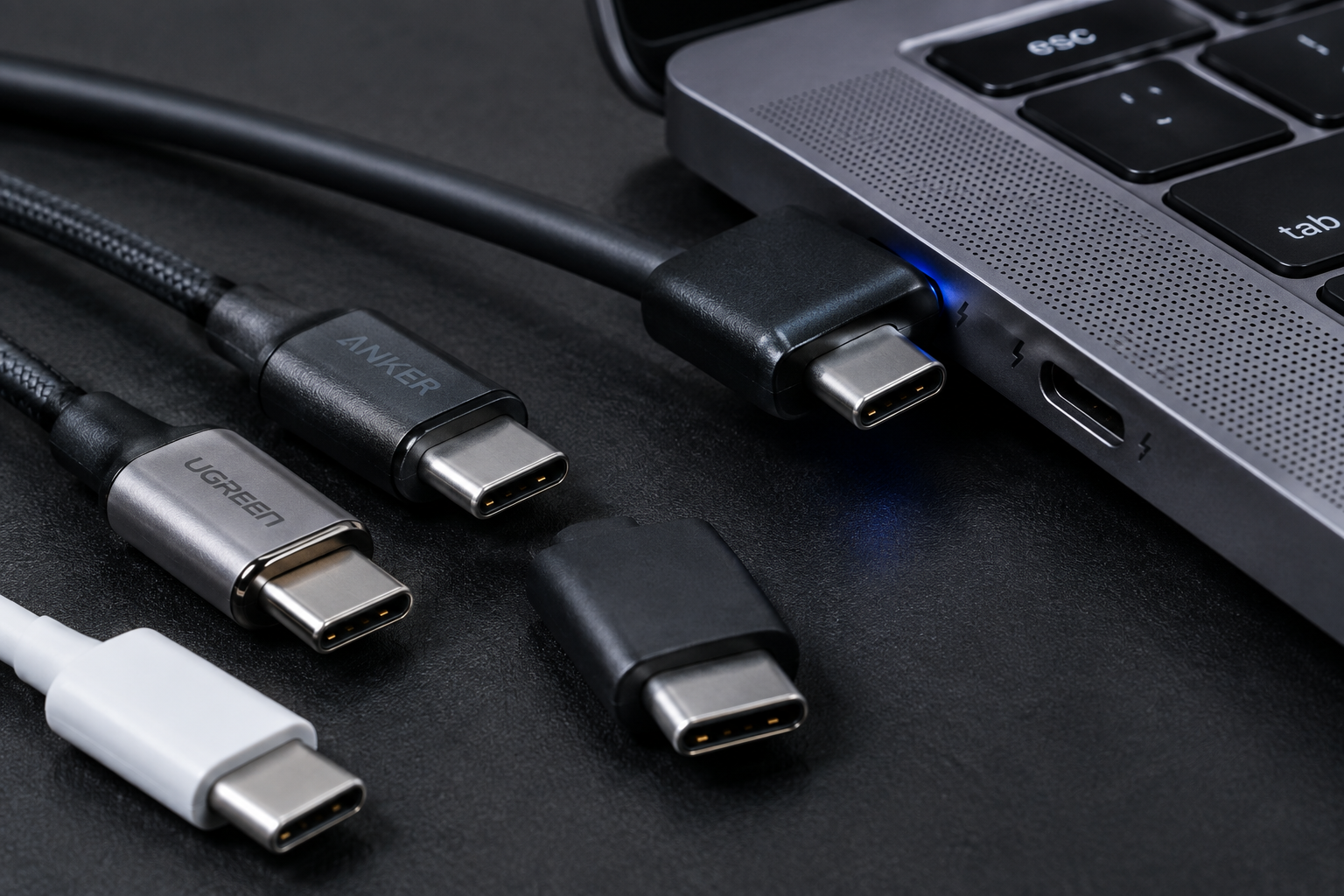
USB cables are not interchangeable the way most people assume, and this is where a lot of Gen 2×2 setups quietly fall back to half speed.
The Cable
Gen 2×2 requires a cable rated specifically for 20 Gbps, usually labeled USB 3.2 Gen 2×2 or marked with the SuperSpeed 20Gbps logo. A cable that only supports Gen 2×1, or worse, an old USB 3.0 cable, will silently negotiate down to a slower link without any warning on screen. Length matters too, since passive cables longer than about 0.8 meters often can’t maintain full 20 Gbps signaling integrity.
Certified USB 3.2 Gen 2×2 Cable
A short, properly certified cable removes one of the most common causes of unexplained speed drops.
The Host Port
Your enclosure can be perfect and still bottleneck if the port on your laptop or desktop only supports Gen 2×1 or even just USB 3.0. Check your motherboard or laptop spec sheet for the exact port designation, since manufacturers frequently mix port speeds on the same machine. Plugging into the wrong rear I/O port or an add-in card that shares bandwidth with other devices is an easy way to lose half your throughput without realizing it.
Thunderbolt Confusion
Thunderbolt 3 and 4 ports are backward compatible with USB, but that doesn’t automatically mean they’ll negotiate Gen 2×2 speeds with a USB-only enclosure. Some Thunderbolt controllers handle USB fallback modes inconsistently, so if you’re plugging a USB enclosure into a Thunderbolt port and seeing lower than expected speeds, try a native USB-A or USB-C port on the same machine as a comparison test.
Thermals, File Size, and Filesystem Overhead

Once you’ve ruled out the hardware chain, a few software and environmental factors can still hold you back.
Small NVMe enclosures with no metal shell or thermal pad will throttle under sustained transfers, especially during large file copies that run for several minutes. If your speed starts strong and drops off after 30 to 60 seconds, put your hand on the enclosure. If it’s hot, thermal throttling is your answer, and a metal-bodied enclosure with a thermal pad against the SSD controller will fix it.
File size and count matter just as much as raw link speed. Copying one large video file will get you much closer to theoretical maximums than copying thousands of small documents, because small files add per-file overhead that no USB standard can eliminate. Filesystem choice plays a role too. exFAT and NTFS behave differently under heavy small-file loads, and a poorly formatted or fragmented drive will underperform regardless of what the enclosure is capable of.
Protocol overhead itself also eats into your numbers. Between USB Attached SCSI (UASP) command overhead, error correction, and encoding, you should expect real-world throughput to land noticeably below the theoretical 20 Gbps ceiling even with perfect hardware. Anyone benchmarking against the marketing number is setting themselves up to be disappointed.
ORICO M.2 NVMe Enclosure with Cooling
A well-reviewed enclosure with a proper heatsink design that avoids the thermal throttling that quietly kills sustained transfer speeds.
If you’re weighing whether an external SSD setup is even worth the investment for your workflow, our article on whether an external SSD will make your laptop faster covers the practical performance gains you can expect beyond raw benchmark numbers.
Frequently Asked Questions
Why does my Gen 2×2 drive only show 10 Gbps in benchmarks?
This almost always means one part of the chain, whether it’s the cable, host port, or bridge chip, is negotiating at Gen 2×1 instead of the full two-lane Gen 2×2 mode. Test each component individually by swapping the cable first, then the port, since those two are the easiest fixes.
Can a SATA M.2 SSD ever reach 20 Gbps speeds in a USB enclosure?
No. SATA III caps out around 550 MB/s regardless of the USB standard wrapped around it, so a Gen 2×2 enclosure provides no benefit with a SATA M.2 drive. You need a genuine NVMe M.2 SSD to have any chance of approaching Gen 2×2 speeds.
Is 10 Gbps actually a bad result for an external SSD?
Not at all. Sustained speeds around 900 to 1,050 MB/s are excellent for most everyday tasks like video editing, game libraries, or large backups. Gen 2×2’s extra bandwidth mainly matters for people regularly moving very large files or running demanding workloads that saturate a single 10 Gbps lane.
This article contains affiliate links. We may earn a small commission at no extra cost to you.

James Kennedy is a writer and product researcher at Drives Hero with a background in IT administration and consulting. He has hands-on experience with storage, networking, and system performance, and regularly improves and optimizes his home networking setup.