USB-C SSD Slow on Mac
Why Your “Fast” External SSD Feels Slow on a Mac
You bought a drive rated for blazing speeds, plugged it into your Mac, and the transfer is crawling along at a fraction of what the box promised. This is one of the most common complaints with USB-C external SSDs, and it’s rarely one single problem. It’s usually a chain of components, and your actual speed is only as fast as the weakest link in that chain.
Before you assume the drive is defective, it helps to understand what’s actually happening between your SSD and your Mac’s file system. There are more moving parts here than most people realize, and once you know where to look, the fix is often simple.
The Full Chain: Every Link That Can Slow You Down
Data has to pass through several stages before it lands on your Mac’s storage, and each one has its own ceiling. The weakest stage sets your real world speed, not the fastest one.
- The drive itself: SATA and NVMe flash have very different real world ceilings.
- The enclosure’s bridge chip: This tiny controller converts the drive’s native protocol into USB or Thunderbolt signaling, and cheap ones bottleneck even fast drives.
- The USB or Thunderbolt standard: The link speed on the box is theoretical, not what you’ll see in Finder.
- The host port on your Mac: Not every USB-C port on a Mac supports the same speed.
- The cable: A cheap or overly long cable will silently downgrade your connection.
- Thermals: Small aluminum or plastic enclosures throttle under sustained transfers.
- File size and filesystem: Thousands of small files behave nothing like one large video file.
Let’s walk through each of these, because the fix depends entirely on which one is actually holding you back.
SATA M.2 vs NVMe M.2: The Mistake That Trips Up Almost Everyone
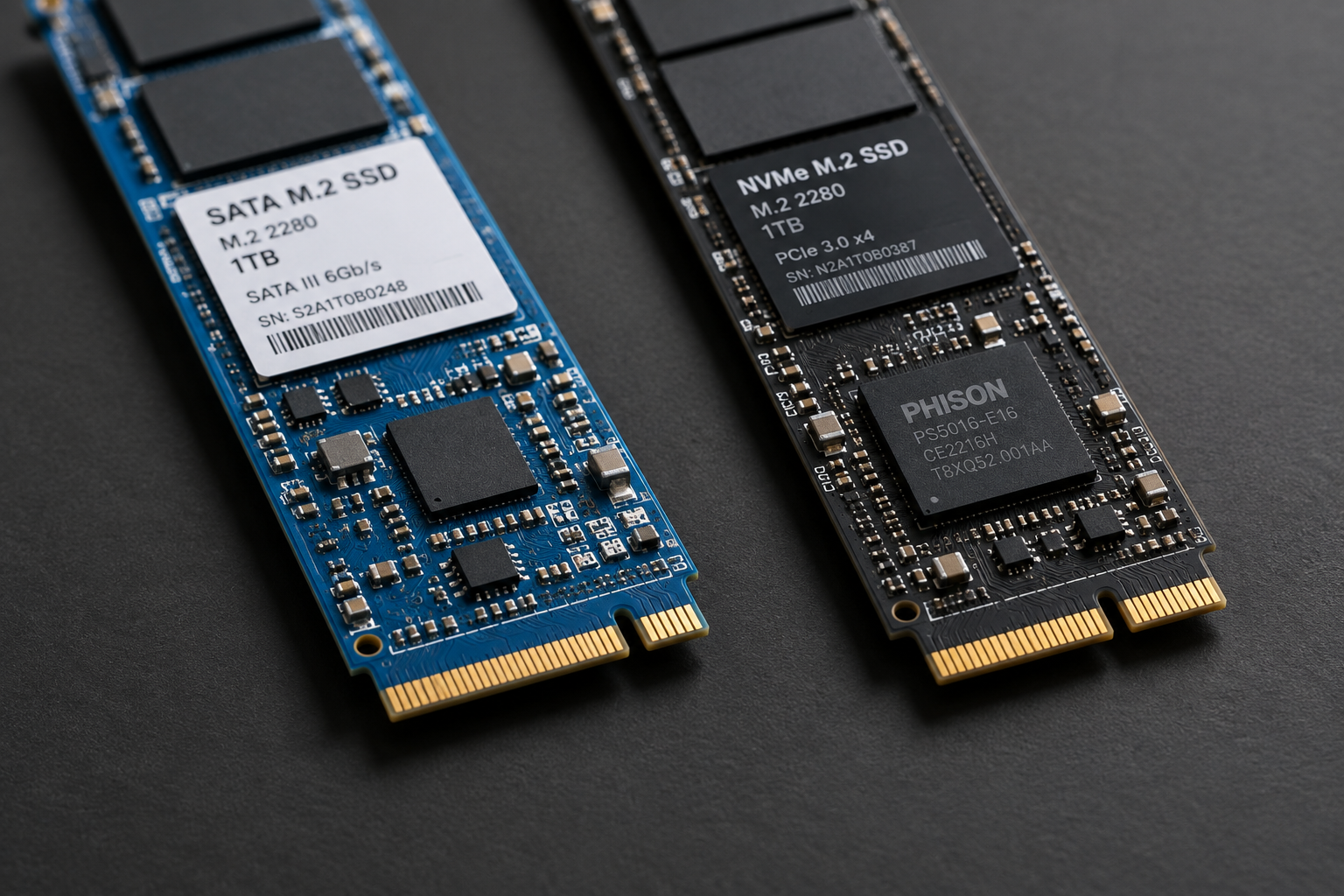
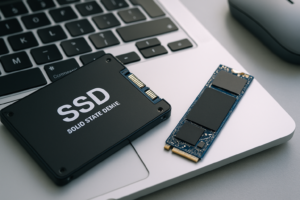
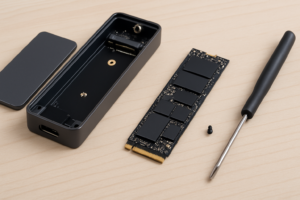
This is the single biggest source of confusion with USB-C SSD enclosures, and it’s worth its own section. M.2 is just a physical connector shape. It says nothing about what protocol the drive inside actually speaks.
A SATA M.2 SSD and an NVMe M.2 SSD can look identical and fit the same slot, but they communicate completely differently. SATA drives are capped at roughly 550 to 560 MB/s no matter what enclosure you put them in. NVMe drives use PCIe lanes and can realistically push anywhere from 900 MB/s to well over 2,500 MB/s depending on the drive and connection.
If you buy a Thunderbolt enclosure rated for 40Gbps and drop a SATA M.2 drive into it, you will never see more than about 550 MB/s, because the drive itself is the bottleneck, not the enclosure. Worse, some enclosures are physically keyed for only one protocol. A SATA-only enclosure simply won’t recognize an NVMe drive, or it will recognize it but run at a fraction of its potential. Always check the enclosure’s listed compatibility before assuming “M.2 fits, so it’ll work at full speed.”
If you’re trying to decide which type of drive makes sense for your workflow in the first place, this breakdown of SATA vs NVMe SSD performance and this comparison of NVMe SSD vs other SSD types are good starting points before you buy an enclosure.
Sabrent NVMe M.2 Enclosure
A reliable NVMe enclosure with good thermal design, ideal if you already own a spare NVMe drive.
USB Standard, Host Port, and Cable: The Real Speed Ceiling
Manufacturers love printing link speeds like “10Gbps” or “40Gbps” on the box, but those numbers describe the theoretical maximum of the protocol, not what you’ll actually see copying files. Here’s what to expect in real world use:
- USB 3.2 Gen 1 (5Gbps): realistically 400 to 440 MB/s
- USB 3.2 Gen 2 (10Gbps): realistically 900 to 1,050 MB/s
- USB 3.2 Gen 2×2 (20Gbps): realistically 1,700 to 1,900 MB/s, though few Macs support this standard
- Thunderbolt 3 or 4 (40Gbps): realistically 2,700 to 2,800 MB/s with a fast NVMe drive
Your Mac’s port matters just as much as the enclosure. Apple Silicon MacBook Airs and base MacBook Pros often mix Thunderbolt ports with USB ports that share bandwidth, and some ports on older Intel Macs only support USB 3.1 Gen 1 despite looking identical to Thunderbolt ports. Plugging your drive into the wrong port on the same laptop can cut your speed in half.
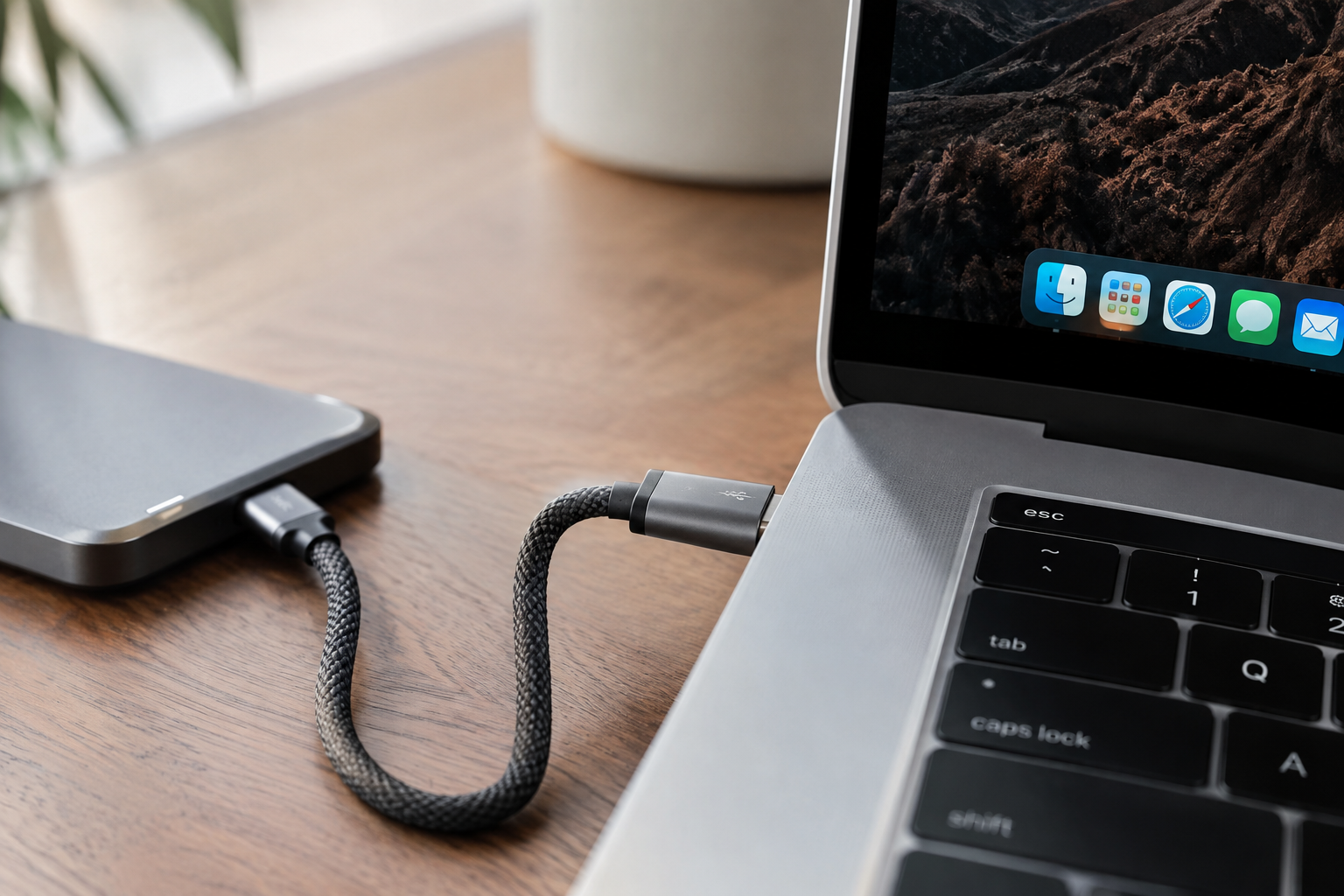
Cables are an easy thing to overlook. A generic USB-C cable pulled from a drawer might only be rated for USB 2.0 speeds even though it fits the port perfectly. For Thunderbolt drives, you need a cable specifically certified for Thunderbolt 3 or 4, and longer cables often can’t sustain the full 40Gbps rate. If your transfer speeds are inexplicably low, swapping the cable is one of the fastest and cheapest things to try.
Thunderbolt 4 Cable
A certified Thunderbolt 4 cable removes cable quality as a variable, especially for short runs under 1 meter.
Enclosure Controllers and Thermals
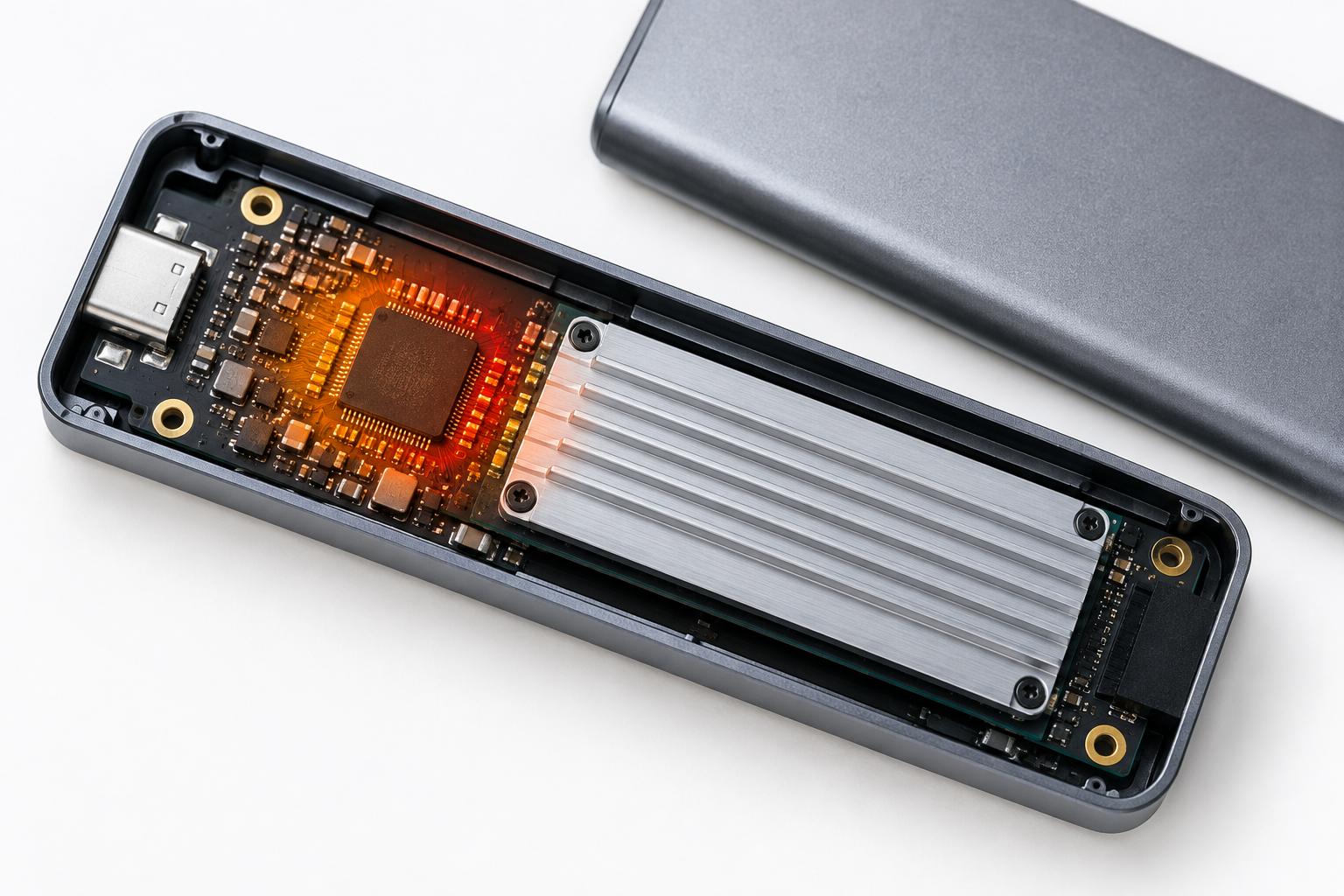
Not all bridge chips are created equal. Budget enclosures often use older ASMedia or JMicron controllers that cap out well below what the drive inside is capable of, even when the USB standard supports more. Reputable NVMe enclosures use newer controller chips paired with proper thermal pads that keep the drive from throttling under load.
Thermal throttling is a real and common issue with USB-C SSDs. A tiny aluminum shell might handle a quick 10GB transfer fine, then slow to a crawl 30 seconds into a 100GB copy as the NVMe drive inside heats up and throttles itself to avoid damage. If your speeds start strong and then drop noticeably partway through a large transfer, thermals are almost certainly the cause, not the connection.
Enclosures with a metal body and some kind of thermal pad contacting the drive handle sustained transfers far better than plastic shells. If you’re doing large video exports or backups regularly, this is worth paying attention to when you shop.
File Size, Filesystem, and Protocol Overhead
Even with perfect hardware, how you use the drive changes your real world speed. Copying one massive video file will get you close to the drive’s real ceiling because the SSD can stream data in long, continuous writes. Copying thousands of small files, like a folder of RAW photos or project files, involves constant overhead for each file’s metadata, and speeds can drop to a third of what you’d see with large files.
Filesystem choice matters too. Mac formatted drives using APFS or Mac OS Extended perform differently than exFAT, which many people use for cross platform compatibility with Windows. exFAT carries more overhead and generally trails APFS in sustained write speeds on macOS. If you don’t need to share the drive with a Windows PC, formatting it as APFS through Disk Utility usually nets you better real world throughput.
None of this is unique to external drives, either. The same principles around NVMe speed advantages and what NVMe is actually good for apply whether the drive lives inside your Mac or in an external enclosure. If you’re weighing whether an external SSD is even worth it for your workflow, this piece on whether an external SSD makes a laptop faster is a useful read.
Putting It Together: A Quick Diagnostic Checklist
- Confirm whether your drive is SATA or NVMe, since that alone sets your realistic ceiling.
- Check which port you’re using on your Mac and confirm it supports Thunderbolt or at least USB 3.2 Gen 2.
- Swap the cable for one rated for the correct standard, ideally short and certified.
- Watch whether speed drops over time, which points to thermal throttling.
- Test with one large file versus a folder of small files to isolate protocol overhead.
If you’ve upgraded storage inside your Mac before, some of this will feel familiar. The same bottleneck logic around drive type and protocol shows up in guides like upgrading a MacBook Air’s SSD and upgrading storage on a Mac Studio, since internal and external speeds are governed by nearly identical principles.
Samsung T9 Portable SSD
A pre-built NVMe based portable SSD that skips the enclosure guesswork entirely and delivers consistent USB 3.2 Gen 2×2 speeds.
Frequently Asked Questions
Why is my external SSD only getting USB 2.0 speeds on my Mac?
This almost always comes down to the cable or the specific port you’re using. Some Mac USB-C ports, especially on older models or docks, negotiate down to USB 2.0 if the cable or hub isn’t rated for higher speeds. Try a different port, a short certified cable, and connect directly to the Mac without a hub to rule this out.
Does Thunderbolt always mean faster speeds than USB-C?
Only if the drive inside the enclosure is fast enough to use that bandwidth. A Thunderbolt enclosure with a SATA SSD inside won’t run any faster than a basic USB 3.2 enclosure with the same drive, since the SSD itself caps out around 550 MB/s. Thunderbolt only pays off with a genuinely fast NVMe drive behind it.
Can a bad cable really cut my transfer speed in half?
Yes, and it’s more common than people expect. A cable rated for charging only, or one that’s too long for the standard it claims to support, will often force a downgraded connection without any warning from macOS. Always use the cable that came with a Thunderbolt drive, or buy one explicitly certified for the speed you need.
This article contains affiliate links. We may earn a small commission at no extra cost to you.

James Kennedy is a writer and product researcher at Drives Hero with a background in IT administration and consulting. He has hands-on experience with storage, networking, and system performance, and regularly improves and optimizes his home networking setup.