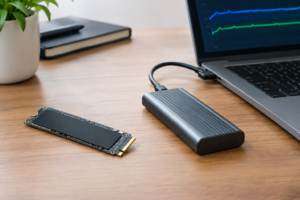
External SSD Fast in Benchmark but Slow During File Transfers
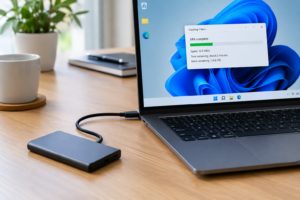
You ran the benchmark, saw a number that made you smile, maybe 900 MB/s or higher, and figured you had a fast drive on your hands. Then you dragged a folder of vacation photos onto it and watched the transfer crawl at a fraction of that speed. That gap between the benchmark number and real-world performance is one of the most common complaints with external SSDs, and it almost never means the drive is defective.
The truth is that a benchmark tests one specific thing under ideal conditions, usually a large sequential read or write with a queue depth that real file transfers rarely match. Your actual copy job involves a completely different chain of hardware and software, and any weak link in that chain will drag your speed down no matter how fast the drive itself is rated.
Every Piece of the Chain Matters
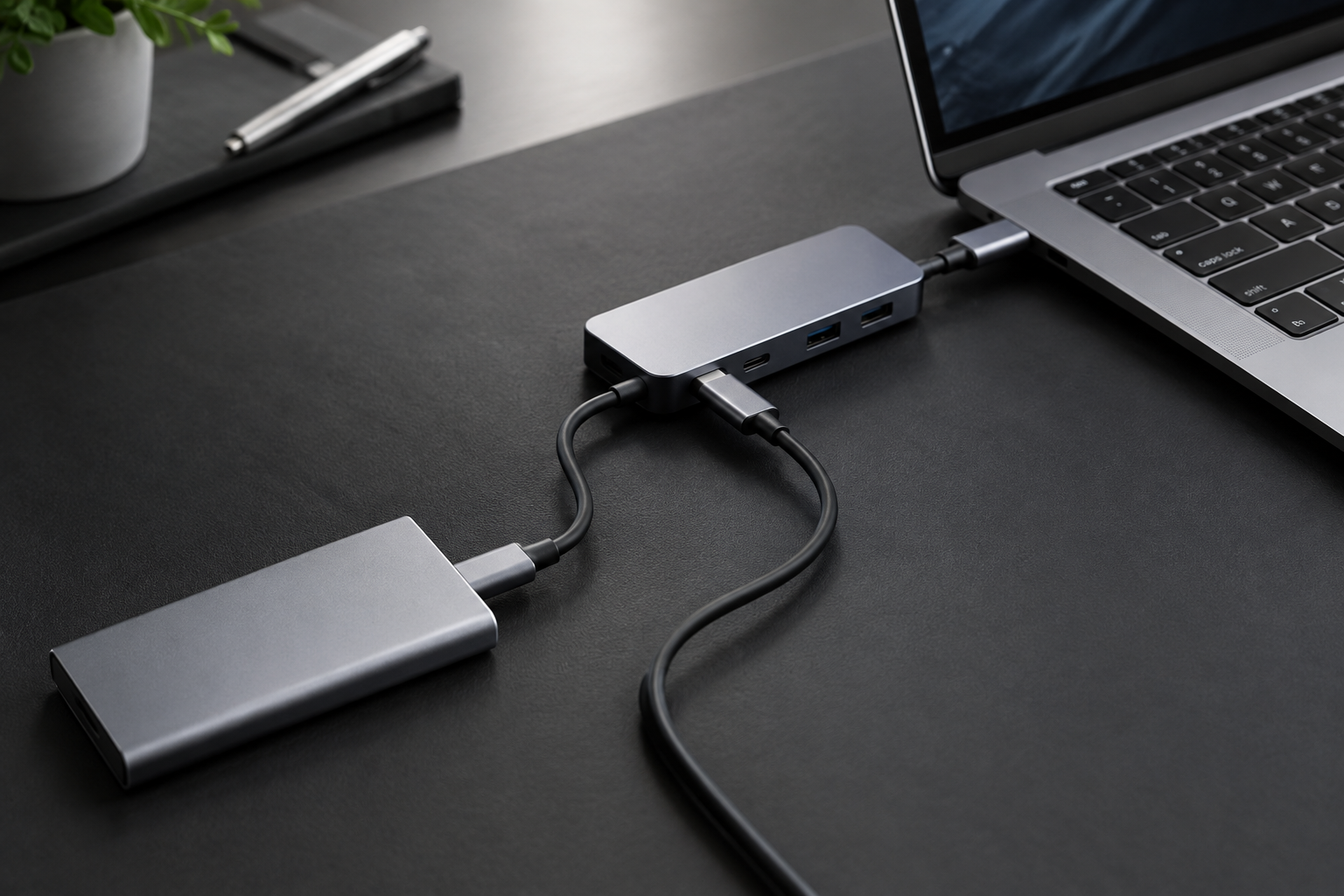
An external SSD is not one component, it’s a stack of them, and the slowest piece sets the pace for the whole transfer.
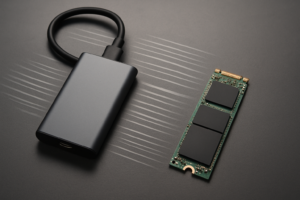
The Drive Itself: SATA M.2 vs NVMe M.2
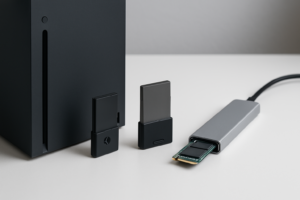
This is where a lot of confusion starts. Both SATA and NVMe SSDs can come in the same M.2 physical size, so the slot alone tells you nothing about compatibility or speed. A SATA M.2 drive tops out around 550 MB/s no matter what enclosure you put it in, because that’s the ceiling of the SATA III interface itself.
An NVMe M.2 drive uses PCIe lanes and can realistically hit 1,000 to 3,500 MB/s in an external enclosure, sometimes higher with PCIe 4.0 drives in a Thunderbolt case. If you bought an NVMe enclosure and dropped in a SATA M.2 drive by mistake, you will never see NVMe speeds, and that’s not a defect, it’s a mismatch. Check your drive’s actual interface before blaming the enclosure. Our breakdown of NVMe SSD vs Intel SSD covers how to identify which type you actually have.
The Enclosure Bridge Chip
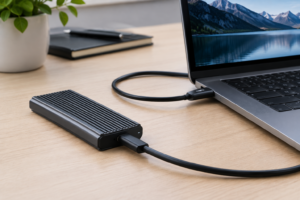
Every external drive relies on a small controller chip that translates between the internal drive interface and the external port. Cheap enclosures often use older or lower-quality bridge chips that cap out well below what the drive and cable could otherwise support. This is the single most overlooked bottleneck in the whole setup, and it’s why two drives with identical internal NVMe chips can perform completely differently once housed in different enclosures.
ORICO NVMe M.2 Enclosure
Uses a modern bridge chip that actually delivers close to advertised NVMe speeds instead of bottlenecking a fast drive.
USB and Thunderbolt Standards, and the Port You Plug Into
USB 3.2 Gen 2 tops out at 10 Gbps, which translates to roughly 900 to 1,050 MB/s in real transfers, not the full 1,250 MB/s theoretical rate. USB4 and Thunderbolt 3/4 support up to 40 Gbps, but you’ll realistically see 2,000 to 2,800 MB/s from a good NVMe enclosure, still short of the on-paper number because of protocol overhead.
Here’s where people get tripped up: plugging a USB4 drive into an older USB 3.0 port on your laptop or into a hub that only supports 5 Gbps will silently drop your speed to whatever that weaker port supports. Always plug directly into the fastest port your computer has, ideally the one closest to the CPU, since some laptops share bandwidth across ports on the same controller.
The Cable You’re Using
A lot of people reuse whatever USB-C cable was lying around, and that’s a mistake. Not every USB-C cable is rated for 10 Gbps data, some are charge-only or limited to 480 Mbps USB 2.0 speeds despite having the same connector shape. If your drive supports 10 Gbps or higher, use a certified USB-C 10Gbps cable rated for the standard you’re actually using.
Cable Matters USB4 Thunderbolt Cable
A properly certified cable rated for full USB4/Thunderbolt bandwidth so your expensive enclosure isn’t throttled by a cheap cord.
Thermals, File Size, and Filesystem Overhead
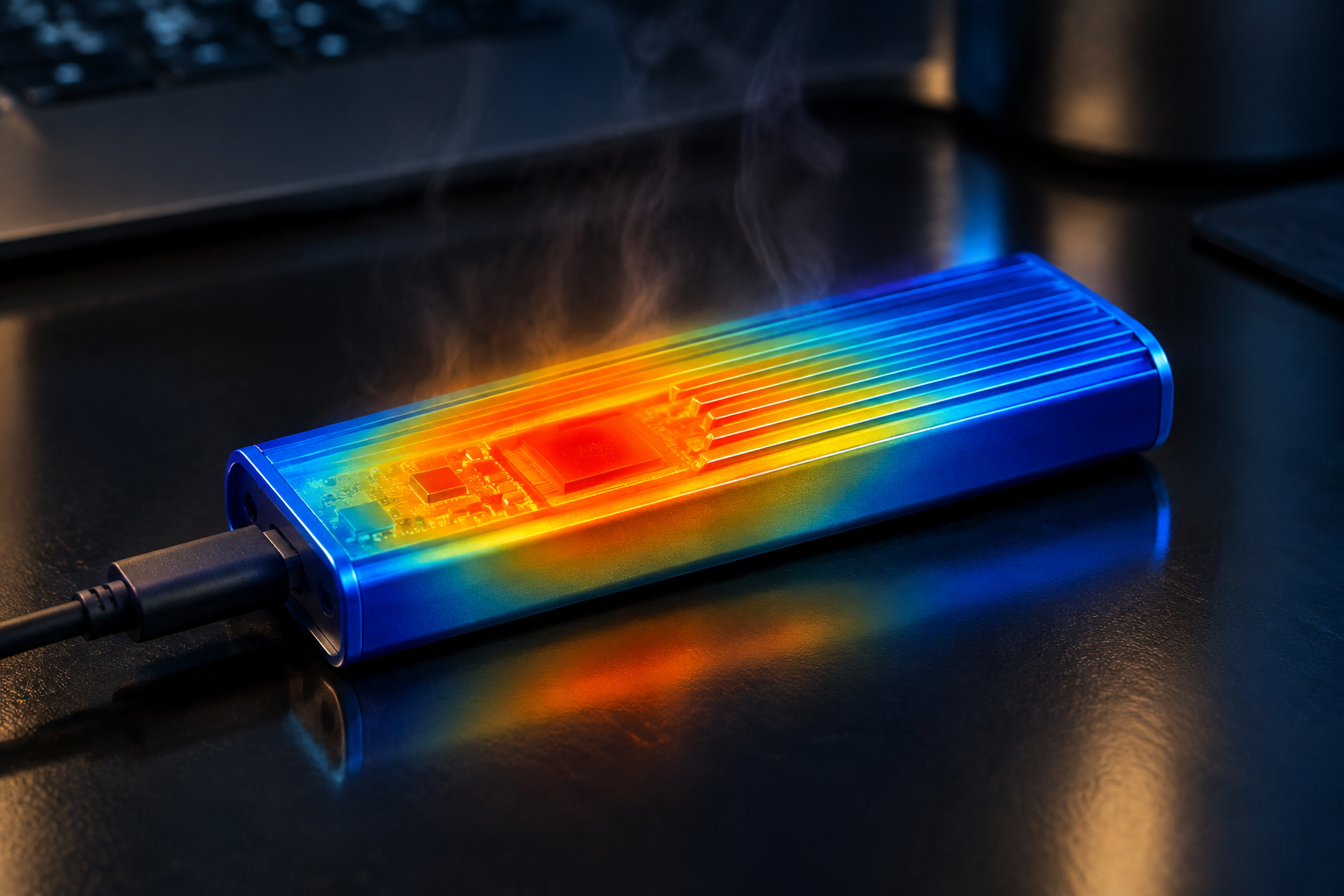
Small enclosures without any metal body or heatsink will throttle under sustained writes. You’ll often see a fast initial burst as the drive’s cache fills up, followed by a steep drop once the controller starts thermal throttling or the SLC cache runs dry on the underlying NAND. This is especially common with compact aluminum-free enclosures during large video file transfers.
File size and count matter just as much as raw drive speed. Copying one 50GB video file will get you close to the drive’s real sequential speed. Copying 50,000 small photos or project files introduces massive overhead from filesystem metadata operations, and you might see speeds drop to 100 to 300 MB/s even on a drive capable of 2,000 MB/s sequentially. Filesystem choice plays a role too, exFAT and NTFS handle large numbers of small files differently, and formatting overhead can add measurable delay on Mac to PC transfers.
If you’re trying to decide whether an external SSD upgrade is even worth it for your workflow, our guide on whether an external SSD will make your laptop faster walks through realistic expectations. And if you’re comparing internal upgrade paths instead, SATA vs NVMe SSD for gaming covers the same interface differences from an internal drive perspective.
Frequently Asked Questions
Why does my external SSD benchmark fast but transfer slow in real use?
Benchmarks typically test large sequential blocks at optimal queue depths, which rarely matches how you actually copy files. Real transfers involve small files, filesystem overhead, thermal throttling over time, and whatever bottleneck exists in your cable, port, or enclosure bridge chip. Any one of those can drag speeds well below the benchmark number even though the drive itself is fine.
How do I know if my enclosure supports NVMe speeds or just SATA speeds?
Check the enclosure’s listed interface, not just the M.2 slot type. If it specifies USB 3.2 Gen 2 only, you’re capped around 1,000 MB/s regardless of the drive inside. If it lists USB4 or Thunderbolt 3/4 support with an NVMe bridge chip, and you’ve installed an actual NVMe M.2 drive rather than a SATA M.2 drive, you should be able to hit 2,000 MB/s or more with a proper cable.
This article contains affiliate links. We may earn a small commission at no extra cost to you.

James Kennedy is a writer and product researcher at Drives Hero with a background in IT administration and consulting. He has hands-on experience with storage, networking, and system performance, and regularly improves and optimizes his home networking setup.