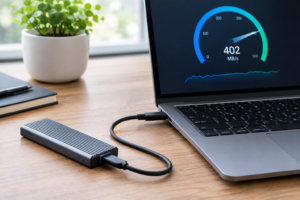
SSD Disconnects During Large File Transfers
You’re three-quarters through copying a 400GB video project when the external SSD just vanishes. Windows throws a “USB device not recognized” error, or the Finder icon on your Mac grays out mid-transfer. You unplug it, plug it back in, and it works fine again, until the next large file transfer kills it. This isn’t random bad luck. It’s almost always one specific link in a chain of hardware and software that’s failing under sustained load.
Find the Actual Weak Link in the Chain
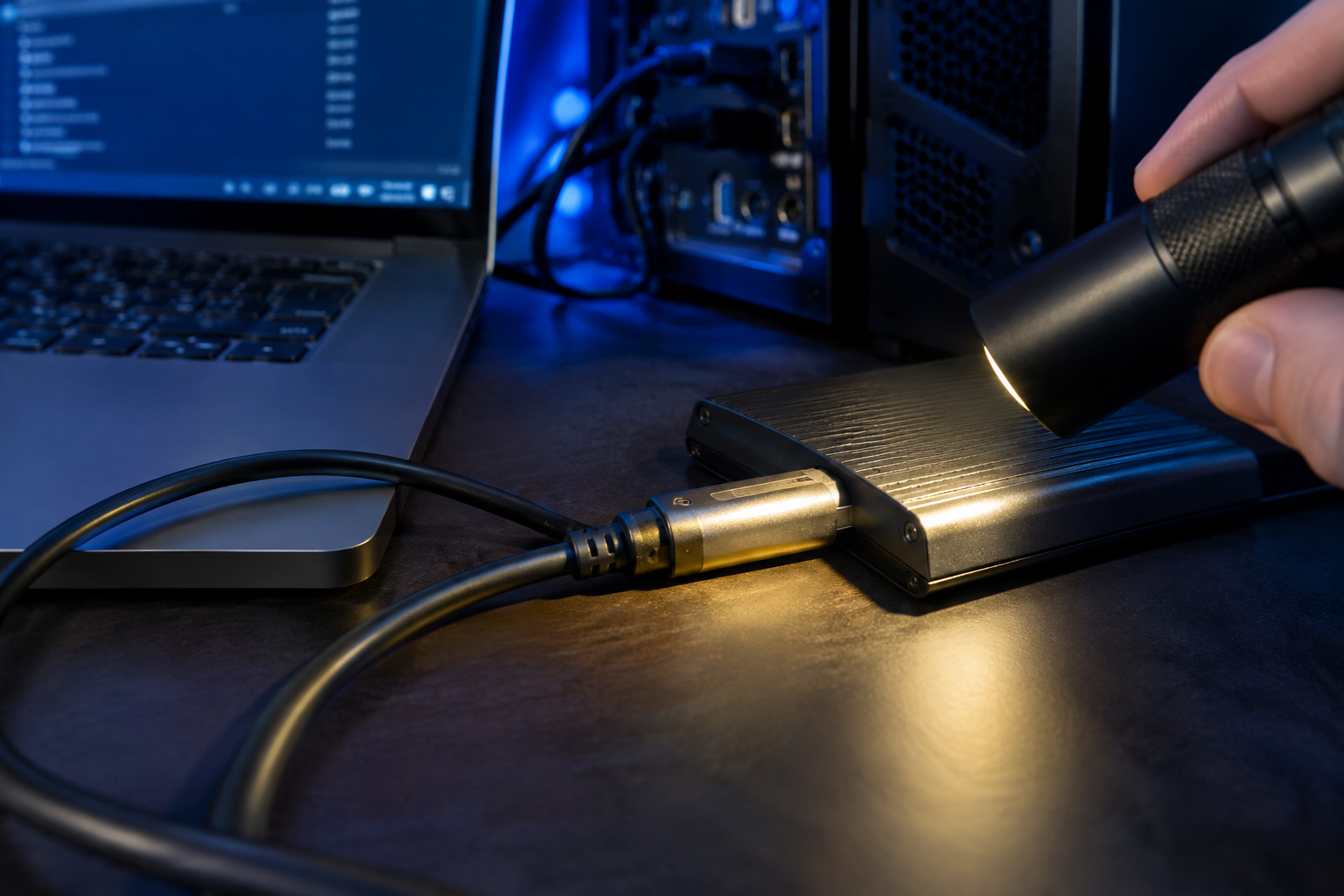
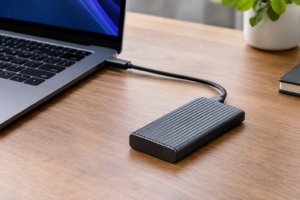
An external SSD setup has more moving parts than people assume: the NAND drive itself, the enclosure’s bridge controller, the cable, the USB or Thunderbolt standard it’s running, and the host port on your computer. A disconnect during a big transfer usually means one of these parts is getting stressed past what it can sustain, even if it works fine for small files.
Start with the cable. Cheap USB-C cables are the single most common cause of random drops, because a lot of them are charge-only or rated for USB 2.0 speeds despite having the right connector shape. If your enclosure is rated for 10Gbps or faster, you need a cable that’s actually certified for that bandwidth, not just one that physically fits. A USB-C data cable rated for 10Gbps is cheap insurance against this exact problem.
Anker USB-C to USB-C Cable 10Gbps
A properly rated cable eliminates the most common cause of random SSD disconnects during transfers.
Next, look at the enclosure’s bridge chip. This is the small controller that translates NVMe or SATA signals into USB or Thunderbolt data. Budget enclosures often use older ASMedia or JMicron bridges that overheat or choke under sustained writes lasting several minutes. A drive that disconnects only on transfers over 50 or 100GB, but never on small folders, is telling you the bridge chip can’t sustain the load, not that the SSD itself is bad.
SATA M.2 vs NVMe M.2: Same Slot, Different Rules
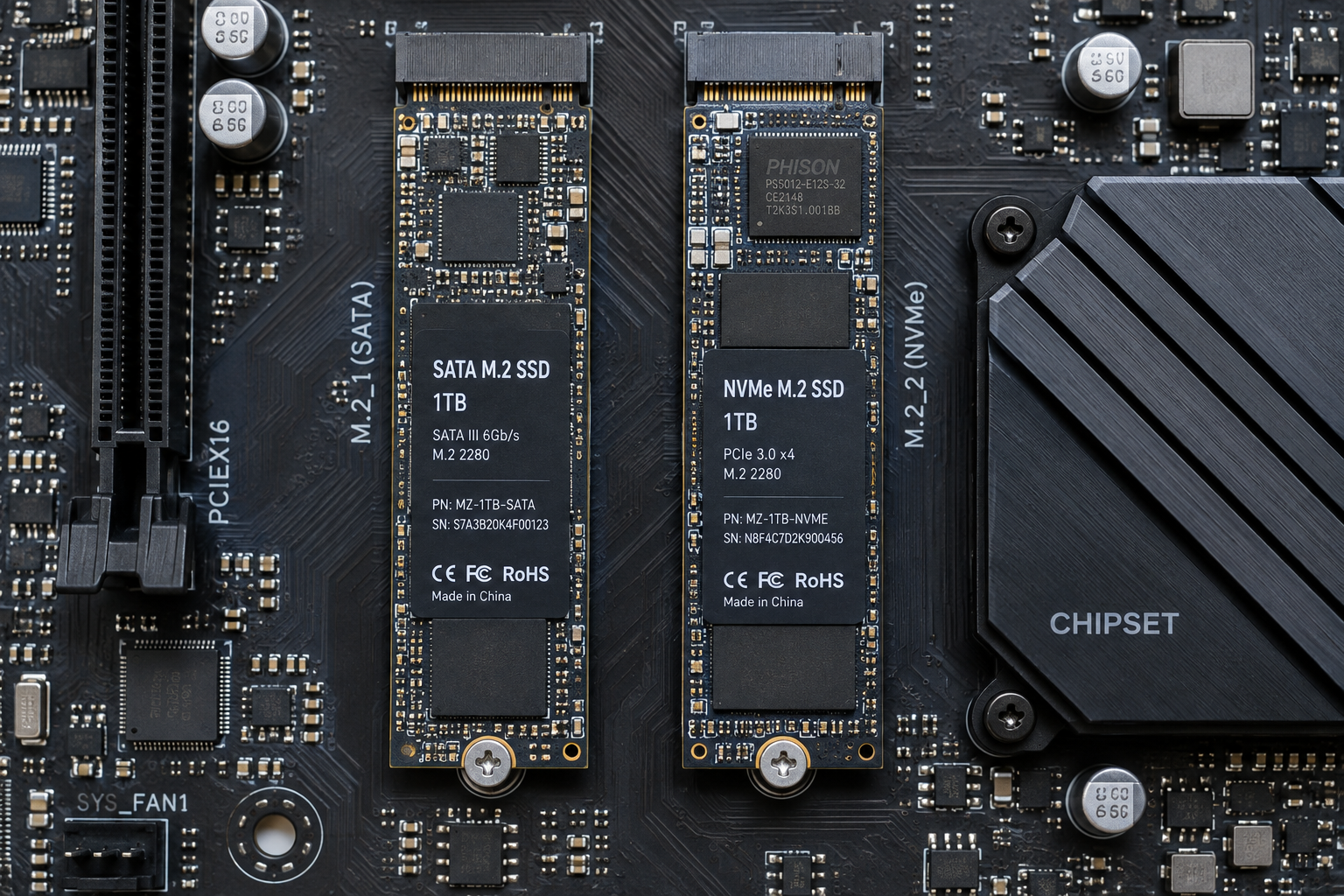
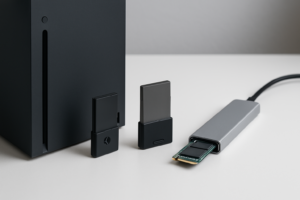
This is where a lot of people get burned buying enclosures. SATA M.2 and NVMe M.2 drives can look identical and fit the same physical slot, but they use completely different protocols. An enclosure built for NVMe drives will not work with a SATA M.2 drive, and vice versa, unless it explicitly supports both. If you buy a mismatched pair, you won’t just get slow speeds, you’ll often get a drive that mounts briefly and then disconnects entirely.
Check the enclosure listing for the exact phrase “NVMe only” or “SATA and NVMe” before buying, and check your drive’s label or spec sheet to confirm which protocol it uses. If you’re unsure how the two differ in real-world performance, our breakdown of SATA vs NVMe SSD performance covers the practical differences beyond just theoretical speeds.
Once you’ve confirmed compatibility, match the enclosure to the standard your drive can actually use. A NVMe drive stuck in a SATA-only enclosure will run at a fraction of its potential, which somewhat defeats the purpose of buying a fast drive in the first place, a point we cover in more detail in our article on whether NVMe is really faster than SATA SSDs.
ORICO NVMe M.2 SSD Enclosure USB4
A USB4/Thunderbolt-capable enclosure with an updated bridge chip handles sustained large transfers without the thermal throttling that causes disconnects.
Thermals, File Size, and Protocol Overhead
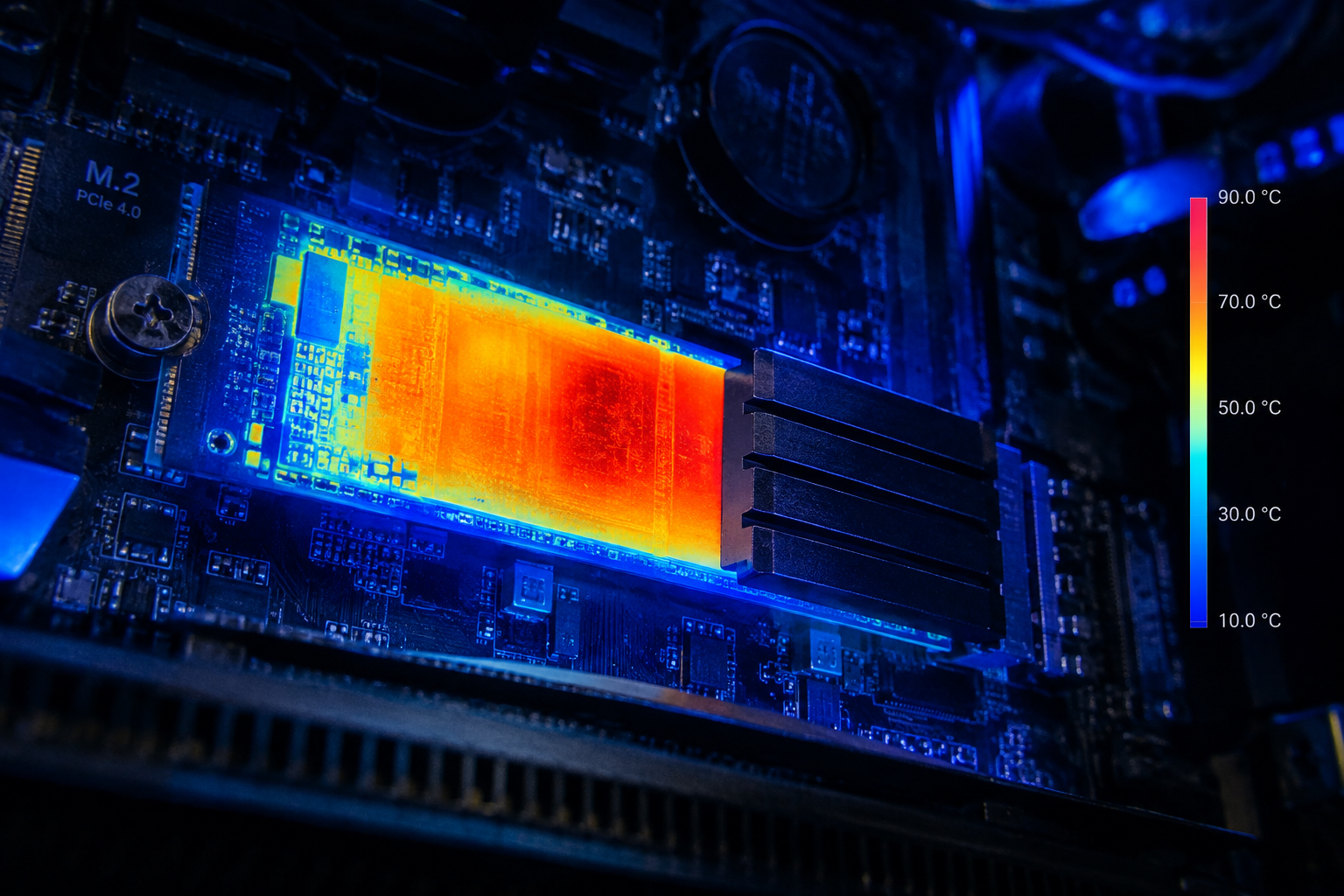
Heat is the quiet killer in most disconnect cases. A tiny aluminum enclosure with no thermal pad will throttle an NVMe drive within a couple minutes of sustained writes, and some controllers will drop the connection entirely rather than just slow down. If your enclosure feels hot to the touch after a large transfer, that’s your answer. Look for enclosures with a thermal pad pressed against the drive and, ideally, some exposed metal surface area.
File size and filesystem matter too. Transferring one giant 200GB file stresses sustained write speed and thermals far more than copying 50,000 small files, which instead stresses random I/O and file system overhead. If you’re moving huge video files across platforms, exFAT is usually your best bet since it handles large files without the 4GB limit of FAT32, though it’s slightly less efficient than NTFS or APFS on their native platforms.
Also set realistic expectations. USB 3.2 Gen 2’s 10Gbps rating translates to roughly 900 to 1,050 MB/s in ideal conditions, but real-world sustained transfers on a good NVMe enclosure usually land between 700 and 900 MB/s once protocol overhead and controller efficiency are factored in. Thunderbolt setups can sustain 2,000 to 2,600 MB/s realistically, well under the theoretical 40Gbps link speed. If your drive is disconnecting rather than just running slow, the bottleneck isn’t raw bandwidth, it’s stability under sustained load, which points back to the cable, enclosure, or thermals rather than the drive’s rated speed.
If you’re building out an external storage setup and want to understand whether the SSD itself will meaningfully speed up your workflow versus just adding capacity, our guide on whether an external SSD will make your laptop faster is a good next read.
Frequently Asked Questions
Why does my external SSD only disconnect during large transfers and never small ones?
Small file transfers finish before heat builds up or the bridge controller gets stressed, so problems that only show up after sustained minutes of writing, like thermal throttling or a marginal cable connection, never get triggered. Large transfers expose weaknesses that short bursts hide.
Is it the SSD, the enclosure, or the cable causing my disconnects?
Test each part separately if you can. Swap in a known-good 10Gbps rated cable first since that fixes the majority of cases, then try the drive in a different enclosure or the enclosure with a different drive. If the same drive disconnects across multiple enclosures and cables, the SSD itself is likely failing.
This article contains affiliate links. We may earn a small commission at no extra cost to you.

James Kennedy is a writer and product researcher at Drives Hero with a background in IT administration and consulting. He has hands-on experience with storage, networking, and system performance, and regularly improves and optimizes his home networking setup.