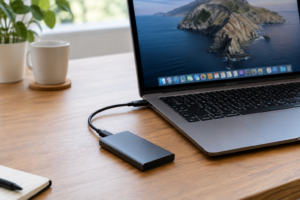
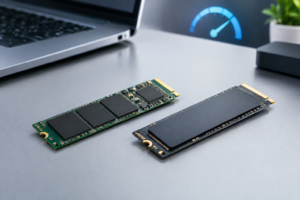
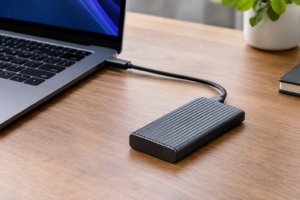
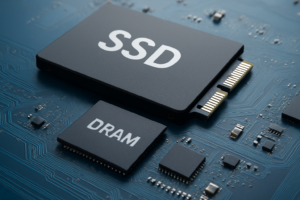
Thunderbolt 3 vs 4 vs 5 Storage Speed
If you’ve shopped for an external SSD in the last few years, you’ve probably noticed the alphabet soup on the box: Thunderbolt 3, Thunderbolt 4, Thunderbolt 5, USB4, sometimes all four labels crammed onto the same product. The numbers next to them promise wildly different speeds, but very few drives actually hit those numbers in daily use. Understanding the gap between what the spec sheet says and what your files actually do is the difference between buying the right drive and overpaying for bandwidth you’ll never touch.
This guide breaks down the theoretical bandwidth of each Thunderbolt generation, what that actually translates to in MB/s for storage, and why your drive rarely gets anywhere close to the advertised ceiling.
Thunderbolt Generations at a Glance
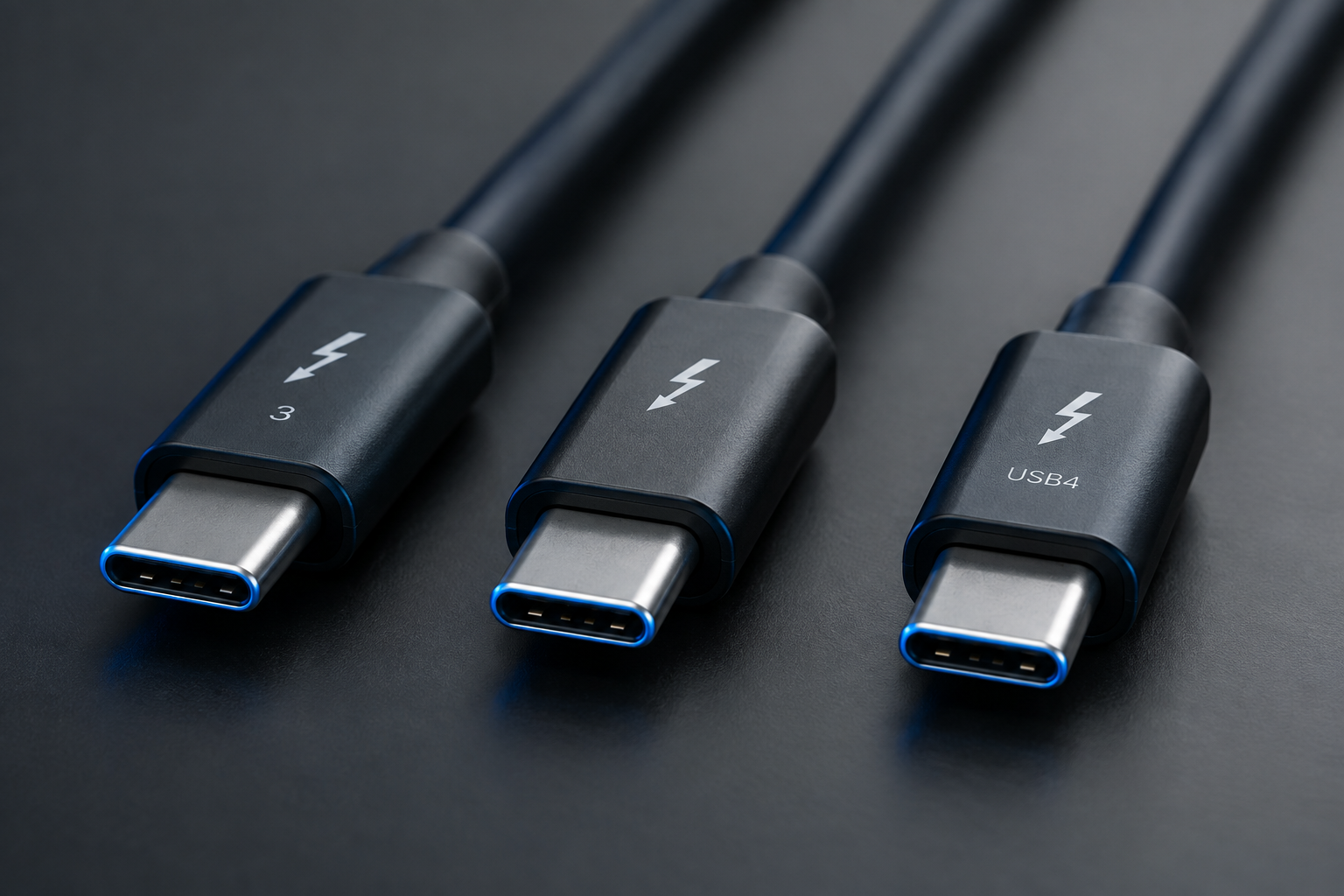
Before comparing real-world speeds, you need to know the raw interface bandwidth each standard is built on. These numbers are measured in Gbps (gigabits per second), which is not the same unit used to describe file transfer speed. Keep that distinction in mind, since it’s where most of the confusion starts.
- Thunderbolt 3: 40 Gbps total bidirectional bandwidth, introduced in 2015, uses the USB-C connector
- Thunderbolt 4: 40 Gbps total bandwidth (same ceiling as TB3), but with stricter minimum requirements for PCIe and display bandwidth
- Thunderbolt 5: 80 Gbps standard bandwidth, with a “Bandwidth Boost” mode that pushes up to 120 Gbps in one direction for display-heavy workloads
Notice that Thunderbolt 4 doesn’t actually increase raw speed over Thunderbolt 3. Its improvements are mostly about consistency: guaranteed minimum PCIe throughput, mandatory support for two 4K displays, and required support for 32GB RAM addressing on hosts. Thunderbolt 5 is the first real jump in interface bandwidth since 2015, doubling the base ceiling and tripling it in boost mode for certain configurations.
Gbps vs MB/s: Why the Math Never Lines Up Cleanly
This is where a lot of buyers get tripped up. Interface specs are quoted in gigabits per second (Gbps), but storage speed is measured in megabytes per second (MB/s). To convert, you divide by 8, since there are 8 bits in a byte. A 40 Gbps link, in theory, offers around 5,000 MB/s of raw bandwidth.
But that theoretical number never survives contact with reality. Every interface loses bandwidth to encoding overhead, protocol handshaking, and shared resources on the controller. Thunderbolt 3 and 4 use a data encoding scheme that reserves a chunk of that 40 Gbps for control signaling and error correction, not raw payload.
On top of that, Thunderbolt tunnels multiple protocols (PCIe for storage, DisplayPort for video, USB for peripherals) over the same physical link. If you’re driving an external display and moving files at the same time, they’re competing for the same 40 Gbps pipe. That’s a big reason why a drive that benchmarks beautifully on an empty desk performs worse the moment you plug in a monitor.
Real-World Storage Throughput by Generation
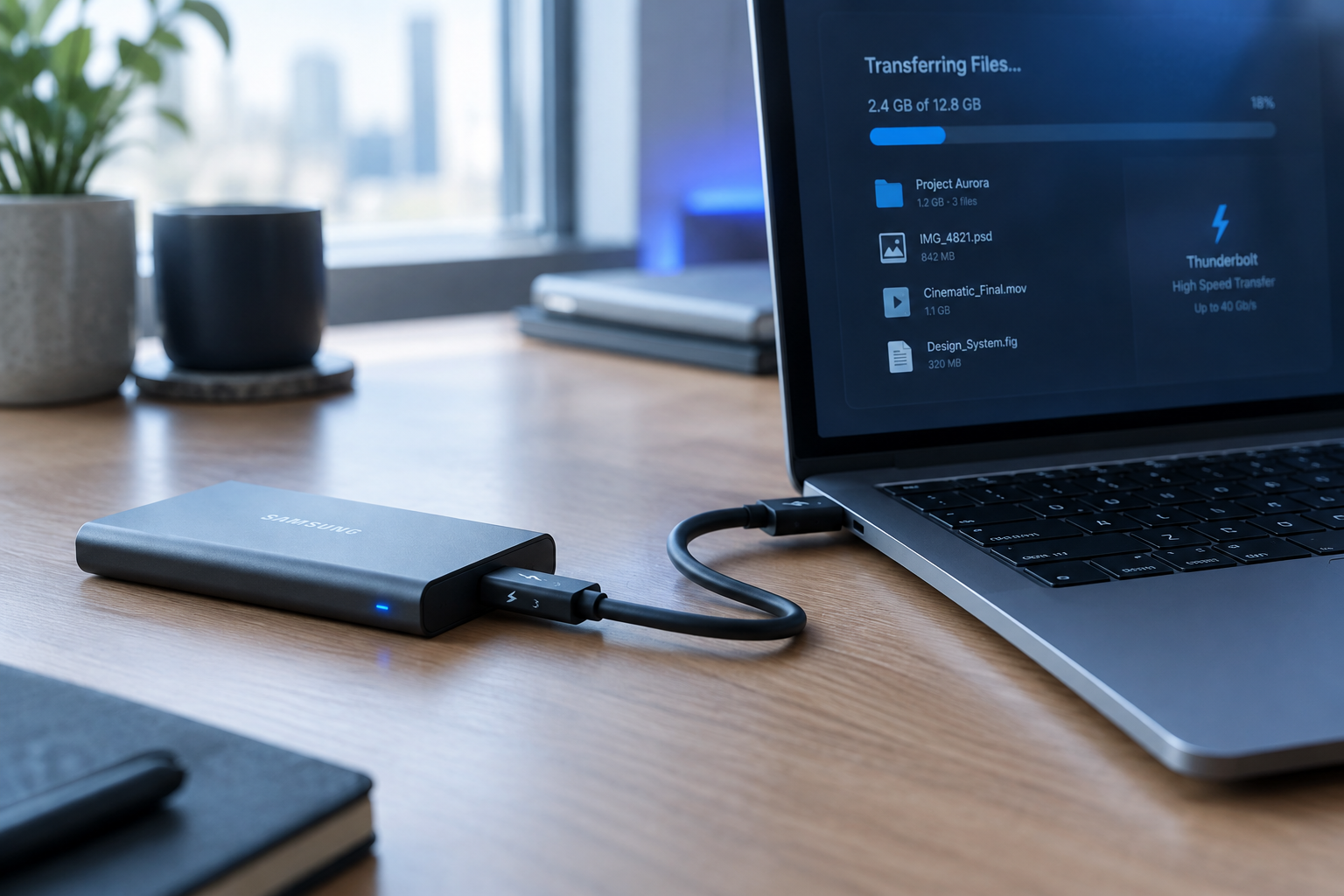
Here’s what you can realistically expect from a good NVMe-based external SSD on each Thunderbolt generation, based on typical PCIe controller and encoding overhead rather than marketing peak numbers.
- Thunderbolt 3: theoretical 40 Gbps (about 5,000 MB/s raw), real-world sustained storage throughput typically lands between 2,600 and 2,800 MB/s with a single high-end NVMe drive
- Thunderbolt 4: same 40 Gbps ceiling as TB3, same real-world range of roughly 2,600 to 2,800 MB/s, though enclosures are often better engineered for sustained loads
- Thunderbolt 5: theoretical 80 Gbps (up to 120 Gbps in boost mode), real-world storage throughput for current single-drive enclosures generally falls between 4,500 and 6,000 MB/s, depending on the NVMe drive and controller inside
Notice the pattern: no single generation lets you hit its full theoretical number with storage alone. Thunderbolt 3 and 4 top out around 65 to 70 percent of their raw bandwidth once you account for PCIe tunneling overhead and the practical limits of a single M.2 drive. Thunderbolt 5 shows a similar pattern, but the higher ceiling means even the “lost” bandwidth still leaves you with a huge jump over the previous generation.
If you want to actually approach the higher end of Thunderbolt 5’s range, you need a fast enough drive behind it. A single PCIe 4.0 NVMe SSD rated for around 7,000 MB/s sequential read is currently about the only class of drive that can feed a Thunderbolt 5 enclosure enough data to matter. Anything slower and the drive itself becomes the bottleneck long before the interface does.
Where the Bottleneck Actually Lives
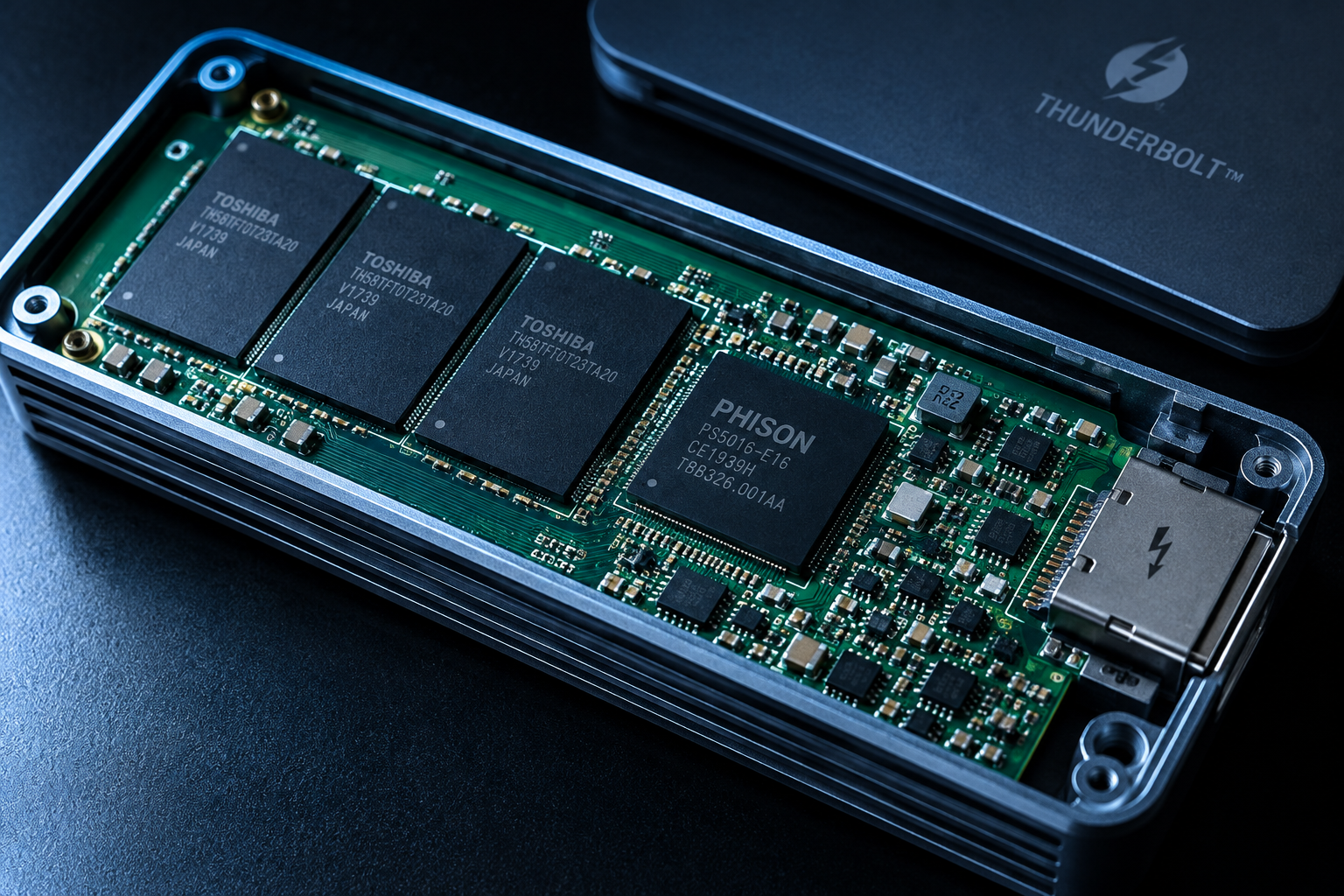
People often assume the Thunderbolt port is the limiting factor, but in most setups it’s the drive, the enclosure controller, or the cable that holds things back first.
- The NVMe drive itself: A budget PCIe 3.0 drive capped around 2,000 MB/s will never benefit from a Thunderbolt 5 enclosure. The interface has to wait on the drive, not the other way around.
- The enclosure’s bridge chip: Cheap Thunderbolt enclosures often use older or lower-grade controllers that can’t sustain top speeds, especially during long transfers once thermal throttling kicks in.
- The cable: Passive Thunderbolt cables longer than about 0.8 meters often can’t sustain full 40 Gbps signaling. Active cables solve this but cost more and add a small amount of latency.
- Thermal throttling: Small aluminum or plastic enclosures without airflow will slow down after a few minutes of sustained transfer, particularly with dense TLC or QLC NAND.
This is the same logic that applies to internal upgrades too. If you’ve read our breakdown on whether NVMe is really faster than SATA SSDs, you already know that the drive’s own architecture often matters more than the raw interface number stamped on the box. Thunderbolt is no different: the port is only as fast as the weakest link behind it.
Thunderbolt vs USB4: Why the Confusion Exists
Since Thunderbolt 3, both Intel and USB-IF have shared the same USB-C connector and a lot of overlapping technology, which is why so many cables and ports are labeled with both logos.
USB4 is based on Thunderbolt 3’s architecture and also tops out at 40 Gbps in its base spec, though a newer USB4 2.0 revision pushes to 80 Gbps, mirroring Thunderbolt 5’s numbers on paper. The practical difference is certification: Thunderbolt requires mandatory PCIe tunneling support and passes Intel’s compliance testing, while USB4 support for PCIe (and therefore external SSD speed) is technically optional depending on the manufacturer.
In plain terms, a port labeled Thunderbolt guarantees full-speed external storage support. A port labeled only USB4 might, but you’ll want to check the manufacturer’s spec sheet before assuming it’ll drive a fast NVMe enclosure at full speed.
Which Thunderbolt Generation Should You Actually Buy For?
If your laptop only has Thunderbolt 3 or 4 ports, don’t feel like you’re missing out on much for storage purposes. Both generations deliver essentially identical real-world SSD speeds, so buying a Thunderbolt 4 enclosure over a Thunderbolt 3 one mostly buys you better build consistency and multi-monitor support, not faster file transfers.
Thunderbolt 5 is worth chasing if you regularly move huge video files, work with RAW photo libraries, or edit 8K footage directly off an external drive. For general backup, everyday file syncing, or running a Steam library off an external SSD, Thunderbolt 3 or 4 speeds are already well past what a typical workflow needs.
If you’re deciding whether external storage is even the right move for your setup, our article on whether an external SSD will make your laptop faster walks through when external storage actually improves performance versus when it’s just added convenience. And if you’re still comparing drive types before you shop for an enclosure, the differences covered in NVMe SSD vs Intel SSD are a good starting point for understanding what’s inside these enclosures in the first place.
Practical Buying Tips
- Match the cable to the drive. A Thunderbolt 5 enclosure connected with a cheap passive USB-C cable won’t perform any better than Thunderbolt 3.
- Check the enclosure’s thermal design. Look for aluminum bodies or ones with a small heatsink if you plan on sustained transfers over several minutes.
- Don’t pay for Thunderbolt 5 if your drive can’t feed it. A drive limited to 3,500 MB/s sequential read gains nothing from an 80 Gbps port.
- Confirm your host port’s actual spec. Some laptops list “Thunderbolt compatible” ports that are really limited USB implementations without full PCIe tunneling.
Frequently Asked Questions
Is Thunderbolt 4 actually faster than Thunderbolt 3 for storage?
No, not for raw speed. Both share the same 40 Gbps ceiling, and real-world external SSD throughput lands in roughly the same 2,600 to 2,800 MB/s range on both. Thunderbolt 4’s advantages are around guaranteed minimum specs and multi-display support, not storage bandwidth.
Do I need Thunderbolt 5 for gaming off an external drive?
For most games, no. Thunderbolt 3 or 4 speeds already exceed what game load times require, since storage isn’t usually the bottleneck once you’re past a basic SATA SSD. If gaming performance is your main concern, our comparison on SATA vs NVMe SSD for gaming covers where the real gains show up.
Can I use a Thunderbolt 3 cable with a Thunderbolt 5 drive?
You can plug it in and it will work, but you’ll be capped at Thunderbolt 3 speeds since older cables aren’t certified or built to carry the higher signaling rate. Always buy the cable rated for the generation you’re trying to use, ideally one sold or certified alongside the enclosure.
Does an external Thunderbolt SSD perform as well as an internal NVMe upgrade?
It gets close on Thunderbolt 5, but internal NVMe drives connected directly via PCIe still avoid the tunneling and encoding overhead that external connections carry. If you’re weighing an internal upgrade instead, our guide on how important SSD choice is in a laptop is a good next read before you decide between external and internal storage.

James Kennedy is a writer and product researcher at Drives Hero with a background in IT administration and consulting. He has hands-on experience with storage, networking, and system performance, and regularly improves and optimizes his home networking setup.