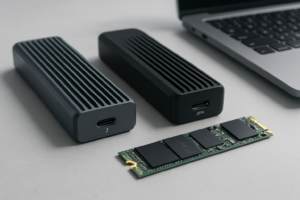
How to Tell Whether Your USB-C Port Is 5, 10, 20, or 40 Gbps
Plug in an external drive expecting blazing speeds and get file transfers that crawl along like a USB 2.0 flash drive from 2010. This happens constantly, and it’s rarely one single culprit. Your USB-C port, cable, enclosure, and drive all have their own speed ceiling, and your real-world transfer speed is only as fast as the slowest link in that chain.
Figuring out which piece is holding you back takes some detective work, but it’s not complicated once you know what to check. Let’s walk through each part of the chain so you can pinpoint exactly where your bottleneck lives.
Start With the Port Itself
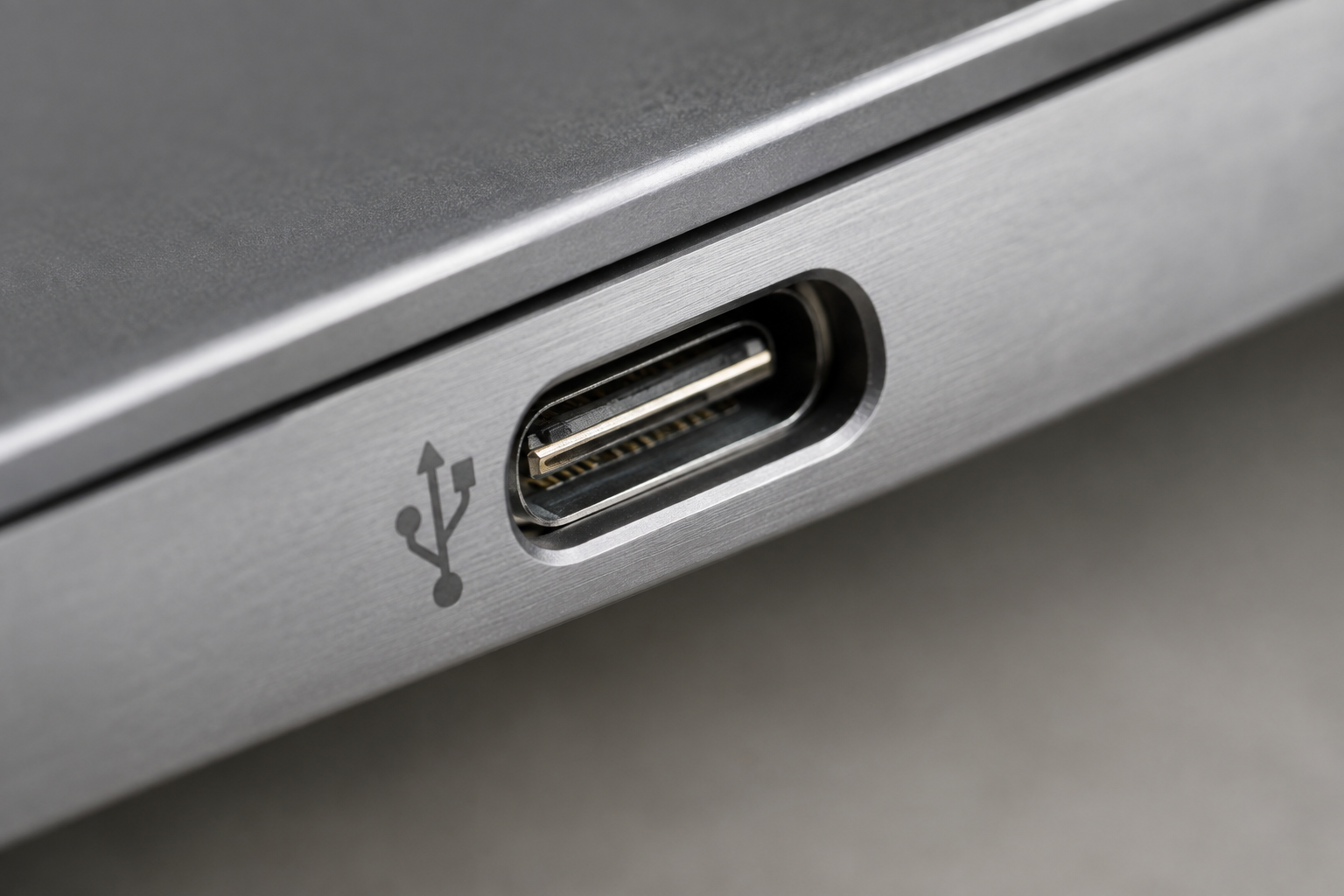
Not all USB-C ports are created equal, even on the same laptop. Manufacturers love using identical-looking ports that run at completely different speeds, USB 3.2 Gen 1 at 5Gbps, Gen 2 at 10Gbps, Gen 2×2 at 20Gbps, and Thunderbolt 3/4 or USB4 at 40Gbps.
Check your laptop or motherboard’s official spec sheet rather than guessing from the port shape. Some brands mark faster ports with a small lightning bolt icon (Thunderbolt) or “SS” with a number next to it. If you can’t find documentation, a USB-C tester that reads negotiated link speed in real time takes the guesswork out completely.
USB-C Tester with Data Speed Display
Shows the actual negotiated speed and power delivery of any USB-C connection, which is the fastest way to confirm what a port or cable is really capable of.
Keep in mind that many laptops share bandwidth across ports when multiple devices are connected, or route certain ports through a slower internal hub. A port that hits 10Gbps alone might drop when you’ve also got a monitor or dock plugged into a neighboring port.
The Cable Is Often the Real Culprit
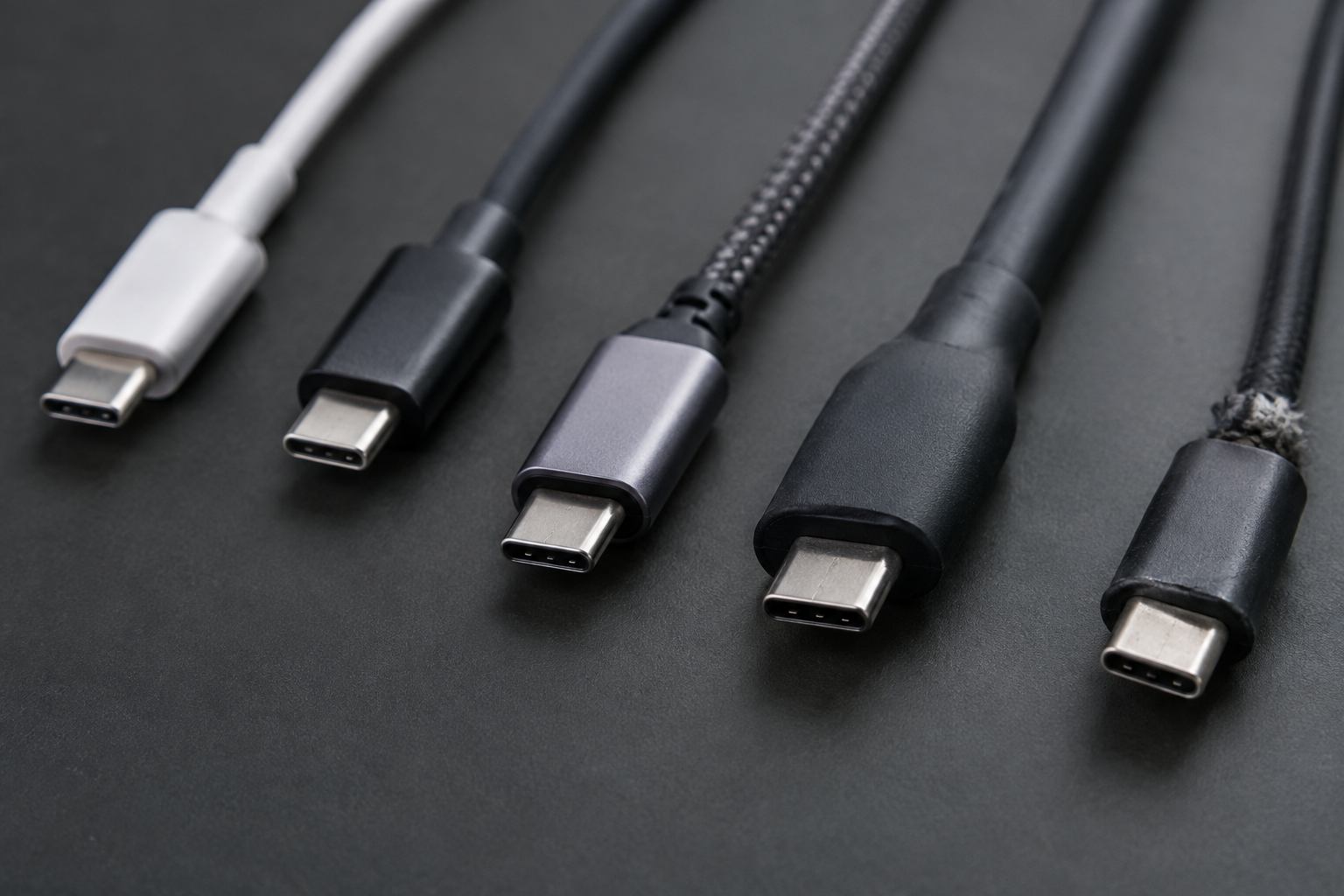
USB-C cables look identical whether they support 5Gbps or 40Gbps, and this is where most people get burned. A cheap charging cable that came with a phone will physically fit and even carry data, but it may cap out well below what your port and drive can actually do.
Thunderbolt 4 and USB4 cables rated for 40Gbps are typically shorter (under a meter) and cost more because they contain active electronics. Anything unmarked or unusually cheap and long is a red flag. If your transfer speeds seem stuck no matter what drive you try, swap the cable before you touch anything else.
SATA M.2 vs NVMe M.2: The Enclosure Trap
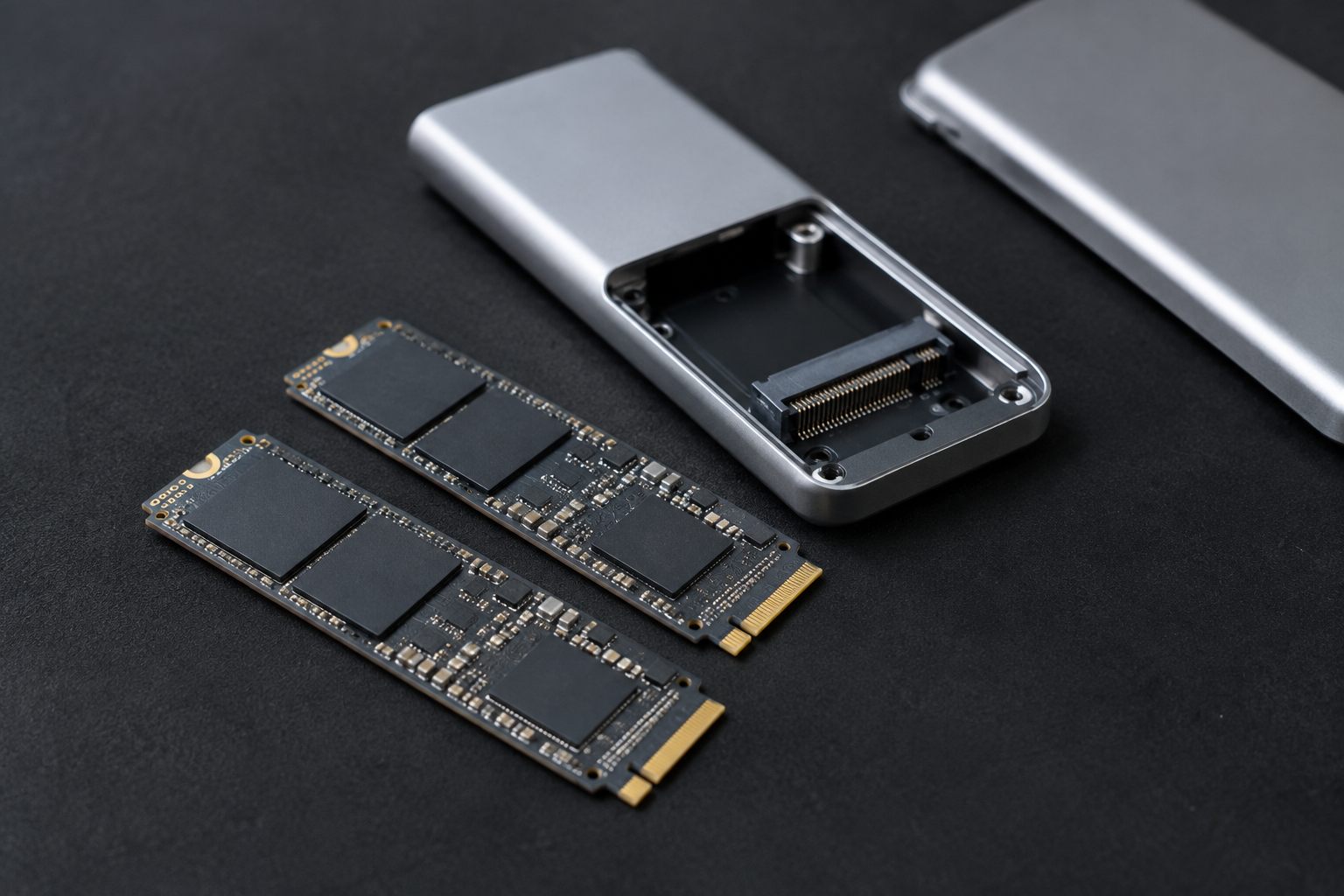
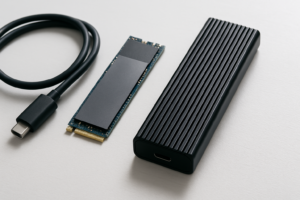
This is the mistake that trips up more people than anything else on this list. M.2 is just a physical connector shape, not a speed guarantee. A SATA M.2 SSD and an NVMe M.2 SSD can look identical side by side, but they use completely different protocols and top out at very different speeds.
SATA M.2 drives are limited to roughly 550MB/s regardless of what enclosure you put them in, because they’re bottlenecked by the SATA III interface itself. NVMe M.2 drives communicate over PCIe and can theoretically hit multiple gigabytes per second, but only if the enclosure has a bridge chip that actually supports NVMe.
Buying a 20Gbps or 40Gbps enclosure and dropping in a SATA M.2 drive won’t get you anywhere near those speeds. You’ll be stuck around 500MB/s no matter how fast the port is, because the drive itself is the bottleneck. Always check the enclosure’s product listing for explicit NVMe support, and confirm your drive is NVMe (not SATA) before you buy. This matters just as much for internal upgrades, which is why we cover the difference in more detail in our guide on NVMe SSD vs Intel SSD and our breakdown of whether NVMe is really faster than SATA SSDs.
Realistic Speeds vs Theoretical Link Rates
Marketing numbers describe the link’s maximum ceiling, not what you’ll see in everyday transfers. Here’s what to actually expect once protocol overhead, controller efficiency, and thermals are factored in:
- 5Gbps (USB 3.2 Gen 1): Realistic throughput of 350 to 420MB/s with a good SATA or NVMe drive.
- 10Gbps (USB 3.2 Gen 2): Realistic throughput of 700 to 950MB/s, still well under the 1.25GB/s theoretical max.
- 20Gbps (USB 3.2 Gen 2×2): Realistic throughput of 1,200 to 1,800MB/s, heavily dependent on the enclosure’s bridge chip quality.
- 40Gbps (Thunderbolt 4/USB4): Realistic throughput of 2,500 to 3,200MB/s with a fast NVMe drive, sometimes higher with premium controllers.
Beyond the link speed itself, several other factors quietly eat into your numbers. Cheap enclosure bridge chips (ASMedia and JMicron controllers vary a lot in efficiency) can leave 20 to 30 percent of theoretical bandwidth on the table. Thermal throttling is another big one, since compact aluminum or plastic enclosures without airflow will slow an NVMe drive down mid-transfer once it heats up.
File size and filesystem matter too. Transferring thousands of small files always performs worse than one large file because of per-file overhead, and exFAT or NTFS formatting can shift results by 10 to 15 percent depending on your operating system. None of this means the drive is defective, it’s just how real-world data transfer works outside of a benchmark chart.
If you’re shopping for a new enclosure and want to skip the guesswork entirely, look at ones built specifically around Thunderbolt or USB4 with metal housings for heat dissipation. A solid pairing here is something like the Samsung T7 Shield, which handles thermals well for a compact drive.
Sabrent Thunderbolt 3 NVMe Enclosure
A reliable enclosure with confirmed NVMe support and a metal body that helps avoid the thermal throttling that kills sustained transfer speeds.
If you’re trying to decide whether an external SSD is even worth it for your setup, our article on whether an external SSD will make your laptop faster covers the practical side of that decision.
Frequently Asked Questions
Why does my “40Gbps” drive only hit 1,000MB/s?
This almost always traces back to either a SATA M.2 drive in an NVMe-rated enclosure, a cable that doesn’t support full bandwidth, or a host port that negotiated down to a lower speed. Test with a known-good short Thunderbolt cable and confirm the drive type before assuming the enclosure is defective.
Does the filesystem format actually affect transfer speed?
Yes, though usually not dramatically. exFAT tends to perform a bit better than NTFS on external drives used across both Mac and Windows, especially with large files. The bigger factor is almost always file count and size rather than filesystem choice, since transferring one 10GB file will beat transferring 10,000 small files every time.
This article contains affiliate links. We may earn a small commission at no extra cost to you.

James Kennedy is a writer and product researcher at Drives Hero with a background in IT administration and consulting. He has hands-on experience with storage, networking, and system performance, and regularly improves and optimizes his home networking setup.