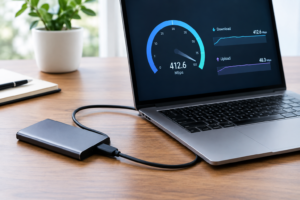
NVMe SSD in a SATA Enclosure: Will It Work?
You bought a bare NVMe drive because it was on sale, or you pulled one out of an old laptop during an upgrade, and now you’re staring at a SATA M.2 enclosure wondering if you can just drop the drive in and call it a day. The short answer is that it depends entirely on what “SATA enclosure” actually means in your case, and the physical fit tells you almost nothing about whether it will work. Let’s sort out what actually matters here, because this trips up more people than you’d think.
SATA M.2 and NVMe M.2 Are Not the Same Thing
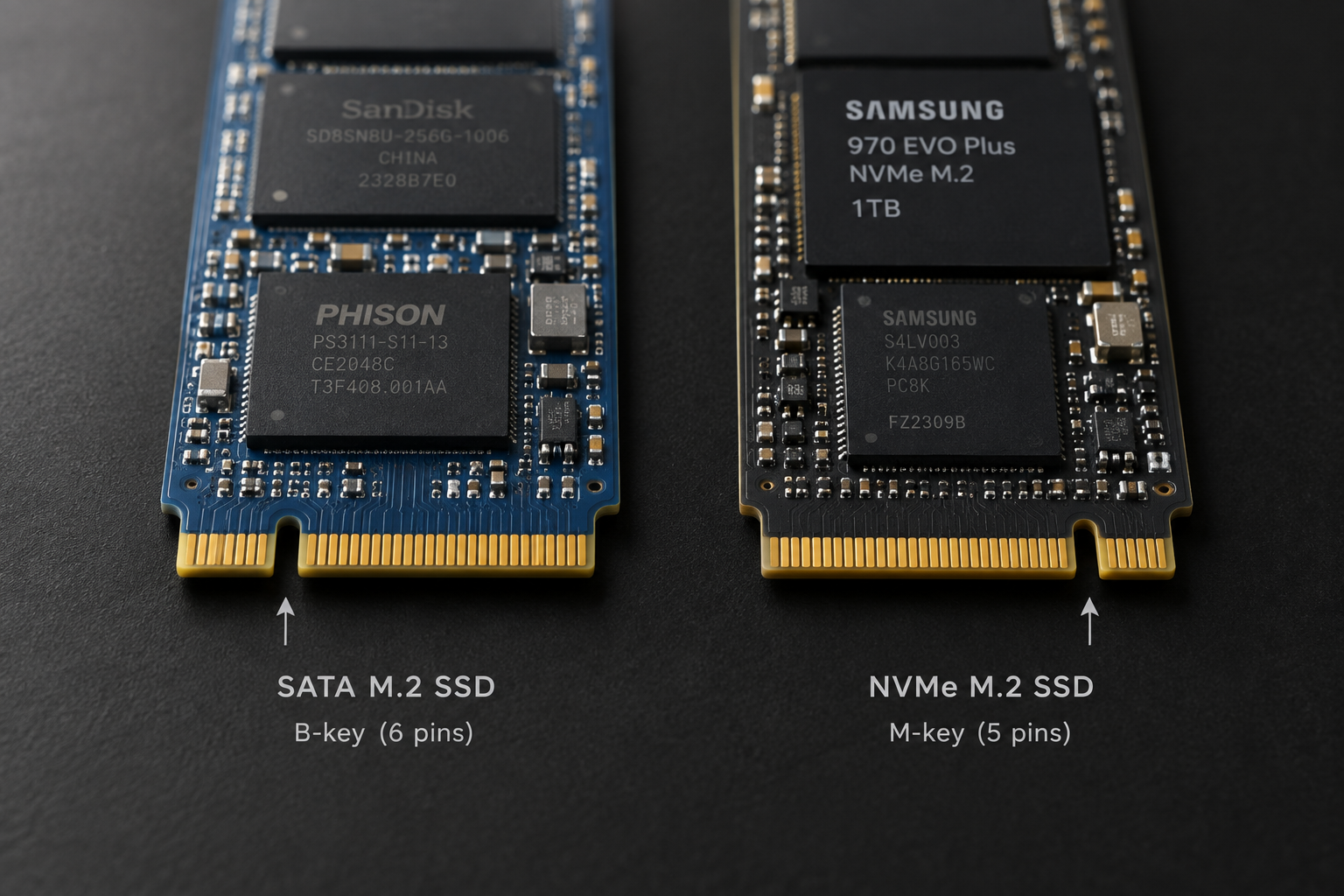
This is the part that causes the most confusion, and it’s not your fault. Both drive types use the identical M.2 physical connector, so a SATA M.2 SSD and an NVMe M.2 SSD look basically the same and slide into the same slot. But they speak completely different languages electrically.
SATA M.2 drives use the old AHCI protocol, the same one used by 2.5 inch SATA SSDs and hard drives for the last two decades. NVMe M.2 drives use the PCIe bus directly and a completely different command set built for flash memory. An enclosure built around a SATA bridge controller physically cannot translate NVMe commands. It’s not a speed issue, it’s a language barrier. The drive simply won’t be recognized, or it’ll show up as an unformatted or corrupted device.
If you’re not sure which type of drive you’re holding, check the notch position on the connector and look up the exact model number on the manufacturer’s site before buying an enclosure. Guessing based on the key notch alone isn’t reliable enough, since some drives support both B+M and M keys but only function as NVMe.
What the Enclosure Bridge Chip Actually Does
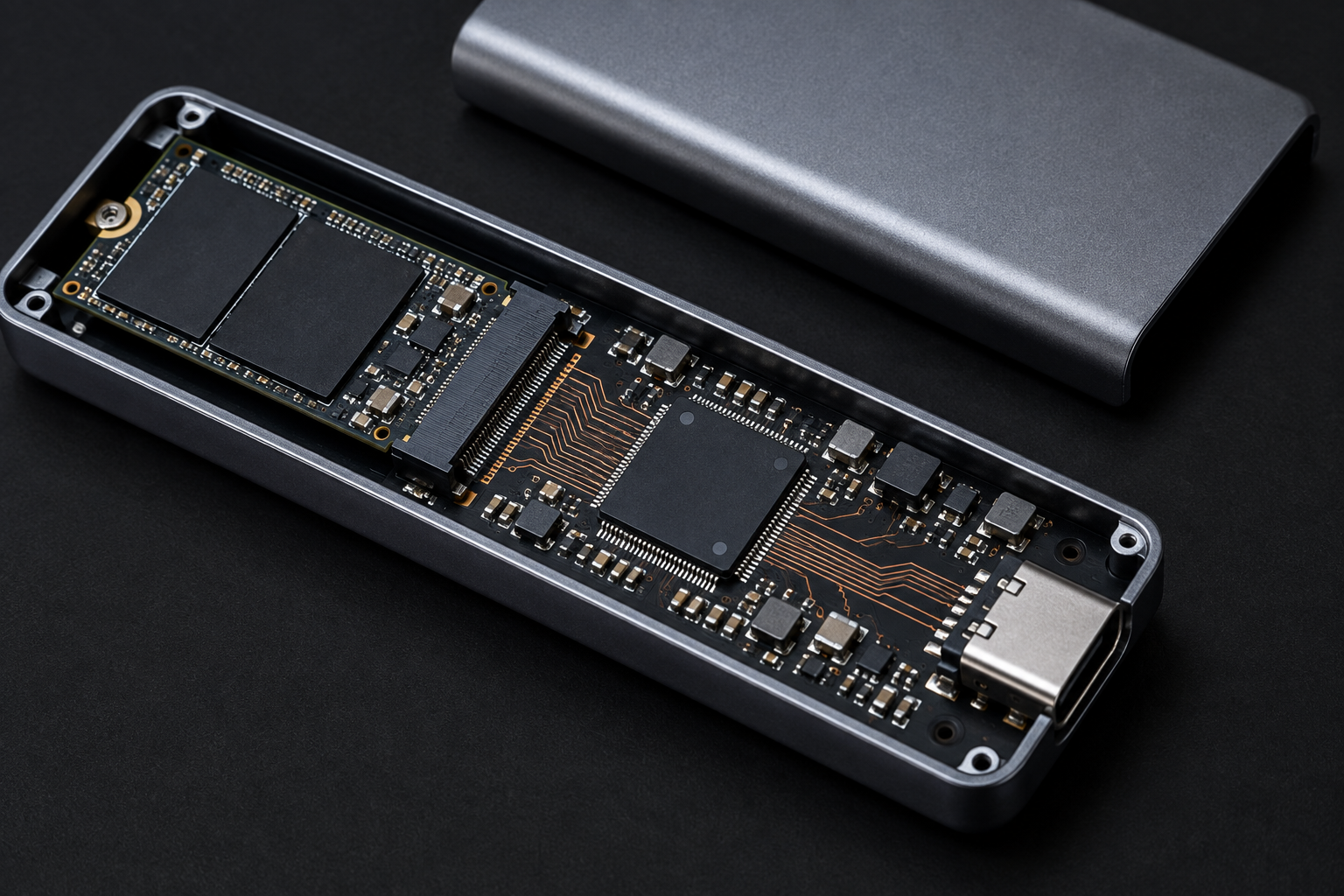
Every external enclosure has a small controller chip that bridges the drive’s native protocol (SATA or NVMe/PCIe) to the external interface (USB or Thunderbolt). This bridge chip is the real gatekeeper, and it matters just as much as the drive inside.
Cheap enclosures often use older or lower quality bridge chips that cap out well below what the drive or the USB standard could theoretically support. A JMicron or ASMedia chip from a budget-tier enclosure might bottleneck a fast NVMe drive down to speeds barely better than SATA. A quality bridge chip from Realtek or ASMedia’s newer lineup, paired with a proper NVMe to USB translation layer, is what actually lets you see the performance gains that made you buy an NVMe drive in the first place.
This is why two enclosures that look nearly identical and cost about the same can perform completely differently. The listing rarely tells you which bridge chip is inside, so checking user reviews and teardown videos before buying saves a lot of frustration.
Sabrent NVMe USB 3.2 Enclosure
A reliable NVMe-to-USB enclosure with a proven bridge chip that actually delivers on advertised speeds. |
USB Standard and Host Port: The Ceiling You Can’t Exceed
Your enclosure and drive can be perfectly matched, but if you plug into an old USB 3.0 port, you’re stuck at that port’s ceiling no matter what. USB standards are confusing on purpose thanks to marketing renames, so here’s the practical breakdown:
- USB 3.2 Gen 1 (formerly USB 3.0): theoretical 5Gbps, realistic throughput around 350 to 420 MB/s
- USB 3.2 Gen 2: theoretical 10Gbps, realistic throughput around 850 to 1000 MB/s
- USB 3.2 Gen 2×2: theoretical 20Gbps, realistic throughput around 1700 to 1900 MB/s, but support is spotty on both host and enclosure sides
- Thunderbolt 3/4 and USB4: theoretical 40Gbps, realistic sustained throughput around 2500 to 3000 MB/s depending on the drive and controller
Notice none of these hit their theoretical number in real use. Overhead from the protocol itself, plus encoding losses, plus the bridge chip’s own limitations, all eat into that number. If someone tells you their USB 3.2 Gen 2 enclosure hits a full 10 Gbps of usable data, they’re rounding generously.
Also check what port you’re actually plugging into. Laptops frequently mix USB-C ports that support different speeds on the same chassis, one might be USB4 and the port right next to it might be USB 3.2 Gen 1. If you’re troubleshooting slow transfer speeds, this is one of the first things worth ruling out.
Cables Matter More Than People Assume
A USB-C cable that came in the box with your phone charger might carry a C to C connector, but that doesn’t mean it supports data transfer at anything beyond USB 2.0 speeds. Cheap cables are often built for charging only, with two of the four high-speed data lanes simply not wired.
For USB 3.2 Gen 2 speeds you need a certified cable rated for at least 10Gbps. For Thunderbolt or USB4 at full 40Gbps, you need an actively certified Thunderbolt cable, and those get noticeably more expensive as length increases past about half a meter. If your enclosure is underperforming and everything else checks out, swap the cable before you troubleshoot anything else. It’s the cheapest and most overlooked fix in the entire chain.
Thermals Inside a Tiny Metal Box
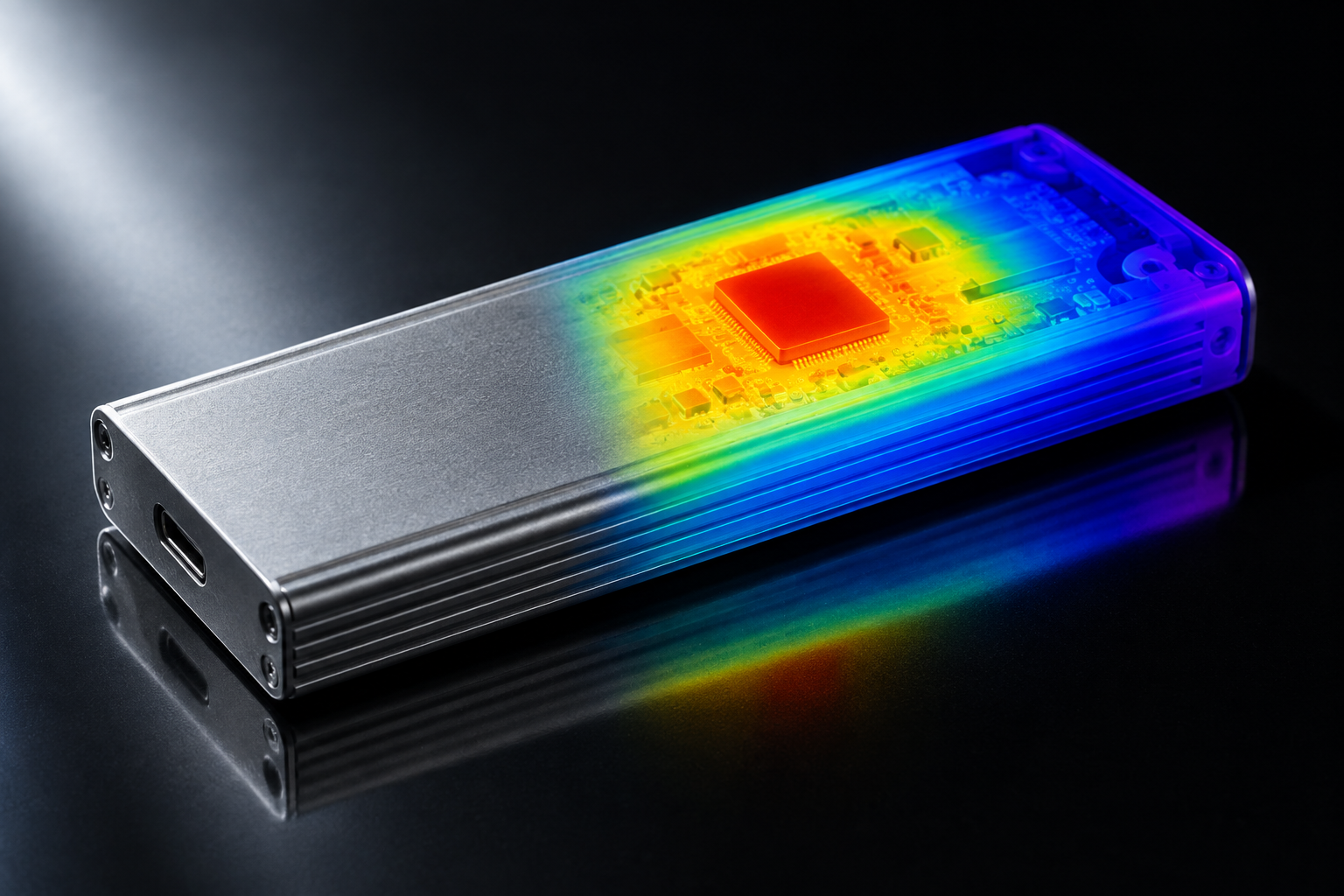
NVMe drives run hot under sustained load, and enclosures are small enclosed spaces with little to no airflow. Once the drive’s controller hits its thermal limit, it throttles itself, and your transfer speed can drop by half or more partway through a large copy job.
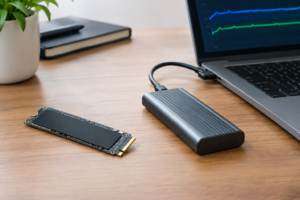
Aluminum enclosures with a thermal pad contacting the drive dissipate heat far better than plastic shells. If you’re planning to move large video files or do sustained backups regularly, spend a little more for a metal enclosure with proper thermal contact rather than the cheapest plastic option available.
ORICO Aluminum M.2 NVMe Enclosure
Metal housing with a thermal pad keeps sustained transfers from throttling on longer jobs. |
File Size, Filesystem, and Protocol Overhead
Even with a perfect enclosure, cable, and port, your real-world speed depends heavily on what you’re actually moving. Copying one massive video file will get you close to the drive’s sequential speed ceiling. Copying ten thousand small photos or project files tanks throughput because small file transfers are dominated by random access overhead, not sequential bandwidth.
Filesystem choice matters too. exFAT is the common cross-platform choice for external drives but has more overhead per file operation than NTFS or APFS. If you’re doing a one-time bulk transfer of huge files, the difference is minor. If you’re using the enclosure as a working scratch drive with lots of small file writes, it’s noticeable.
This is also where NVMe’s protocol advantage over SATA actually shows up in daily use, not just in benchmark charts. If you want the deeper technical breakdown of why NVMe pulls ahead even outside of raw sequential numbers, our article on whether NVMe is really faster than SATA SSDs covers the protocol-level reasons in detail.
Realistic Throughput: What to Actually Expect
Set your expectations based on the full chain, not just the drive’s rated speed on the box. Here’s roughly what you should expect in the real world:
- NVMe drive in a USB 3.2 Gen 2 enclosure: 850 to 1000 MB/s sequential, well below the drive’s internal PCIe potential but still two to three times faster than SATA
- NVMe drive in a USB4/Thunderbolt enclosure: 2000 to 3000 MB/s sequential on a good bridge chip, though many budget Thunderbolt enclosures land closer to 1500 to 2000 MB/s
- SATA M.2 drive in any USB enclosure: capped around 500 to 550 MB/s regardless of USB standard, because the drive itself is the bottleneck
If your goal is squeezing every bit of speed out of a fast NVMe drive, pairing it with anything less than USB 3.2 Gen 2 is leaving a lot of performance on the table. For comparisons on how this plays out for specific use cases like gaming or general laptop upgrades, check out our breakdown of SATA vs NVMe SSD for gaming.
Picking the Right Enclosure for Your Drive
Match the enclosure to the drive type first, then match the interface to your actual needs. If you’re using a leftover SATA M.2 drive, a basic SATA M.2 USB enclosure is all you need, and spending extra on a Thunderbolt model would be wasted money since the drive can’t use that bandwidth anyway.
For an NVMe drive, decide whether USB 3.2 Gen 2 is good enough for your workflow or whether you need Thunderbolt/USB4 speeds for things like video editing off the external drive. Most people moving files, backing up photos, or running games off an external drive are perfectly served by USB 3.2 Gen 2. Video editors and anyone working with large RAW files benefit more from stepping up to a Thunderbolt enclosure.
Sabrent Thunderbolt 3 NVMe Enclosure
Built for users who need the full bandwidth of a fast NVMe drive for demanding editing workflows. |
Whichever route you take, it’s worth reading a few verified reviews mentioning actual transfer speeds rather than trusting the marketing copy on the listing. Real users copying real files will tell you more than a spec sheet ever will. If you’re weighing whether an external SSD setup like this is even worth it for your laptop, our guide on whether an external SSD will make your laptop faster walks through when it actually helps and when it doesn’t.
Frequently Asked Questions
Can I put an NVMe drive in any M.2 enclosure I already own?
Only if that enclosure was specifically built for NVMe/PCIe drives. A SATA-only M.2 enclosure will not recognize an NVMe drive at all, even though the drive physically fits. Check the enclosure’s listed specs for “NVMe” or “PCIe” support, not just the M.2 slot type.
Why is my NVMe drive in a USB enclosure so much slower than it was internally?
This usually comes down to the enclosure’s bridge chip, the USB standard on your host port, or an underrated cable. It’s rarely the drive itself unless it’s overheating from sustained use in a poorly ventilated enclosure.
Does the enclosure brand actually matter, or are they all the same inside?
Brand matters less than the specific bridge chip and build quality inside, and different enclosures from the same brand can use entirely different chips. Established brands like Sabrent, ORICO, and UGREEN tend to be more consistent about disclosing chipset details and supporting firmware updates.
Is it worth buying an expensive Thunderbolt enclosure for an average laptop drive?
Not usually. If your NVMe drive’s own rated sequential speed tops out around 3000 to 3500 MB/s, a good USB 3.2 Gen 2 enclosure already gets you a large chunk of usable performance for less money. Thunderbolt only pays off if your drive can genuinely push past what Gen 2 allows and your workflow actually benefits from it.
This article contains affiliate links. We may earn a small commission at no extra cost to you.

James Kennedy is a writer and product researcher at Drives Hero with a background in IT administration and consulting. He has hands-on experience with storage, networking, and system performance, and regularly improves and optimizes his home networking setup.