Why Does My External SSD Get Hot?
Your external SSD feels hot enough to fry an egg, and now you’re wondering if it’s about to die on you mid-transfer. Before you panic, know that some heat is completely normal for these drives. The real question is whether the heat you’re seeing is just a byproduct of fast data transfer or a sign that something in the chain is actually holding your drive back.
The truth is that heat and speed are tied together in ways most people don’t expect. A drive that runs cool might just be a slow drive. A drive that runs hot might be pushing serious throughput, or it might be a fast drive stuck behind a slow bottleneck and choking on its own heat as a result. Let’s break down where that heat actually comes from.
Where the Heat Actually Comes From
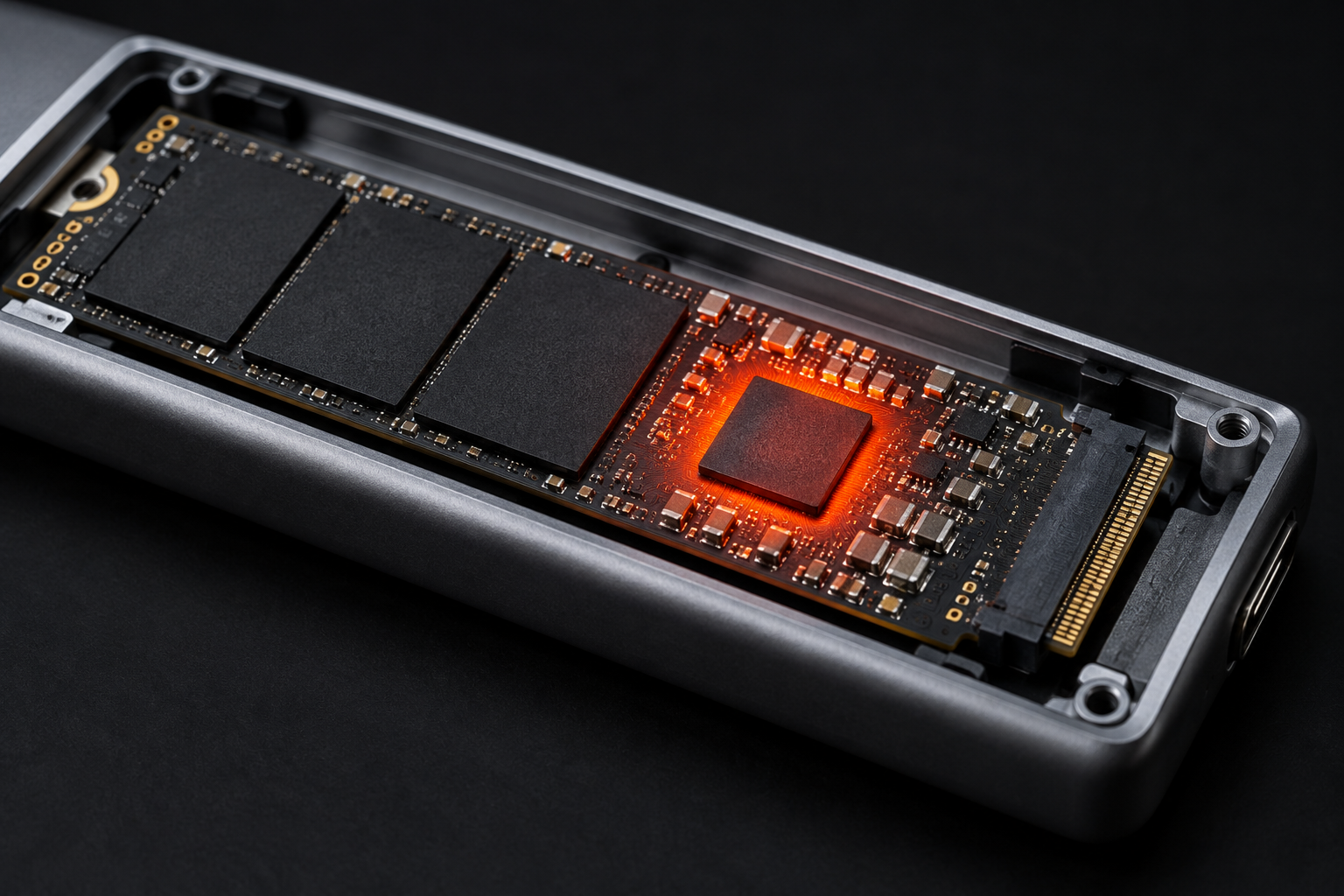
An external SSD is really a small system made of several parts, and any one of them can be the source of the heat you’re feeling.
- The NAND flash and controller on the drive itself. This is the actual SSD, whether it’s a 2.5 inch SATA drive or a bare M.2 stick tucked inside an enclosure. Sustained writes force the controller to work constantly, and that generates heat on its own.
- The enclosure’s bridge chip. This is the small controller that translates the drive’s native protocol into USB or Thunderbolt data. Cheap bridge chips run hotter and throttle sooner than quality ones from brands like ASMedia or JMicron.
- The USB or Thunderbolt connection itself. Power delivery through the cable and port generates its own heat, especially at higher transfer speeds.
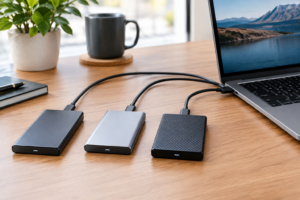
- The enclosure shell. Plastic enclosures trap heat. Aluminum enclosures act as passive heatsinks and often run noticeably cooler under the same workload.
When people say “my SSD is overheating,” they usually mean the enclosure surface feels hot to the touch. That’s often the aluminum shell doing exactly what it’s supposed to do, pulling heat away from the components inside so it doesn’t build up around the sensitive electronics. A warm aluminum case is often a sign of good thermal design, not a problem.
SATA M.2 vs NVMe M.2: The Compatibility Trap
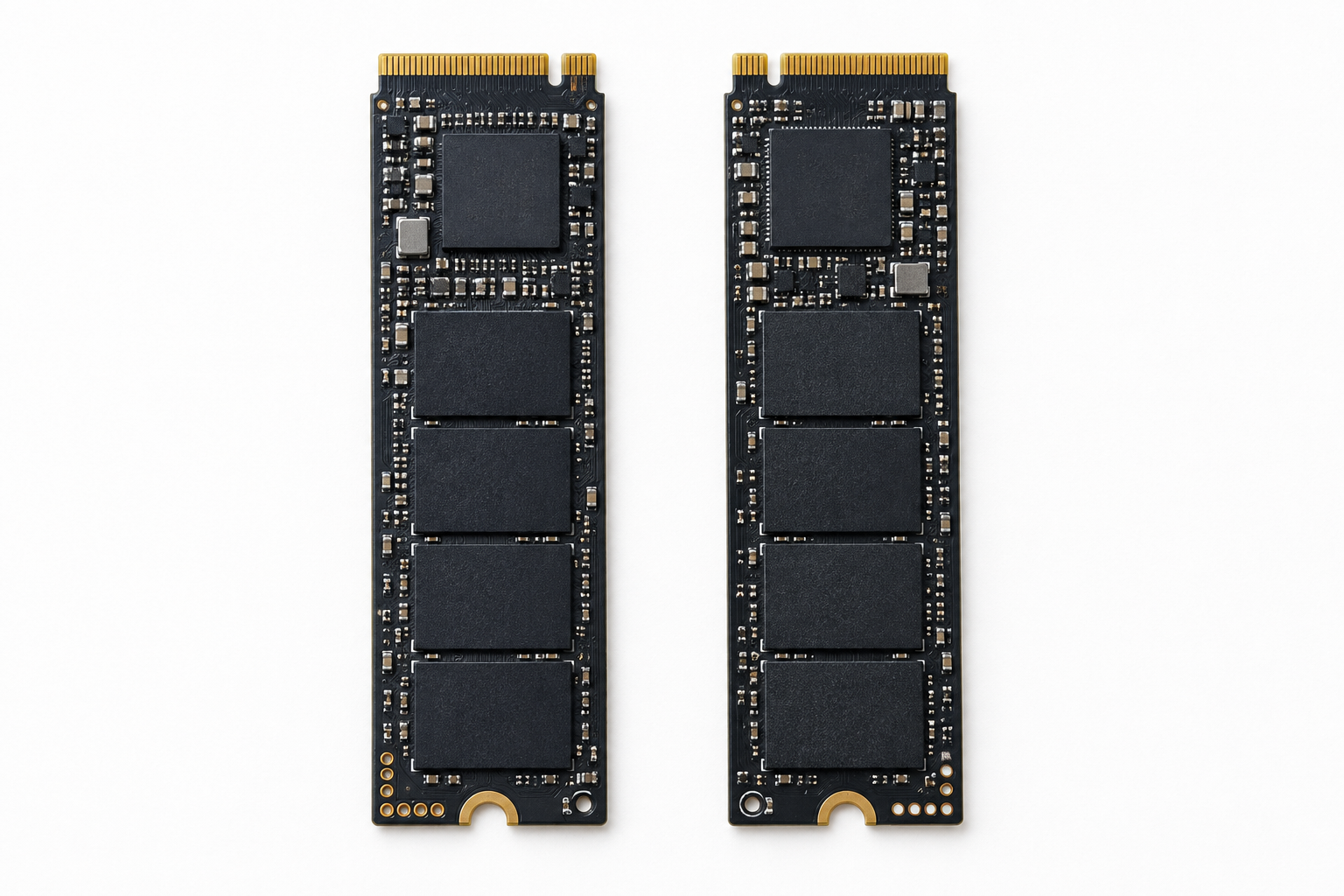
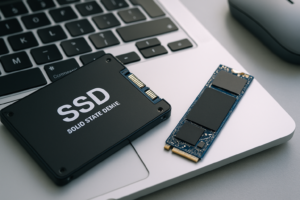
This is where a lot of people get burned, sometimes literally. M.2 is just a physical connector shape. It doesn’t tell you whether the drive inside speaks SATA or NVMe, and enclosures are built for one protocol or the other, not both.
If you drop a SATA M.2 SSD into an NVMe-only enclosure, it simply won’t be recognized. If you drop an NVMe drive into a SATA-only enclosure, you’ll get compatibility issues or drastically reduced performance because the enclosure is trying to speak the wrong language to the drive. Before buying any enclosure, check the exact protocol it supports, not just the connector size.
NVMe drives also run considerably hotter than SATA M.2 drives because they push far more data through the same small footprint. If you’re moving an NVMe drive into an enclosure, thermal design matters a lot more than it did with a SATA drive. This matters even more once you understand how much faster NVMe actually is compared to SATA, since that speed advantage is exactly what generates the extra heat.
For anyone assembling their own external drive, going with a known compatible pairing avoids a lot of headaches. The
Sabrent NVMe USB 3.2 Enclosure
A reliable NVMe enclosure with a built-in heatsink that actually keeps thermal throttling in check
is a solid pick because it’s built specifically for NVMe drives and includes thermal padding out of the box, rather than leaving you to add your own.
Realistic Speeds vs Theoretical Link Rates
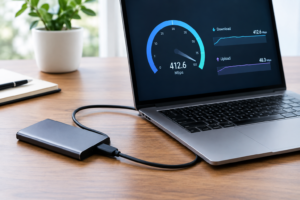
USB and Thunderbolt marketing numbers describe the maximum ceiling of the connection, not what you’ll actually see during a real file transfer. Here’s what to expect in practice:
- USB 3.2 Gen 1 (5Gbps): realistically 350 to 420 MB/s, even though the link is often marketed alongside 5Gbps figures
- USB 3.2 Gen 2 (10Gbps): realistically 800 to 1000 MB/s with a good SATA or NVMe drive
- USB 3.2 Gen 2×2 (20Gbps): realistically 1500 to 1800 MB/s, and only with NVMe drives and supporting host ports
- Thunderbolt 3/4 (40Gbps): realistically 2200 to 2800 MB/s with a fast NVMe drive in a well cooled enclosure
Notice the gap between the advertised link speed and the real number. That gap comes from protocol overhead, controller efficiency, and thermal throttling once the drive has been writing continuously for more than a minute or two.
File size and filesystem also play a bigger role than most people realize. Copying one huge video file will sustain near-peak speeds because the drive can write in long continuous streams. Copying thousands of small files tanks throughput regardless of the connection, because the drive spends more time handling file table overhead than actually writing data. Filesystem choice matters too. exFAT is friendly across Windows and Mac but has more overhead on huge file counts than NTFS or APFS handle natively.
How to Keep Your External SSD Cooler
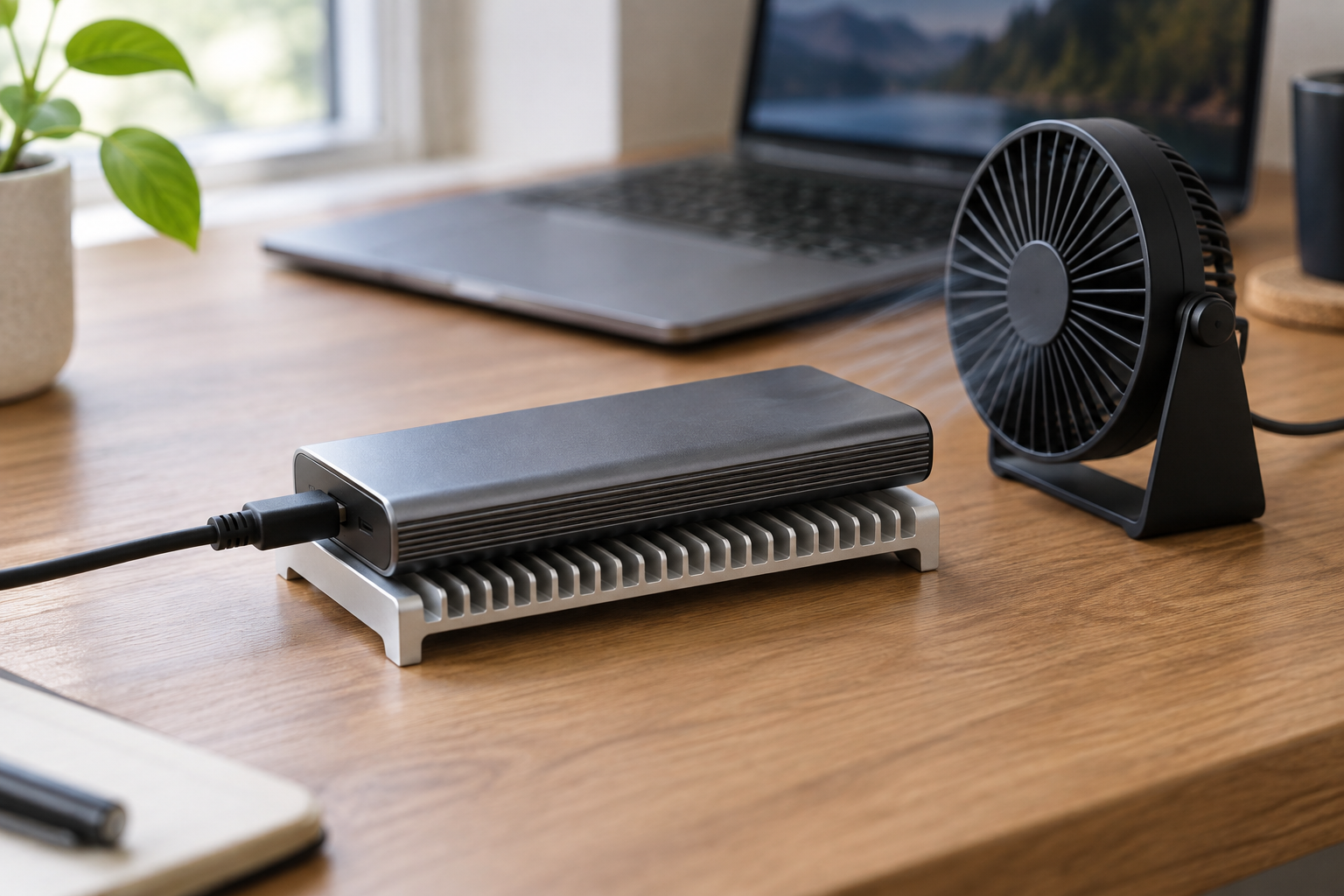
If your drive is throttling under sustained transfers, a few fixes actually make a difference.
- Add a thermal pad between the M.2 drive and the enclosure shell if you built your own setup. A search for external SSD heatsink and thermal pad kits will turn up inexpensive options that make a real difference.
- Choose an aluminum enclosure over plastic whenever possible.
- Avoid stacking the drive directly against other hot devices, like a laptop’s exhaust vent.
- Give the drive brief breaks during massive transfers instead of running it at full write speed for an hour straight.
The
ORICO M.2 NVMe Enclosure with Aluminum Alloy Body
Budget-friendly aluminum enclosure that dissipates heat far better than plastic alternatives
is a good option if you want an affordable upgrade from a plastic case without spending a lot.
If you’re deciding between building your own external drive or buying a prebuilt one, it helps to first understand what NVMe drives are actually best suited for before you invest in an enclosure and cooling setup around one.
Frequently Asked Questions
Is it normal for an external SSD to get too hot to touch?
Yes, within reason. Aluminum enclosures are designed to get warm because they’re pulling heat away from the drive and controller. A drive that’s uncomfortably hot to hold for more than a second or two, or one that suddenly slows down or disconnects, is a sign of actual thermal throttling rather than normal operation.
Does a hotter external SSD mean it’s failing?
Not usually. Heat is a normal side effect of fast, sustained data transfer, especially with NVMe drives in compact enclosures. What you should actually watch for is a sudden drop in transfer speed, unexpected disconnects, or the drive becoming unresponsive, since those are the real warning signs rather than surface temperature alone.
This article contains affiliate links. We may earn a small commission at no extra cost to you.

James Kennedy is a writer and product researcher at Drives Hero with a background in IT administration and consulting. He has hands-on experience with storage, networking, and system performance, and regularly improves and optimizes his home networking setup.