UHS-I vs UHS-II Speed Chart
If you’ve ever shopped for an SD card for a camera, drone, or Nintendo Switch, you’ve probably seen labels like UHS-I, UHS-II, U3, V30, and V90 all crammed onto the same tiny piece of plastic. It looks like a mess, but there’s an actual logic behind it, and once you understand the bus speed versus the write speed rating, choosing the right card gets a lot easier.
This chart breaks down exactly what UHS-I and UHS-II mean for real throughput, where the marketing numbers come from, and why your actual transfer speeds will almost always land below the number printed on the card.
What UHS-I and UHS-II Actually Mean
UHS stands for Ultra High Speed, and it refers to the bus interface on an SD card, basically the physical and electrical connection between the card and your device. It’s not a speed rating by itself. It’s the highway the data travels on, and the speed class printed next to it tells you the minimum guaranteed traffic flow on that highway.
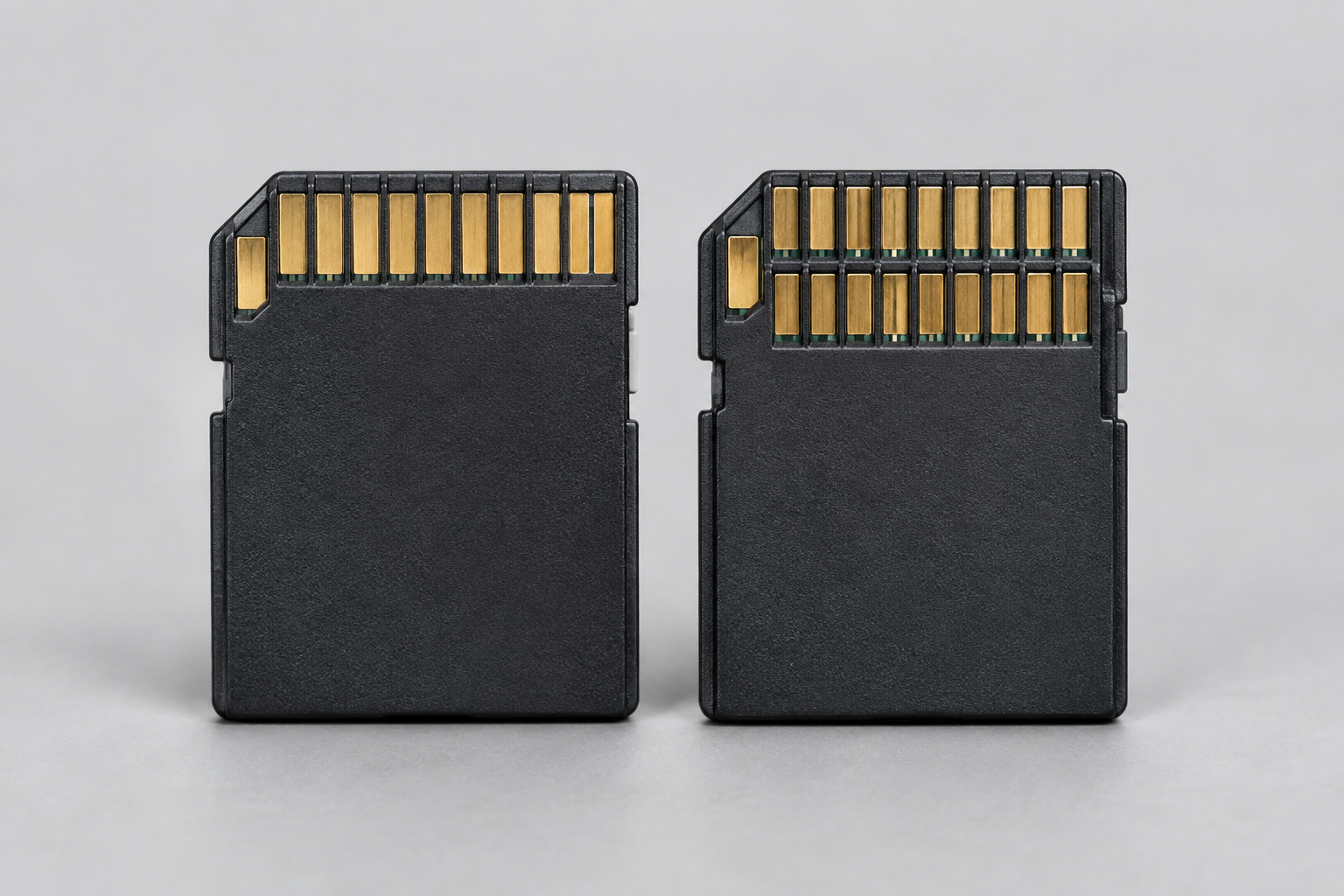
UHS-I uses a single row of pins and works in any standard SD card slot. UHS-II adds a second row of pins on the back of the card, which gives it a dedicated data lane and roughly triples the theoretical bandwidth ceiling. You need a UHS-II compatible slot to actually get UHS-II speeds. Plug a UHS-II card into a UHS-I slot and it’ll work fine, just capped at UHS-I speeds.
UHS-I vs UHS-II Speed Chart
Here’s the theoretical maximum bus bandwidth for each mode, based on the SD Association’s official specifications. These numbers represent the ceiling of the interface itself, not what any specific card will actually deliver.
- UHS-I (SDR12): up to 12.5 MB/s
- UHS-I (SDR25): up to 25 MB/s
- UHS-I (SDR50): up to 50 MB/s
- UHS-I (DDR50): up to 50 MB/s
- UHS-I (SDR104): up to 104 MB/s (this is the mode used by nearly all modern UHS-I cards)
- UHS-II (FD156, single lane): up to 156 MB/s
- UHS-II (HD312, dual lane): up to 312 MB/s
Notice these are all listed in MB/s, not Mbps or Gbps. That’s intentional and consistent with how the SD Association publishes its specs. If you want to convert to bits for comparison with something like USB or Thunderbolt, multiply by 8, so UHS-I’s 104 MB/s ceiling is roughly equivalent to 832 Mbps of raw throughput. But nobody in the SD card world talks in Mbps, so stick with MB/s when comparing cards and you won’t get confused.
UHS-III technically exists too, with a theoretical max of 624 MB/s, but you won’t find consumer UHS-III cards on shelves. The format never really caught on before UHS-II cards plus faster CFexpress cards covered the high end of the market instead.
Theoretical Bandwidth vs Real-World Throughput
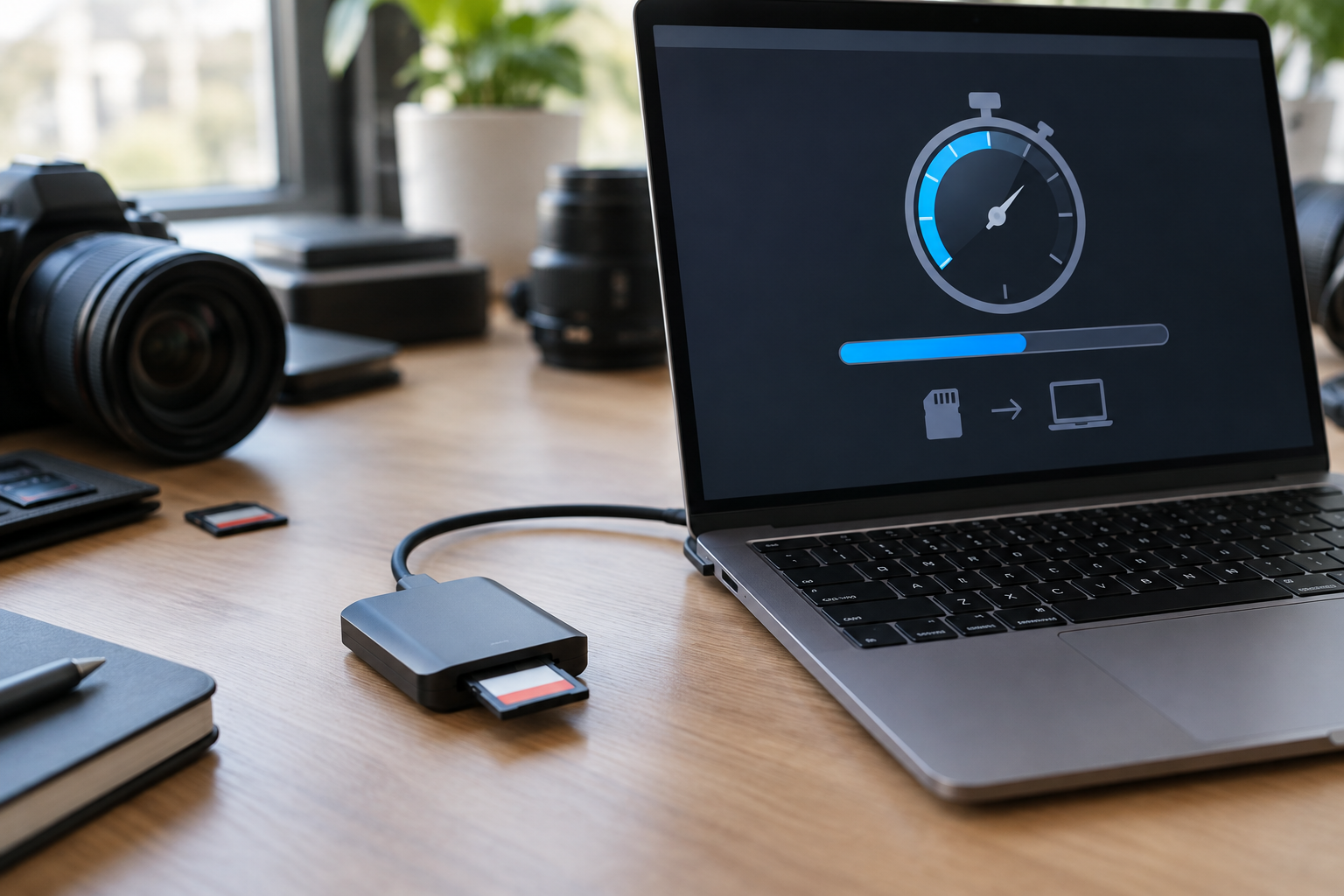
The bus speed chart above tells you the absolute maximum the interface can physically support. It does not tell you what write speed you’ll actually get when you’re shooting 4K video or burst photos. This gap between theoretical and real-world numbers exists for the same reasons you’ll see if you’ve ever compared advertised NVMe SSD speeds against actual copy speeds, protocol overhead, controller efficiency, and the physical limits of the flash memory chips themselves all eat into that ceiling.
A realistic expectation looks something like this:
- UHS-I cards typically deliver 80 to 95 MB/s sustained write speeds in the real world, even though the bus theoretically supports up to 104 MB/s.
- UHS-II cards commonly land between 150 and 260 MB/s sustained write, well short of the 312 MB/s ceiling, because the NAND flash and controller inside the card usually can’t keep pace with the bus itself.
- Read speeds tend to run higher than write speeds on both formats, often by 20 to 40 percent, since reading flash memory is inherently less demanding than writing to it.
This is the same principle you run into with any storage interface. A SATA III SSD has a 6 Gbps theoretical link speed, but actual throughput tops out around 550 to 560 MB/s because of encoding overhead and drive-level bottlenecks. If you’re curious how that compares to newer protocols, the breakdown in SATA vs NVMe SSD for gaming covers similar overhead concepts on the SSD side. The takeaway for SD cards is the same lesson: never buy a card based on the bus type alone. Check the actual advertised sustained write speed, usually printed as a number followed by MB/s on the card itself.
Speed Class Ratings Explained
SD cards carry several overlapping rating systems, and honestly, this is where most of the confusion comes from. Here’s what each one actually guarantees.
Speed Class (older standard)
Class 2, 4, 6, and 10 guarantee minimum sustained write speeds of 2, 4, 6, and 10 MB/s respectively. Class 10 is the floor for anything modern, so you’ll rarely see the older classes on new cards.
UHS Speed Class
U1 guarantees a minimum of 10 MB/s sustained write. U3 guarantees a minimum of 30 MB/s sustained write. This is separate from the bus type, so you can technically have a UHS-I card rated U3, meaning it’s guaranteed at least 30 MB/s even though it’s running on the slower bus.
Video Speed Class
This is the newer, more relevant rating if you’re shooting video. V6, V10, V30, V60, and V90 guarantee minimum sustained write speeds matching their number in MB/s. V90 guarantees at least 90 MB/s sustained, which is why nearly every V60 and V90 card on the market is built on the UHS-II bus, since UHS-I physically can’t sustain those speeds.
App Performance Class
A1 and A2 ratings matter if you’re running apps directly off the card, like on a Nintendo Switch or Android phone. A1 guarantees 1,500 random read IOPS and 500 random write IOPS. A2 bumps that to 4,000 read and 2,000 write IOPS. This rating has nothing to do with sequential speed and everything to do with how quickly small random files load, which matters a lot more for app responsiveness than raw MB/s numbers do.
Which One Do You Actually Need
For casual photography, dash cams, and everyday use, a UHS-I card rated U3 or V30 is plenty. You won’t notice any real-world difference from a UHS-II card unless your camera or card reader can even use the extra bandwidth.
For 4K or 6K video, burst shooting on high-megapixel mirrorless cameras, or fast in-camera RAW buffer clearing, UHS-II earns its higher price. Cameras like Sony’s A7 series or Canon’s R5 can genuinely saturate a UHS-I card’s write speed during long bursts, and that’s when you start seeing buffer warnings and dropped frames.
For drones and action cameras, check your specific device’s manual before spending extra on UHS-II. Plenty of consumer drones and GoPros only have UHS-I slots, so a UHS-II card in that device performs no better than a comparably rated UHS-I card, and you’ve just spent extra money on bandwidth you can’t use.
If you’re building a photo or video backup workflow and also thinking about faster local storage on your laptop, it’s worth reading up on whether an external SSD actually makes your laptop faster, since a lot of the same overhead logic applies once footage leaves the card and heads to your editing drive.
Physical and Compatibility Differences
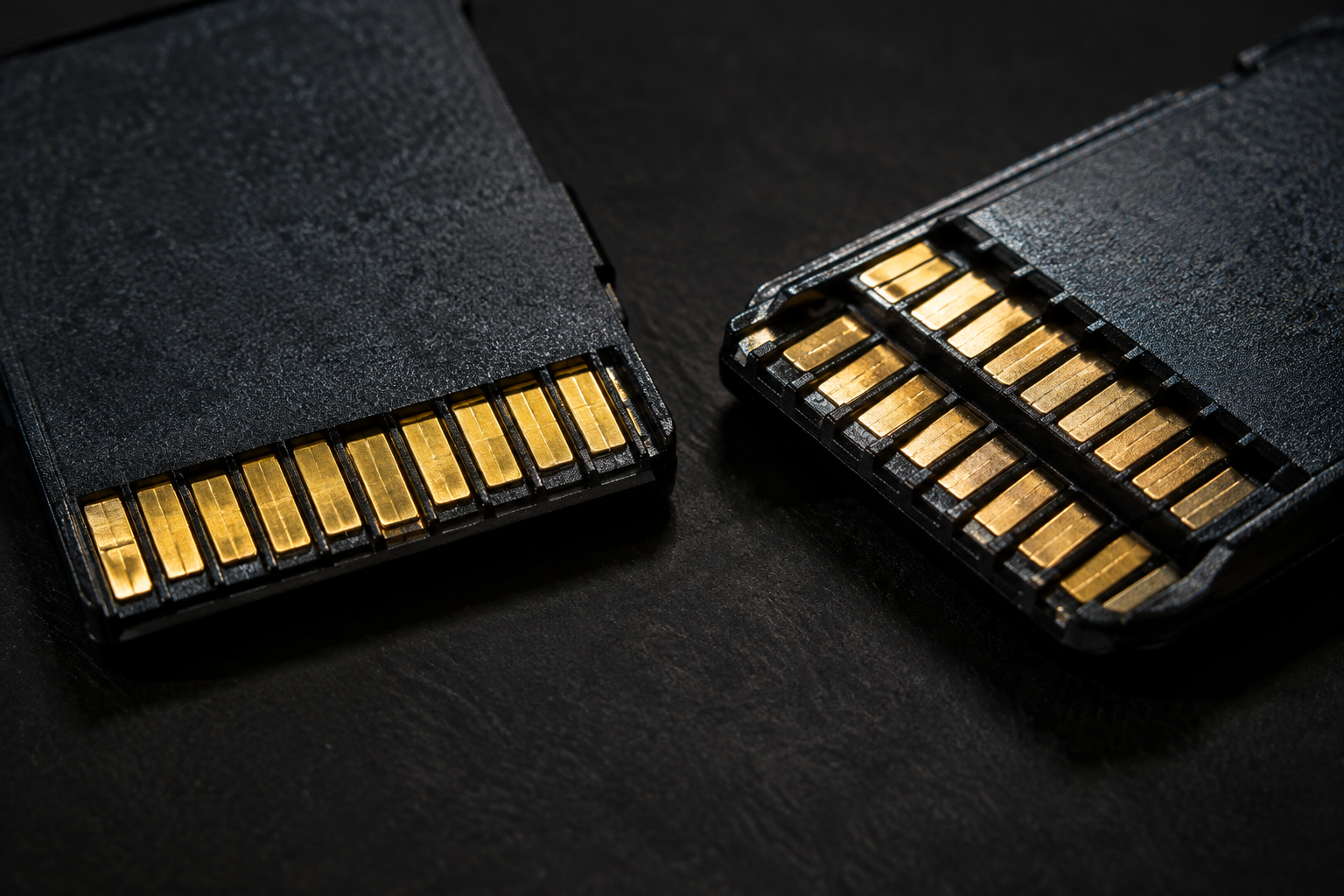
UHS-II cards have a visibly different back side, with a second row of copper contacts below the standard row. This is the giveaway if you’re trying to identify a card without packaging. UHS-I cards only have the single row.
Backward and forward compatibility works in both directions without damaging anything. A UHS-II card in a UHS-I slot runs at UHS-I speeds. A UHS-I card in a UHS-II slot runs at whatever its own rated speed is, since the slot can’t make a slower card faster. The bus type of your device and the bus type of your card both need to match UHS-II for you to see any UHS-II benefit at all.
Card readers matter just as much as the card itself here. A lot of laptops with built-in SD slots only support UHS-I, even in 2024 models. If you’ve paid for a UHS-II card and you’re still getting UHS-I speeds, check your reader before assuming the card is defective.
Frequently Asked Questions
Is UHS-II backward compatible with UHS-I devices?
Yes. A UHS-II card will work in a UHS-I slot without any issues, it just runs at the lower UHS-I speed since the slot doesn’t have the second row of pins to use the faster interface.
Do I need UHS-II for 4K video recording?
It depends on the bitrate and codec. Standard 4K at 30fps with a moderate bitrate often runs fine on a good UHS-I V30 card. High bitrate 4K, 4K at 60fps or higher, or 6K and 8K recording usually needs a V60 or V90 card, which effectively means UHS-II.
Why is my UHS-II card not performing faster than UHS-I?
The most common cause is a card reader or device slot that only supports UHS-I. The second cause is a UHS-II card that’s rated lower than you think, since not every UHS-II card hits the full 300 MB/s range, plenty are rated closer to 150 to 180 MB/s.
What’s the difference between UHS Speed Class and Video Speed Class?
They measure the same thing, minimum sustained write speed, but use different labeling scales. U3 guarantees 30 MB/s, which is the same guarantee as V30. Manufacturers often print both ratings on the same card since V60 and V90 don’t have a UHS Speed Class equivalent.
Final Recommendation
For most people, a well-reviewed UHS-I card rated U3 or V30 covers everyday photography, 1080p and standard 4K video, and general file storage without wasting money on bandwidth you’ll never use. Save UHS-II for situations where your camera can genuinely push past 100 MB/s sustained, like high-bitrate 4K/6K video work or fast-burst RAW photography on a high-resolution sensor.
Whatever card you land on, always cross-check the printed speed class against your camera or device’s actual supported bus type before buying. The fastest card in the world won’t help you if your device caps out at UHS-I, and that mismatch is the single most common reason people feel like they overpaid for storage that didn’t deliver.

James Kennedy is a writer and product researcher at Drives Hero with a background in IT administration and consulting. He has hands-on experience with storage, networking, and system performance, and regularly improves and optimizes his home networking setup.