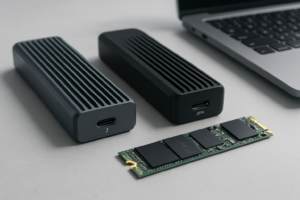
Does Your USB-C Cable Limit SSD Speed?
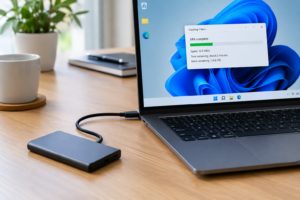
You bought a fast external SSD, plugged it in, and the transfer speeds look nothing like what the box promised. Before you assume the drive is defective or the enclosure is junk, check the cable sitting between your laptop and that drive. A cheap or mislabeled USB-C cable is one of the most common reasons external SSDs underperform, but it’s rarely the only culprit.
This guide walks through every link in the chain, from the NAND inside the drive to the port on your laptop, so you can actually pinpoint where your speed is disappearing.
The Cable Is Often the Problem, But It’s Not the Only One
USB-C is a connector shape, not a performance guarantee. A cable can look identical to another and still cap out at 480Mbps instead of 10Gbps or 20Gbps. Cheap charging cables sold in multi-packs are usually built for power delivery only, with thin data wires or none at all.
If you’re using an enclosure rated for USB 3.2 Gen 2×2 (20Gbps) but plugged it in with a cable rated for USB 2.0 speeds, you’ll get USB 2.0 results no matter how good the drive inside is. This is the single easiest fix in this whole list, and it’s why a properly rated cable like this USB-C 20Gbps data cable should be one of the first things you check.
Anker USB-C 3.2 Gen 2 Cable
A well-reviewed cable that’s actually certified for 10Gbps data transfer, not just charging.
But even with the right cable, plenty of other pieces can throttle your real-world speed. Let’s go through them one at a time.
The Drive and Controller Inside the Enclosure
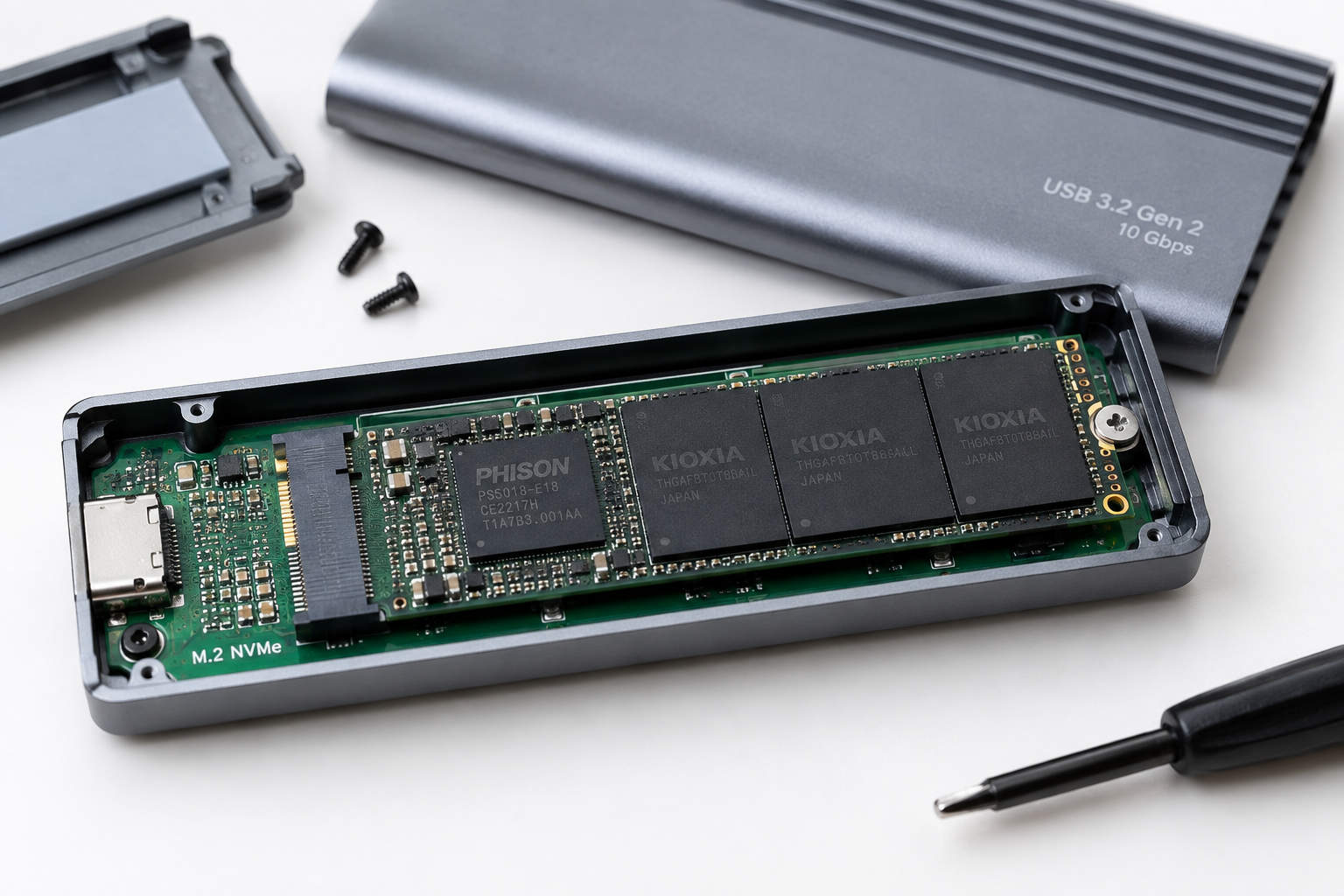
The actual NAND flash and controller inside your external SSD set the ceiling for performance. This is where the SATA versus NVMe distinction really matters, and it trips up a lot of shoppers.
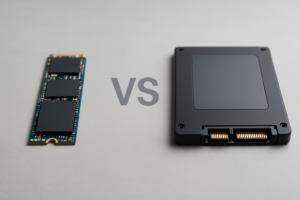
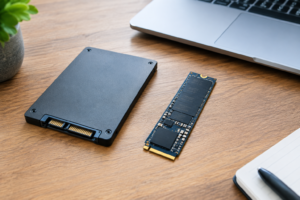
A SATA M.2 SSD and an NVMe M.2 SSD can look exactly the same physically. Both use the same M.2 edge connector and often the same 2280 size. But SATA M.2 drives are limited to roughly 550MB/s because they use the SATA III protocol, while NVMe M.2 drives communicate over PCIe and can hit anywhere from 2,000MB/s to over 7,000MB/s depending on the generation.
If you drop a SATA M.2 drive into an NVMe-only enclosure, it often won’t even mount. If you drop an NVMe drive into a SATA-only enclosure, it will work but get bottlenecked down to SATA speeds. The enclosure’s bridge chip has to match the drive’s protocol, not just its physical slot. Check the enclosure’s spec sheet carefully before assuming compatibility, and if you’re unsure what’s inside your current drive, our guide on NVMe SSD vs Intel SSD breaks down how to identify what you’re working with.
Realistic Speeds by Drive Type
- SATA M.2 or SATA SSD in a USB 3.0 enclosure: 400 to 550MB/s, rarely higher
- NVMe M.2 (PCIe 3.0) in a USB 3.2 Gen 2 enclosure (10Gbps): 900 to 1,050MB/s
- NVMe M.2 (PCIe 3.0 or 4.0) in a USB 3.2 Gen 2×2 enclosure (20Gbps): 1,700 to 1,900MB/s
- NVMe M.2 (PCIe 4.0) in a Thunderbolt 3 or 4 enclosure: 2,600 to 2,900MB/s
- NVMe M.2 in a Thunderbolt 5 enclosure: can push past 5,000MB/s, though few enclosures fully saturate this yet
Notice none of these numbers hit the theoretical link speed. That gap is normal and comes from protocol overhead, which we’ll get to shortly. If you’re deciding between drive types for a new build, our comparison of SATA vs NVMe SSD for gaming covers the practical difference in everyday use.
The Bridge Controller and Enclosure Quality
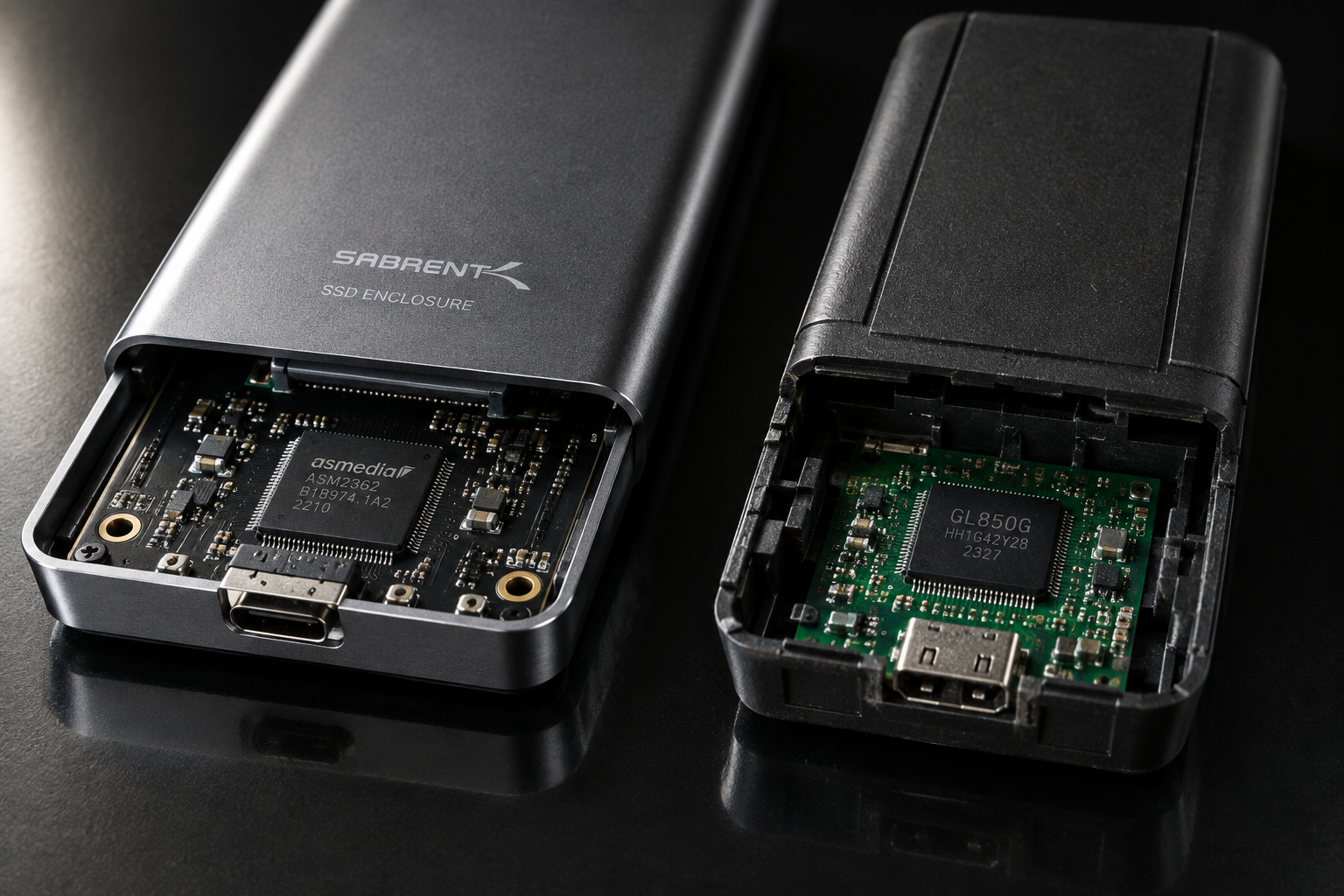
Between the drive and the USB or Thunderbolt port sits a bridge controller chip, and this piece gets overlooked constantly. Popular chips from ASMedia, JMicron, and Realtek all handle the NVMe-to-USB translation differently, and cheaper chips add noticeable overhead even when the drive itself is fast.
A high-end NVMe drive in a bargain-bin enclosure with a weak bridge chip can perform worse than a mid-range drive in a well-built enclosure. This is also where thermals come into play. Enclosures without any metal casing or thermal pad will throttle a fast NVMe drive within a minute or two of sustained writes, since the controller inside the SSD itself starts overheating.
You’ll see this most on large file transfers, like copying a 100GB video project. Speeds start strong, then drop noticeably partway through as the drive hits its thermal limit. A metal-bodied enclosure with a thermal pad pressed against the SSD controller solves most of this.
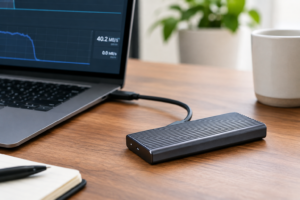
ORICO M.2 NVMe Enclosure 20Gbps
An aluminum enclosure with solid thermal management that avoids the throttling issues common in plastic housings.
USB and Thunderbolt Standards, Explained Without the Marketing Numbers
USB naming has gotten genuinely confusing, and manufacturers don’t make it easier by rebranding the same standard multiple times. Here’s what you’re actually dealing with:
- USB 3.2 Gen 1 (5Gbps): real-world throughput around 400 to 450MB/s
- USB 3.2 Gen 2 (10Gbps): real-world throughput around 900 to 1,050MB/s
- USB 3.2 Gen 2×2 (20Gbps): real-world throughput around 1,700 to 1,900MB/s
- Thunderbolt 3 / 4 (40Gbps): real-world throughput around 2,600 to 2,900MB/s for storage
- Thunderbolt 5 (80Gbps): theoretical ceiling much higher, but few storage devices saturate it yet
Every standard loses roughly 15 to 20 percent of its theoretical bandwidth to protocol overhead and encoding. That’s not a flaw, it’s just how the math works out once you factor in error correction and packet headers. If a listing promises a number that exactly matches the link speed, treat it with some skepticism.
Your host port matters just as much as the drive’s rating. Plugging a 20Gbps enclosure into a laptop port that only supports 10Gbps caps you at 10Gbps, full stop. Check your laptop’s actual port specs, not just the fact that it has a USB-C connector, since this is the same kind of oversight that trips people up when they’re deciding whether an external SSD will make a laptop faster in the first place.
File Size, Filesystem, and Real-World Habits
Even with perfect hardware, how you use the drive changes your numbers dramatically. Copying one large 50GB file will get you close to the drive’s rated sequential speed. Copying 50,000 small files of the same total size will be much slower, sometimes dropping to a fraction of the rated speed, because small file transfers are bottlenecked by random read/write performance and filesystem overhead rather than raw bandwidth.
The filesystem you format the drive with matters too. exFAT is the common cross-platform choice but has more overhead than NTFS on Windows or APFS on Mac. If you’re only ever using the drive on one operating system, formatting natively rather than sticking with exFAT can give you a modest but real speed bump.
Background processes matter as well. Antivirus scanning every file as it’s written, or macOS Spotlight indexing a freshly connected drive, can both tank your apparent transfer speed for the first few minutes even though the hardware is fine.
How to Actually Diagnose Your Bottleneck
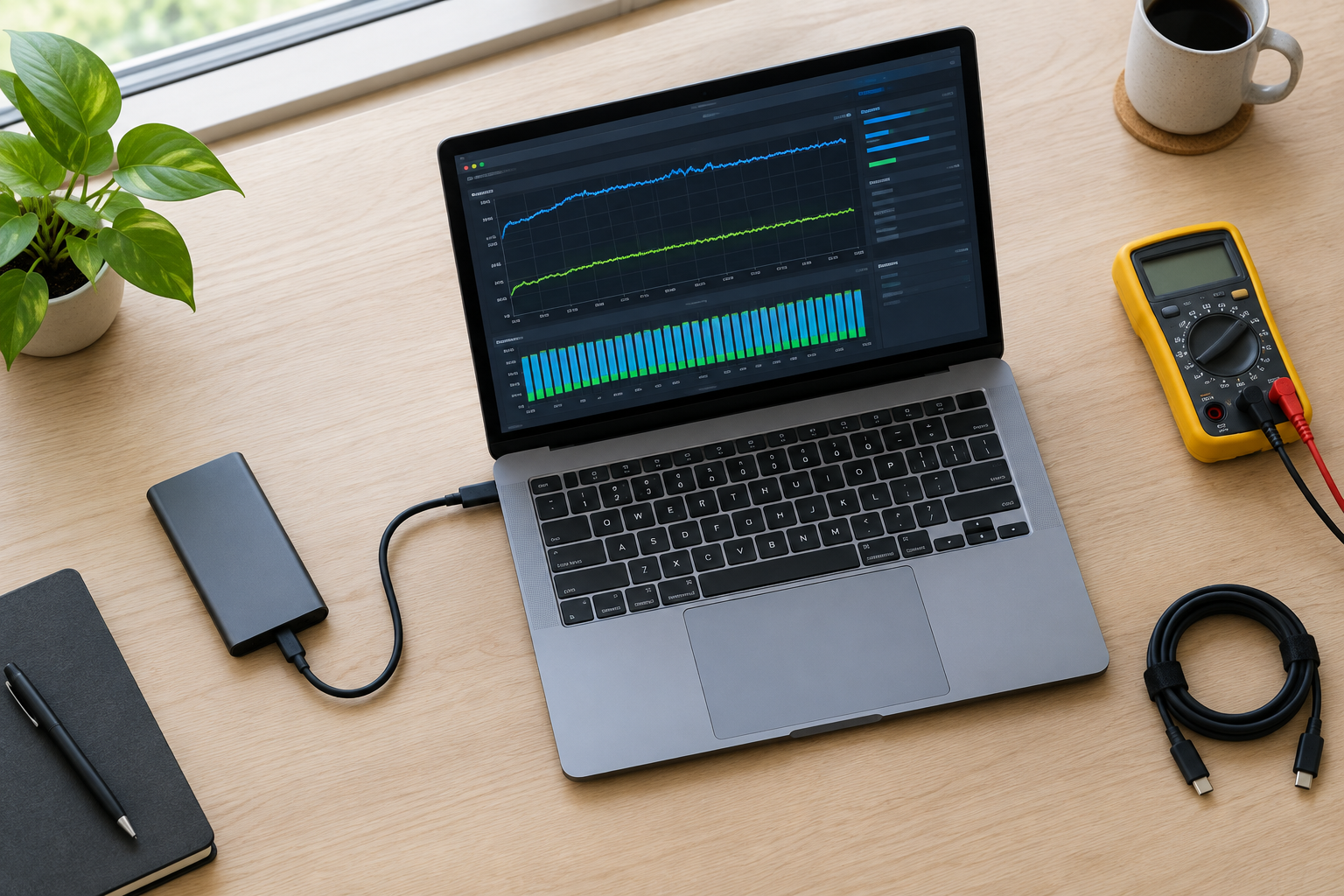
Work through this in order rather than guessing:
- Confirm your drive type (SATA or NVMe M.2) and its rated speed from the manufacturer.
- Confirm your enclosure’s bridge chip and rated USB or Thunderbolt standard from its spec sheet.
- Swap in a cable you know is rated for the correct speed, like a certified 10Gbps or 20Gbps USB-C cable.
- Test with a single large file transfer, not a folder of small files, to isolate sequential performance.
- Check the enclosure temperature after a few minutes of sustained transfer, since a hot enclosure points to thermal throttling.
- Confirm which port on your laptop you’re using and its actual rated speed, since not all USB-C ports on the same laptop are equal.
If you go through this checklist and speeds are still far below expectations, the issue is usually the drive’s own NVMe generation being mismatched with the enclosure’s bridge chip, or a laptop port that’s slower than you assumed. For a deeper look at whether NVMe is actually delivering the gains people expect over other SSD types, check out is NVMe really faster than SSDs.
Frequently Asked Questions
Can a bad USB-C cable damage my SSD?
Not typically, but a cheap cable with poor power delivery specs can cause a bus-powered enclosure to drop connection mid-transfer, which occasionally corrupts data being written at that moment. It’s rare, but it’s another reason to use a properly rated cable rather than whatever came in a random accessory bundle.
Why does my external SSD start fast then slow down?
This is almost always thermal throttling or the drive’s cache filling up. NVMe drives use a fast SLC cache for burst writes, and once that cache is full, sustained writes drop to the drive’s slower native speed. Enclosure heat makes this worse, so a metal enclosure with good airflow helps more than people expect.
Does Thunderbolt always outperform USB for external SSDs?
Only if the drive inside can actually feed that bandwidth. A Thunderbolt 4 enclosure with a PCIe 3.0 NVMe drive won’t outperform a 20Gbps USB enclosure with the same drive by much, since the drive itself becomes the limiting factor before the interface does. Thunderbolt’s real advantage shows up with faster PCIe 4.0 or 5.0 drives that can actually push past 2,000MB/s.
This article contains affiliate links. We may earn a small commission at no extra cost to you.

James Kennedy is a writer and product researcher at Drives Hero with a background in IT administration and consulting. He has hands-on experience with storage, networking, and system performance, and regularly improves and optimizes his home networking setup.