How to Upgrade Ssd on Msi Laptop? 9 Steps!
Whether you’re looking to boost storage capacity or improve performance, this step-by-step tutorial will walk you through the process with ease.
By following these instructions, you’ll be able to seamlessly upgrade your SSD and get your laptop running faster and more efficiently in no time.
Key Takeaway
Upgrade SSD on MSI Laptop: Simple Step-by-Step Guide
Step 1: Back Up Your Data
Before beginning the upgrade process, ensure all your important data is backed up to an external drive or cloud service to prevent loss during the transition.
Step 2: Check Compatibility
Verify that the new SSD is compatible with your MSI laptop. Consider factors such as physical size (2.5-inch or M.2), interface (SATA or NVMe), and capacity requirements.
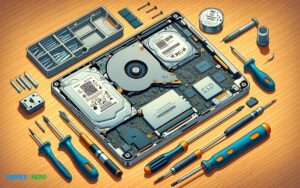
Step 3: Gather Necessary Tools
Prepare the tools required for the upgrade, including a screwdriver suitable for opening the laptop casing and handling small screws.
Step 4: Remove the Old SSD
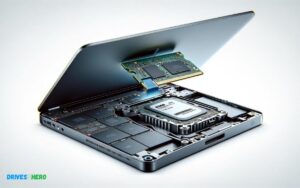
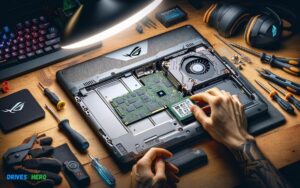
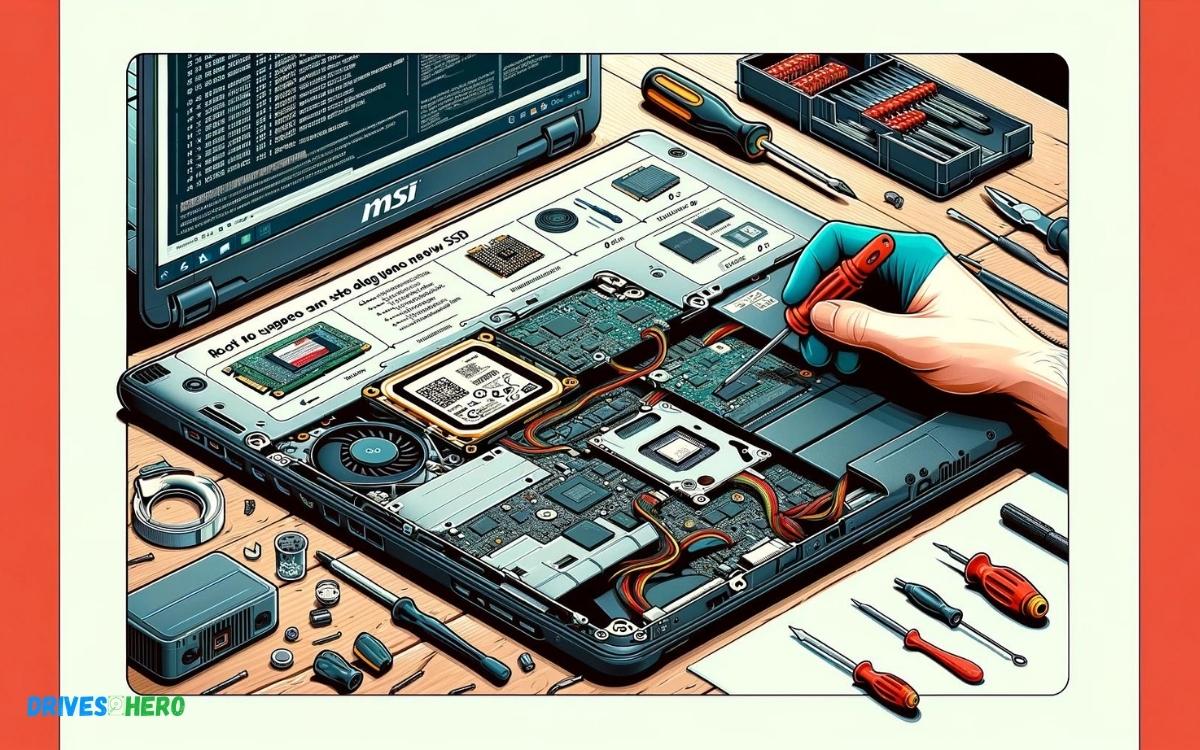
Shut down your MSI laptop and disconnect all power sources. Flip the laptop over and remove the screws securing the bottom cover. Carefully lift the cover to access the internal components.
Locate the existing SSD and disconnect any cables attached to it. Unscrew the mounting bracket or screws holding the SSD in place and gently remove it from the slot.
Step 5: Install the New SSD
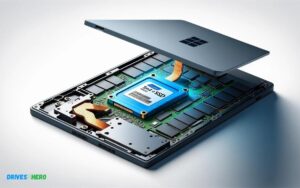
Insert the new SSD into the vacant slot, ensuring it is properly aligned with the connector. Secure the SSD in place by fastening the mounting bracket or screws. Reconnect any cables that were disconnected and ensure they are firmly seated.
Step 6: Replace the Bottom Cover
Carefully lower the bottom cover back onto the laptop and reinsert the screws to secure it in place. Ensure all screws are tightened evenly to avoid any gaps or misalignment.
Step 7: Boot Up Your Laptop
Reconnect the power source and turn on your MSI laptop. Wait for it to boot up and enter the BIOS/UEFI settings if necessary to verify that the new SSD is detected.
Step 8: Verify the Installation
Once your laptop has booted into the operating system, verify that the new SSD is recognized and functioning correctly. You may need to initialize and format the SSD using disk management tools in your operating system.
Step 9: Restore Your Data
If you backed up your data earlier, transfer it back onto the new SSD from your external drive or cloud service. Ensure everything is restored correctly and accessible.
By backing up your data, ensuring compatibility, and carefully installing the new SSD, you can enjoy enhanced storage capacity and improved performance without any hassle.
Introduction To Ssd Upgrades On MSI Laptops
Understanding The Benefits Of Ssd Over Hdd
Before making the switch, it’s crucial to recognize the advantages of SSDs compared to their HDD counterparts.
SSDs are known for their:
- Speed: Quicker boot times, rapid file transfers, and overall faster performance.
- Durability: No moving parts mean a lower risk of mechanical failure.
- Energy Efficiency: SSDs consume less power, extending battery life.
- Silent Operation: SSDs operate silently, providing a noise-free environment.
- Lightweight design: They contribute to the portability of your MSI laptop.
Bearing these benefits in mind, an SSD upgrade is a stride towards a more efficient and productive computing experience.
Determining The Compatibility And Requirements For Upgrading SSD on MSI laptops
Ensuring your MSI laptop is ready for an SSD upgrade demands attention to detail.
Here’s what to consider:
- Check your MSI laptop model: Refer to your user manual or the manufacturer’s website to identify the specifications of your laptop.
- Find out the compatible SSD: MSI laptops vary by model, so it’s critical to select an SSD that fits. Most modern laptops support 2.5-inch SATA drives or M.2 SSDs.
- Verify the required capacity: Consider your storage needs. SSDs come in various capacities, typically ranging from 128GB to 2TB.
- Ascertain any additional tools or kits needed: Sometimes, you’ll require specific tools or installation kits for a seamless upgrade process.
- Examine the existing warranty: Be mindful of not breaching warranty terms during the upgrade.
Conducting thorough research and preparation will ensure a successful SSD upgrade, amplifying your MSI laptop’s performance and longevity.
Preparing For Ssd Upgrade
Upgrading your MSI laptop with a new SSD (Solid State Drive) is a powerful way to enhance its performance and storage capabilities.
Backing Up Your Data Before Upgrading
Securing your precious data is paramount before embarking on any upgrade.
Losing files is not an option, so let’s go over the steps to safeguard them:
- Create a complete backup of your existing data. Use an external hard drive, cloud storage, or data cloning software to copy everything from your current SSD.
- Verify the backup contents. It’s crucial to ensure your backup has everything you’ll need post-upgrade.
- Remember to note down or take a screenshot of your software licenses and settings. This will make it easier to restore your work environment after the SSD swap.
Selecting The Right Ssd For Your Msi Laptop
Choosing a compatible SSD is essential.
Consider these critical features while selecting your drive:
| Feature | Detail |
|---|---|
| Form Factor | Typically, MSI laptops use 2.5-inch or M.2 SSDs. Check your laptop’s specifications for the correct size. |
| Interface | It is usually SATA or NVMe. NVMe offers faster performance but make sure your MSI supports it. |
| Storage Capacity | Decide how much storage you need. It’s a good idea to get more storage than you currently use to accommodate future needs. |
Review your laptop’s user manual or consult MSI’s support to pick the SSD that ticks all the right boxes for your specific model.
Gathering Necessary Tools And Materials For The Upgrade Process
Having the right tools at hand is as important as choosing the correct SSD.
Here is a checklist to help you get prepared:
- A small Phillips-head screwdriver for opening the laptop case.
- Anti-static wrist strap to prevent electrostatic discharge (ESD) damage.
- A soft cloth or surface to place your laptop on during the upgrade.
- Any caddies or enclosures that might be necessary for the new SSD, depending on your MSI model.
Troubleshooting Common Ssd Upgrade Issues
Encountering issues after an SSD upgrade in your MSI laptop can be frustrating. But don’t worry, most problems have straightforward solutions.
Addressing Bios Recognition Problems
When a new SSD doesn’t show up in the BIOS, it could spell initial panic.
But before you consider sending your new drive back, follow these tips to help your MSI laptop recognize your new hardware:
- Ensure your SSD is properly connected. A loose connection can prevent the BIOS from detecting the drive.
- Update your BIOS. Sometimes, an outdated BIOS may not support newer hardware. Check the MSI website for firmware updates.
- Check the drive format. The SSD should be initialized and formatted correctly to be recognized by your system.
Solving Data Transfer And Cloning Setbacks
Transferring your data is crucial when upgrading to a new SSD.
If you hit a snag, here’s how to tackle it:
- Use reliable cloning software. High-quality programs provide support for a smooth transition.
- Ensure the SSD has enough space. The new drive requires equal or greater space than the used space on the old drive.
- Check for data corruption. Run a disk check on your old drive to ensure it’s free from errors before cloning.
Fixing Boot Errors After Upgrade
If your MSI laptop refuses to boot after installing a new SSD, keep calm and follow these steps:
| Step | Action |
|---|---|
| 1 | Double-check the boot order in BIOS. Your new SSD should be set as the first boot option. |
| 2 | Perform a repair install or a clean OS installation, if necessary, to resolve any corrupted files causing boot issues. |
| 3 | Reset the BIOS to default settings. This simple step can sometimes resolve boot errors that occur after hardware changes. |
With these troubleshooting strategies, you can address common post-upgrade issues with confidence and get your MSI laptop running seamlessly with its new SSD.
Tips And Best Practices
Upgrading the SSD in your MSI laptop is a surefire way to enhance performance and increase storage capacity.
Whether you’re a gaming enthusiast looking to improve load times or a professional in need of rapid data access, following these essential tips and best practices will ensure a successful upgrade.
Each step taken with care not only safeguards the hardware but also sets the stage for a noticeable boost in your laptop’s operational efficiency.
Ensuring Proper Esd (electrostatic Discharge) Safety
Handling sensitive electronic components demands caution. Static electricity can be a formidable enemy, capable of damaging your new SSD before it even has a chance to demonstrate its speed.
Here are key measures to mitigate ESD risks:
- Wear an antistatic wrist strap to ground yourself effectively.
- Work on a non-conductive surface, such as a wooden table.
- Avoid working in environments where static electricity is prone to build up, like carpeted rooms.
- Keep the SSD in its antistatic packaging until the moment of installation.
- Touch a grounded metal object before handling internal components to discharge any potential static.
Maximizing The Lifespan Of Your Ssd
Ensuring that your SSD lasts as long as possible requires a blend of proper usage and maintenance.
Here’s how to keep your SSD in top shape:
- Avoid unnecessary writes to the SSD to reduce wear.
- Maintain at least 10-15% of free space on the drive to allow for wear leveling.
- Update your operating system regularly for improvements in SSD management.
- Utilize the SSD’s management software, if available, to monitor health and performance.
Keeping Your Msi Laptop’s Firmware Updated
Consistent firmware updates ensure that your MSI laptop and the newly installed SSD work hand in hand efficiently.
An updated firmware often means:
| Benefits | Description |
|---|---|
| Enhanced Performance | Optimization leading to faster data transfer speeds and improved response times. |
| Stability | Reduced risk of SSD-related system crashes and errors. |
| Compatibility | Support for newer SSDs and ensuring seamless communication with the system. |
Conclusion
Upgrading your MSI laptop’s SSD is a surefire way to boost performance. With this guide, embracing swifter boot times and enhanced storage becomes a breeze.
Remember, selecting the right SSD and following proper installation steps is key. Elevate your computing experience by kickstarting your upgrade journey.

Harold Williams is a senior writer and technical editor at Drives Hero with 20+ years of experience in IT administration. He specializes in storage systems, SSD reviews, and performance testing, bringing real-world insight to every guide.