How Much Does It Cost to Upgrade Ssd
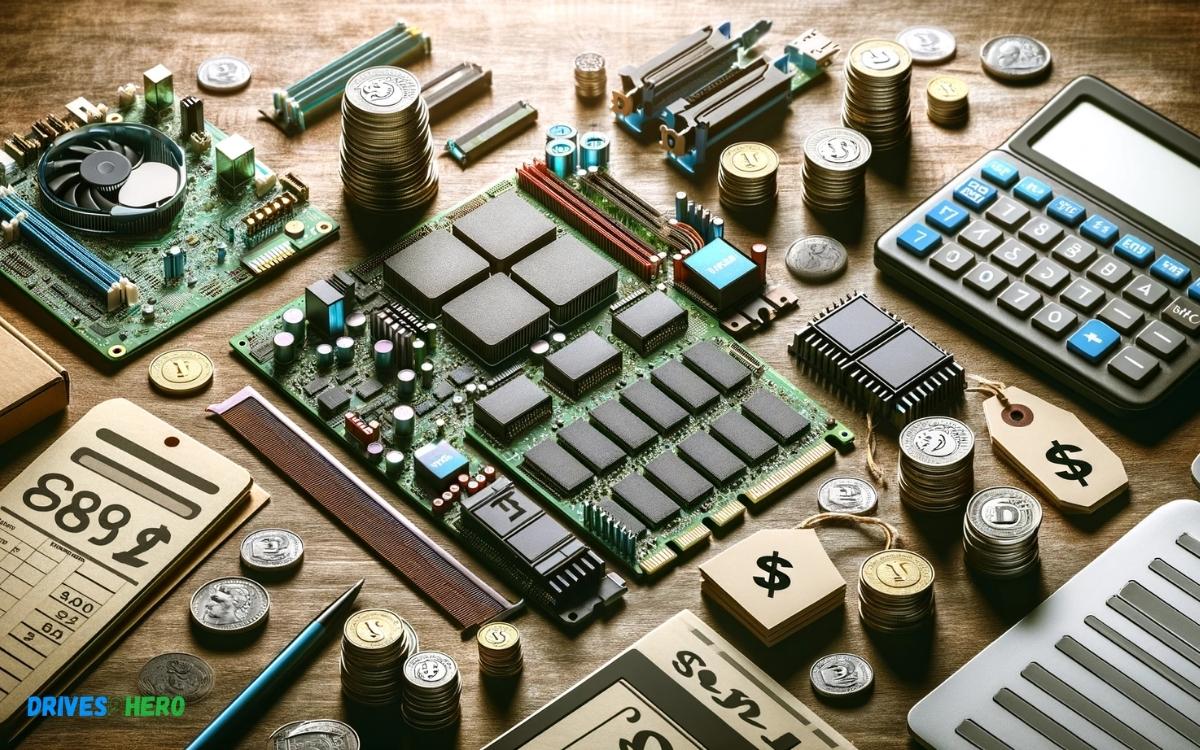
The cost to upgrade an SSD varies between $50 to $500. Price depends on capacity, form factor, and performance specifications.
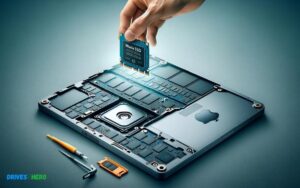
Upgrading the solid-state drive (SSD) in your computer or laptop can significantly improve system speed and performance. Solid-state drives have become more affordable, yet prices can fluctuate based on storage capacity, read/write speeds, and the physical size of the SSD.
Choosing the right SSD for your needs involves assessing your device’s compatibility and determining the optimal balance between cost and performance boost. Reliable SSD brands might charge a premium, but they offer better durability and speed. Selecting an SSD upgrade properly can revitalize an older machine or fine-tune a newer one, making it a smart investment for either performance enhancement or expanded storage capacity.
Key Takeaway
Introduction To Ssd Upgrades
Upgrading to a Solid State Drive (SSD) is a transformative move for any computer system. An SSD boosts the speed, efficiency, and overall performance of your device, cutting down on boot times and accelerating file transfers. From personal laptops to enterprise servers, the shift from traditional Hard Disk Drives (HDDs) to SSDs can redefine the computing experience. In this discussion, we’ll navigate through the essentials of SSDs and their significance, first by understanding what an SSD is and then exploring the widespread advantages of upgrading to a higher-capacity SSD.
Understanding Ssd And Their Importance
An SSD, or Solid State Drive, is a non-volatile storage device that stores and retrieves digital data. Unlike HDDs, SSDs have no moving parts, which makes them faster and more reliable. They use flash memory to deliver superior performance and durability. The role of SSDs is crucial in modern computing as they drastically reduce access time, resist physical shock, run silently, and have lower latency than HDDs, which contributes to their importance in both consumer and business environments.
General Benefits Of Upgrading To A Higher Capacity Ssd
- Improved Performance: Upgrading to a larger SSD can decrease load times and improve overall system responsiveness.
- Increased Storage: A higher capacity SSD offers more space to store apps, games, and files, which is essential for users with growing digital libraries.
- Enhanced Durability: SSDs are less prone to damage from drops and shakes, making them a robust option for laptops and mobile devices.
- Energy Efficiency: Thanks to the lack of moving parts, SSDs draw less power, which can help conserve battery life in portable devices.
Factors Affecting The Cost Of Upgrading Ssd
Welcome to the intricate world of Solid State Drives (SSDs), where the upgrade path is not just a simple plug-and-play decision. Understanding the factors that influence the cost of upgrading to an SSD is crucial for making an informed and budget-friendly choice. Whether it’s the type of SSD, storage capacity, performance features, brand reputation, or installation costs, each element plays a significant role in shaping the price. Let’s dive into the details to help guide your decision-making process.
Different Types Of Ssds And Their Price Points
SSDs come in various shapes, sizes, and technologies, each with its pricing bracket. Here’s a brief glimpse into what you might encounter:
- SATA SSDs: Typically the most affordable, offering a balance of performance and value.
- NVMe SSDs: Pricier than SATA, providing faster data transfer rates ideal for power users.
- Portable SSDs: Compact and convenient but can demand a premium for portability.
- Enterprise SSDs: Engineered for server and data center environments, these SSDs can substantially raise the cost of your upgrade.
How Storage Capacity Influences Price
Simply put, the more gigabytes you want, the more you’ll have to spend. Storage capacity is directly proportional to cost:
| Capacity | Typical Cost Range |
|---|---|
| 128 – 256 GB | $20 – $50 |
| 500 GB – 1 TB | $50 – $150 |
| 2 TB and above | $200 – $500+ |
Impact Of Ssd Speed And Performance Features On Cost
The speed and performance capabilities of SSDs can significantly sway the price. Features like higher read/write speeds, IOPS (Input/Output Operations Per Second), and durability measures like TBW (Total Bytes Written) can elevate the cost:
- Standard models with acceptable speeds fit everyday computing needs at reasonable prices.
- Performance SSDs: Targeted at gaming and professional workstations, these can double or triple the cost.
The Role Of Brand And Warranty In Pricing
Brands with established reputations for reliability and customer service can command higher prices. A longer warranty often justifies a higher upfront cost, adding peace of mind to your investment:
- Value brands: May offer competitive pricing with shorter warranties.
- Premium brands: Known for quality and durability, they include extended warranty periods that reflect in their pricing.
Cost Considerations For Diy Vs. Professional Installation
Consider the installation costs as well. If you have technical aptitude, a DIY installation can save you labor costs. Conversely, professional installation assures correct fitment and data migration but at an additional price:
- DIY Installation: Usually requires just your time and the cost of any necessary tools.
- Professional Service: Can range from modest fees to premium charges, depending on the provider.
Calculating The Total Cost Of Ssd Upgrade
Upgrading to a Solid State Drive (SSD) offers impressive speed improvements and reliability over traditional hard drives. Before taking the plunge, understanding the full cost implications is crucial. Beyond just comparing sticker prices, consider additional expenses like tools, software solutions, and installation fees. Assessing total expenditure ensures a clear economic picture for the investment. This post delves into the varying factors that add up to the SSD upgrade cost.
Price Comparison Of Popular Ssd Models
Prices vary widely among SSDs based on capacity, performance, and brand reputation. To assist in the decision-making process, here’s a comparative overview of costs for some popular SSD models:
| SSD Model | Capacity | Price Range |
|---|---|---|
| Samsung 970 EVO Plus | 1TB | $100 – $150 |
| Crucial MX500 | 1TB | $90 – $120 |
| WD Blue 3D NAND | 1TB | $80 – $110 |
| SanDisk Ultra 3D | 1TB | $90 – $130 |
Additional Costs: Tools And Software Migration Solutions
Apart from the SSD itself, certain extras may be necessary to facilitate the upgrade:
- Screwdriver: Most often a small Phillips head, it’s needed for physically installing the SSD.
- Mounting Bracket: Required for securing a 2.5-inch SSD in a 3.5-inch drive bay.
- USB-to-SATA Adapter: Vital for cloning the existing drive’s data to the new SSD.
- Data Migration Software: Some SSDs include proprietary software, but third-party solutions may also be needed.
These items may add $20 to $100 to the total cost, assuming no professional services are hired.
A Breakdown Of Professional Installation Services Fees
For those less tech-savvy, professional installation can eliminate the hassle. Service fees generally include:
- Physical installation of the SSD
- Data migration and software setup
- System testing for functionality
Fees can range from $50 to $150, depending on the complexity of the upgrade and the service provider’s rates.
The Long-term Value Of Upgrading: Cost Versus Performance Gains
While initial costs are important, evaluating long-term value is paramount. A successful SSD upgrade leads to:
- Significantly faster boot and load times
- Improved overall system responsiveness
- Greater durability and reliability
These performance gains translate to enhanced productivity and a more enjoyable computing experience, often outweighing the initial financial outlay.
Steps To Upgrade Your Ssd Within Budget
Upgrading your Solid-State Drive (SSD) is an efficient way to improve the performance and storage capacity of your computer. By following a savvy approach, you can upgrade your SSD without stretching your wallet too thin. Let’s take a systematic journey through the steps to elevate your machine’s capabilities on a budget.
Establishing Your Ssd Needs And Budget
Before embarking on the upgrade, it’s crucial to assess your current and future SSD requirements. Consider factors such as the type of data you manage and the speed needed for your workflows. Then, set a realistic budget that aligns with your needs. Remember, a balanced outlook towards these aspects will ensure a cost-effective and suitable upgrade.
Selecting The Right Ssd: A Cost-effective Guide
- Determine the SSD form factor and interface that is compatible with your system (e.g., SATA, NVMe).
- Compare performance specs such as read/write speeds and durability measures like TBW (Total Bytes Written).
- Balanced performance and price – don’t pay extra for speed that your tasks do not demand.
- Consider reputable brands that offer a good blend of reliability and cost-efficiency.
Tips On Finding Deals And Discounts For Ssd Upgrades
Scoring the best deals on SSDs can be a matter of timing and research. Look out for:
- Sales during holiday seasons and special tech events.
- Discount codes from tech websites or forums.
- Cashback offers from credit cards or online payment systems.
- Refurbished models for a reduced price, but ensure it comes with a warranty.
Diy Installation: A Step-by-step Cost-saving Approach
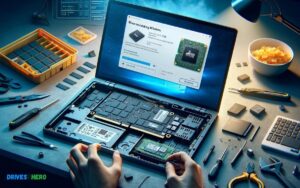
By installing the SSD yourself, you can save the costs associated with professional services. Follow these general steps:
- Back up your data to ensure no loss during the transition.
- Power off your computer and disconnect all cables before starting the installation.
- Ground yourself to prevent static damage to your SSD or other components.
- Open your computer case and locate the SSD slot or bay.
- Securely connect the new SSD to your motherboard and power supply.
- Close the case, reconnect your computer, and boot up to initialize the SSD.
Ensure that you’re comfortable with the process or seek assistance to avoid damage to your system or the new SSD.
Beyond The Upgrade: Maintenance And Maximizing Ssd Lifespan
Upgrading to a new Solid State Drive (SSD) can give your computer a significant performance boost, but the journey doesn’t end with the hardware swap. To truly get the most out of your investment, it’s important to maintain the SSD and ensure it is functioning at its peak capacity over the long term. Maintaining an SSD is different from traditional hard drives, and several best practices can help maximize its lifespan and performance.
Best Practices For Ssd Maintenance Post-upgrade
Once you’ve successfully installed your new SSD, following maintenance best practices can keep your drive running smoothly:
- Avoid defragmentation: Unlike HDDs, SSDs do not benefit from defragmentation and it can actually reduce their lifespan.
- Keep your firmware updated: Manufacturers release firmware updates that can enhance performance and reliability.
- Monitor your drive’s health: Use software tools to keep an eye on the drive’s health and performance metrics.
- Manage your storage effectively: Ensure you have enough free space as SSDs can slow down when they’re near full capacity.
Software And Configuration Tweaks To Optimize Performance
Beyond physical maintenance, software and configuration tweaks can optimize your SSD’s performance:
- Enable TRIM: This command helps the operating system know which data blocks are no longer in use, making write operations more efficient.
- Adjust power settings: High-performance power settings can help your SSD operate at its best.
- Manage paging and indexing: Adjust these settings sparingly, as excessive writes can shorten the lifespan of the SSD.
- Optimize OS configurations: Some operating systems have specific settings for SSDs that can help reduce wear and tear.
Planning For Future Upgrades And Tech Evolution
Keeping an eye on the horizon is key when it comes to technology. Here’s how to plan for future upgrades:
| Aspect | Action |
|---|---|
| Stay Informed | Regularly check for new SSD technologies and standards that may enhance performance or offer more storage. |
| Compatibility Check | Before any future upgrades, ensure new SSDs are compatible with your existing hardware and software. |
| Resale Value | Maintaining your SSD can help retain its value if you decide to sell it before upgrading to a newer model. |
| Environmental Factors | Consider the environmental impact of your tech consumption and look for ways to recycle or repurpose old SSDs. |
Conclusion
Upgrading your SSD can be a wise investment for better system performance. The cost varies by capacity, type, and installation fees but typically ranges from $100 to $500. Always factor in your needs and consult a professional for a personalized quote.
A fresh SSD could be the boost your device deserves.

Harold Williams is a senior writer and technical editor at Drives Hero with 20+ years of experience in IT administration. He specializes in storage systems, SSD reviews, and performance testing, bringing real-world insight to every guide.