Best Drive Caddies for Repurposing Old Laptop Hard Drives
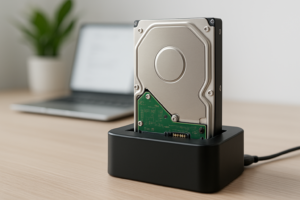
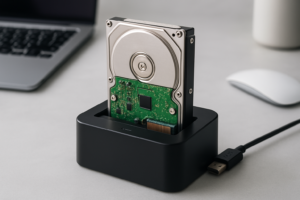
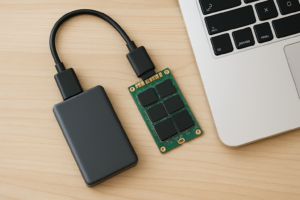
Somewhere in your desk drawer or closet, there’s an old laptop with a perfectly good hard drive sitting inside it. Maybe you upgraded to a newer machine, or maybe the laptop itself gave up, but the drive still works. Instead of letting that storage collect dust, you can pop it into an inexpensive enclosure and turn it into a portable external drive in about two minutes.
I’ve tested a bunch of 2.5-inch drive caddies over the years, and the difference between a good one and a cheap knockoff is bigger than you’d expect. A bad enclosure can overheat your drive, drop connections randomly, or just feel so flimsy that you’d never trust it with your data. This roundup covers the best options for giving your old laptop drive a second life, whether it’s a traditional spinning HDD or a 2.5-inch SATA SSD.
Why a Drive Caddy Is Worth Picking Up
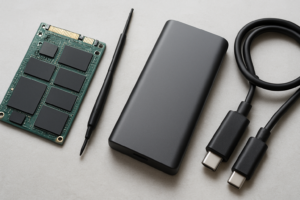
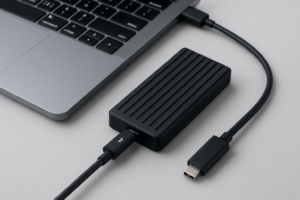
A 2.5-inch enclosure (also called a drive caddy) is basically a small shell with a SATA connector on the inside and a USB port on the outside. You slide your old laptop drive in, close it up, and plug it into any computer via USB. It’s genuinely one of the most useful and affordable tech accessories you can own.
Here’s what makes them practical. Old laptop drives are almost always 2.5-inch SATA, which is a universal standard. A single enclosure will work with any 2.5-inch drive you throw at it, whether it’s a 250GB spinning disk from 2012 or a 2TB SATA SSD you pulled from a recent build. You can keep one enclosure around and swap drives in and out as needed.
If you’re sitting on an old 2.5-inch SSD, an enclosure can turn it into a surprisingly fast portable drive. For context on how the form factor compares to newer options, check out our M.2 vs 2.5-inch SSD comparison guide. And if you’re thinking about repurposing several old drives for network storage, our guide on building a budget home NAS for under competitively priced covers that path too.
What to Look for in a 2.5-Inch Enclosure
Not all drive caddies are created equal. Before I get into specific recommendations, here’s what actually matters when picking one out.
USB Interface: 3.0 vs 3.1 vs USB-C
USB 3.0 (5 Gbps) is the minimum you should accept. It’s more than fast enough for spinning hard drives, which typically max out around 100-120 MB/s. If you’re housing a SATA SSD, you’ll want USB 3.1 Gen 2 (10 Gbps) to avoid bottlenecking the drive’s potential speeds of around 500-550 MB/s.
USB-C connectors are becoming the standard and are more durable than Micro-B ports, which were notorious for wearing out over time. If your computer has USB-C, get a USB-C enclosure. Most come with both USB-C to C and USB-C to A cables, so you’re covered either way.
Tool-Free vs Screw-Down Design
Tool-free enclosures use a slide-in or snap-together design. They’re faster to set up and make it easy to swap drives. Screw-down designs hold the drive more securely, which matters if you plan to carry the drive around in a bag. For most people, tool-free is the better choice.
Build Material
Plastic enclosures are lighter and cheaper. Aluminum enclosures act as a heatsink, pulling heat away from the drive. If you’re enclosing a spinning HDD that you’ll use for occasional backups, plastic is fine. For an SSD that will see regular use, aluminum is worth the slight premium because heat is one of the factors that can slow SSDs down over time.
UASP Support
USB Attached SCSI Protocol (UASP) improves transfer speeds, especially with SSDs. Any modern enclosure should support it, but double-check the specs on budget options. Without UASP, you may lose 20-30% of potential throughput.
Best Overall: Sabrent USB 3.0 2.5-Inch SATA Enclosure
The Sabrent 2.5-Inch SATA to USB 3.0 Enclosure is the most popular drive caddy on Amazon for a reason. It’s tool-free, with a simple slide-open design that lets you pop a drive in and close it up in about 30 seconds. The build quality is solid for the price, and it supports UASP for better SSD performance.
It connects via USB 3.0 Micro-B, which isn’t the newest connector, but it works reliably. I’ve used one of these for over three years with an old 500GB laptop drive as a backup disk, and it hasn’t missed a beat. The LED activity light is also helpful for confirming the drive is being read or written to.
One thing to know: the Sabrent enclosure is plastic, so it won’t help with heat dissipation as much as aluminum options. For spinning hard drives and light SSD use, this isn’t a concern. For heavy, sustained SSD transfers, consider an aluminum option instead.
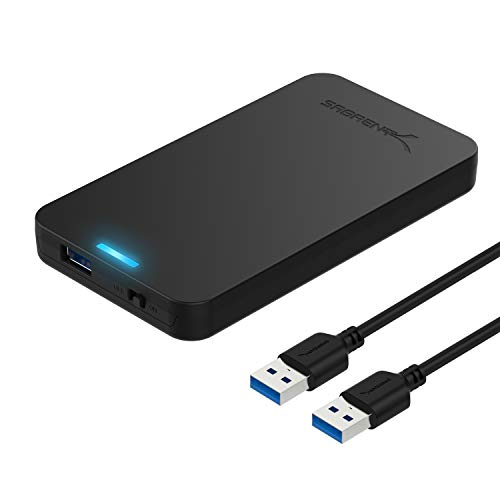
Sabrent 2.5-Inch SATA to USB 3.0 Enclosure
The most reliable budget-friendly tool-free enclosure, ideal for giving any old 2.5-inch laptop drive a second life.
Best USB-C Option: UGREEN 2.5-Inch USB-C Hard Drive Enclosure
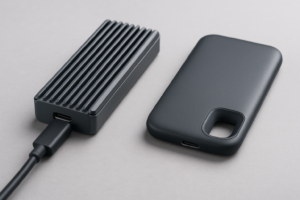
If you want a USB-C connection, the UGREEN 2.5-Inch USB-C Enclosure is my top pick. UGREEN has built a strong reputation for well-made accessories, and this enclosure doesn’t disappoint. It’s tool-free, supports UASP, and comes with both USB-C to C and USB-C to A cables in the box.
The enclosure itself is a slim, matte-finish design that feels more premium than its price suggests. It supports drives up to 6TB (though 2.5-inch drives rarely exceed 5TB) and works with both 7mm and 9.5mm thick drives, which is an important detail. Some older laptop hard drives are 9.5mm thick, and not every enclosure fits them.
Transfer speeds are excellent with SATA SSDs inside, hitting close to 500 MB/s in real-world tests. With a spinning HDD, you’ll see around 100-120 MB/s, which is the drive’s own limit, not the enclosure’s. This is a great choice if you’re planning to clone a hard drive to a new SSD and want to keep using the old drive externally.
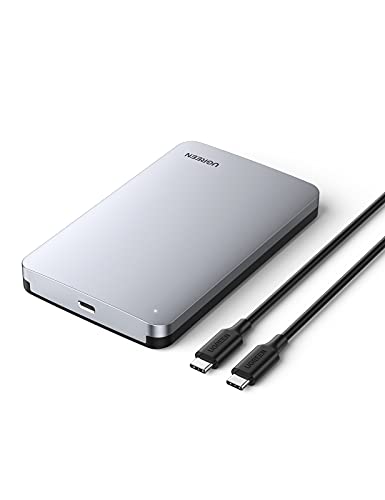
UGREEN 2.5-Inch USB-C Hard Drive Enclosure
A polished USB-C enclosure with dual cable support and compatibility with both 7mm and 9.5mm drives.
Best for Heat Management: Inateck Aluminum 2.5-Inch Enclosure
For those housing a 2.5-inch SSD that will see regular, heavy use, the Inateck Aluminum 2.5-Inch Enclosure is worth a look. The full aluminum body acts as a passive heatsink, keeping drive temperatures noticeably lower than plastic alternatives during sustained file transfers.
It uses a USB 3.0 connection and supports UASP. The tool-free design uses a removable top panel held in place by friction. It’s sturdy enough for desk use, though I’d add a small rubber band or piece of tape if you plan to toss it in a bag often. The aluminum construction adds a bit of weight compared to plastic enclosures, but we’re talking about the difference between a few ounces.
If you’ve been thinking about repurposing an old SSD as a portable travel drive, consider how this compares to purpose-built options in our roundup of the best portable SSDs for travel. A drive caddy with a good SSD won’t have the same rugged drop protection, but the performance will be comparable.
Best Budget Pick: ORICO 2.5-Inch USB 3.0 Enclosure
The ORICO 2.5-Inch USB 3.0 Enclosure is about as affordable as drive caddies get while still being genuinely usable. ORICO makes a huge range of storage accessories, and this particular model is their bread-and-butter 2.5-inch enclosure.
It’s a clear plastic, tool-free design that lets you see the drive inside, which is a neat touch if you’re into that sort of thing. More practically, the transparent shell makes it easy to confirm the drive is seated properly before you close it up. It supports UASP and handles both 7mm and 9.5mm drives.
I wouldn’t call the ORICO my first choice for daily-driver use, since the plastic feels a bit thin and the Micro-B connector is a bit recessed. But for occasional use (pulling files off an old drive, making a backup, testing a drive) it does the job perfectly. If you buy a multi-pack, you can label and store drives individually for organized archival storage.
Also Worth Considering
SSK Aluminum 2.5-Inch Enclosure
The SSK Aluminum Enclosure is a solid middle-ground option. It offers an aluminum body at a lower price point than some competitors and includes USB 3.0 with UASP. The build quality is good, though the included cable is a bit short. If you need an aluminum enclosure but want to keep costs down, this is a smart pick.
Sabrent USB 3.1 Type-C Enclosure
Sabrent also makes a USB 3.1 Gen 2 USB-C version of their popular enclosure. It’s the same tool-free design but with the faster USB 3.1 Gen 2 interface (10 Gbps). If you’re putting a SATA SSD inside and want every bit of speed, this is the Sabrent to get. It also avoids the aging Micro-B connector in favor of USB-C.
Sabrent 2.5-Inch SATA USB 3.1 Type-C Enclosure
Sabrent’s upgraded USB-C model with 10 Gbps speeds, perfect for getting full performance out of a 2.5-inch SATA SSD.
Tips for Getting the Most Out of Your Drive Caddy
Check Your Drive’s Health First
Before you invest any effort, make sure the old drive is actually healthy. Download CrystalDiskInfo (free) and check the S.M.A.R.T. status. If it shows “Caution” or “Bad,” the drive has issues and shouldn’t be trusted for important storage. If your old drive is making unusual noises, our guide on hard drive clicking sounds can help you figure out what’s going on.
Wipe the Drive Before Repurposing
If the drive came from a laptop you used personally, it still contains your old files, login credentials, and potentially sensitive data. Even formatting doesn’t fully remove everything. Before using the drive for something new (or giving it away), do a proper secure wipe to make sure nothing recoverable remains.
Format for Your Use Case
Once wiped, format the drive for your intended use. exFAT works if you’ll use it across both Windows and Mac. NTFS is best for Windows-only use with large files. APFS or HFS+ is the way to go for Mac-only use. The wrong format can cause the drive to appear invisible to your computer, which is a common issue we cover in our external drive not showing up troubleshooting guide.
Don’t Expect Miracles from Old Spinning Drives
A 5400 RPM laptop hard drive from 2014 is going to feel slow by modern standards. You’ll get maybe 80-100 MB/s sequential read speeds and much worse random performance. It’s fine for storing documents, photos, music, and video archives, but don’t plan on running applications from it or using it as a working drive for video editing.
Use It as a Dedicated Backup Drive
One of the best uses for a repurposed laptop drive in an enclosure is as a local backup disk. Plug it in once a week, run your backup, and unplug it. This “air-gapped” approach protects against ransomware and other threats that can affect always-connected drives. It also complements cloud backup nicely if you’re weighing the costs of cloud backup versus local storage.
Frequently Asked Questions
Can I use a 2.5-inch enclosure with an SSD, or just hard drives?
You can use either. Any 2.5-inch SATA drive, whether it’s a spinning HDD or a solid-state drive, fits in a standard 2.5-inch enclosure. SSDs will actually perform better in an enclosure than HDDs because they aren’t affected by vibration or movement. Just make sure the enclosure supports UASP if you want the best SSD speeds.
Will an enclosure work with a
James Kennedy is a writer and product researcher at Drives Hero with a background in IT administration and consulting. He has hands-on experience with storage, networking, and system performance, and regularly improves and optimizes his home networking setup.

James Kennedy is a writer and product researcher at Drives Hero with a background in IT administration and consulting. He has hands-on experience with storage, networking, and system performance, and regularly improves and optimizes his home networking setup.