What Is Cloud Sync and How Is It Different from Backup?
You’ve got Google Drive syncing your documents across three devices. Dropbox mirrors your photos between your laptop and phone. iCloud keeps everything in step with your iPad. You feel protected, like all your files live in multiple places. But here’s something that catches a lot of people off guard: none of that is actually a backup.
Cloud sync and cloud backup look similar on the surface. They both involve storing files on remote servers. They both let you access data from different locations. But they serve fundamentally different purposes, and confusing them can lead to catastrophic data loss. I’ve seen people learn this lesson the hard way, losing years of photos or critical work documents because they assumed their sync service had their back. Let’s break down exactly how these two things differ and why you need both.
What Cloud Sync Actually Does
Cloud sync keeps files identical across multiple devices in real time (or near real time). When you edit a spreadsheet on your work laptop, that change appears on your home desktop and your phone within seconds. The sync service acts as a central hub, pushing every modification to all connected devices.
Popular sync services include Google Drive, Dropbox, iCloud, and OneDrive. They’re designed for collaboration and convenience. You get a folder on your computer, and anything placed inside it gets mirrored to the cloud and every other device linked to your account.
This is incredibly useful for productivity. You can start a document at the office, continue editing it on the train from your tablet, and finish it at home. Sync services also make it easy to share files and collaborate with others. But convenience and protection are two very different things.
What Cloud Backup Actually Does
Cloud backup creates a separate, protected copy of your files that exists independently of your active data. A true backup service like Backblaze, Carbonite, or Acronis captures a snapshot of your data and preserves it, including version history. If something goes wrong with your original files, you can restore from a point in time before the problem occurred.
Backup services typically run in the background, continuously uploading new and changed files to encrypted remote storage. They don’t sync files between devices. They don’t replace your local copies. They simply create a safety net that sits quietly in the background until you need it.
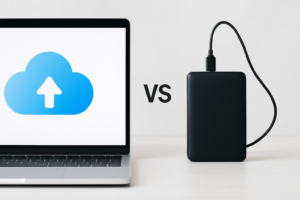
The key difference is intent. Sync is designed to make files available everywhere. Backup is designed to make files recoverable after something goes wrong.
Why Sync Is Not a Backup Strategy
This is where things get critical, and where most people’s understanding falls apart. Here are the specific scenarios where sync fails to protect your data:
Deletions Propagate Instantly
If you accidentally delete a file from your synced folder, that deletion propagates to every connected device and the cloud copy. The file vanishes everywhere. Some sync services offer a brief recovery window (Dropbox keeps deleted files for 30 days on paid plans), but this is a limited safety net, not a true backup. Many people don’t notice a missing file until well past that window.
Ransomware and Malware Spread Through Sync
Ransomware encrypts your files and renames them. Your sync service sees those encrypted files as “new changes” and dutifully syncs them to every connected device and the cloud. Within minutes, every copy of your data, on every device, is encrypted and useless. A proper backup with versioning lets you roll back to the state before the infection.
File Corruption Goes Everywhere
If a file becomes corrupted on one device, sync pushes that corrupted version everywhere. Database files, Outlook PST files, and large project files are particularly vulnerable to corruption. By the time you realize something is wrong, the corrupted version may have replaced every good copy you had.
Sync Only Covers Specific Folders
Most sync services only mirror the contents of a designated folder. Your operating system files, application settings, registry entries, and anything stored outside the sync folder remain completely unprotected. A full backup solution captures your entire system or at least all your data, not just one folder.
Account Compromises Affect Everything
If someone gains access to your cloud sync account, they can delete or modify everything, and those changes push to all your devices. A separate backup stored with different credentials provides an independent copy that remains safe even if your sync account is breached.
A Side-by-Side Comparison
To make the differences crystal clear:
- Purpose: Sync keeps files accessible across devices. Backup keeps files recoverable after data loss.
- Deletion behavior: Sync propagates deletions. Backup retains deleted files.
- Version history: Sync offers limited versioning (if any). Backup typically maintains extensive version history.
- Coverage: Sync covers one folder. Backup can cover your entire drive.
- Ransomware protection: Sync spreads the damage. Backup preserves clean copies.
- Restoration: Sync restores individual files (maybe). Backup can restore your entire system.
If you’re weighing your options between cloud storage and local storage for backup purposes, our cloud backup vs. local NAS cost comparison breaks down the financial picture in detail.
Building a Real Backup Strategy (The 3-2-1 Rule)
The gold standard in data protection is the 3-2-1 backup rule: keep three copies of your data, on two different types of media, with one copy stored offsite. Cloud sync counts as one of those copies at best, and only for the files in your sync folder.
A practical implementation looks like this:
- Copy 1: Your active files on your computer’s internal drive.
- Copy 2: A local backup on an external drive or NAS.
- Copy 3: A cloud backup with a dedicated service like Backblaze or Acronis.
Your sync service (Google Drive, Dropbox, etc.) still plays a role in your workflow for collaboration and accessibility. It just shouldn’t be counted as one of your backup copies.
Local Backup Options
For your local backup, an external hard drive is the simplest solution. A WD My Passport 4TB gives you plenty of room for full system images and file-level backups. If you want faster backup and restore speeds, a portable SSD like those in our best portable SSDs roundup makes the process significantly quicker.
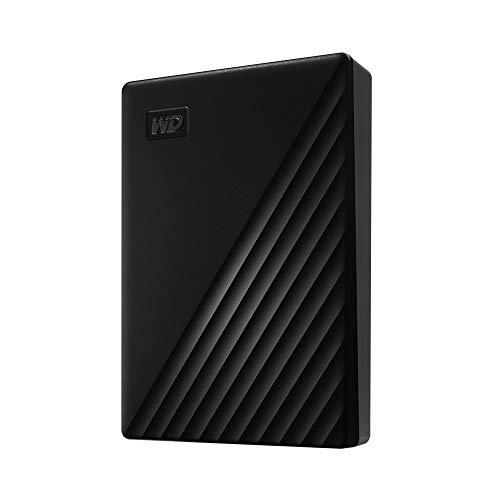
WD My Passport 4TB External Hard Drive
Reliable and compact external drive with enough capacity for full system backups and extensive file archives
For households or small offices with multiple computers, a NAS (Network Attached Storage) device is a better fit. A two-bay NAS running in RAID 1 gives you a mirrored local backup that protects against a single drive failure. If you’re curious about the differences between RAID setups, our RAID 0 vs. RAID 1 guide explains which configuration makes sense for backup versus performance. You can also follow our guide to setting up automated NAS backups to get everything running in about half an hour.
Cloud Backup Services Worth Considering
For the offsite cloud backup portion, these are the services I recommend most:
Backblaze Personal Backup is the simplest option. It backs up everything on your computer automatically, with unlimited storage. There’s no need to select folders or configure anything complex. It just works.
Acronis Cyber Protect Home Office (formerly Acronis True Image) is the most feature-rich option, offering full disk imaging, ransomware protection, and both local and cloud backup in a single tool. If you want the maximum amount of control and flexibility, this is it.
IDrive is a strong middle-ground option that supports backing up multiple devices (including phones) to a single account. It also supports NAS backup, which is a rare feature for consumer-grade cloud backup services.
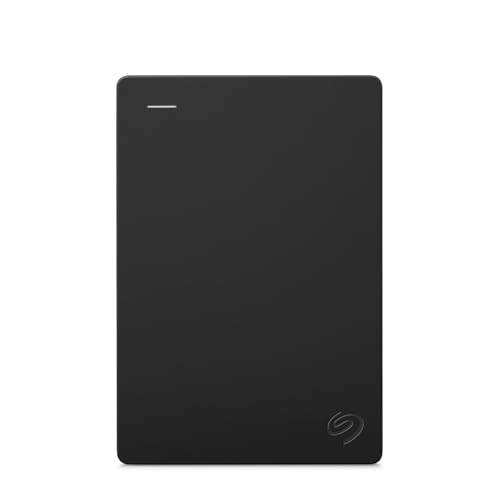
Seagate Backup Plus Portable 5TB
High-capacity portable drive that pairs well with cloud backup for a complete 3-2-1 strategy
What About Sync Services with Versioning?
Some people argue that sync services with version history (like Dropbox’s 180-day version history on Professional plans) are “good enough” as a backup. There’s a kernel of truth here, but it’s not the full picture.
Version history in a sync service can help you recover a previous version of a file you accidentally modified. That’s valuable. But it still doesn’t address the bigger gaps: limited folder coverage, no system image capability, no protection for files outside the sync folder, and vulnerability to account-level compromises.
Think of sync versioning as a helpful bonus feature, not a substitute for a dedicated backup strategy. It’s like having a spare tire in your trunk. Useful in a pinch, but you wouldn’t call it a replacement for regular tire maintenance.
Practical Steps to Take Right Now
If you’ve been relying solely on cloud sync for data protection, here’s what I’d recommend doing this week:
- Audit your sync coverage. Open your sync app’s settings and check exactly which folders are being synced. You’ll likely find that large portions of your data live outside those folders.
- Install a dedicated backup tool. On Windows, even the built-in File History feature is better than nothing. On Mac, Time Machine with an external drive is a solid starting point. For the best protection, add a cloud backup service like Backblaze.
- Set up a local backup drive. Buy an external drive with at least twice the capacity of your internal drive. Plug it in, configure your backup software, and let it run. If your current drive ever fails, you’ll be glad you did. We’ve covered the painful reality of trying to recover data from a failed drive, and prevention is always easier than recovery.
- Test your backups. A backup you’ve never tested is a backup you can’t trust. Try restoring a few files from both your local and cloud backups to make sure the process works.
- Separate your credentials. Use a different password (and ideally a different email) for your backup service than for your sync service. If one account is compromised, the other remains intact.
Frequently Asked Questions
Can I use Google Drive or Dropbox as my only backup?
No, and I’d strongly advise against it. Sync services like Google Drive and Dropbox are designed for file accessibility, not data protection. Deletions, file corruption, and ransomware all propagate through sync. You need a dedicated backup solution, either local, cloud-based, or both, to truly protect your files. Sync can be part of your overall data strategy, but it should never be the only layer of protection.
Do cloud backup services slow down my internet?
Most cloud backup services, including Backblaze and IDrive, let you throttle upload speeds so they don’t interfere with your regular internet usage. The initial backup can take several days or even weeks depending on how much data you have and your upload speed. After that initial upload, only new and changed files get backed up, which usually requires minimal bandwidth. You can also schedule backups to run overnight when you’re not using your connection.
Is a NAS the same as a backup?
A NAS can serve as a backup destination, but simply storing files on a NAS isn’t automatically a backup. If you manually move files to a NAS and delete them from your computer, you just have one copy in a different location. A proper NAS backup setup involves automated software that copies your data on a schedule and retains previous versions. A NAS also doesn’t protect against fires, floods, or theft, which is why pairing it with an offsite or cloud backup completes the 3-2-1 strategy.
What happens to my synced files if I cancel my sync subscription?
This depends on the service. With most providers, your files remain on your local device but are removed from the cloud after a grace period. If your local storage doesn’t have enough space to hold all the files that were stored in the cloud, you could lose data. Some services will reduce your storage to a free tier and lock access to files exceeding that limit. Always download everything locally before canceling, and make sure you have a proper backup in place before making any changes to your subscription.
This article contains affiliate links. We may earn a small commission at no extra cost to you.

James Kennedy is a writer and product researcher at Drives Hero with a background in IT administration and consulting. He has hands-on experience with storage, networking, and system performance, and regularly improves and optimizes his home networking setup.